Intelligence Commerce Suite (ICS) Functional Document
This document describes the functional capabilities of the Intelligence Commerce Suite (ICS) — how each persona navigates the platform and performs day-to-day tasks across agents, knowledge, prediction, language, connectors, and administration. It is intended for Product Owners, Business Analysts, Solution Architects, and Client Stakeholders evaluating or implementing ICS.
1. Overview
What is the Intelligence Commerce Suite?
The Intelligence Commerce Suite (ICS) is an AI-powered commerce platform that helps retail and e-commerce businesses run intelligent, automated operations — without building AI infrastructure from scratch.
Businesses today use multiple commerce platforms (Shopify, Salesforce, Equinox) and generate vast amounts of data — product information, customer orders, return policies, sales forecasts. But turning that data into real-time, intelligent actions is slow, manual, and fragmented.
ICS solves this by providing:
- A single place to build and run AI agents that act on your commerce systems automatically
- A Knowledge base where you upload your policies, documents, and architecture — and agents can use that knowledge when responding to customers or making decisions
- Predictive analytics that forecast demand, detect churn, and recommend actions using your own data
- Connectors to link your Shopify, Salesforce, or Equinox accounts — so agents can read and update real data on your behalf
- Strict data isolation so each business’s data, AI spend, and access controls are completely separate
Who is ICS for?
| Who | What they do on ICS |
|---|---|
| Platform Operator (Infosys / EQPLAT team) | Sets up organisations, manages the platform catalog of pre-built agents and models |
| Organisation Admin | Manages their company’s account, sets up tenants, invites admins, controls costs |
| Tenant Admin | Manages a business unit or store — connects to Shopify/Salesforce, creates agents, manages users |
| Business User | Day-to-day commerce operator (merchandiser, customer service rep, analyst) — uses agents and views dashboards |
ICS is delivered through a single web application. It is organised into purpose-built zones for each capability, all under the same login.
2. Glossary
| Term | What it means |
|---|---|
| Agent | An AI assistant configured to perform specific commerce tasks — it can read data, make decisions, and take actions on your systems based on instructions you define. |
| Workflow | A multi-step automated process built from a sequence of agent, connector, and decision steps — like a flowchart that runs automatically. |
| Trigger | The event that starts an agent or workflow — can be a schedule (e.g., every Monday at 9 AM), a commerce event (e.g., a customer submits a return), or a manual button click. |
| HITL (Human-in-the-Loop) | A safety feature where an agent pauses and waits for a human to review and approve an action before it proceeds. |
| Connector | A link between ICS and an external commerce platform (Shopify, Salesforce, Equinox). Connectors let agents read and update data in those systems. |
| Domain verb | A standard action an agent can perform (e.g., product.update, order.read). Domain verbs are platform-agnostic — an agent doesn’t need to know whether it’s talking to Shopify or Salesforce. |
| Knowledge base | A repository of your organisation’s documents (policies, SOPs, architecture docs) that has been processed and made searchable for agents and users. |
| Organisation (Org) | A company or enterprise account on ICS. Each org has its own users, data, and settings, completely isolated from other orgs. |
| Tenant | A business unit or store within an organisation. A large retailer might have one tenant per brand or region. |
| Instance Admin | A platform-level administrator (Infosys/EQPLAT operator) who manages all organisations on the platform. |
| Org Admin | An administrator for a single organisation — manages tenants, users, and org-wide settings. |
| Tenant Admin | An administrator for a single tenant — connects commerce systems, creates agents, manages team access. |
| Business User | A day-to-day user within a tenant — uses agents, views dashboards, and acts on HITL approvals. |
| Role | A set of permissions assigned to a user that controls what they can see and do in ICS. |
| Domain tag | A label on a role (e.g., product, order, pricing) that restricts which business areas a user can access. |
| OOB (Out-of-the-Box) | Pre-built agents, models, or connectors published by the platform team and available to all organisations. |
| Playground | A testing area where you can run an agent or model interactively with real data, before making it live. |
| Run | A single execution of an agent or workflow. Each run has a lifecycle: pending → running → succeeded / failed / interrupted. |
| Version | A saved, frozen snapshot of an agent’s or workflow’s configuration. Once published, a version cannot be changed — you open a new version to make updates. |
| LLM (Large Language Model) | The AI model that powers agent responses and knowledge extraction (e.g., Claude Sonnet 5). |
| SLM (Small Language Model) | A smaller, fine-tuned model trained on your specific domain data for faster, more targeted responses. |
| Audit log | A tamper-proof record of every significant action on the platform — who did what, when. |
3. User Roles & Access Levels
ICS has four user tiers. Each tier includes all the capabilities of the tier below it.
Instance Admin ▶ manages all organisations on the platform
│
└── Org Admin ▶ manages one organisation and all its tenants
│
└── Tenant Admin ▶ manages one or more tenants within the org
│
└── Business User ▶ works within one tenant, in specific business areas
| Capability | Instance Admin | Org Admin | Tenant Admin | Business User |
|---|---|---|---|---|
| Provision a new organisation | ✅ | — | — | — |
| Provision a new tenant | ✅ | ✅ | — | — |
| Invite users | ✅ | ✅ | ✅ (tenant) | — |
| Manage roles & permissions | ✅ | ✅ | ✅ (tenant) | — |
| Publish OOB agents/models to catalog | ✅ | — | — | — |
| Create & publish agents | ✅ | ✅ | ✅ | — |
| Run / chat with agents | ✅ | ✅ | ✅ | ✅ (permitted domains) |
| Approve HITL decisions | ✅ | ✅ | ✅ | ✅ (if subscribed) |
| Add / configure connectors | ✅ | ✅ | ✅ | — |
| Upload knowledge documents | ✅ | ✅ | ✅ | — |
| Review knowledge extractions | ✅ | ✅ | ✅ | — |
| Create prediction projects | ✅ | ✅ | ✅ | — |
| View cost dashboard | ✅ | ✅ | ✅ | — |
| View audit trail | ✅ | ✅ | ✅ (own tenant) | — |
4. Persona-wise Navigation & Feature Access
This section describes what each user persona sees and can do after logging in — organised by the left-side navigation menu visible to their role.
4.1 Instance Admin
The Instance Admin is the platform operator (Infosys) with full visibility across all organisations and tenants on the platform.
Left Nav: Dashboard · Organizations · Catalog · Connectors · Members & Access · Audit · Cost Dashboard
4.1.1 Dashboard
Once login, the instance admin will land on the dashboard where they will be able to view data in the form of KPIs, existing organization, etc.
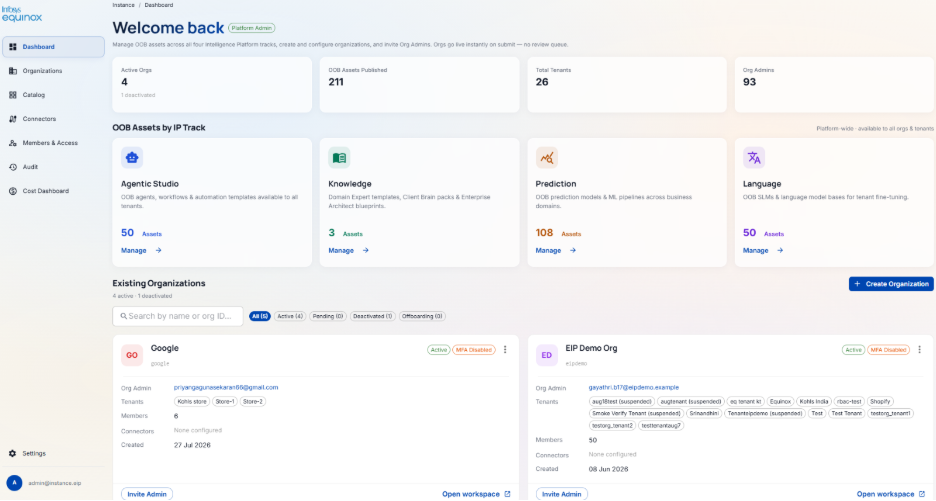
KPI Cards (top row)
| KPI | What it shows |
|---|---|
| Active Orgs | Total active organisations on the platform (deactivated count shown below the number) |
| OOB Assets Published | Total OOB assets published across all platform tracks |
| Total Tenants | Total tenant count across all organisations |
| Org Admins | Total number of Org Admin users across all organisations |
OOB Assets by IP Track
Four track cards are displayed, each showing the asset count, description, and a Manage → link. Clicking Manage → on any track card redirects the user to the Catalog menu, filtered to that track’s tab.
| Track | Description |
|---|---|
| Agentic Studio | OOB agents, workflows & automation templates available to all tenants |
| Knowledge | Domain Expert templates, Client Brain packs & Enterprise Architect blueprints |
| Prediction | OOB prediction models & ML pipelines across business domains |
| Language | OOB SLMs & language model bases for tenant fine-tuning |
Existing Organizations
Lists all provisioned organisations in card view with filter tabs (All · Active · Pending · Deactivated · Offboarding),
Search bar, and a + Create Organization button.
Each org card shows: name, slug, Org Admin email, Tenants (as tags), Members count, Connections, and Created date.
| Card Action | Description |
|---|---|
| Invite Admin | Sends an invitation to a new Org Admin for that organisation |
| Open workspace → | Opens the selected organisation’s workspace — redirects the Instance Admin into the Org Admin view for that org |
4.1.2 Organizations
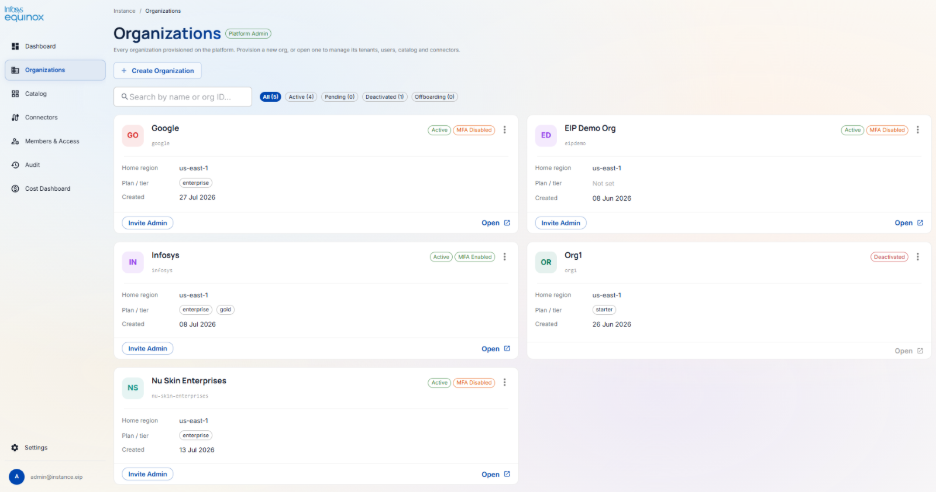
Organisations displayed in card view showing: name, status badge (Active / Deactivated + MFA Enabled / Disabled), Home region, Plan / tier, and Created date.
Filter tabs: All · Active · Pending · Deactivated · Offboarding. Search by name or org ID.
| Action | Description |
|---|---|
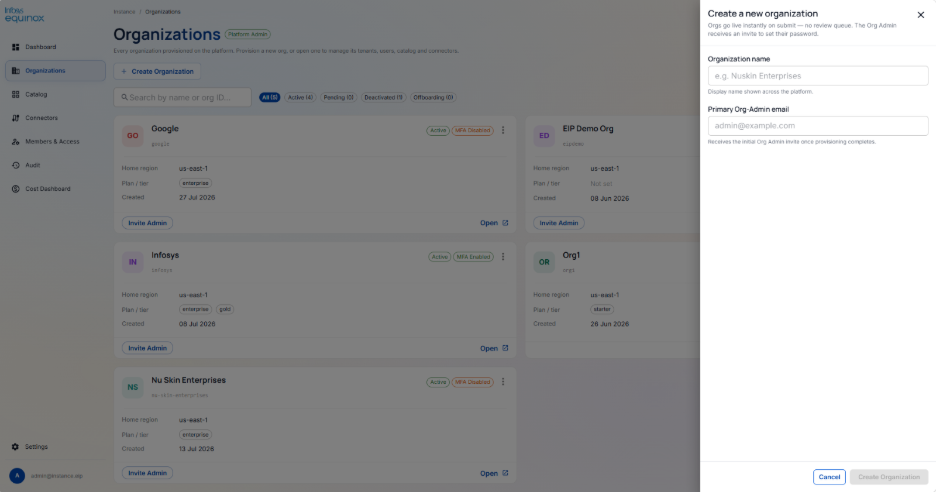
| Create Organization | Opens a slide-over panel with: Organization name (display name shown across the platform) and Primary Org-Admin email (receives the initial invite to set their password). Note: “Orgs go live instantly on submit — no review queue.” |
| Invite Admin | Send an Org Admin invitation to the selected organisation |
| Open | Opens the organisation’s full workspace to manage its tenants, users, catalog, and connectors |
How to: Organisation & Tenant Management
Purpose
The foundation of the platform. It controls how companies, business units, and users are set up, structured, and isolated from each other. Everything else on ICS depends on having an organisation and tenant correctly provisioned.
Instance Admin — creates orgs · Org Admin — creates tenants & users · Tenant Admin — manages tenant users
Creating an Organisation
Purpose
Set up a new company account on ICS, completely isolated from all other companies.
⚠ Prerequisites
- You must be an Instance Admin
- First org admin’s email address and display name must be available
- The organisation name (identifier) must be decided
Steps
- The platform creates a dedicated identity pool for the organisation
- Reserved admin roles (
org-admin,tenant-admin) are automatically created - The first org admin is invited and granted full org-admin access
- The org admin receives an email and sets their password on first login
Creating a Tenant
Purpose
Create a business unit or store within an organisation — e.g., a specific brand, region, or channel. Each tenant has its own agents, connectors, knowledge bases, and users.
⚠ Prerequisites
- You must be an Org Admin
- The organisation must already be provisioned
- First tenant admin’s email address (optional — can add one later)
Steps
- Go to Organisation → Tenants → Create Tenant
- A dedicated data partition is created for the tenant (all data is isolated)
- If a first admin email is supplied, that person is invited and granted tenant-admin access
- An AI cost allocation (virtual key) is automatically created so the tenant’s AI spend is tracked separately
Inviting a User
Purpose
Add a team member to an organisation or tenant with an appropriate role.
⚠ Prerequisites
- You must be an Org Admin (any user) or Tenant Admin (tenant-scoped users only)
- The role you want to assign must already exist (see the Members & Access section)
- The user’s email address must be known and unique within the organisation
Steps
- Go to Organisation → Users → Invite User
- Enter the user’s email address and display name
- Select the role(s) and scope (org-wide or specific tenant)
- The user receives an invitation email and sets their own password on first login
Offboarding a User or Tenant
Purpose
Remove access for a departing team member or decommission a tenant that is no longer needed.
⚠ Prerequisites
- You must be an Org Admin
- For tenant offboarding: all active agent runs should be stopped first
- Data export must be completed before hard deletion (GDPR compliance)
Tenant offboarding follows a staged process: access revoked → data exported → data retained for the configured period → data permanently deleted.
4.1.3 Catalog
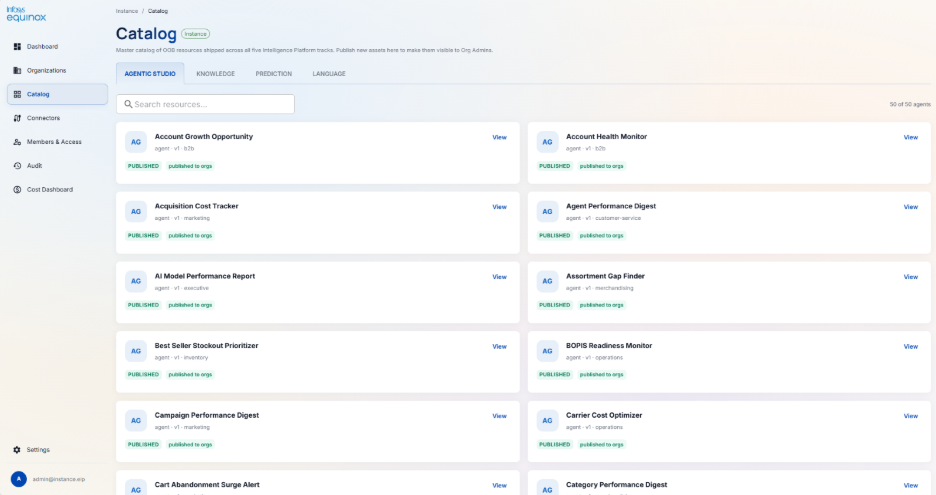
The Catalog page is organized into four tabs.
Each asset card has a View link that opens a detail page showing: metadata summary cards (Category · Type · Domain · Status), an Asset Details table (Asset ID, Name, Category, Type, Domain, Scope, Status, Description), and a Features list.
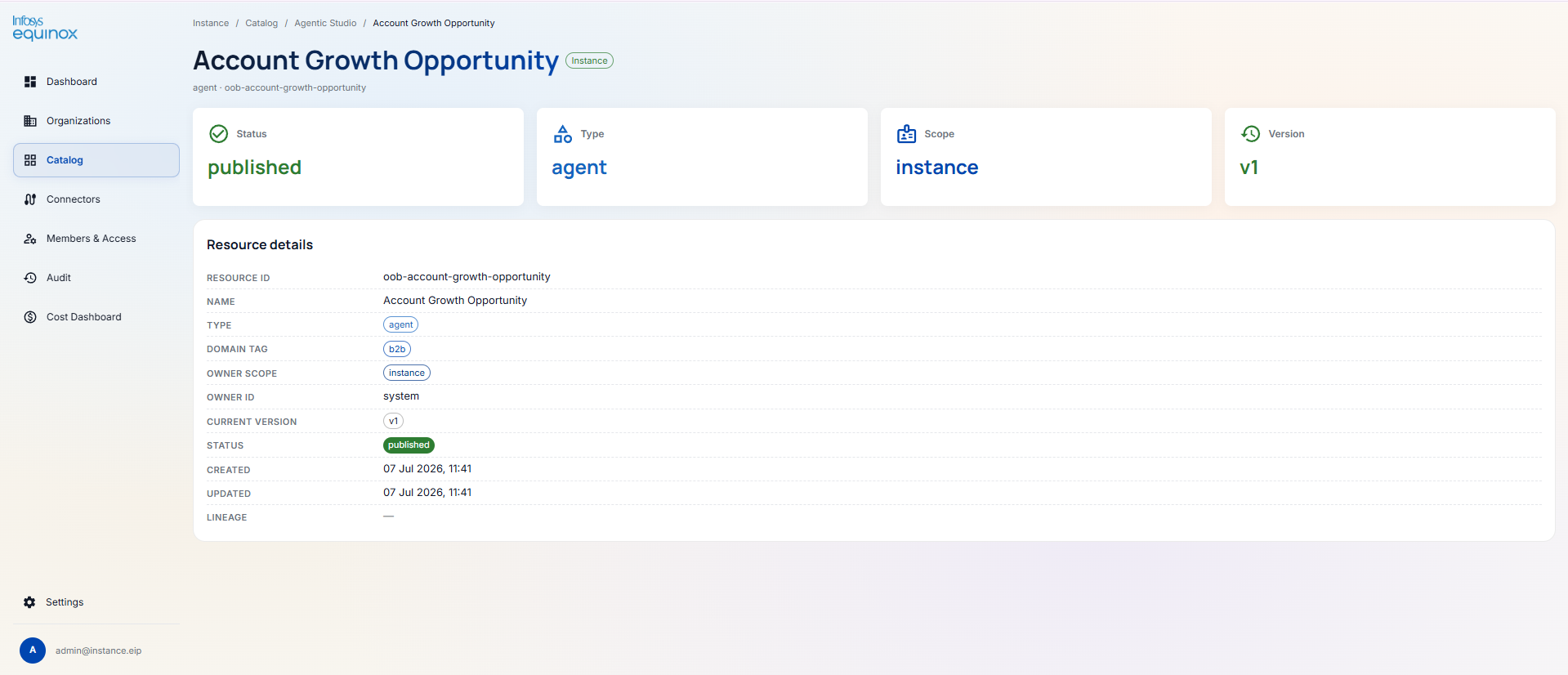
Agentic Studio tab
Lists all OOB agents in card view. Each card shows: name, type (agent), version (e.g., v1), category (e.g., b2b, marketing, customer-service, merchandising), and status badges (PUBLISHED · published to orgs). Click View for full agent details and feature capabilities.
Knowledge tab
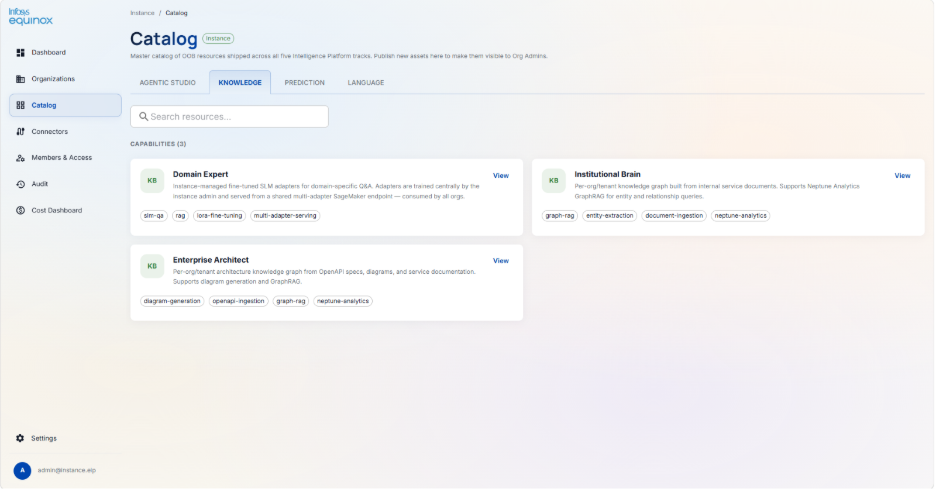
Lists the three platform-wide knowledge capabilities:
| Capability | Description | Feature tags |
|---|---|---|
| Domain Expert | Instance-managed fine-tuned SLM adapters for domain-specific Q&A. Trained centrally and served from a shared multi-adapter SageMaker endpoint — consumed by all orgs. | slm-qa, rag, lora-fine-tuning, multi-adapter-serving |
| Institutional Brain | Per-org/tenant knowledge graph built from internal service documents. Supports Neptune Analytics GraphRAG for entity and relationship queries. | graph-rag, entity-extraction, document-ingestion, neptune-analytics |
| Enterprise Architect | Per-org/tenant architecture knowledge graph from OpenAPI specs, diagrams, and service documentation. Supports diagram generation and GraphRAG. | diagram-generation, openapi-ingestion, graph-rag, neptune-analytics |
Prediction tab
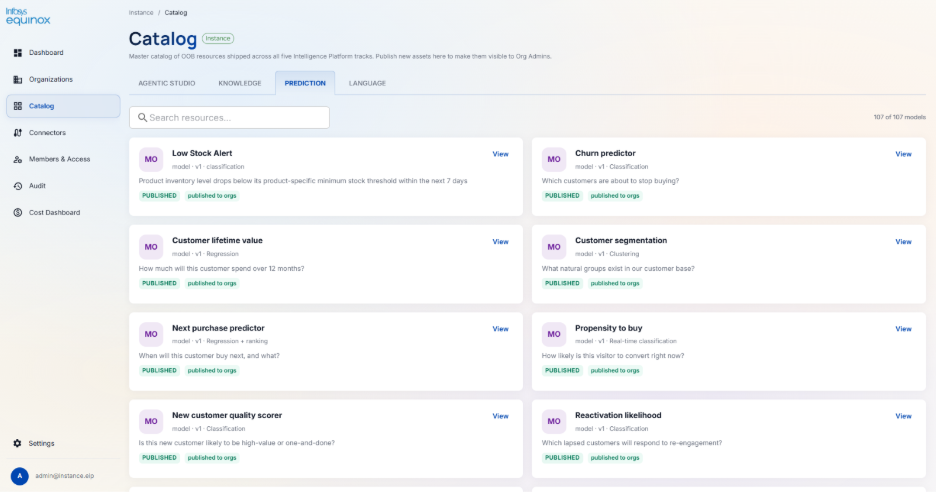
Lists OOB prediction models and ML pipelines available across business domains.
Use cases include customer churn prediction, demand forecasting, return rate prediction, product lifecycle classification, and customer segmentation.
Each model card shows name, version, category, and publication status.
Click View to see model details and supported features.
Language tab
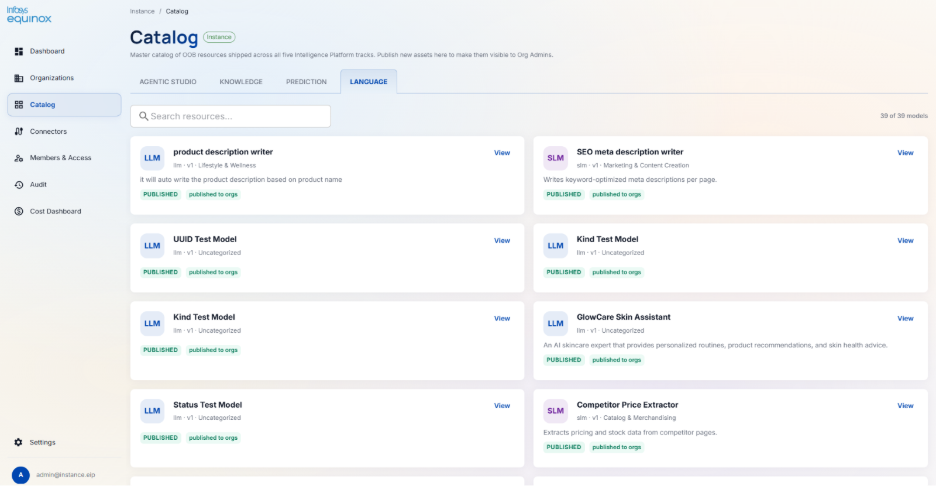
Lists all LLM and SLM models available on the platform.
Each card shows: name, type (
llmorslm), version, category, and status badges (PUBLISHED · published to orgs).Click View to see full model details.
4.1.4 Connectors
The instance admin will be able to view all connectors on this page.
They will also be able to add new connectors by providing the necessary information.
| Action | Description |
|---|---|
| View registered connectors | Browse all platform-wide connector types (shows empty state “No connectors found” when none are registered) |
| Register a new connector | Add a new connector type to the platform registry so Tenant Admins can create connections to it |
| Manage connector | Edit or deactivate an existing registered connector type |
4.1.5 Members & Access
From this page, instance admin will be able to provide access to the members.
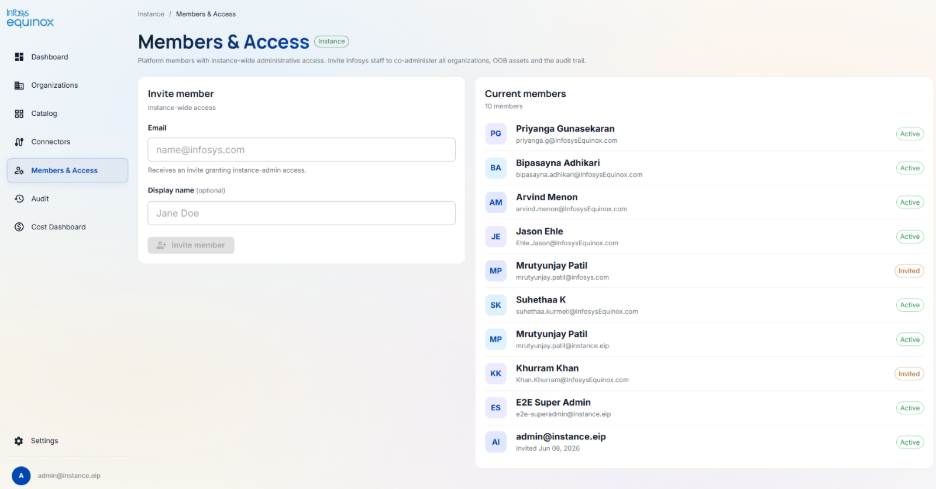
| Panel | What it contains |
|---|---|
| Invite member (left) | Email field + optional Display name field. Submitting sends an invite granting instance-admin access. Note: “Receives an invite granting instance-admin access.” |
| Current members (right) | List of all existing Instance Admins with name, email address, and status (Active / Invited) |
How to: Access Control (RBAC)
Purpose
Ensures that each person on ICS can only see and do what is appropriate for their role. Prevents unauthorised access, enforces business boundaries, and makes it easy to grant or revoke access as teams change.
Org Admin — creates roles, manages org-wide access · Tenant Admin — manages tenant access · Instance Admin — manages platform roles
Creating a Role
Purpose
Define a new set of permissions for a category of user — e.g., a “Merchandiser” who can only work with products and pricing.
⚠ Prerequisites
- You must be an Org Admin
- Decide which business domains this role grants access to (e.g.,
product,order,pricing,inventory,customer)
Steps
- Go to Organisation → Roles → Create Role
- Enter a name and description
- Select the business domains this role grants access to
- Save — the role is now available to assign to users in any tenant within the org
Admin roles (org-admin, tenant-admin) are automatically created when an org or tenant is provisioned — you do not create these manually. You only create roles for business users.
Assigning a Role to a User
Purpose
Grant a user access to specific business areas within a tenant.
⚠ Prerequisites
- The role must already exist (the Members & Access section.1)
- The user must already be invited (the Organizations section.3)
- You must be an Org Admin (any role) or Tenant Admin (tenant-scoped roles only)
A user can hold multiple roles across multiple tenants — e.g., Tenant Admin in one tenant and Merchandiser in another, under the same login.
Understanding Domain-Based Access
| User type | Can access |
|---|---|
Business User with product tag | Products only — cannot perform order or pricing operations |
Business User with product + order tags | Products and orders |
| Tenant Admin | All domains in their tenant — bypasses domain restrictions |
| Org Admin | All domains in all tenants in their org |
| Instance Admin | All domains across all orgs |
4.1.6 Audit
The audit page gives the instance admin an overview on what actions/ activity has been done and by whom.
They will be able to select the date range and get the audit logs.
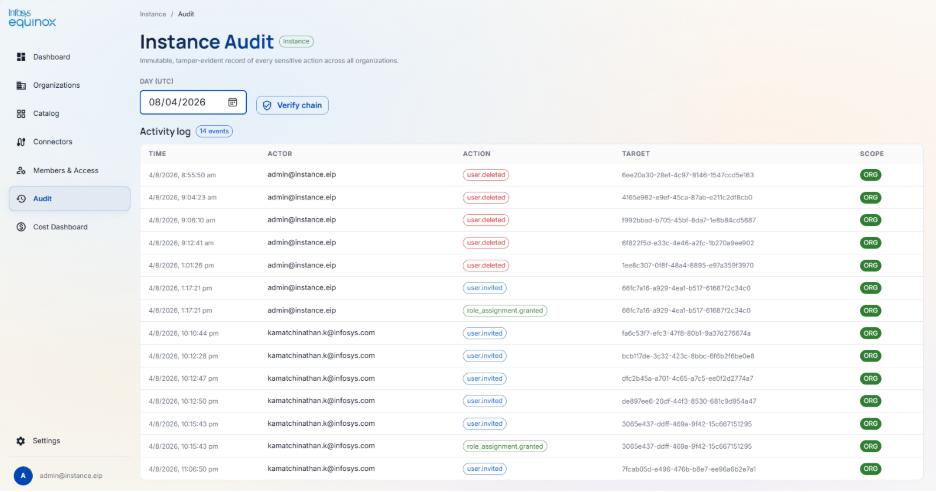
| Element | Detail |
|---|---|
| Date picker | Select a specific day to view its activity log |
| Verify chain | Validates the cryptographic hash chain for the selected date to confirm the log has not been tampered with |
| Activity log table | Columns: TIME · ACTOR · ACTION · TARGET · SCOPE. Example event types: role.created, role_assignment.granted, user.invited, tenant.provisioned, user.deleted. Scope column shows the organisational scope (e.g., ORG). Paginated (configurable rows per page). |
How to: Audit
Purpose
Provides a tamper-proof record of every significant action taken on the platform — answering “Who did what, and when?” for compliance, security reviews, and operational troubleshooting. The audit log cannot be altered retroactively — any tampering would be immediately detectable.
Instance Admin — all organisations · Org Admin — entire organisation · Tenant Admin — own tenant only
Viewing the Audit Trail
⚠ Prerequisites
- You must be a Tenant Admin, Org Admin, or Instance Admin
| Category | What is logged |
|---|---|
| User management | User invited, password set, role granted, role revoked |
| Agent Studio | Agent created, published, deleted; run started, completed, cancelled; HITL approved or rejected; connector action invoked |
| Knowledge | Document uploaded, batch approved, content published, specialisation trained |
| Prediction | Model trained, model deployed, budget set, idle endpoint reclaimed |
| Organisation | Tenant provisioned, org provisioned, user offboarded |
Not visible: The content of documents or agent conversations (only the fact that an action happened is recorded). Credentials and secrets never appear anywhere in the platform.
4.1.7 Cost Dashboard
Displays the cost impact based on real-time data.
Instance admin will be able to apply filters for: Organisation · Tenant · Track · User (all dropdowns).
Date range selector top-right. Export and Refresh buttons.
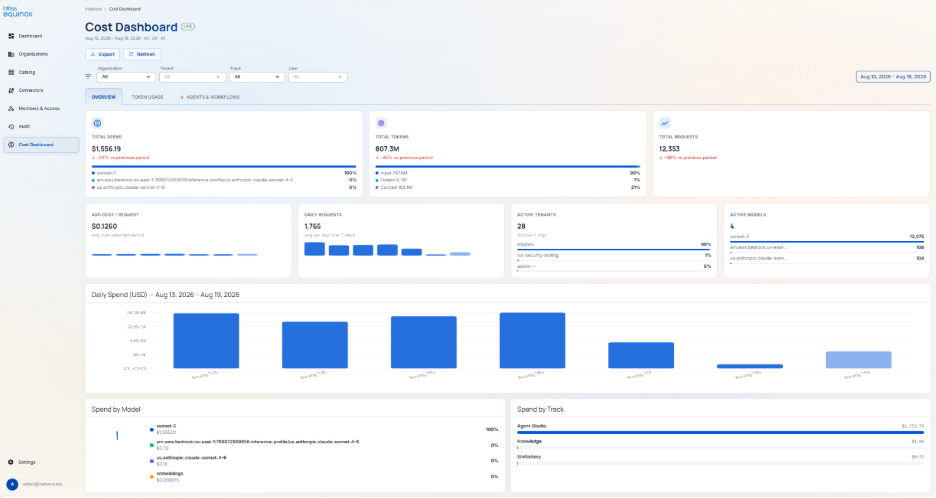
Overview tab
| KPI / Widget | What it shows |
|---|---|
| Total Spend | Total AI spend for the period with % change vs previous period; model-level breakdown |
| Total Tokens | Total tokens consumed with % change; input / output / cached breakdown |
| Total Requests | Total API requests with % change vs previous period |
| Avg Cost / Request | Average cost per request over the selected period with sparkline trend |
| Daily Requests | Average requests per day with daily bar chart |
| Active Tenants | Count of active tenants (across orgs) with per-tenant usage bar breakdown |
| Active Models | Count of distinct models in use with request count per model |
| Daily Spend chart | Bar chart of total spend per day across the selected period |
| Spend by Model | Pie / list breakdown of spend by model name |
| Spend by Track | Horizontal bar chart showing spend by platform track (Agent-Studio, Knowledge, Slmfactory, etc.) |
| Tenant Cost Breakdown | Table — columns: TENANT · TRACK · MODEL · TOTAL TOKENS · COST · REQUESTS |
Token Usage tab
| KPI / Widget | What it shows |
|---|---|
| Input Tokens | Total input tokens for the period with % change vs last period |
| Output Tokens | Total output tokens for the period with % change vs last period |
| Cached / Embedding | Total cached tokens and embedding usage |
| Daily Token Consumption chart | Overlaid line chart comparing Input (M tokens) vs Output (M tokens) per day |
| Token Usage by Tenant & Model | Table — columns: TENANT · MODEL · INPUT TOKENS · OUTPUT TOKENS · TOTAL · COST · AVG LATENCY |
Agents & Workflows tab
| KPI / Widget | What it shows |
|---|---|
| Total Agent Spend | Total cost from agent runs with % change and active agents count |
| Total Workflow Spend | Total cost from workflow runs with % change and active workflows count |
| Avg Cost / Agent Run | Average cost per agent execution with sparkline trend |
| Agent Invocations | Total agent invocation count with % change vs last period |
| Cost Leaderboard | Ranked list of agents and workflows by total spend this period; toggle between Agents and Workflows view; shows name, track, runs, cost, % trend |
| Daily Spend — Top 4 Resources | Line chart showing daily spend trends for the top-spending agents over the period |
| Spend by Agent Type | Pie chart split between Agents and Workflows |
| Agent / Workflow Detail | Full detail table — columns: AGENT/WORKFLOW · TYPE · TRACK · RUNS · TOKENS · COST · AVG LATENCY · % TREND |
How to: Cost Dashboard
Purpose
Gives organisation and instance admins visibility into how much AI spend is being consumed — broken down by tenant, capability, model, and project. Lets org admins set monthly budget limits and alerts so costs stay within expected ranges.
Instance Admin — platform-wide token cost view · Org Admin — org-level view; sets budgets · Tenant Admin — cost trends for their tenant
Viewing AI Token Costs
Purpose
Understand how much your organisation is spending on AI model calls for agents, knowledge queries, and other language model usage.
⚠ Prerequisites
- You must be an Org Admin or Instance Admin
- The platform tracks costs automatically — no setup required
Setting a Budget
Purpose
Set a monthly spending limit for your organisation’s prediction compute. The platform will alert you when you approach the limit.
⚠ Prerequisites
- You must be an Org Admin
Steps
- Go to Prediction → Cost Analysis → Budget → Set Budget
- Enter the monthly budget amount
- Set an alert threshold (e.g., alert at 80% of budget)
- Save — you will be notified when spend approaches the threshold
Managing Idle Endpoints
Purpose
Reclaim compute resources that are running but not being used, to reduce unnecessary costs.
⚠ Prerequisites
- You must be an Org Admin
- At least one prediction model must be deployed
The platform automatically detects idle endpoints, warns you, converts them to serverless (zero cost when idle), and eventually deletes those beyond the configured threshold. You can also trigger a manual sweep or exempt specific endpoints.
4.2 Org Admin
Navigation Context
The Org Admin manages a single organisation — provisioning tenants, curating platform assets for their teams, and configuring connectors.
Left Nav: Dashboard · Tenants · Catalog · Connectors · Members & Access · Requests · Audit
4.2.1 Dashboard
Once login, the org admin will land on the dashboard where they will be able to view data in the form of KPIs, existing organization, etc.
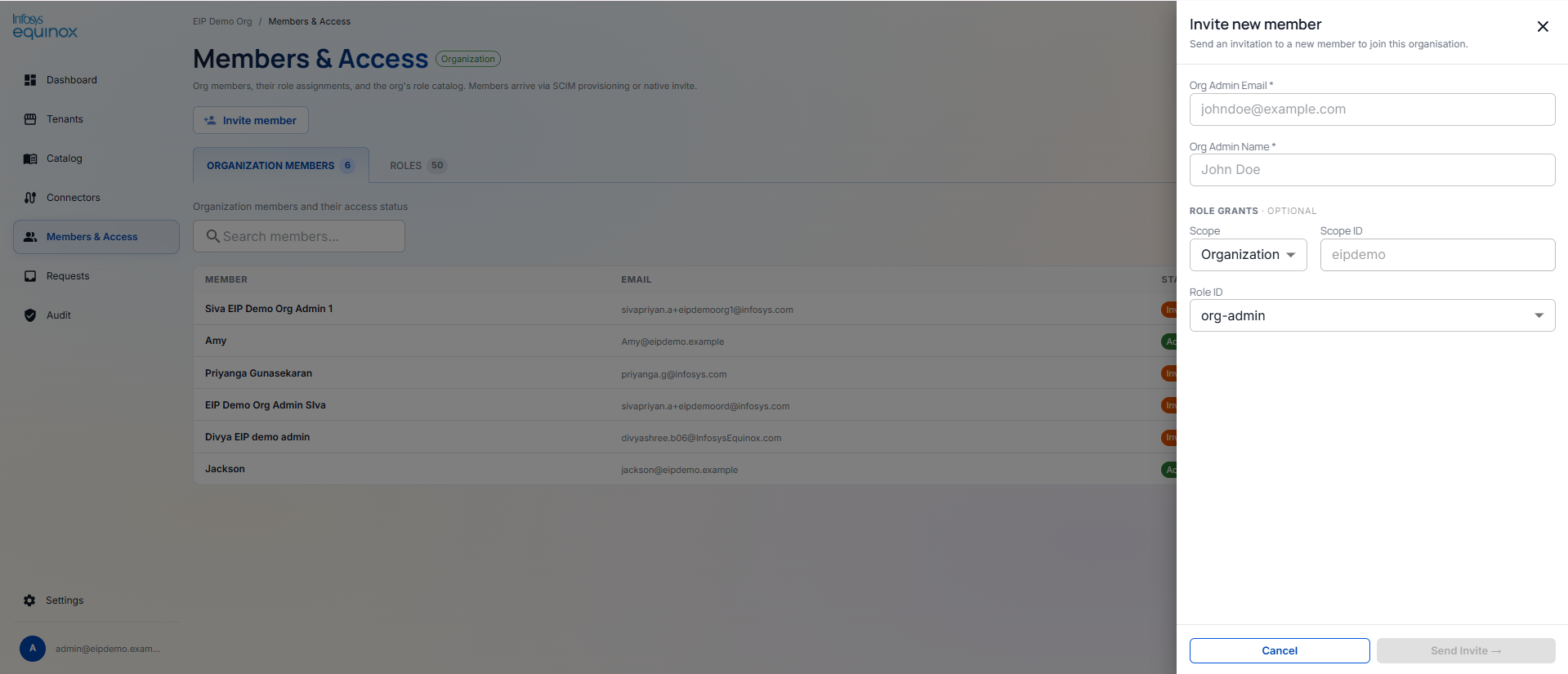
An Invite member button is available directly on the dashboard. Clicking it opens a slide-over with: Org Admin Email*, Org Admin Name*, and optional Role Grants (Scope, Scope ID, Role ID).
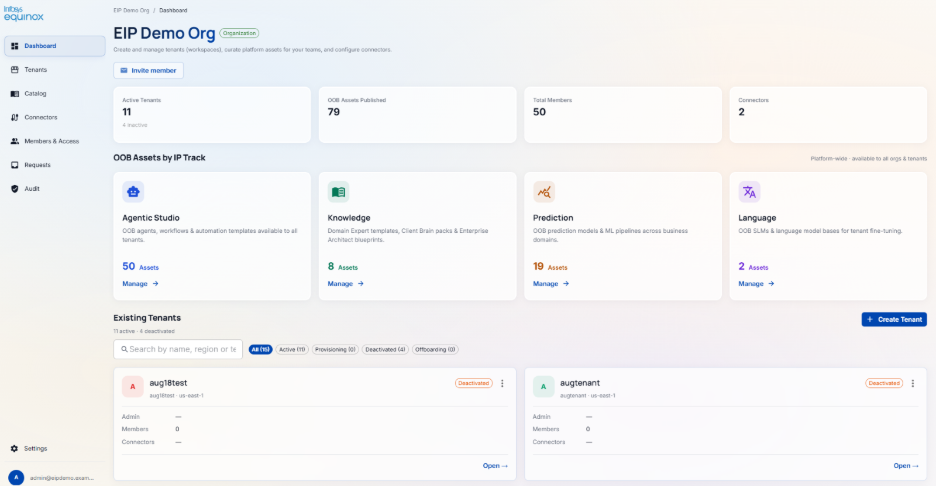
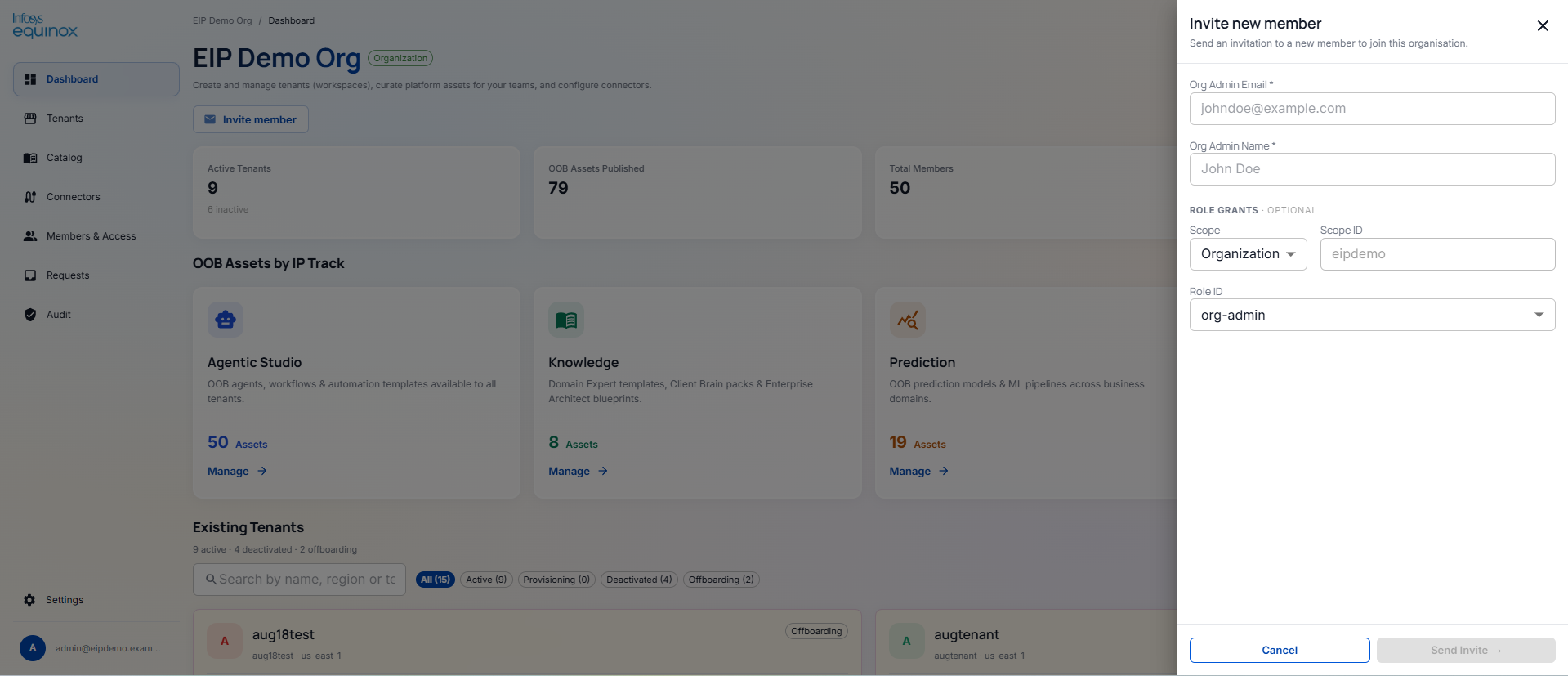
KPI Cards
| KPI | What it shows |
|---|---|
| Active Tenants | Total active tenants in the organisation (inactive count shown below) |
| OOB Assets Published | Total OOB assets available to this organisation |
| Total Members | Total member count across all tenants in the organisation |
| Connectors | Number of platform connectors available for integration |
OOB Assets by IP Track
Four track cards showing asset count and a Manage → link. Clicking Manage → redirects to the Catalog menu, filtered to that track’s tab.
| Track | Description |
|---|---|
| Agentic Studio | OOB agents, workflows & automation templates available to all tenants |
| Knowledge | Domain Expert templates, Client Brain packs & Enterprise Architect blueprints |
| Prediction | OOB prediction models & ML pipelines across business domains |
| Language | OOB SLMs & language model bases for tenant fine-tuning |
Existing Tenants
Org admin will be able to view the tenant list in the form of card view.
Org admin will be able to filter the tenant list by provided filter options such as; All · Active · Provisioning · Deactivated · Offboarding.
They will be able to search by name, region or tenant.
To create a new tenant, org admin will be required to click on ‘Create Tenant’ button at top right and enter the required details.
Each card shows: name, slug, region, Admin email, Members count, Connectors (pill tags), status badge, and a three-dot menu (⋮) with a Deactivate option.
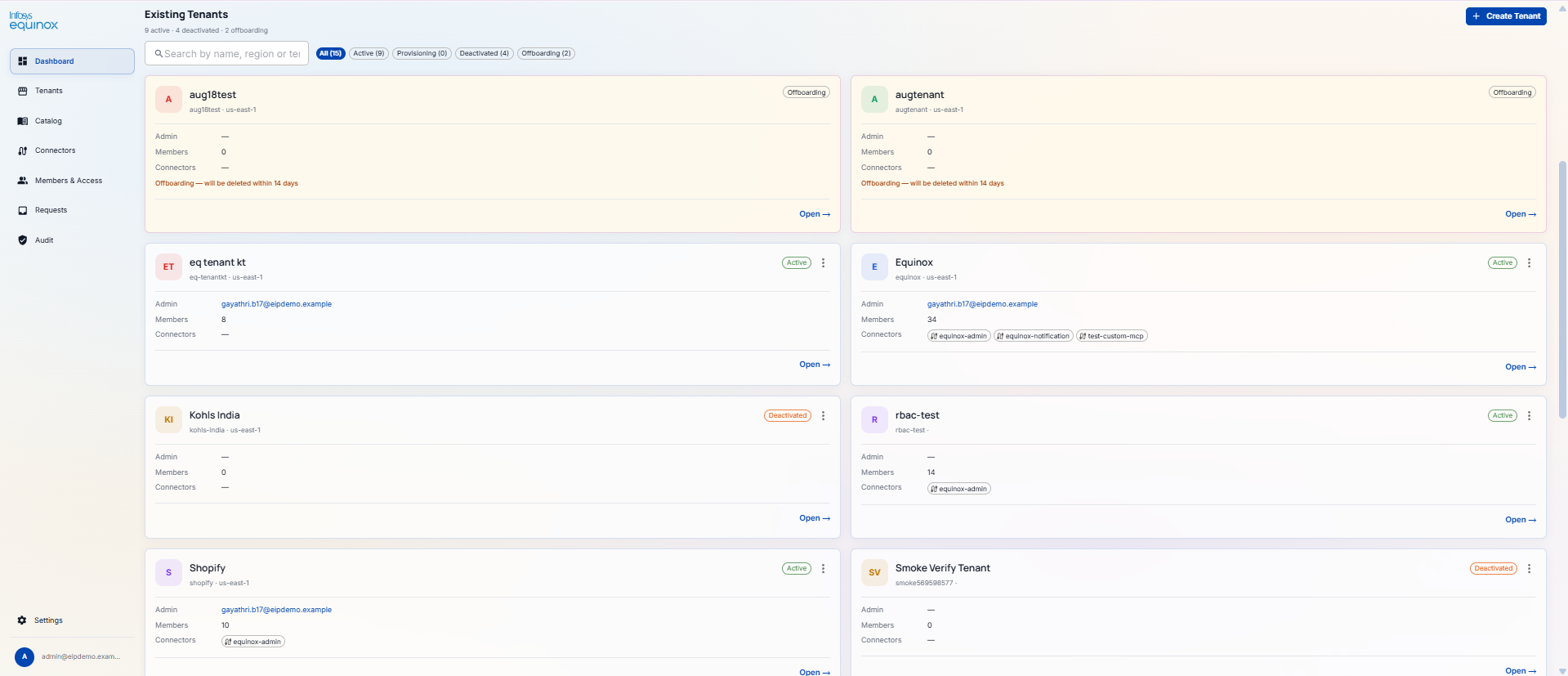
| Card action | Description |
|---|---|
| Open | Opens the selected tenant’s workspace — redirects the Org Admin into the Tenant Admin view for that tenant |
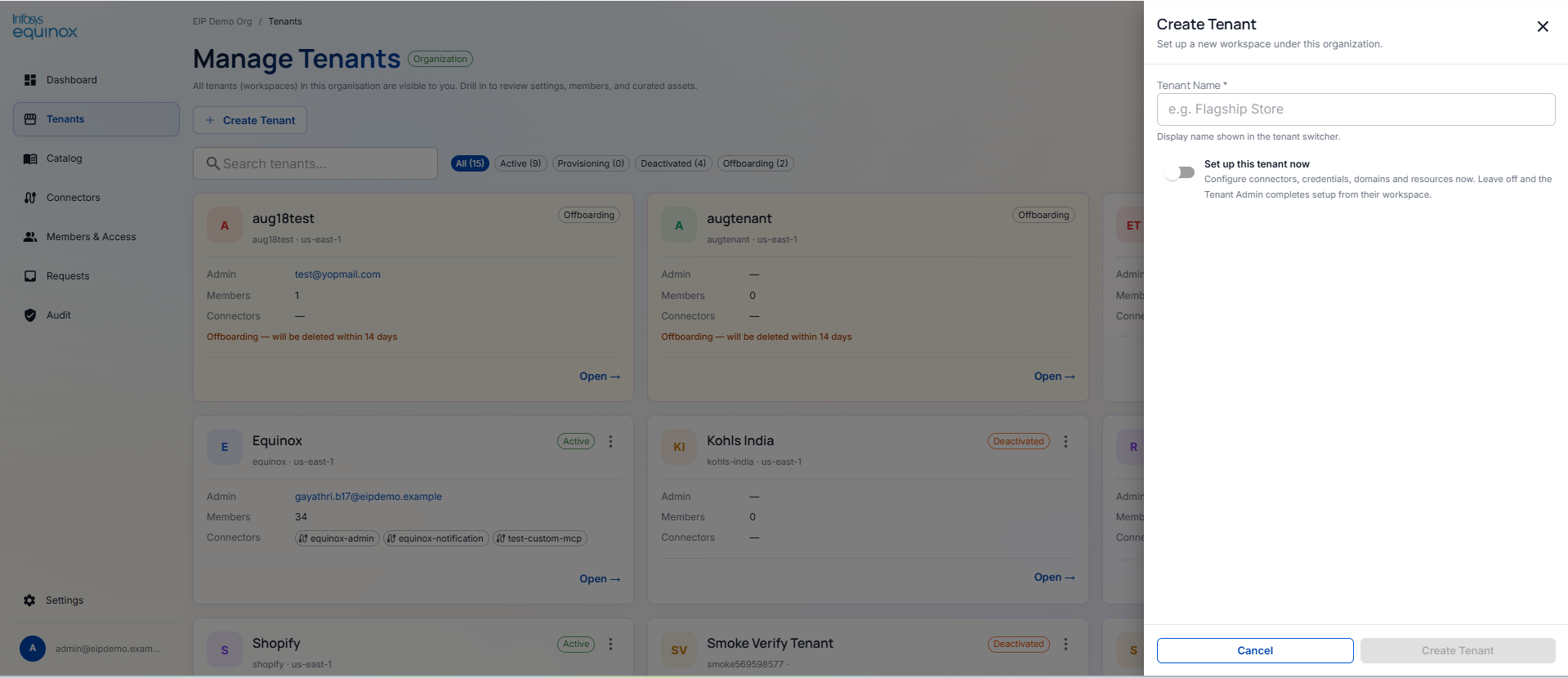
| Create Tenant | Opens slide-over with: Tenant Name* (display name shown in tenant switcher) + “Set up this tenant now” toggle. If left off, the Tenant Admin completes setup from their own workspace. |
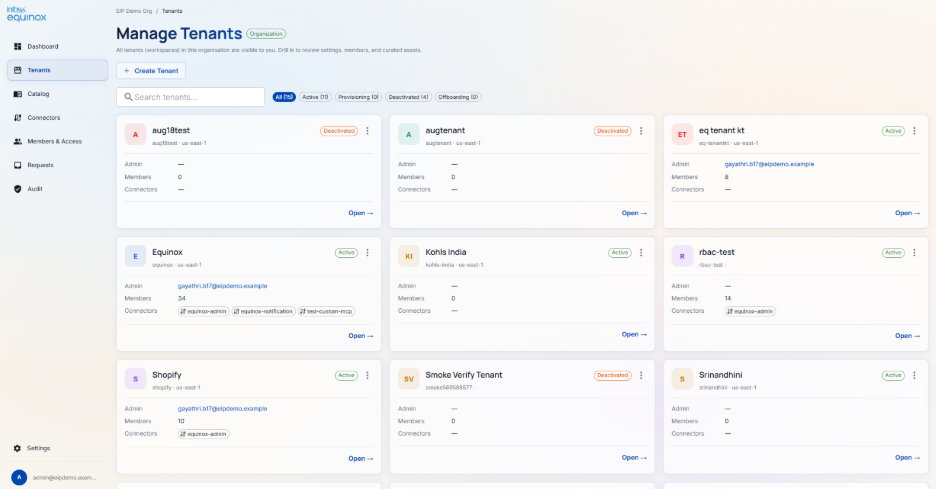
4.2.2 Tenants
On click of the Tenant option, the org admin will be able to view list of all the tenants in the form of card view.
On each card, org admin will be able to view details like; admin name, number of members, and connectors name.
On click of ‘Open’ link on the card, org admin will be redirected to the tenant section.
They will be able to search the tenant by entering tenant name in the search box.
On click of the Create Tenant button, a window will get open where org admin can provide necessary details and add the tenant.
4.2.3 Catalog
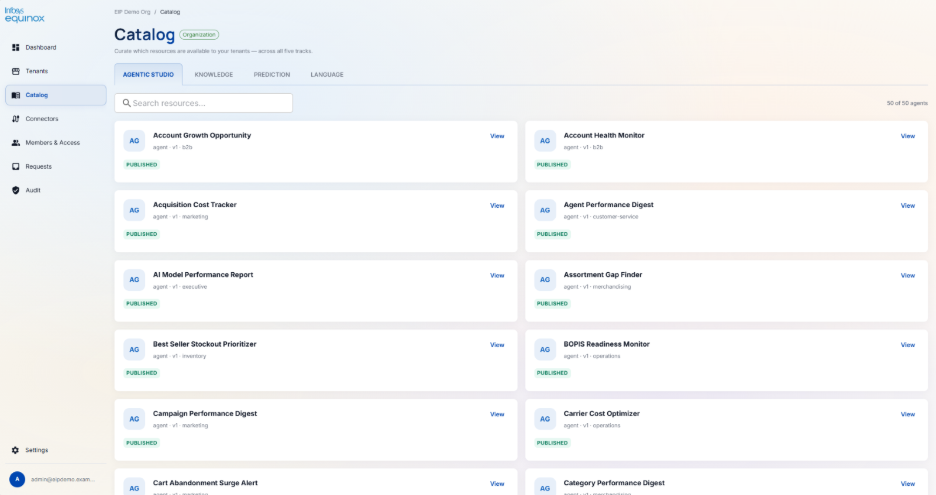
On the catalog page, org admin will be able to view resources under each tracks i.e. Agent studio, Knowledge, Prediction, and Language tracks.
Agentic Studio tab
On this tab, org admin will be able to view list of OOB agents in the form of card view.
On card, they will be able to view details such as: name, type (
agent), version, category, PUBLISHED status badge, View link.
Knowledge tab — CAPABILITIES
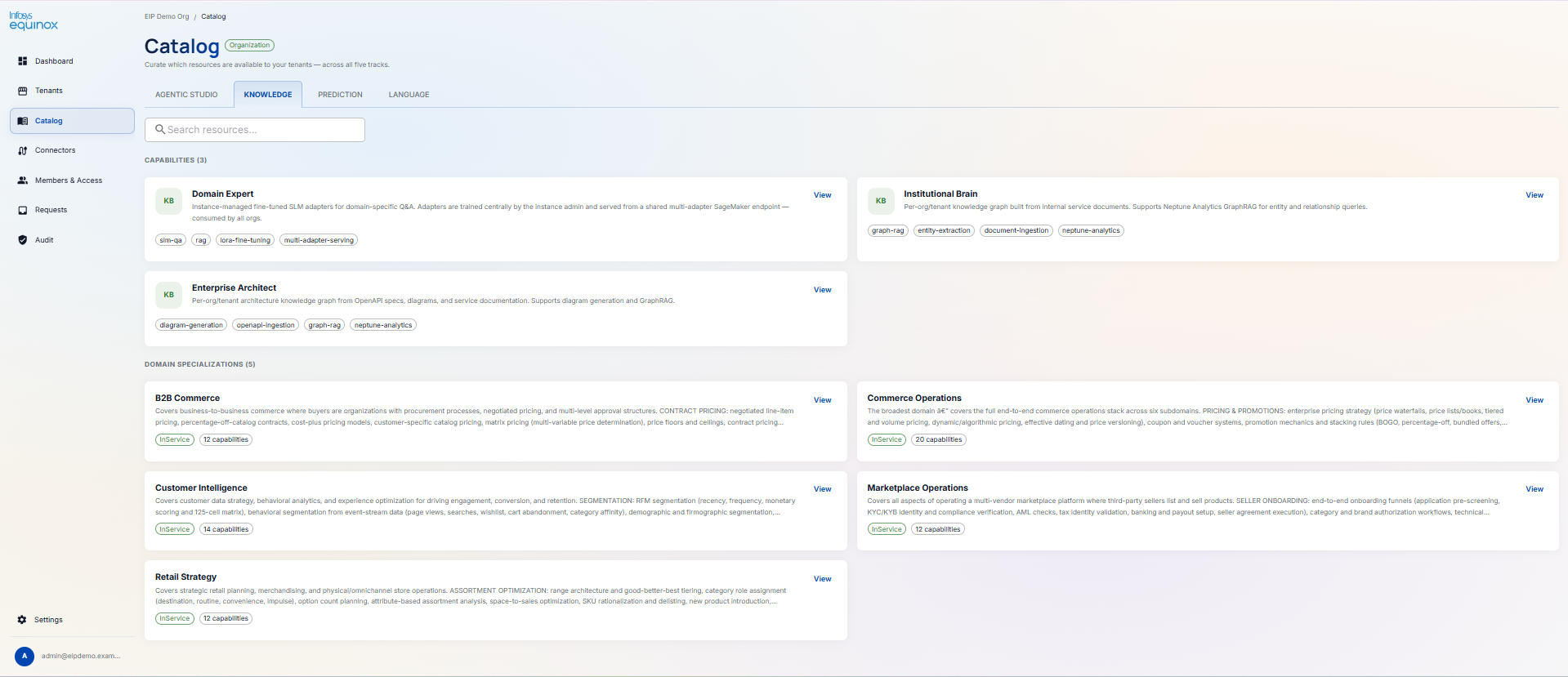
| Capability | Description | Feature tags |
|---|---|---|
| Domain Expert | Instance-managed fine-tuned SLM adapters for domain-specific Q&A. Trained centrally and served from a shared multi-adapter SageMaker endpoint. | slm-qa, rag, lora-fine-tuning, multi-adapter-serving |
| Institutional Brain | Per-org/tenant knowledge graph from internal service documents. Supports Neptune Analytics GraphRAG. | graph-rag, entity-extraction, document-ingestion, neptune-analytics |
| Enterprise Architect | Per-org/tenant architecture knowledge graph from OpenAPI specs and diagrams. Supports diagram generation and GraphRAG. | diagram-generation, openapi-ingestion, graph-rag, neptune-analytics |
Knowledge tab — DOMAIN SPECIALISATIONS
| Specialisation | Scope | Capabilities |
|---|---|---|
| B2B Commerce | InService | 12 |
| Commerce Operations | InService | 20 |
| Customer Intelligence | InService | 14 |
| Marketplace Operations | InService | 12 |
| Retail Strategy | InService | 12 |
Prediction tab
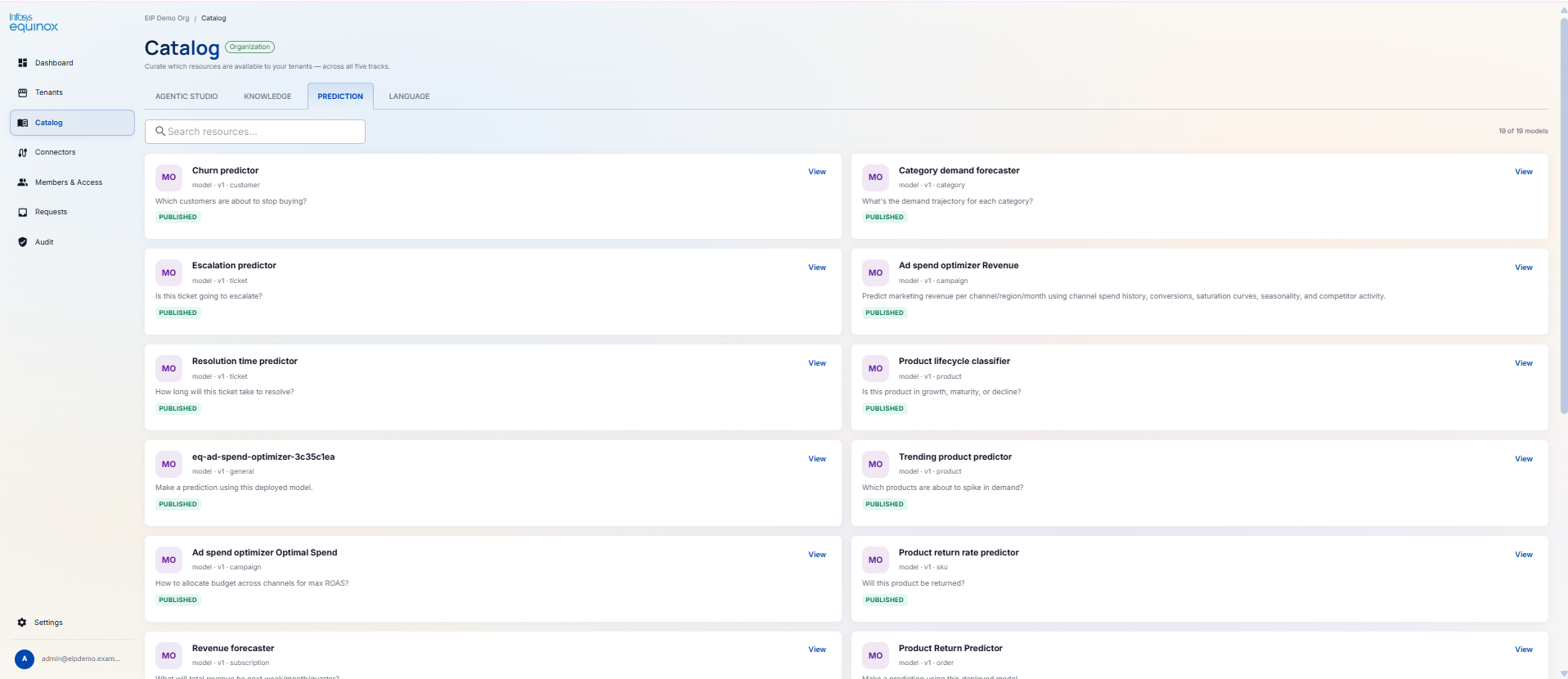
Lists OOB prediction models and ML pipelines available across business domains.
Use cases include customer churn prediction, demand forecasting, return rate prediction, product lifecycle classification, and customer segmentation.
Each model card shows name, version, category, and publication status.
Click View to see model details and supported features
Language tab
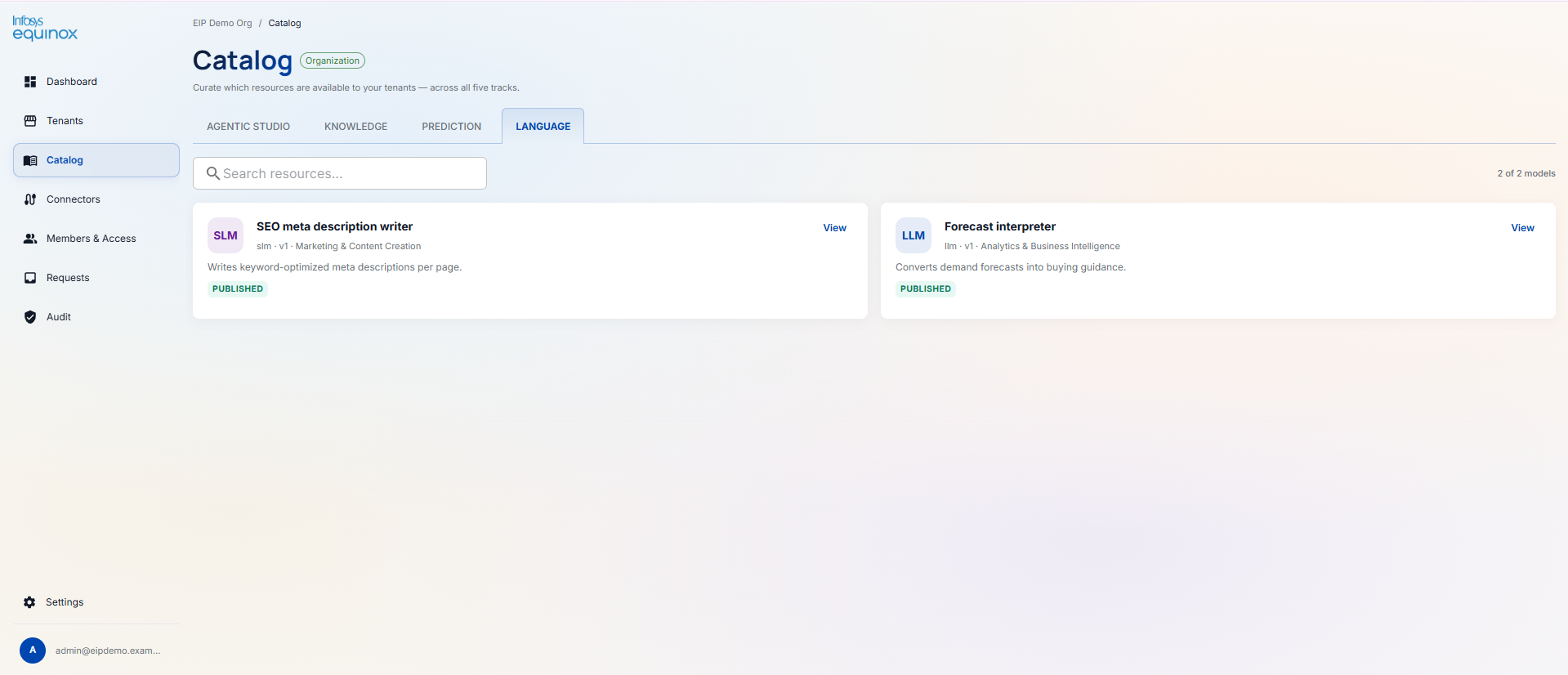
Lists all LLM and SLM models available on the platform.
Each card shows: name, type (
llmorslm), version, category, and status badges (PUBLISHED · published to orgs).Click View to see full model details.
4.2.4 Connectors
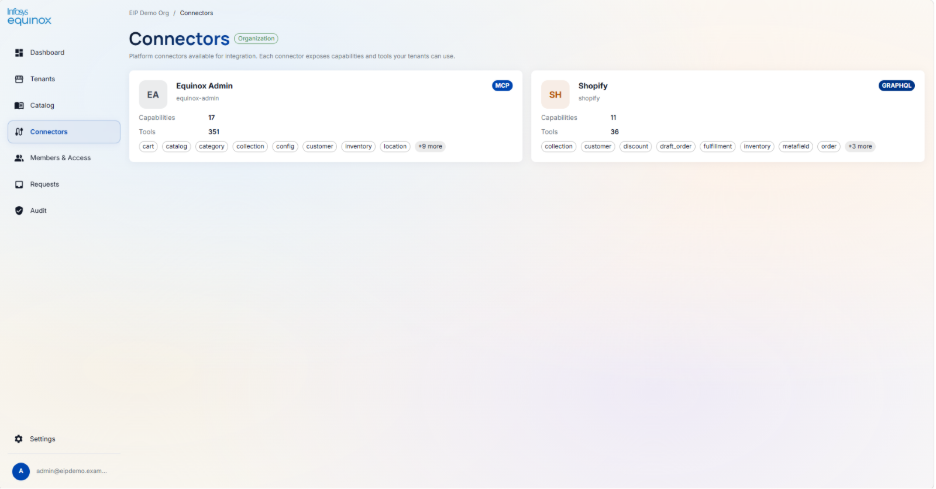
Read-only reference view — no actions are available on this page. Each connector card shows:
| Field | Detail |
|---|---|
| Name | Connector display name and identifier |
| Protocol badge | Type of integration (e.g., MCP, GRAPHQL) |
| Capabilities | Number of capabilities the connector exposes |
| Tools | Total number of tools available via the connector |
| Tool domain tags | Domain areas covered (e.g., cart, catalog, order, pricing, product, inventory, customer) |
4.2.5 Members & Access
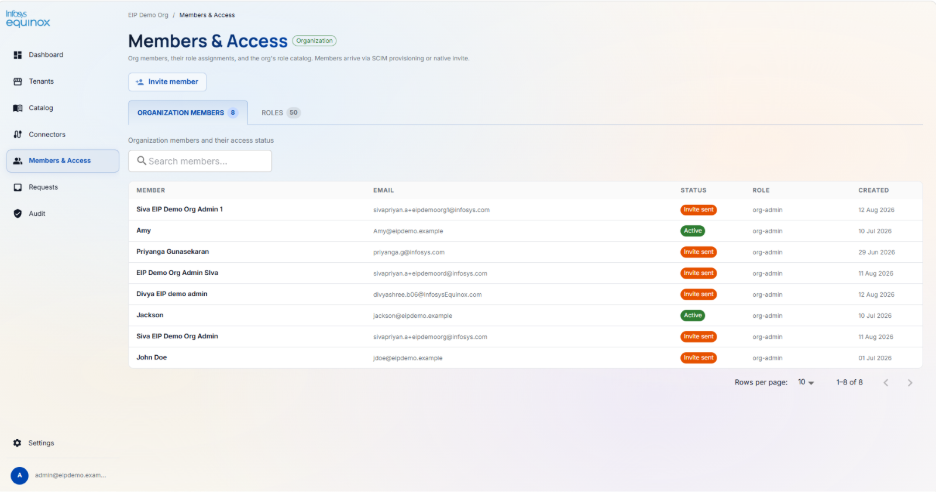
Org admin will be able to view list of members and their status in a tabular format. It will have details like:
Member name
Email
Status
Role
Created date
On click of Invite Member button, org admin will be able to provide access to the members by providing required details.
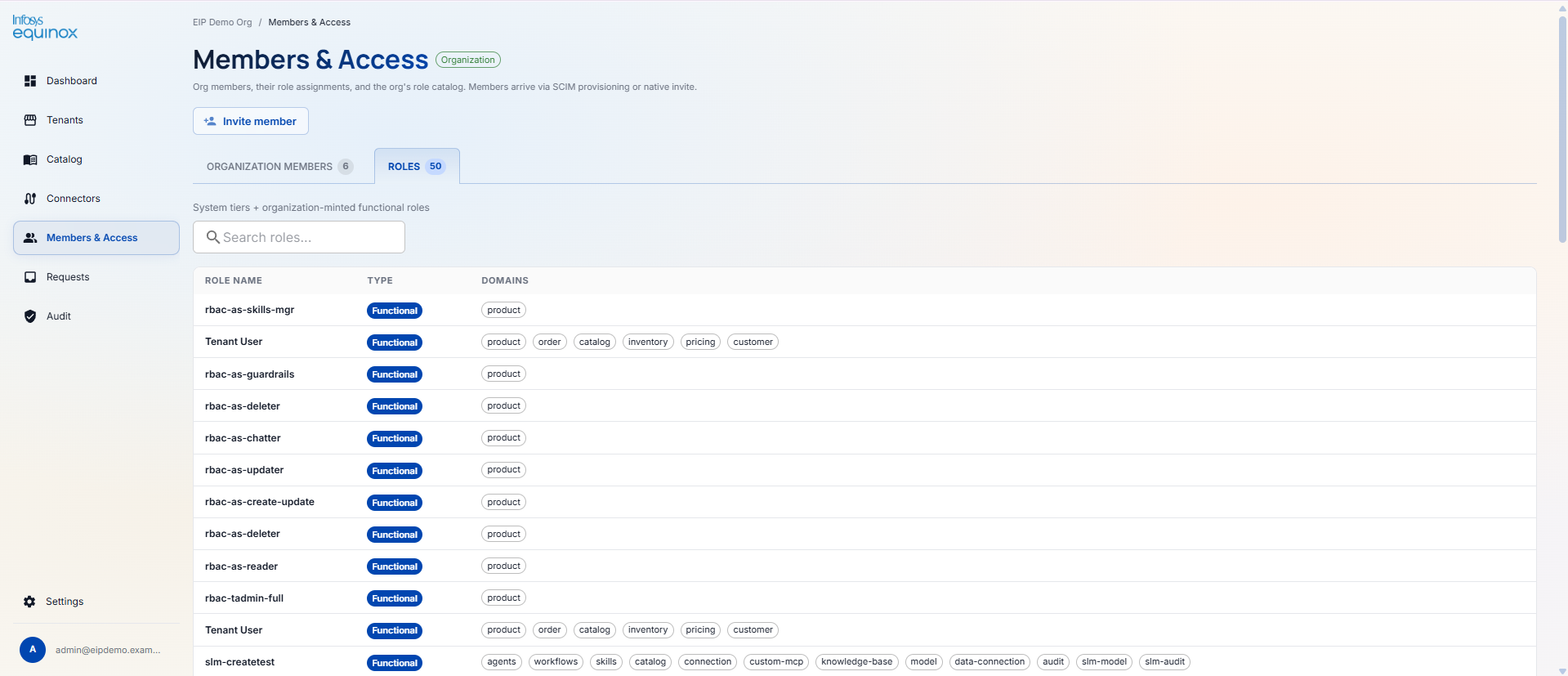
In the Roles tab, org admin will be able to view roles created by them in tabular format.
They will be able to search for any role by entering role name in the search box.
| Tab | What it contains |
|---|---|
| ORGANIZATION MEMBERS | Table — MEMBER · EMAIL · STATUS · ROLE · CREATED. Statuses: Active (green) / Invite sent (orange). Searchable member list. |
| ROLES | “System tiers + organization-minted functional roles.” Table — ROLE NAME · TYPE · DOMAINS. All custom roles show type Functional with domain tags (e.g., product, order, catalog, inventory, pricing, customer, agents, workflows). Searchable role list. |
4.2.6 Requests
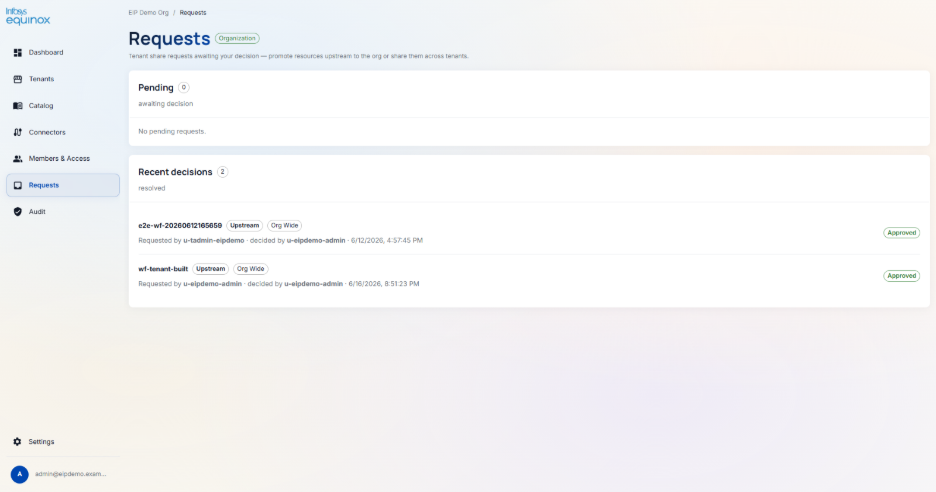
On this page, org admin will be able to view the requests raised by tenant admins.
Org admin will be able to approve/ reject the request as well.
| Section | What it shows |
|---|---|
| Pending | Count badge + “awaiting decision”. Lists all open share requests from tenants. Each entry: resource name, type badges (Upstream / Org Wide), requester, submission date/time. Approve or reject from here. |
| Recent decisions | Count badge + “resolved”. Chronological list of past decisions. Each entry: resource name, type badges, requested by, decided by, date/time, outcome badge (Approved / Rejected). |
4.2.7 Audit
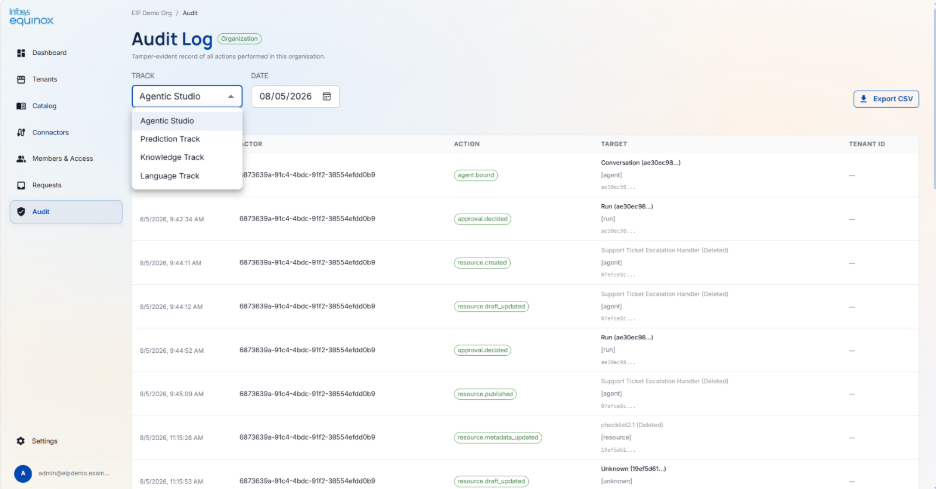
The audit page gives the org admin an overview on what actions/ activity has been done and by whom.
They will be able to select the date range and get the audit logs.
The org admin can view the track wise audit logs by selecting the respective track from the dropdown.
| Element | Detail |
|---|---|
| TRACK filter | Dropdown to filter events by platform track (Agentic Studio, Knowledge, Prediction, Language) |
| DATE filter | Date picker to select the day to view |
| Export CSV | Download the audit log for the selected filters |
| Audit Events table | Columns: TIME · ACTOR · ACTION (colour-coded event-type badge) · TARGET · TENANT ID |
4.3 Tenant Admin
Navigation Context
The Tenant Admin manages one or more tenants — connecting commerce systems, building and publishing agents, managing knowledge bases, and overseeing team access within their tenant.
Left Nav: Overview · Connectors · Agentic Studio · Knowledge · Prediction · Language
4.3.1 Overview
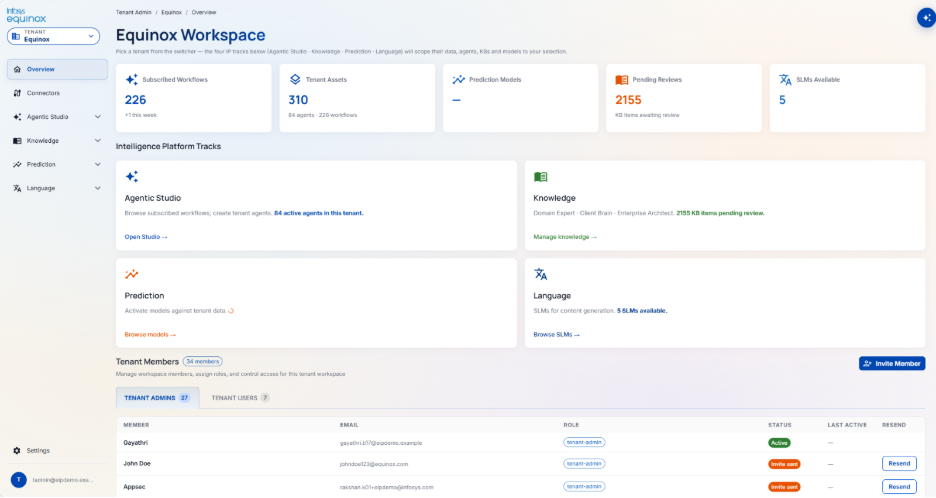
Upon login, the tenant admin will land on the Overview page where they will be able to view data’s in different KPIs, track information and tenant information.
A Tenant switcher dropdown is always visible at the top left. Clicking it opens a searchable list of all tenants the admin manages. Switching tenants reloads all four IP tracks scoped to the selected workspace.
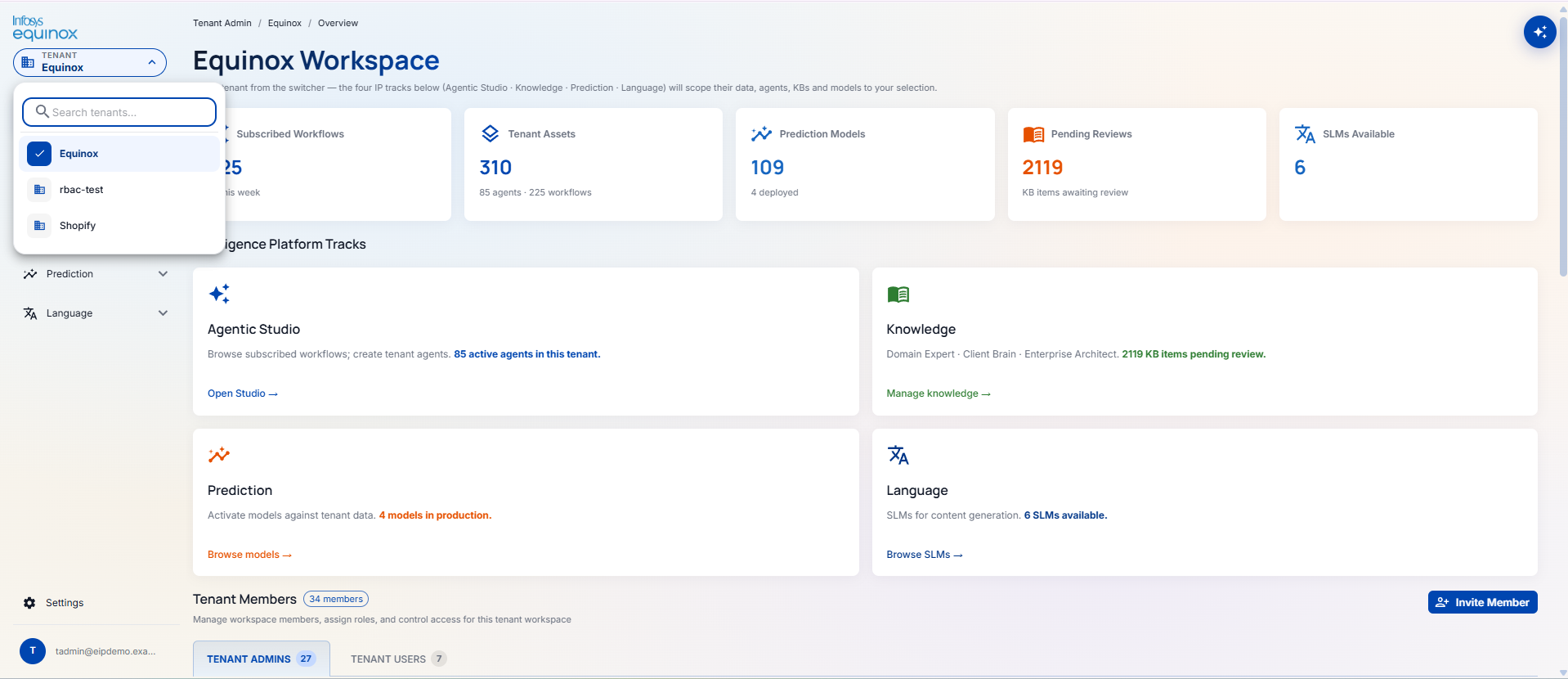
KPI Cards
| KPI | What it shows |
|---|---|
| Subscribed Workflows | Total workflows subscribed in this tenant (delta since last week shown below) |
| Tenant Assets | Total assets (agents + workflows); breakdown shown below count |
| Prediction Models | Total prediction models; deployed count shown below |
| Pending Reviews | KB items awaiting review — highlighted in orange when non-zero |
| SLMs Available | Number of SLMs available for content generation in this tenant |
Intelligence Platform Tracks (2×2 grid)
Each track card shows a status summary and a quick-navigate link.
Clicking the link navigates to that track’s Dashboard screen.
| Track | Card shows | Quick-navigate link |
|---|---|---|
| Agentic Studio | Browse subscribed workflows; create tenant agents. Active agent count. | Open Studio → |
| Knowledge | Domain Expert · Client Brain · Enterprise Architect. KB items pending review. | Manage knowledge → |
| Prediction | Activate models against tenant data. Models in production count. | Browse models → |
| Language | SLMs for content generation. SLMs available count. | Browse SLMs → |
Tenant Members section
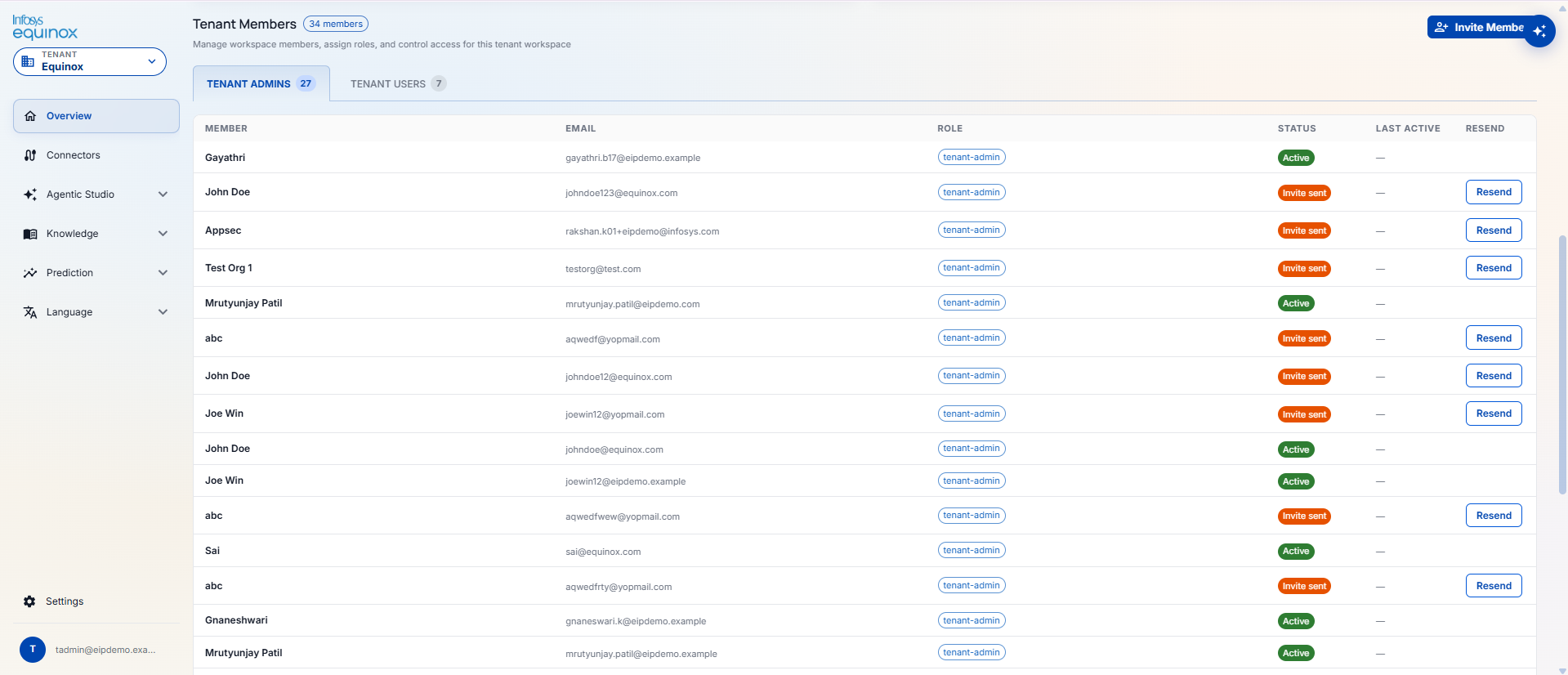
Tenant admin will be able to view list of tenant admin and tenant users invited by them and their status. On the tenant admin tab, it will be a tabular format with details like:
Member name
Email
Role
Status
Last active date
Resent button
On tenant users tab, the details will be:
Member name
Email
Role
Status
Last active date
Resent button
Manage role
To add a new member, the Invite Member button opens slide-over with details such as: Member Email*, Member Name*, Role* dropdown (default: Tenant Admin).
| Tab | What it shows |
|---|---|
| TENANT ADMINS | Table — MEMBER · EMAIL · ROLE (tenant-admin badge) |
| TENANT USERS | Table — MEMBER · EMAIL · ROLE (role pill tags) · STATUS (Active / Invite sent) · LAST ACTIVE · RESEND button (pending invites) · Manage Roles button. Clicking Manage Roles opens a dialog showing assigned roles for that user with a Done button. |
4.3.2 Connectors
The instance admin will be able to view all connectors on this page.
They will also be able to add new connectors by providing the necessary information.
Tenant admin will be able to view KPI cards for: Total Connectors · Active · Inactive · Total Capabilities.
They will be able to view Tabs for connectors which are ACTIVE (count) and INACTIVE (count).
Tenant admin will be able to search connectors by entering connector name in the provided text field.
Further, they will be able to view connectors in card view.
Each card will be having details like: name, scope (tenant), Active status badge, capabilities count, tools count, protocol badge (MCP).
From the three-dot menu (⋮) they will be able to perform actions such as: Edit · Test Connection · Disconnect · Delete.
Clicking a connector card opens its detail page.
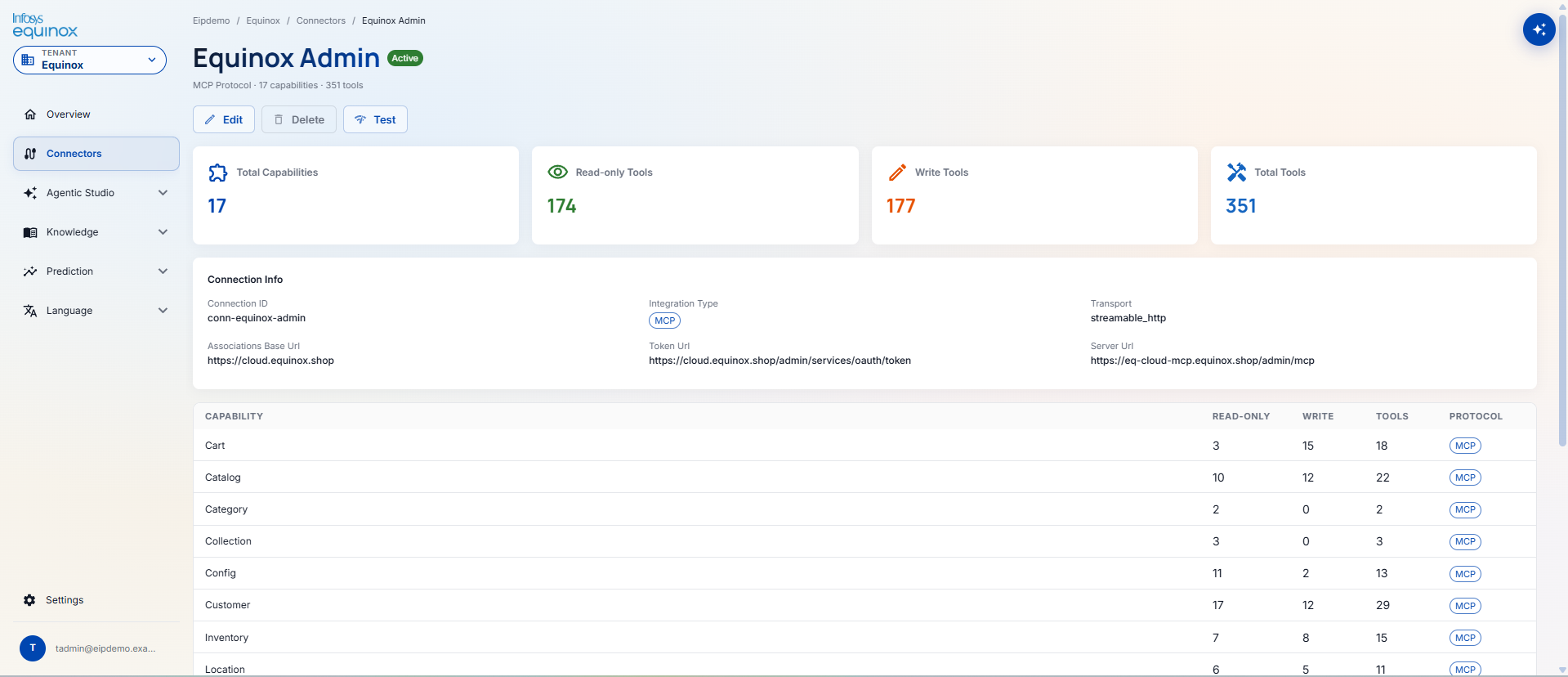
| Section | Detail |
|---|---|
| Status badge + summary | Active/Inactive · Protocol · capabilities count · tools count |
| Action buttons | Edit · Delete · Test · Disconnect |
| KPI cards | Total Capabilities · Read-only Tools · Write Tools · Total Tools |
| Connection Info | Connection ID, Integration Type, Transport, Auth Mode, Server URL, Token URL, Associations Base URL |
| Capabilities table | Columns: CAPABILITY · READ-ONLY · WRITE · TOOLS · PROTOCOL |
How to: Connectors
Purpose
The integration layer between ICS and your commerce platforms. Lets agents read and update data in Shopify, Salesforce, or Equinox — without the agent ever seeing API details or credentials. When an agent issues a standard command (order.read, pricing.update), the connector translates it into the correct API call and injects credentials automatically.
Instance Admin — registers connector types · Tenant Admin — creates connections
Supported Platforms (V1)
🛒 Shopify
Read and update products, pricing, inventory, and collections. Customers and orders support coming.
☁ Salesforce
Read, create, update, and delete products, customers, orders, and pricing. Requires two connections for full CRUD.
⚡ Equinox
Connect to Equinox cloud admin and subscribe to marketplace events for event-driven automation.
🔧 Custom
Register your own MCP server or REST/GraphQL API as a connector through a self-service flow.
Adding a Connector (Creating a Connection)
Purpose
Link your Shopify, Salesforce, or Equinox account to your ICS tenant so agents can act on your behalf.
⚠ Prerequisites
- You must be a Tenant Admin
- The connector type must be registered on the platform by the Instance Admin
- You must have the platform credentials:
- Shopify: Custom App Admin API access token with appropriate scopes
- Salesforce: Connected App Consumer Key & Secret, plus your org’s domain URL
- Equinox: OAuth client ID and client secret for the Equinox cloud admin
- Credentials must have the necessary permissions on the external platform
Steps
- Go to Connectors → Add Connection
- Select the platform (e.g., Shopify)
- Enter your credentials — they are stored securely in the platform’s Vault and are never visible again
- Click Test Connection to verify the credentials work
- Go to Connectors → Routing and map which business domains route through this connection
- Agents in your tenant can now use this connection
Subscribing to Commerce Events (Equinox only)
Purpose
Automatically trigger an agent whenever a specific event happens in Equinox — e.g., a customer submits a return request or a product is updated.
⚠ Prerequisites
- An Equinox connection must already be created and active (the Connectors section.1)
- You must know the specific event name (e.g.,
orderservice/return/requested) - An agent must be published and ready to handle the event (the Agent Studio section.5)
- You must be a Tenant Admin
Dry-Running a Connector Action
Purpose
Test what an agent would do with a connector action without actually making any changes in your commerce platform.
In dry-run mode, actions that would change data (like pricing.update) are stubbed — the agent goes through all the steps but no actual change is made. Read-only actions (like product.read) execute for real so you see actual data.
4.3.3 Agentic Studio
Sub-menu: Dashboard · Agent Store · Chat · Playground · Docs
Dashboard
On click of the Agent Studio, tenant admin will land on the dashboard where they will be able to view card view structure of workflows/ agents they have subscribed to and the actions to be taken on it.
In the NEEDS YOUR ATTENTION section, tenant admin will be able to view all Action cards in a grid, each requiring a decision or action.
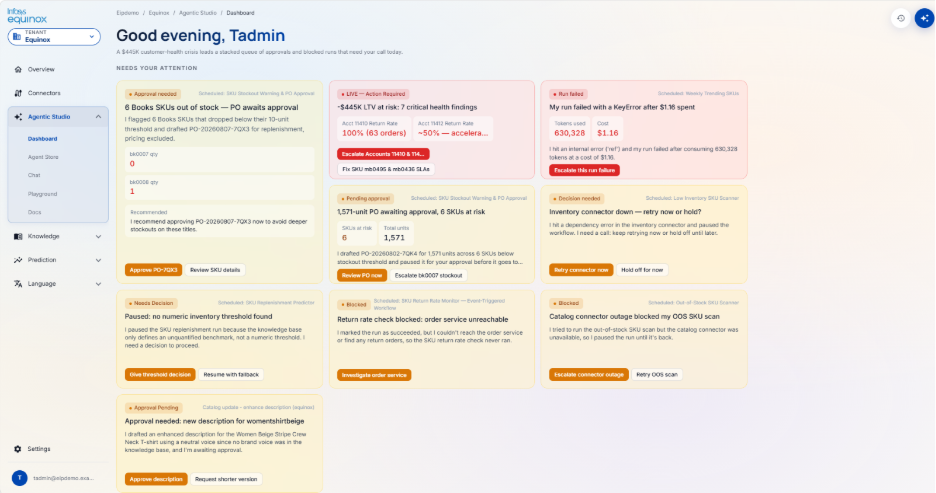
| Card type | What it represents |
|---|---|
| Approval needed | Agent has drafted an action (e.g., a PO for stockout SKUs) and is waiting for approval to proceed |
| LIVE — Action Required | Urgent alert requiring immediate attention (e.g., high-value LTV at risk) |
| Needs Decision | Workflow is paused because it requires a human decision to continue (e.g., missing threshold value) |
| Blocked | Run is blocked due to a connector outage or unreachable service |
| Approval Pending | Agent has generated content or a draft action awaiting sign-off |
| Escalated | An issue has been escalated by an agent for human review |
Each card shows: status badge, source trigger (scheduled / event listener / agent name), title, description, and inline action buttons specific to that item.
INVENTORY SIGNALS section: Quick-view status widgets for key business signal monitors running in the background (e.g., Best-Seller Stockout Check, SKUs Flagged as Dead Inventory).
Agent Store
The Agent Store page will be comprising of 3 different tabs.
The default landing page will be Agents tab.
Agents Tab
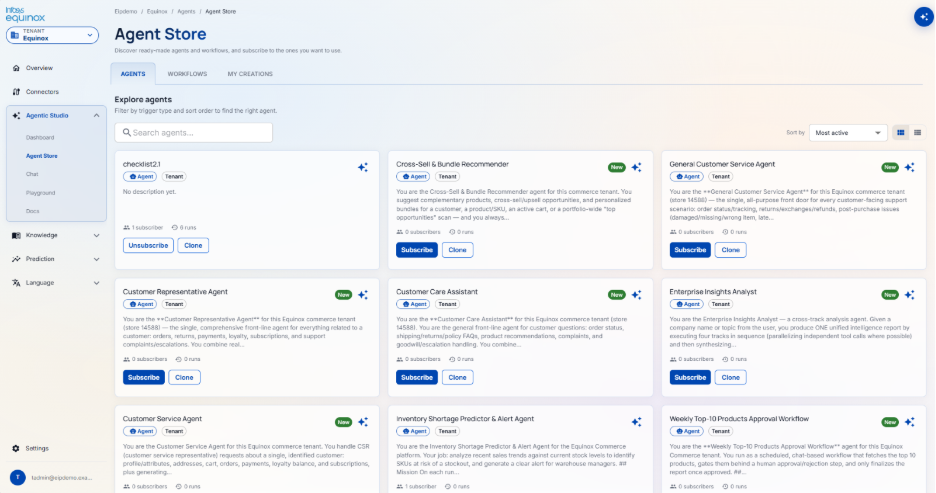
Agents: In this section, list of all OOB agents will be displayed in the form of card view.
On click of any agent will redirect tenant admin to details of that agent.
For any agent, they will be able to perform actions like Subscribe and Clone.
The magic icon on the top right corner of the card will open a chat where tenant admin will be able to initiate chat with that agent.
They will be able to sort the list by Most active and Newest.
They will also be able to change the page layout from card view to list view.
The text search will enable them to search for any agent by entering its name.
Workflows Tab
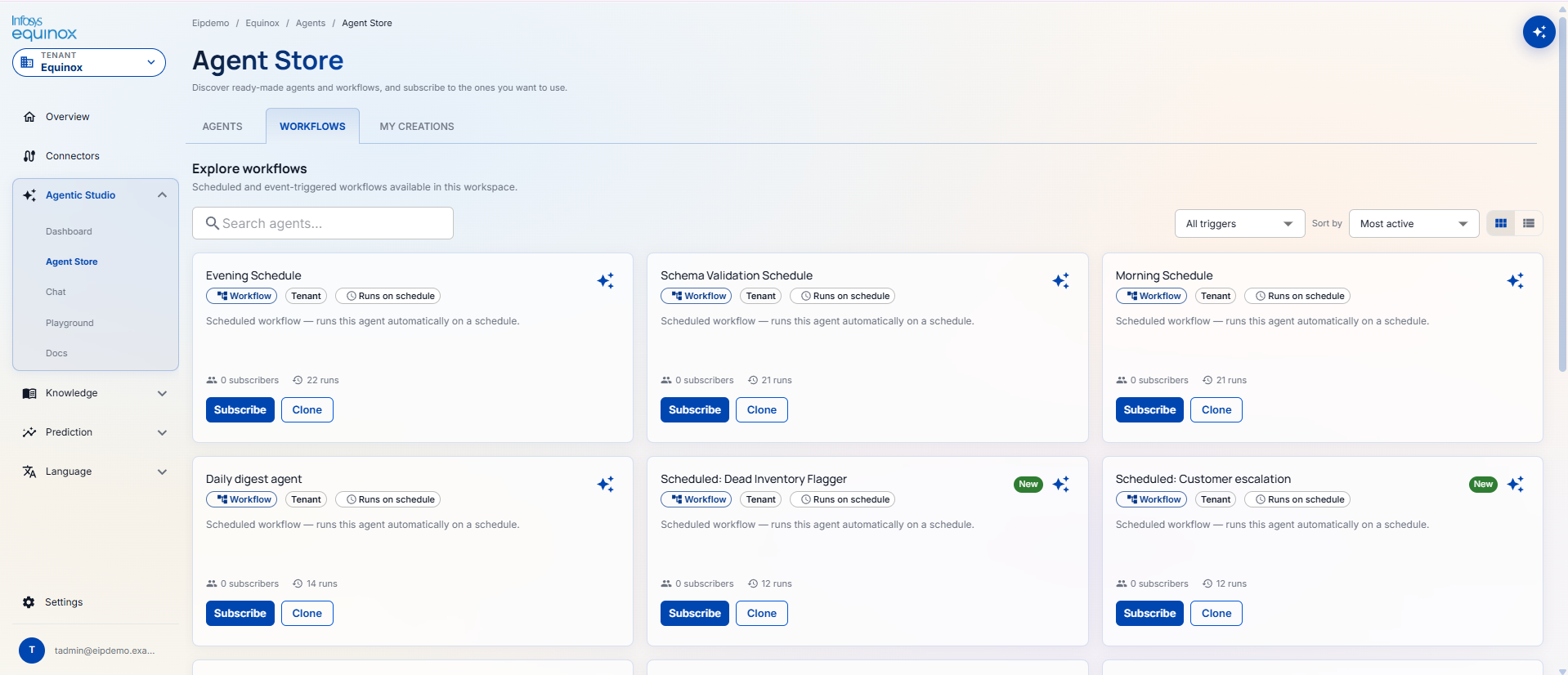
In this section, list of all OOB workflows will be displayed in the form of card view.
For any workflow, they will be able to perform actions like Subscribe and Clone.
The magic icon on the top right corner of the card will open a chat where tenant admin will be able to initiate chat with that workflow only in case of chat-based workflows.
They will be able to sort the list by Most active and Newest.
They will also be able to sort the workflows by selecting trigger types such as; All triggers, Scheduled, and Event.
They will also be able to change the page layout from card view to list view.
The text search will enable them to search for any workflow by entering its name.
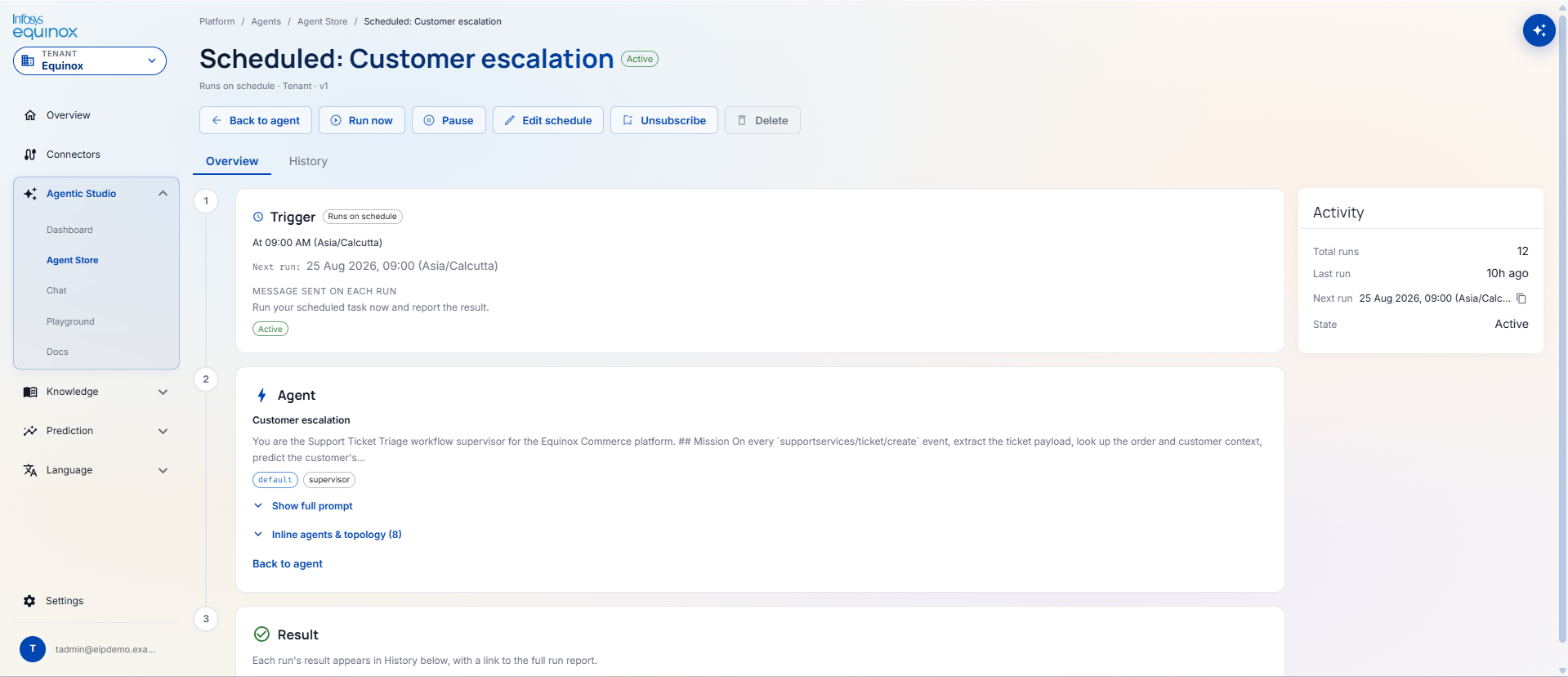
On click of any workflow will redirect tenant admin to details of that workflow.
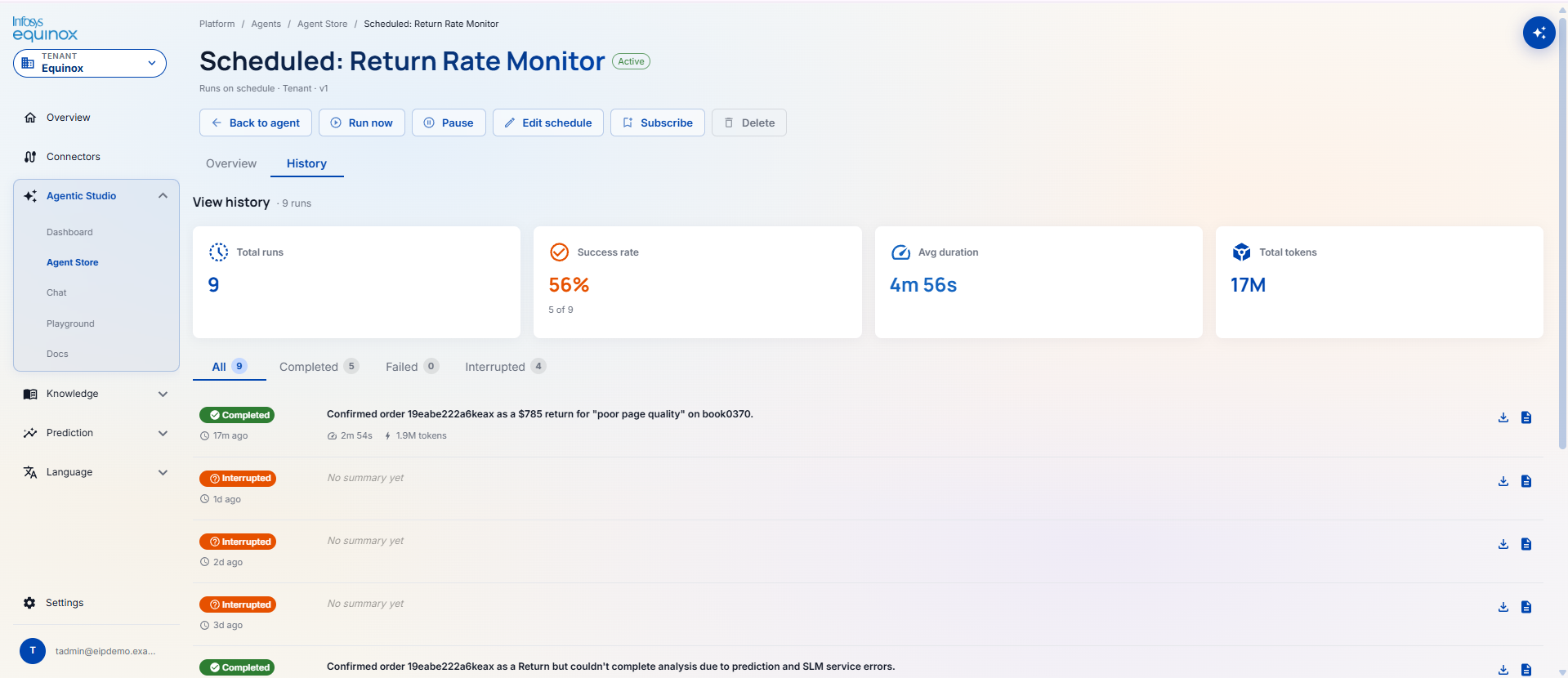
On the workflow details page, they will be able to view 2 tabs; Overview and History.
The Overview sections will display the complete working of the workflow.
Whereas, History tab will show the trigger history.
My Creations
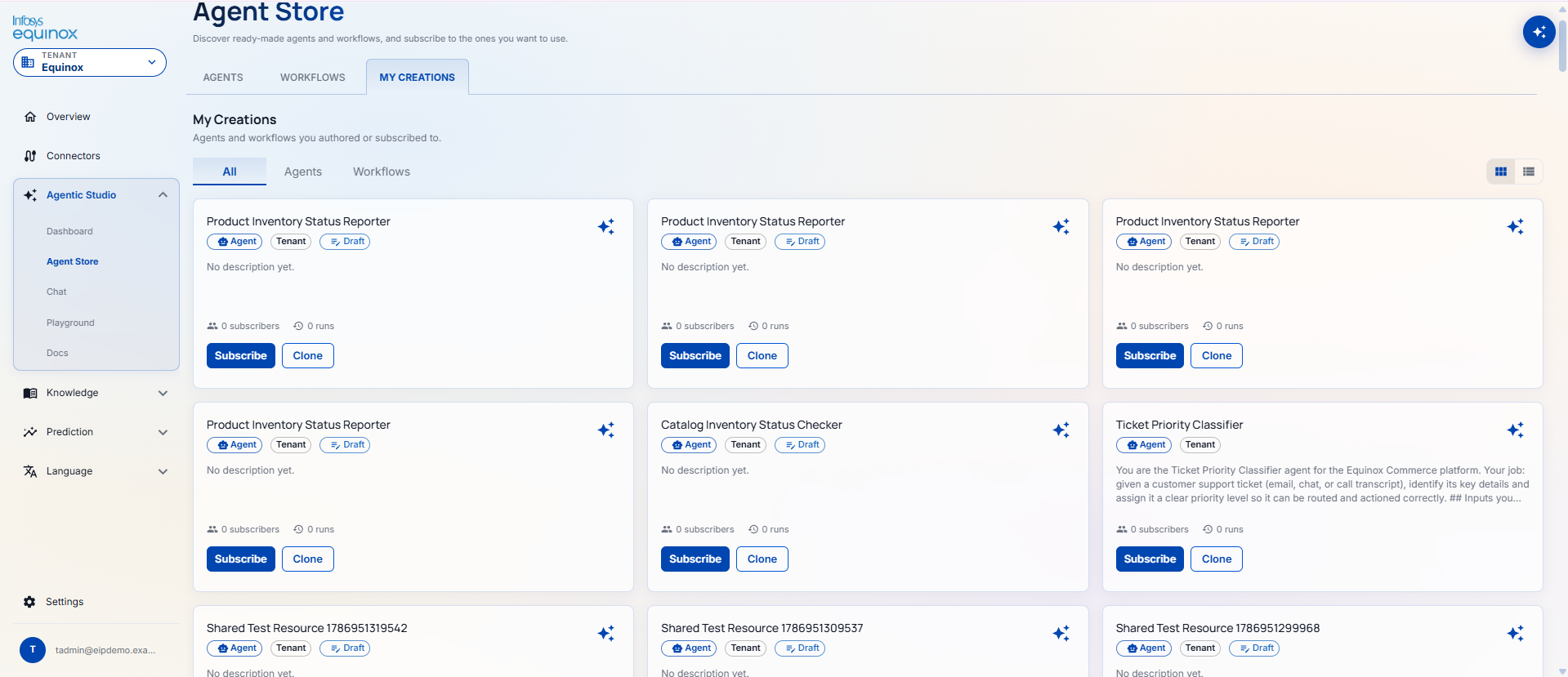
This page is further divided into 3 sub-tabs; All, Agent, Workflows.
‘All’ tab will display list of all agents and workflows created by tenant admin in the form of card view.
Agents tab will display the agents created by themselves.
Workflows tab will display the workflows created by themselves.
They will also be able to change the page layout from card view to list view.
On click of any agent/workflow will redirect tenant admin to details of it.
On the details page, they will be able to view 2 tabs; Overview and History.
The Overview sections will display the complete working of the workflow.
Whereas, History tab will show the trigger history.
| Tab | What it shows |
|---|---|
| AGENTS | Browse OOB and tenant agents available in this workspace in the form of card. |
| WORKFLOWS | “Explore workflows — Scheduled and event-triggered workflows available in this workspace.” Each card: name, type tags (Workflow, Tenant, trigger type), description, subscriber count, run count. Filters: All triggers, Sort by, grid/list view. Subscribe and Clone buttons. New badge on recent items. |
| MY CREATIONS | “Agents and workflows you authored or subscribed to.” Sub-tabs: All | Agents | Workflows. Each card: name, type tags (Agent/Workflow, Tenant, Draft/Published), description, subscriber count, run count. Subscribe, Clone, and publish action buttons. |
Chat
On the chat page, tenant admin will be able to initiate a chat to create an agent or workflow.
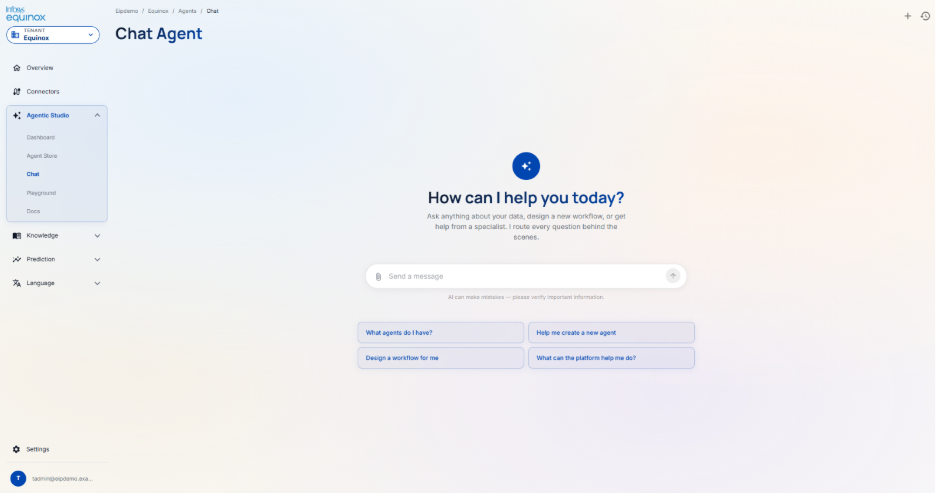
| Element | Detail |
|---|---|
| Prompt | “How can I help you today?” — “Ask anything about your data, design a new workflow, or get help from a specialist. I route every question behind the scenes.” |
| Message input | Text field with attachment icon and send button |
| Quick action buttons | “What agents do I have?”, “Help me create a new agent”, “Design a workflow for me”, “What can the platform help me do?” |
| Top-right icons | + (start new chat), history (view past conversations) |
Playground
On the playground screen, the tenant admin will be able to test the agent by selecting the agent’s name from the dropdown.
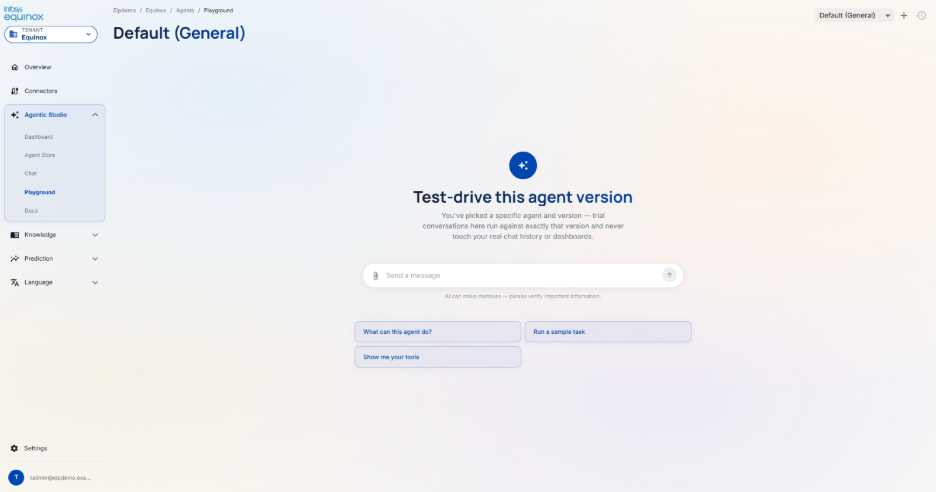
| Element | Detail |
|---|---|
| Agent selector | Dropdown (top right) — search and select from all agents and workflows in the tenant. Trial conversations run against the exact selected version. |
| Prompt | “Test-drive this agent version” — “trial conversations here run against exactly that version and never touch your real chat history or dashboards.” |
| Message input | Text field with attachment icon and send button |
| Quick action buttons | “What can this agent do?”, “Run a sample task”, “Show me your tools” |
| Top-right icons | + (new session), history |
Docs
The docs section will have ready only information regarding the agent studio, the frontend and backend logics, and other operations details.
How to: Commerce Agent Studio
Purpose
Where business teams build, test, and run AI agents that automate commerce operations — customer service, return processing, pricing updates, inventory responses — all within guardrails you define. Agents are chat-driven: you interact with them through conversation, and they use their configured tools and knowledge to respond and act.
Tenant Admin — creates & publishes agents · Business User — chats, approves HITL · Org Admin / Instance Admin — can also create; publishes OOB
Creating an Agent
Purpose
Build a new AI agent tailored to a specific commerce task, with its own instructions, tools, knowledge sources, and access to your connected platforms.
⚠ Prerequisites
- You must be a Tenant Admin or have agent creation permission
- The organisation and tenant must be provisioned (the Organizations section)
- An AI model must be available (default: Claude Sonnet 5 — configured by the platform team)
- If the agent reads/writes commerce data: a Connector must be set up (the Connectors section)
- If the agent answers questions from documents: a Knowledge base must have approved content (the Knowledge section)
- If the agent produces predictions: the relevant Prediction model must be deployed (the Prediction section)
Steps
- Go to Agent Studio → Mine → Create Agent
- Enter a name and description for the agent
- Choose the AI model (the default is recommended for most cases)
- Write the agent’s system prompt — its standing instructions, personality, rules, and scope
- Select the business areas the agent can access (e.g.,
customer,order,product) - Optionally enable the Knowledge Base for document-grounded responses
- Configure the approval gate if human sign-off is required before sensitive actions
- Save — the agent is now a draft. Test it in the Playground before publishing.
Testing an Agent (Playground)
Purpose
Run the agent interactively with real data before making it live, to validate its behaviour and connector access.
⚠ Prerequisites
- Agent draft must be saved with a valid definition
- If the agent uses connectors: the connector must be active and credentials valid
- You must be the agent’s author or a Tenant/Org Admin
Publishing an Agent
Purpose
Freeze the agent’s current configuration as an immutable, live version that others can use.
⚠ Prerequisites
- Agent must be in draft state with a valid saved definition
- You must have agent publish permission
- A changelog (description of what changed) must be written — the platform requires it
A numbered, frozen version is created (e.g., v1). This version can never be overwritten. Any future change requires opening a new draft and publishing v2. Only published versions can be used in scheduled or event triggers.
Scheduling an Agent
Purpose
Run an agent automatically on a recurring schedule — e.g., every morning at 8 AM to check overnight orders.
⚠ Prerequisites
- The agent must be published (at least v1 exists)
- You must have agent execution permission
- A valid cron schedule and timezone must be provided (minimum interval: 60 seconds)
- If the agent uses connectors: credentials must be active
Steps
- Go to the agent detail page → Triggers → Add Trigger → Schedule
- Enter a name, the cron schedule, and timezone
- Optionally enter a starting message (the first thing the agent will “read” when it runs)
- Save — the agent will start automatically on the next cron occurrence
Connecting an Agent to a Commerce Event
Purpose
Run an agent automatically when something happens in your connected commerce platform — e.g., a customer submits a return request.
⚠ Prerequisites
- The agent must be published
- A Connector must be set up and the marketplace app registered (the Connectors section.2)
- The event name must be known (e.g.,
orderservice/return/requested) - You must have agent execution permission
Approving a Human-in-the-Loop (HITL) Decision
Purpose
Review and approve (or reject) an action the agent has proposed but cannot execute without human sign-off.
⚠ Prerequisites
- A run must be in the “Awaiting approval” state
- You must be a subscribed user, the agent’s owner, or a Tenant/Org Admin
Steps
- You receive a notification that an agent run is awaiting your decision
- Go to Agent Studio → Runs and open the waiting run
- Review the agent’s proposal (e.g., “I would like to issue a $349 refund — reason: damaged item”)
- Click Approve or Reject
- The agent resumes (approved) or closes cleanly (rejected)
Cloning an OOB Agent
Purpose
Take a pre-built agent from the platform catalog and create your own customised copy for your tenant.
⚠ Prerequisites
- The OOB agent must be published and available to your org
- You must have agent creation permission
4.3.4 Knowledge
Sub-menu: Dashboard · Domain Expert · Client Brain · Enterprise Architect · Docs
Dashboard
On click of the knowledge, the tenant admin will land on the Dashboard page where they will be able to view different trends, graphical and analytical information for its sub-tracks.
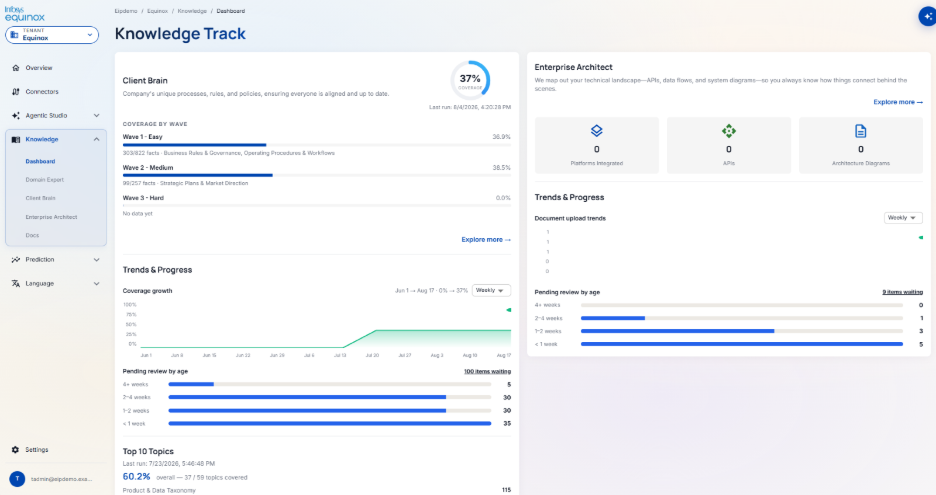
| Panel | What it shows |
|---|---|
| Client Brain (left) | Description · last-run timestamp · overall coverage % (circular donut) · COVERAGE BY WAVE (Wave 1 Easy / Wave 2 Medium / Wave 3 Hard — % completion, fact counts, topic areas) · Explore more → link |
| Client Brain Trends & Progress | Coverage growth line chart (weekly) · Pending review by age bar chart (< 1 week / 1–2 weeks / 2–4 weeks / > 4 weeks item counts) · Top 10 Topics ranked list |
| Enterprise Architect (right) | Description · Explore more → link · 3 KPI cards: Platforms Integrated, APIs, Architecture Diagrams |
| Enterprise Architect Trends & Progress | Document upload trends chart (weekly) · Pending review by age bar chart |
Domain Expert
OVERVIEW tab: Shows “Infosys Experts” — count of active experts and total available. Each expert row: Name + Active badge · description · feature tags (pill tags) · Test button (redirects to the CHAT tab to interact with that expert) · Deactivate button.
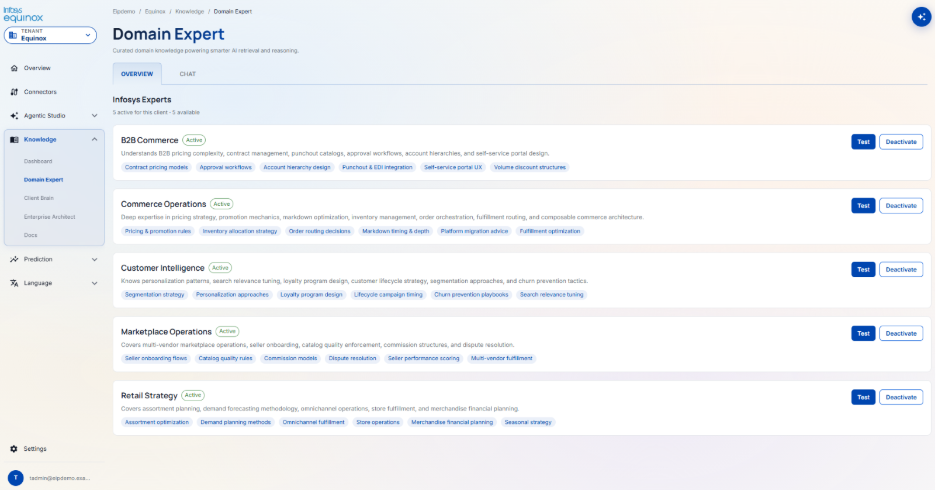
| Expert | Knowledge scope | Feature tags |
|---|---|---|
| B2B Commerce | B2B pricing complexity, contract management, punchout catalogs, approval workflows, account hierarchies, self-service portal design | Contract pricing models, Approval workflows, Account hierarchy design, Punchout & EDI integration, Self-service portal UX, Volume discount structures |
| Commerce Operations | Pricing strategy, promotion mechanics, markdown optimisation, inventory management, order orchestration, fulfillment routing, composable commerce architecture | Pricing & promotion rules, Inventory allocation strategy, Order routing decisions, Markdown timing & depth, Platform migration advice, Fulfillment optimisation |
| Customer Intelligence | Personalisation patterns, search relevance tuning, loyalty program design, customer lifecycle strategy, segmentation, churn prevention | Segmentation strategy, Personalisation approaches, Loyalty program design, Lifecycle campaign timing, Churn prevention playbooks, Search relevance tuning |
| Marketplace Operations | Multi-vendor marketplace operations, seller onboarding, catalog quality enforcement, commission structures, dispute resolution | Seller onboarding flows, Catalog quality rules, Commission models, Dispute resolution, Seller performance scoring, Multi-vendor fulfillment |
| Retail Strategy | Assortment planning, demand forecasting methodology, omnichannel operations, store fulfillment, merchandise financial planning | Assortment optimisation, Demand planning methods, Omnichannel fulfillment, Store operations, Merchandise financial planning, Seasonal strategy |
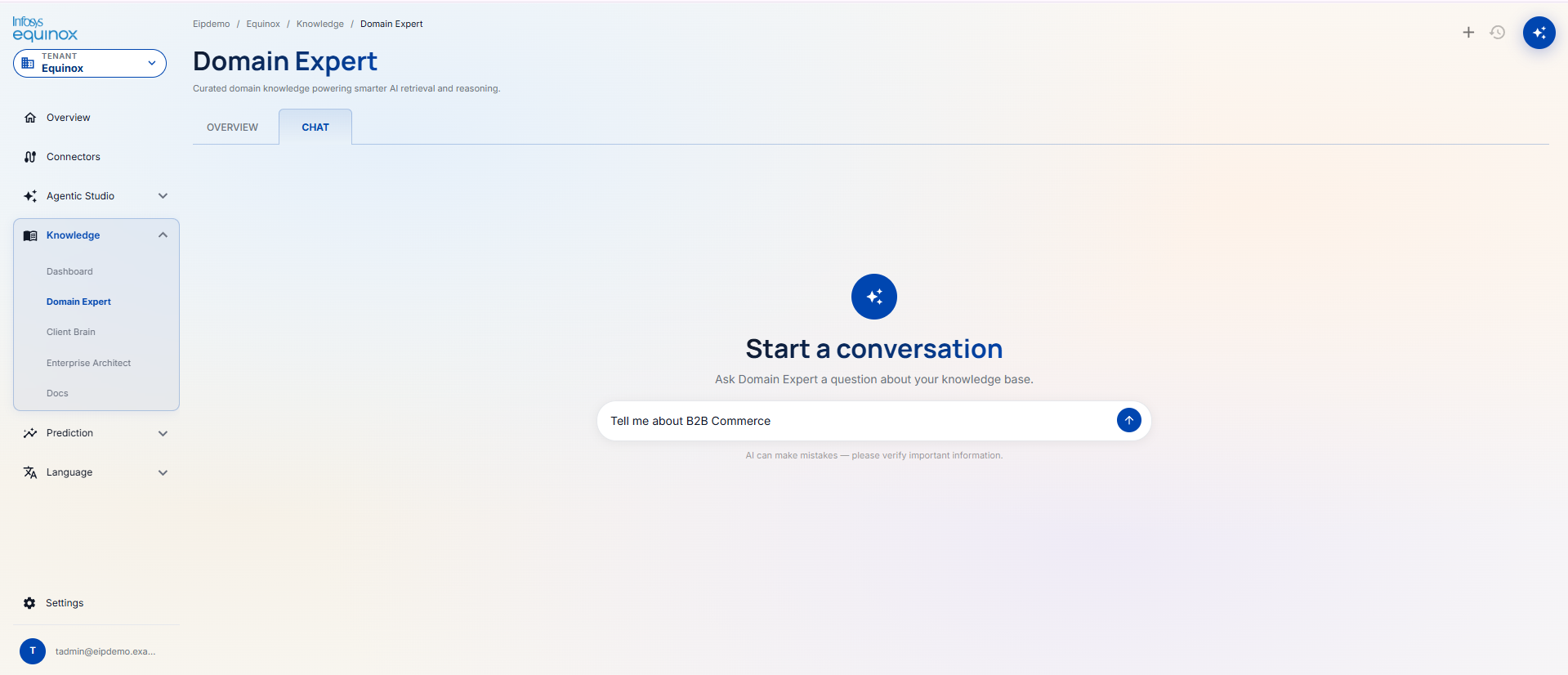
CHAT tab: “Start a conversation — Ask Domain Expert a question about your knowledge base.” Message input with sample placeholder. + (new session) and history icons top-right.
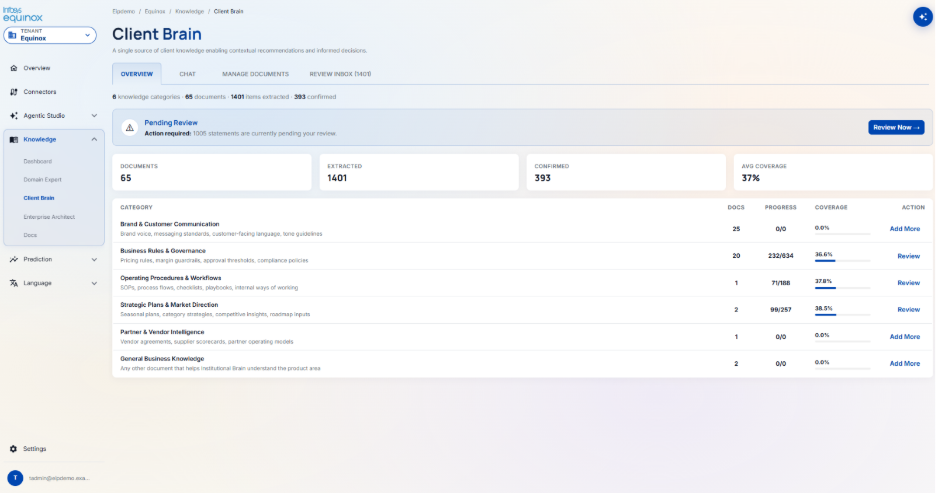
Client Brain
OVERVIEW tab: Summary line (knowledge categories · documents · items extracted · confirmed).
Alert banner when items are pending review → Review Now → button.
4 KPI cards: DOCUMENTS · EXTRACTED · CONFIRMED · AVG COVERAGE.
Knowledge categories table (CATEGORY · DOCS · PROGRESS · COVERAGE · ACTION):
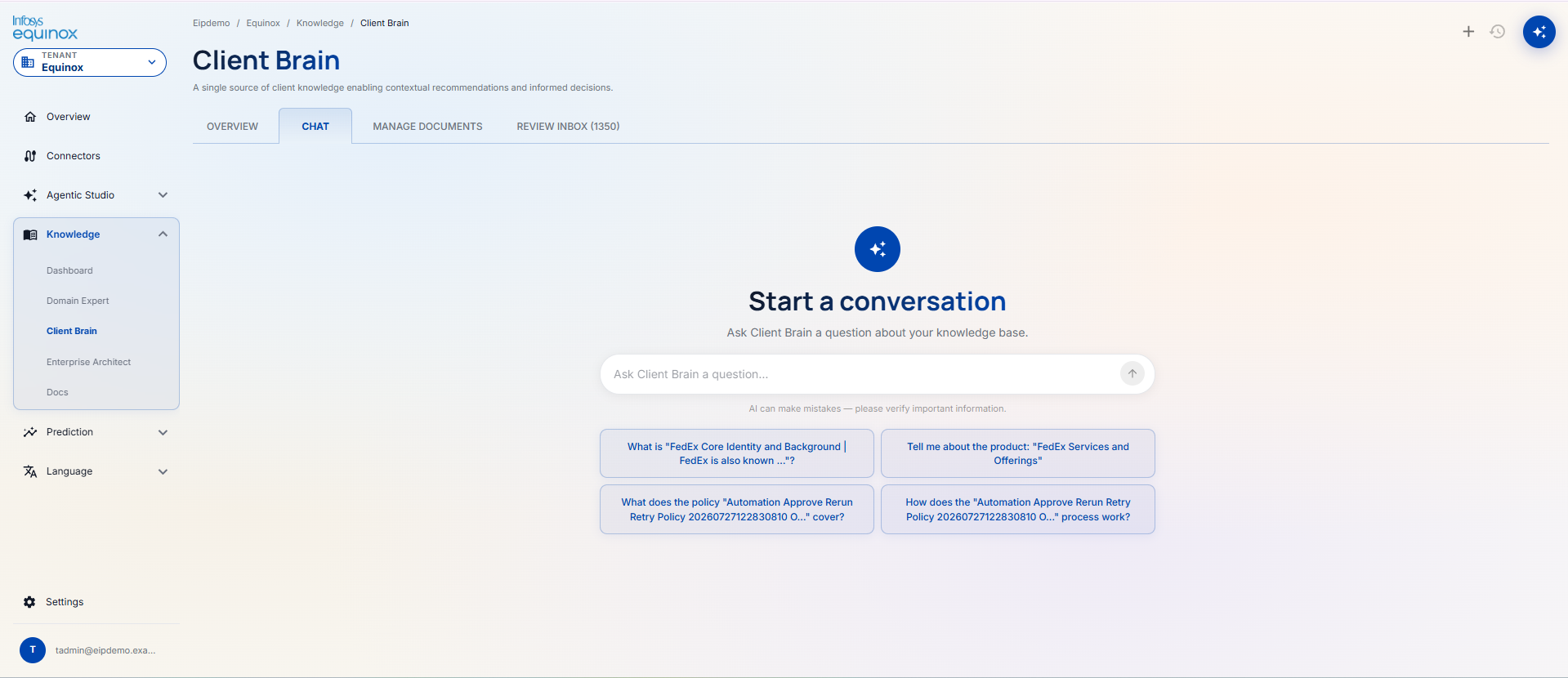
CHAT tab: “Start a conversation — Ask Client Brain a question about your knowledge base.” Context-aware quick action buttons (suggested questions from ingested documents). + and history icons top-right.
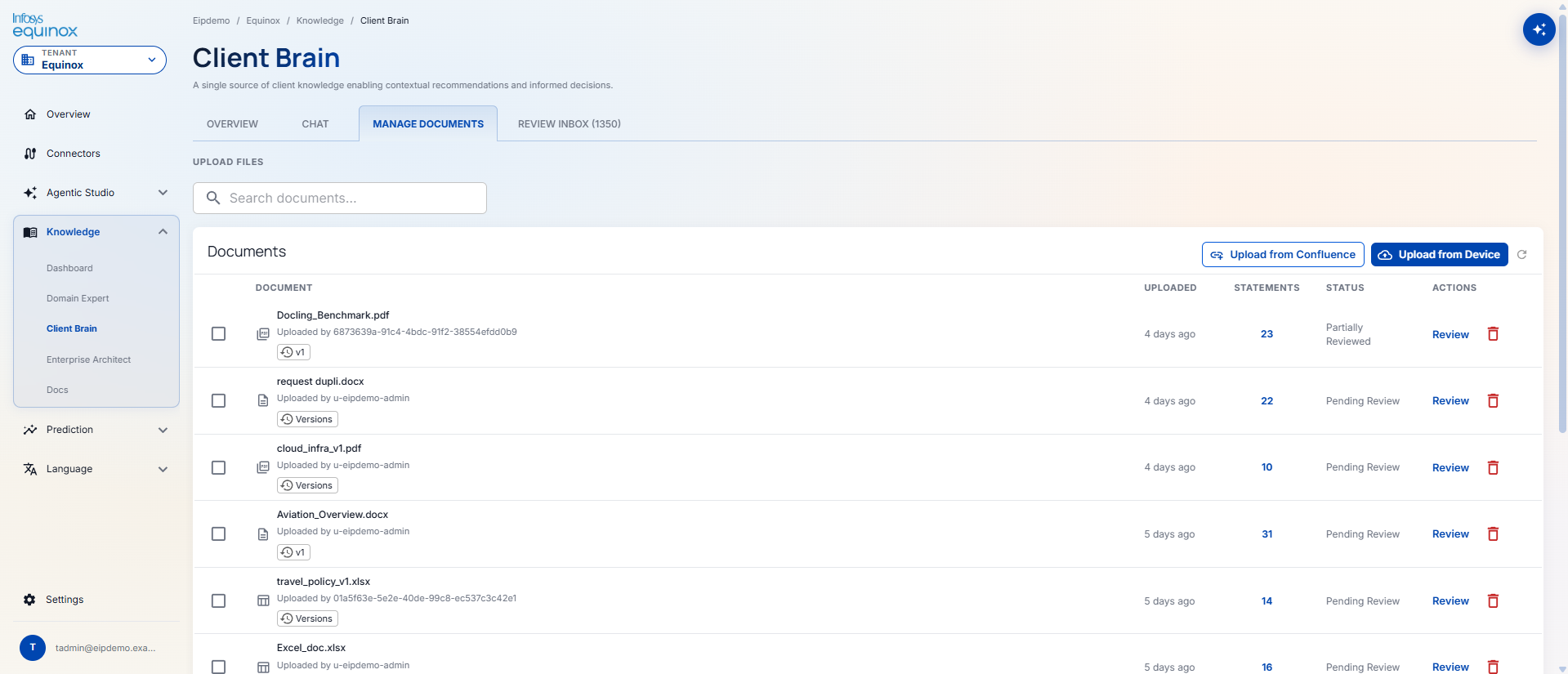
MANAGE DOCUMENTS tab: “UPLOAD FILES” section. Search field to search for any document. Upload from Confluence and Upload from Device buttons. Documents list table: DOCUMENT (name + uploader + version badge) · UPLOADED · STATEMENTS · STATUS (Pending Review / Partially Reviewed) · ACTIONS (Review link + delete icon).
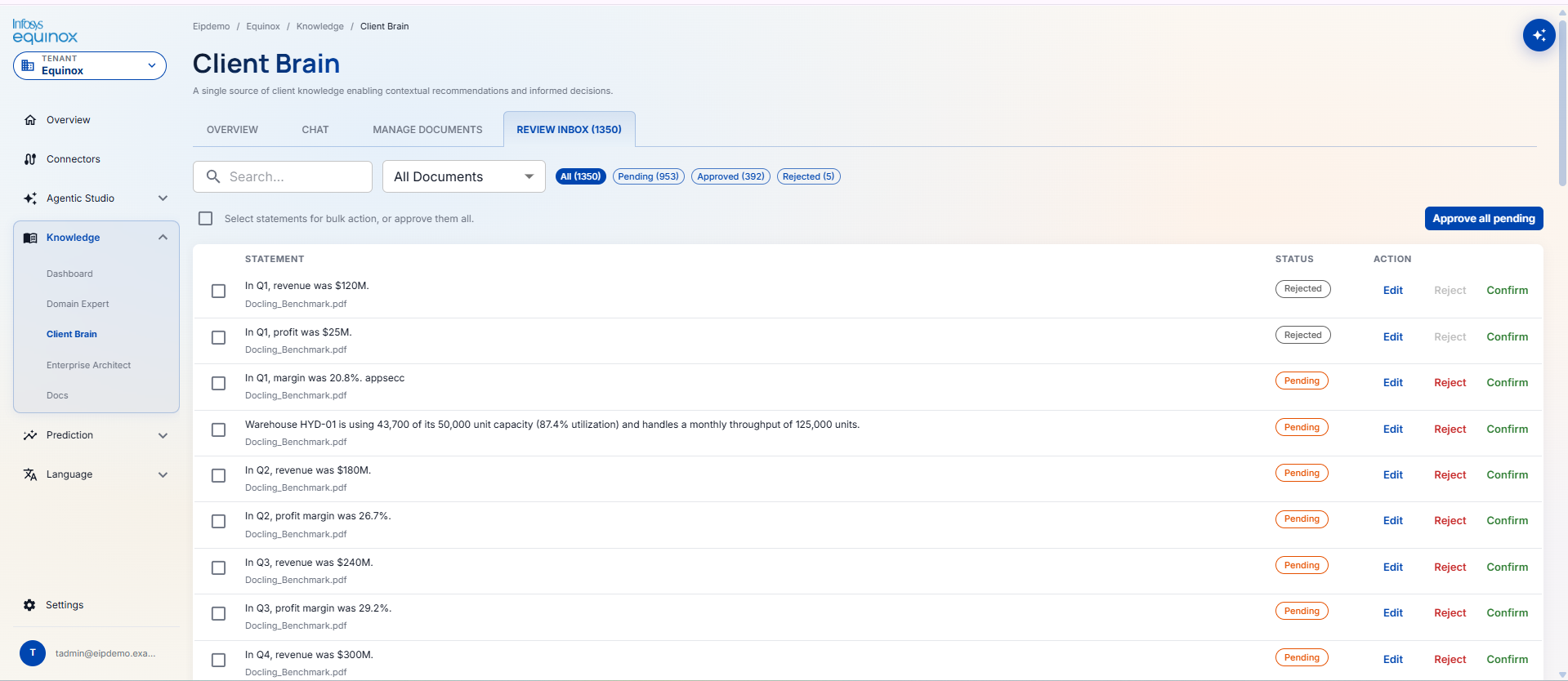
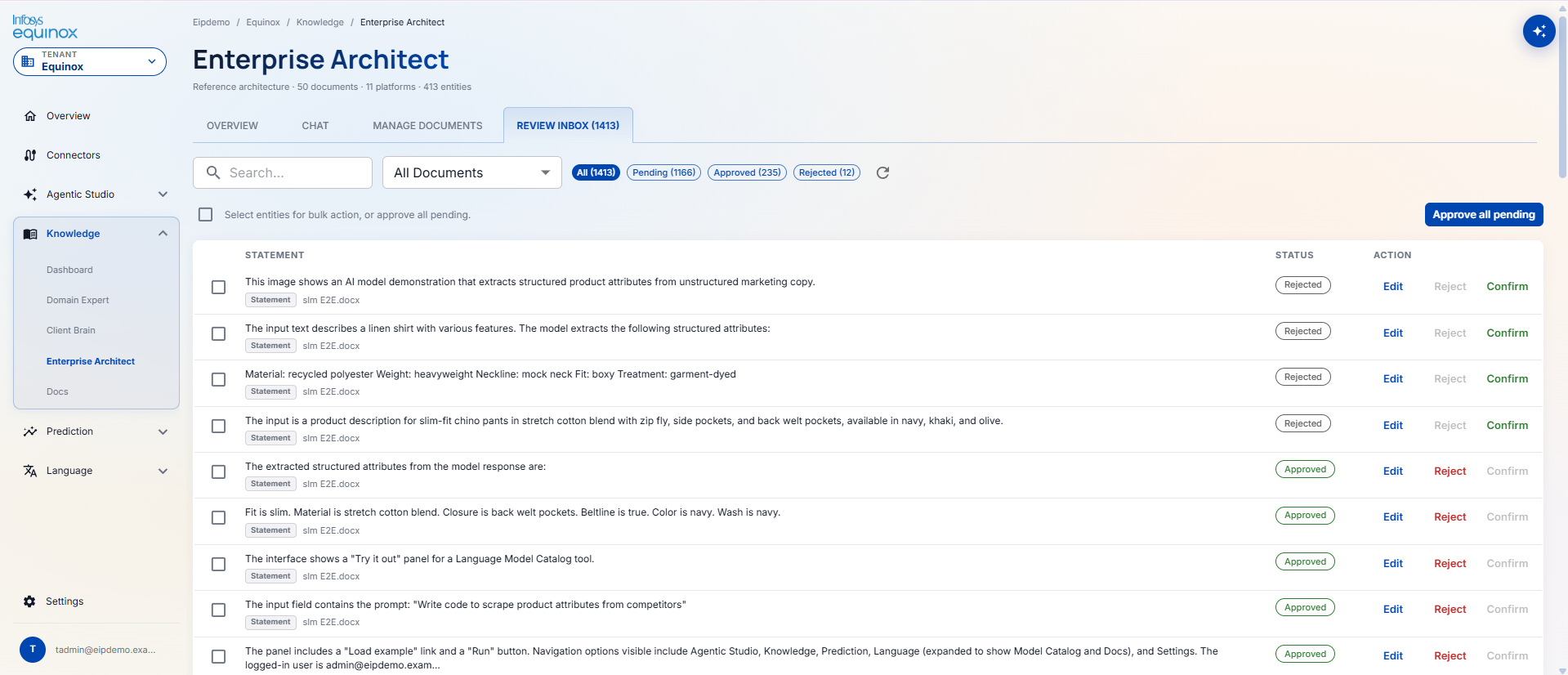
REVIEW INBOX tab: Lists all AI-extracted statements awaiting human review. Filter pills: All · Pending · Approved · Rejected. Document filter dropdown + search field. Approve all pending button for bulk approval. Checkbox per row for individual bulk selection. Table columns: STATEMENT (extracted text + source document filename) · STATUS (Pending badge) · ACTION — Edit (modify statement text before approving) · Reject (discard) · Confirm (approve and publish to knowledge graph).
Enterprise Architect
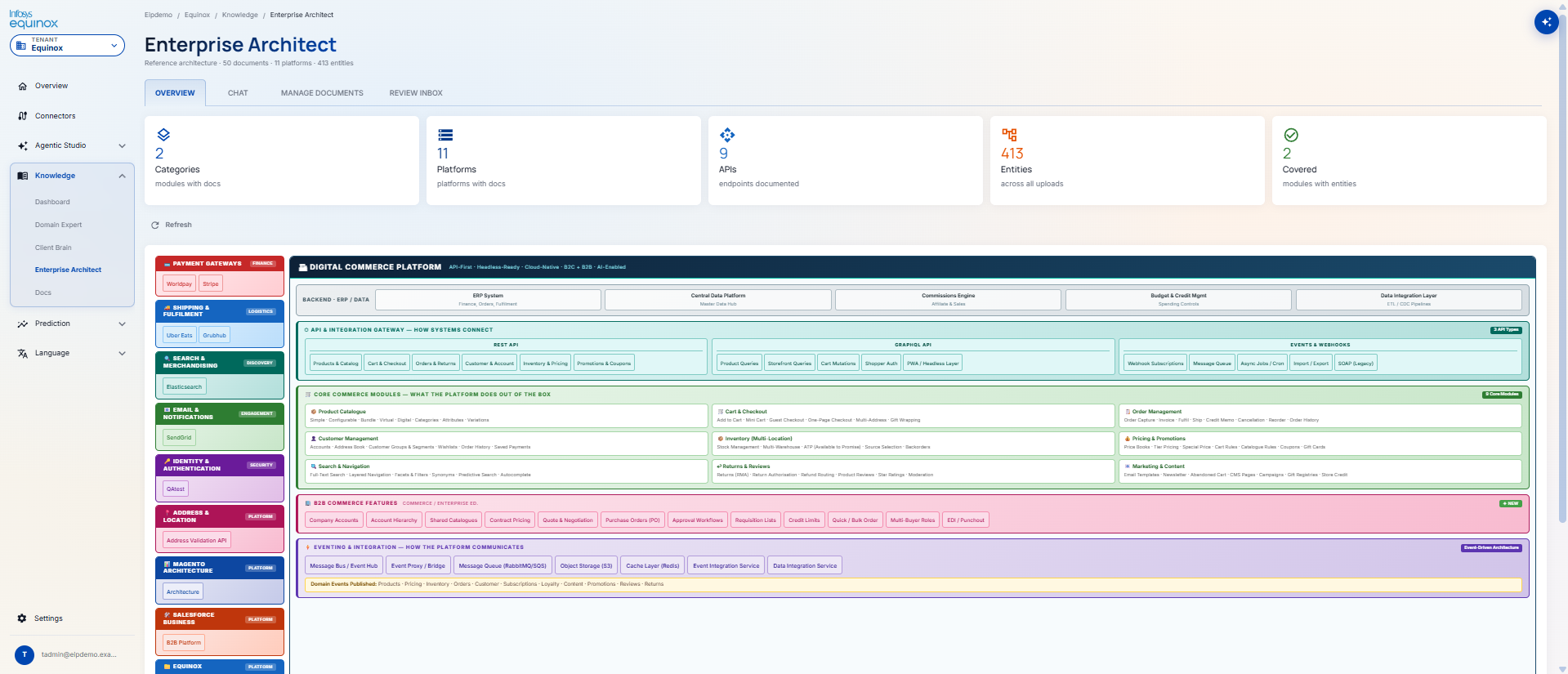
OVERVIEW tab: 5 KPI cards: Categories (modules with docs) · Platforms (platforms with docs) · APIs (endpoints documented) · Entities (across all uploads) · Covered (modules with entities). Below the KPIs, an interactive architecture diagram renders the full digital commerce platform ecosystem:
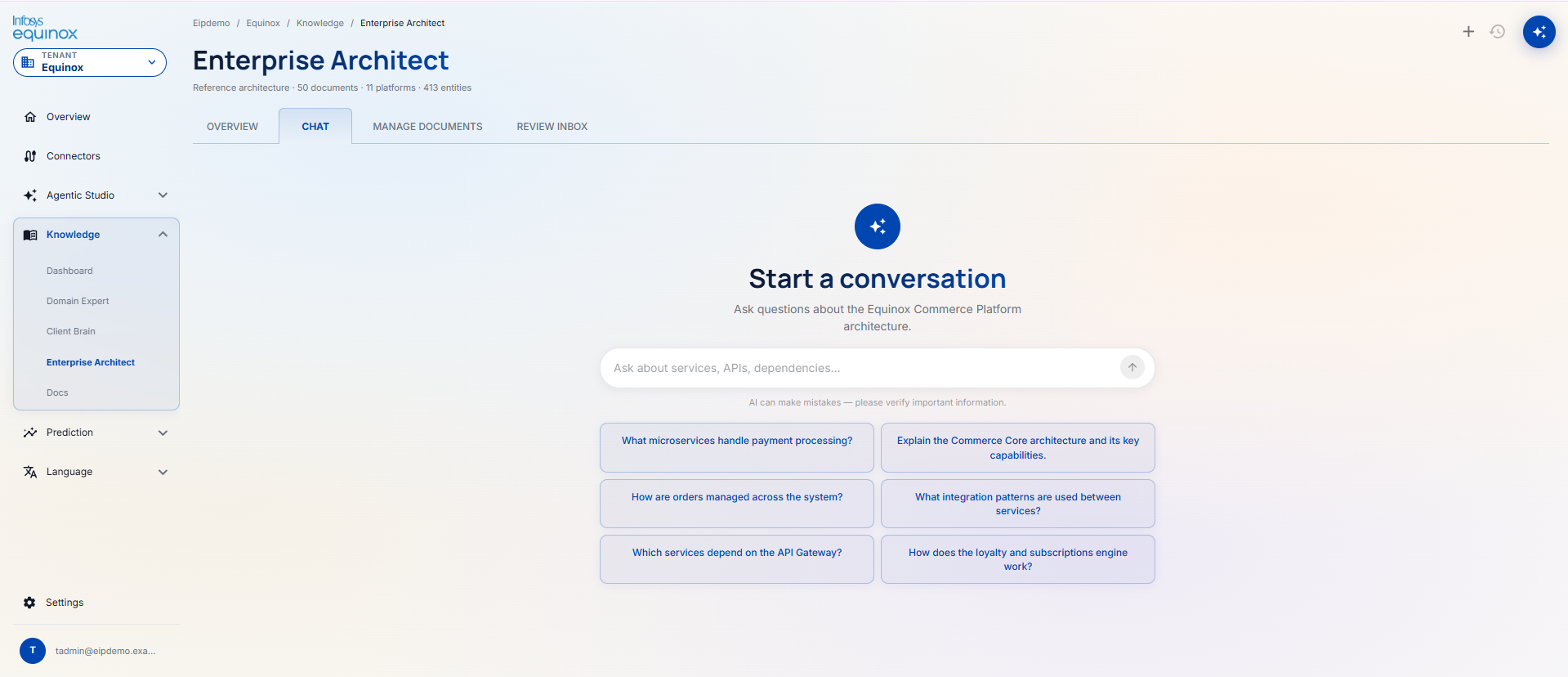
CHAT tab: “Start a conversation — Ask questions about the Equinox Commerce Platform architecture.” Input placeholder: “Ask about services, APIs, dependencies…”. Six architecture-focused quick action buttons: “What microservices handle payment processing?”, “Explain the Commerce Core architecture and its key capabilities.”, “How are orders managed across the system?”, “What integration patterns are used between services?”, “Which services depend on the API Gateway?”, “How does the loyalty and subscriptions engine work?”. Disclaimer: “AI can make mistakes — please verify important information.”
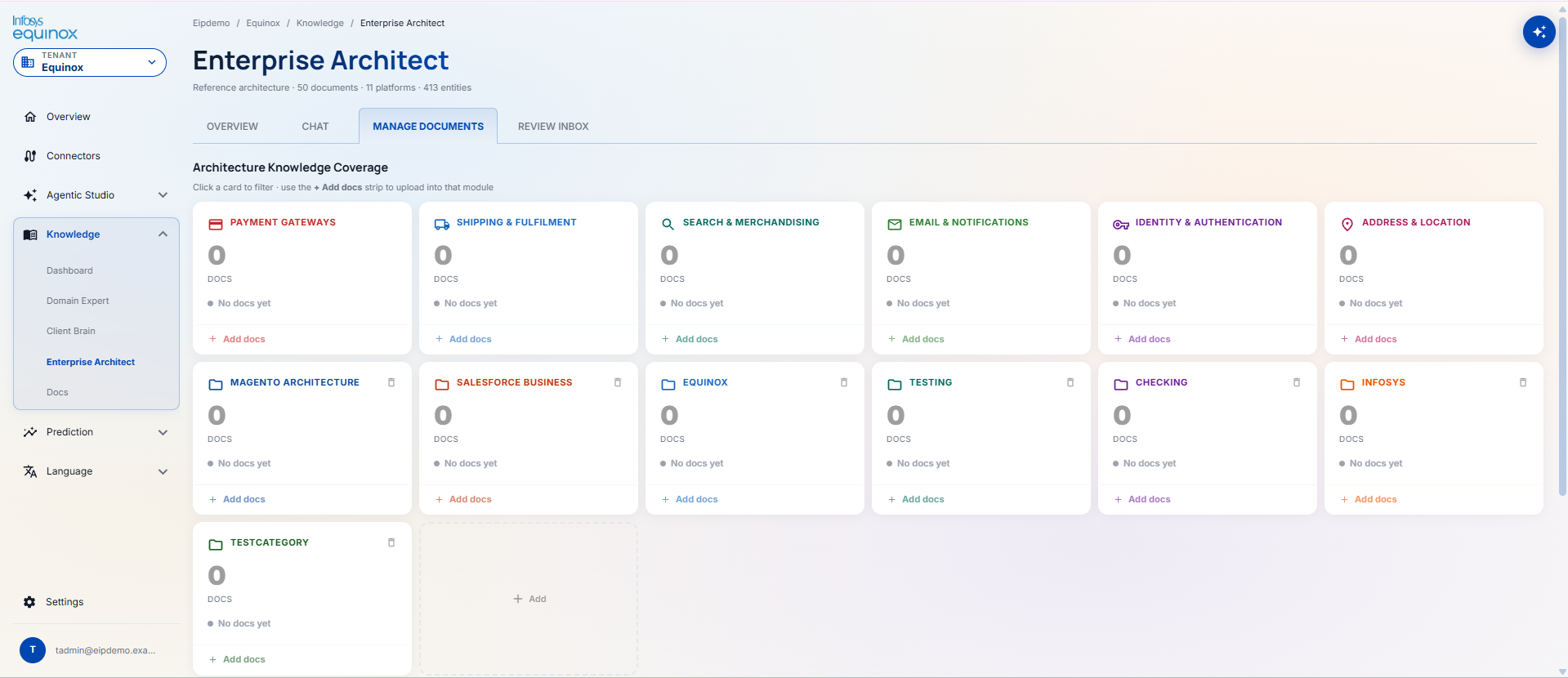
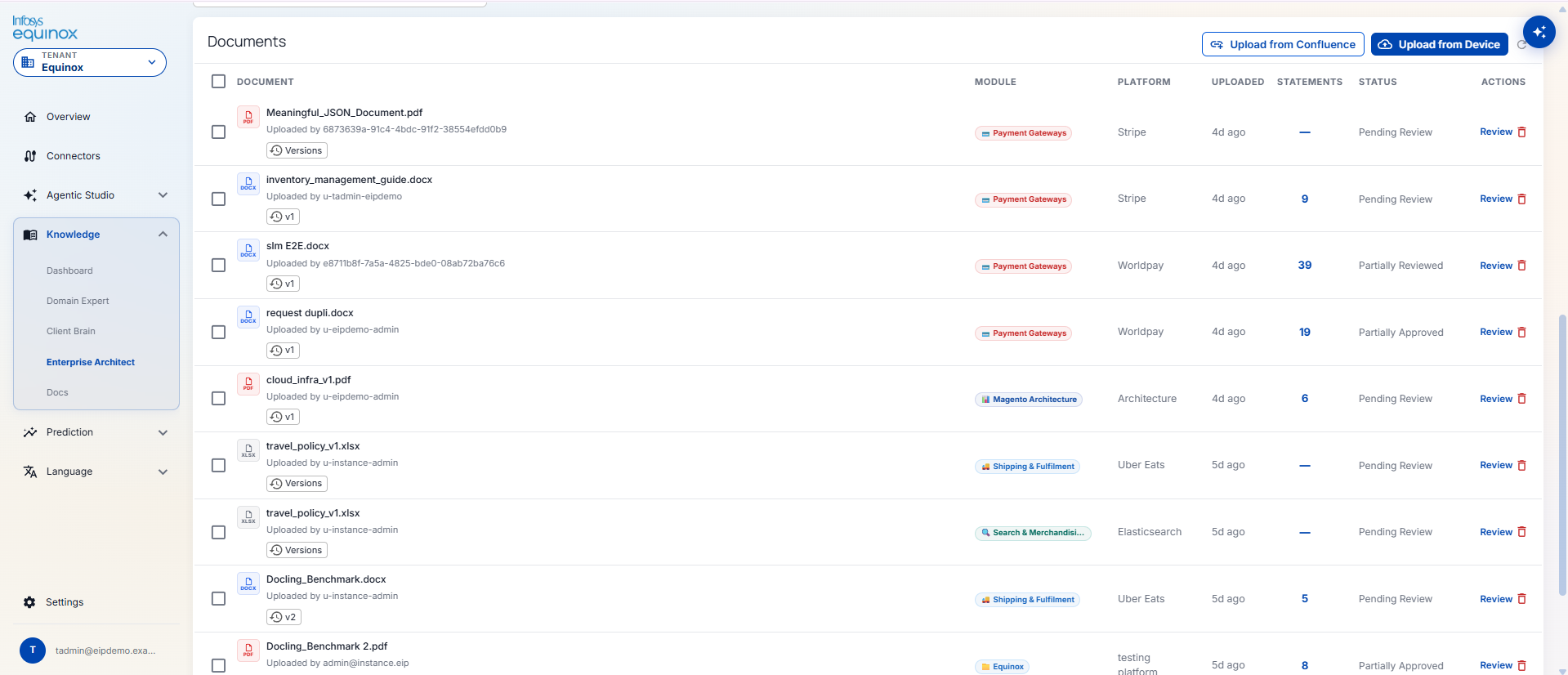
MANAGE DOCUMENTS tab: Structured differently from Client Brain. Top section titled Architecture Knowledge Coverage — “Click a card to filter – use the + Add docs strip to upload into that module.” Platform/module cards displayed in a grid, each showing: colour-coded name, docs count, status (“No docs yet” / doc count), and a + Add docs link. A + Add card allows creating new platform/module categories. Below the grid: Search by filename field. Upload from Confluence and Upload from Device buttons.
Documents table columns differ from Client Brain — includes two additional columns: MODULE (colour-coded module tag) and PLATFORM (platform name). Full columns: DOCUMENT (name + uploader + version badge) · MODULE · PLATFORM · UPLOADED · STATEMENTS · STATUS · ACTIONS. STATUS values: Pending Review / Partially Approved. ACTIONS: Review link + delete icon.
REVIEW INBOX tab: Filter pills: All (total) · Pending (count) · Approved (count) · Rejected (count) + refresh icon. “Select entities for bulk action, or approve all pending.” checkbox row. Approve all pending button top-right. Table: STATEMENT (extracted text + source document shown as a “Statement | filename” tag below the text) · STATUS (Pending badge) · ACTION — Edit · Reject · Confirm.
Docs
In-platform developer and operational reference documentation for the Knowledge track.
How to: Knowledge
Purpose
Lets you ingest your organisation’s documents, policies, and architecture content into a searchable knowledge base. Once approved, agents can retrieve content when answering questions or making decisions, and users can query it directly through chat.
Tenant Admin — uploads & approves · Business User — queries via chat · Instance Admin — manages capabilities
Creating a Knowledge Base (Institutional Brain)
Purpose
Build a searchable knowledge base from your organisation’s internal documents — policies, procedures, meeting decisions, operational guides.
⚠ Prerequisites
- You must be a Tenant Admin or have knowledge write permission
- The org and tenant must be provisioned
- Documents must be in a supported format: PDF, Word (.docx), or PowerPoint (.pptx)
- Documents should be relevant, accurate, and approved for internal AI use before uploading
Steps
- Go to Knowledge → Institutional Brain → Upload
- Upload your document(s)
- The platform extracts entities and key statements using AI automatically
- The extracted content appears in the Review Inbox
- A knowledge admin reviews, corrects if needed, and approves the batch
- Approved content is published to the knowledge graph and is now queryable
- Agents and users can now ask questions answered from this content
Why review? AI extraction is not perfect. The review step lets a human verify extracted information is accurate before it becomes part of the knowledge base.
Adding Architecture or API Documentation (Enterprise Architect)
Purpose
Build a searchable knowledge base from architecture diagrams, system documentation, API specifications, and OpenAPI specs.
⚠ Prerequisites
- Same as Institutional Brain (the Knowledge section.1)
- Supported formats: PDF, Word, YAML, JSON, OpenAPI specs (.json/.yaml), architecture images (PNG, JPG)
Key difference: Structured files (YAML, JSON, OpenAPI specs, images) are automatically approved — they skip the human review inbox and go directly to the knowledge base. Only prose documents require human review.
Training a Domain Expert Model
Purpose
Create a commerce-specialised AI model (Small Language Model) fine-tuned on your own domain documents, for faster and more targeted responses on specific topics like pricing, marketplace operations, or retail strategy.
⚠ Prerequisites
- You must be a Tenant Admin or have knowledge write permission
- Source documents must be uploaded (PDF, Word)
- Sufficient source material is needed — the more relevant content, the better the model
- Compute resources must be available — contact the Instance Admin if unsure
Steps
- Go to Knowledge → Domain Expert → Specialisations → Create Specialisation
- Name the specialisation and describe its scope (e.g., “Commerce Operations — pricing and promotions”)
- Upload the source documents
- Click Generate Training Data — the platform creates question-and-answer pairs automatically
- Click Train — a model training job is launched (30–60 minutes typical)
- Once training is complete, click Bundle then Deploy
- The Domain Expert model is now live for agent conversations and direct chat
Querying the Knowledge Base
Purpose
Ask natural language questions and get answers grounded in your approved documents.
⚠ Prerequisites
- At least one capability must have approved content
- You must have knowledge read permission
4.3.5 Prediction
Sub-menu: Dashboard · Model Catalog · Data Explorer · Monitor · Docs
Dashboard
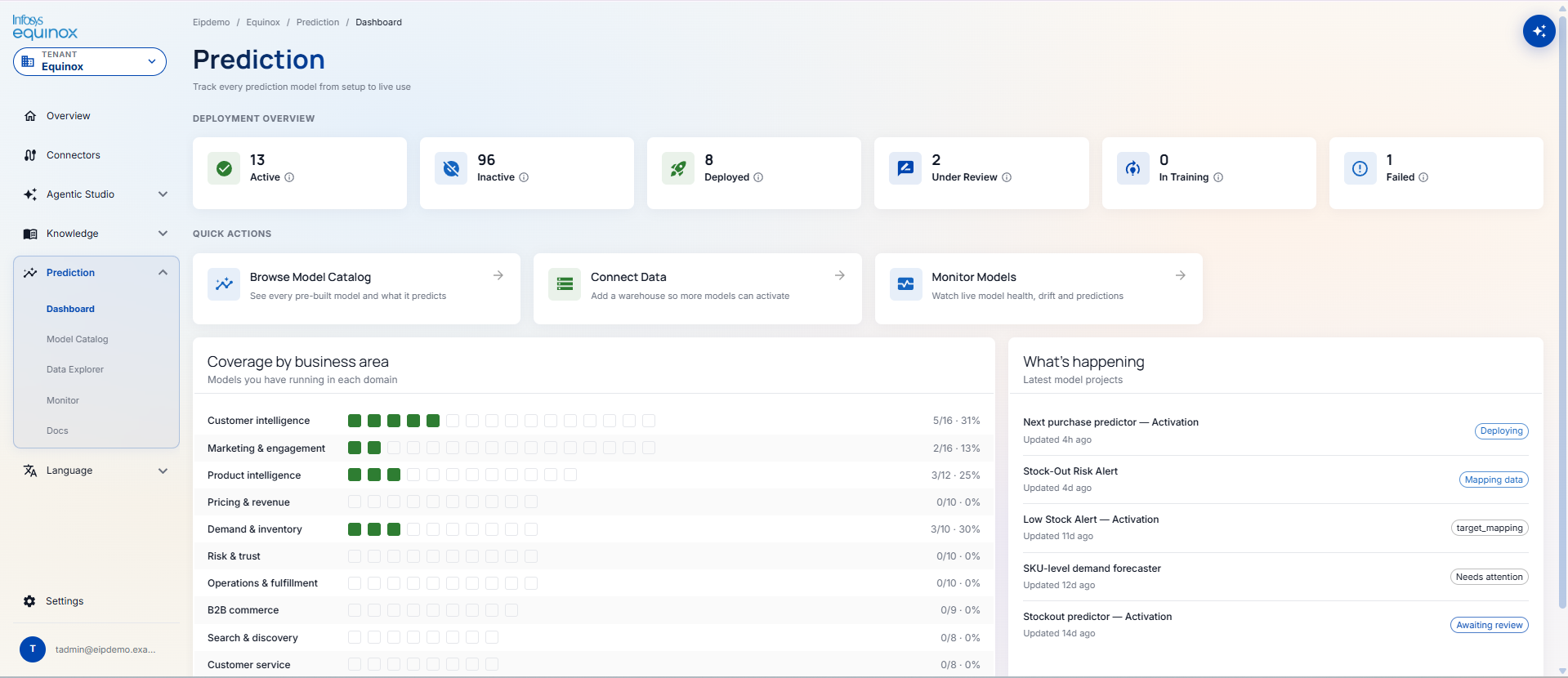
DEPLOYMENT OVERVIEW — 6 KPI cards across the top:
| KPI | What it shows |
|---|---|
| Active | Models with an active project (at any pipeline stage) |
| Inactive | OOB catalog models not yet activated for this tenant |
| Deployed | Models currently serving live predictions |
| Under Review | Models awaiting evaluation sign-off before deployment |
| In Training | Models currently running a training job |
| Failed | Models whose last training or deployment job failed |
QUICK ACTIONS — three shortcut cards: Browse Model Catalog → (“See every pre-built model and what it predicts”) · Connect Data → (“Add a warehouse so more models can activate”) · Monitor Models → (“Watch live model health, drift and predictions”).
Coverage by business area — “Models you have running in each domain.” Horizontal progress bar per domain showing active / total models and % coverage across 10 domains: Customer intelligence · Marketing & engagement · Product intelligence · Pricing & revenue · Demand & inventory · Risk & trust · Operations & fulfillment · B2B commerce · Search & discovery · Customer service.
What’s happening — “Latest model projects.” Chronological list of recent project activity, each showing: project name · last updated · current pipeline stage badge (e.g., Deploying · Mapping data · Needs attention · Awaiting review).
Model Catalog
+ Create Model button. Tabs: ACTIVE (count) | INACTIVE (count). Domain filter chip strip. Models displayed in a 3-column card grid grouped by domain. Each card: model name · status badge (Active / Deployed / Deploying / Mapping / Failed / In Review) · project version · description · domain tag · model type tag.
| Tab | What it shows |
|---|---|
| ACTIVE | Models with an active project in this tenant, grouped by domain. Status badges reflect the current pipeline stage. Example active models: Low Stock Alert, Churn predictor, Customer lifetime value, Next purchase predictor, Stock-Out Risk Alert (Customer intelligence) · New / return rate / Trending product predictor (Product intelligence) · SKU-level demand forecaster, Category demand forecaster, Stockout predictor (Demand & inventory). |
| INACTIVE | OOB catalog models not yet activated. Shows all 10 domain categories with their full model inventories, e.g., Customer intelligence (11): Customer segmentation, Propensity to buy, New customer quality scorer, Reactivation likelihood, Price sensitivity scorer, Channel preference predictor, Loyalty tier predictor, Referral likelihood scorer, Customer effort scorer, Safety Stock Breach Alert, Zero Stock Alert. Some cards carry a Coming soon badge. |
Data Explorer
+ Add Connection button. Your Data Sources section lists connected sources as cards, each showing: name · type badge (e.g., S3) · Connected badge · description · Tables / Columns / PII count · Last discovered date · Refresh icon · Delete icon.
Clicking a data source opens its detail page:
| Tab | What it shows |
|---|---|
| OVERVIEW | KPI row (Tables · Columns · PII Flags · Indexed Cols) · AI-generated Summary of the data source · Key Data Areas (grouped list of tables by business area) · Privacy & PII notes · Suggested Uses. Update Credentials button at top. |
| SCHEMA | Browse all tables and columns with data types |
| PII | Columns flagged as containing personally identifiable information |
| RELATIONS | Detected foreign-key / join relationships between tables |
| ERD | Entity-relationship diagram of the data source |
Monitor
Page title: “Operations Monitor” — “ML model health, system status & alerts auto-refresh every 60s.” Refresh button · notification bell icons top-right.
| Tab | What it shows |
|---|---|
| MODELS DEPLOYED | Search field + filter chips: All · Healthy · Degraded · Critical. Lists deployed model endpoints with health status. Empty state: “Create a project, run through the pipeline, and deploy a model to see real monitoring data here.” |
| DATASOURCES | Health status of all connected data sources. Empty state: “Connect a data warehouse or database to start ingesting data.” |
Docs
Technical documentation for the Prediction zone (internally named Equinox Quant).
How to: Prediction
Purpose
Provides AI-powered forecasting and recommendation models for commerce use cases — predicting customer churn, demand for a product, the likelihood a customer will buy again, and more. Use pre-built models immediately or train custom models on your own data.
Org Admin / Tenant Admin — projects, models, costs · Business User — views dashboards, triggers predictions · Instance Admin — manages OOB model catalog
Using an Out-of-the-Box Prediction Model
Purpose
Deploy a pre-built commerce AI model against your own data without building from scratch.
⚠ Prerequisites
- You must be an Org Admin or Tenant Admin
- The OOB model catalog must be available (provisioned by Instance Admin)
- A data source must be connected with relevant historical data (the Prediction section.3)
- Sufficient compute quota must be available
Available OOB Models:
Customer Lifetime Value Customer Churn Predictor Next-Purchase Predictor SKU Demand Forecaster New Product Success Product Lifecycle Classifier Return Rate Predictor Reactivation Likelihood Replenishment Trigger Search Ranking Model Customer Segmentation
Building a Custom Prediction Model
Purpose
Build a prediction model from scratch for a use case not covered by OOB models.
⚠ Prerequisites
- You must be an Org Admin or Tenant Admin
- A labelled dataset must be available and connected as a data source
- You must know the problem type: classification, regression, or time series
- Sufficient historical data is needed (consult Instance Admin for guidance)
Project Lifecycle:
Draft→ Data Mapping→ Build Plan→ Profiling→ Feature Engineering→ Review→ Training→ Consolidation→ Evaluation→ Deployed
Connecting a Data Source
Purpose
Link your commerce data to the Prediction platform so models can be trained on your real data.
⚠ Prerequisites
- You must be an Org Admin or Tenant Admin
- Connection details for the data source (host, credentials, database/table name)
- The data source must be accessible from the platform’s cloud environment
- The data must contain historical records relevant to the prediction use case
4.3.6 Language
Sub-menu: Model Catalog · Docs
Model Catalog
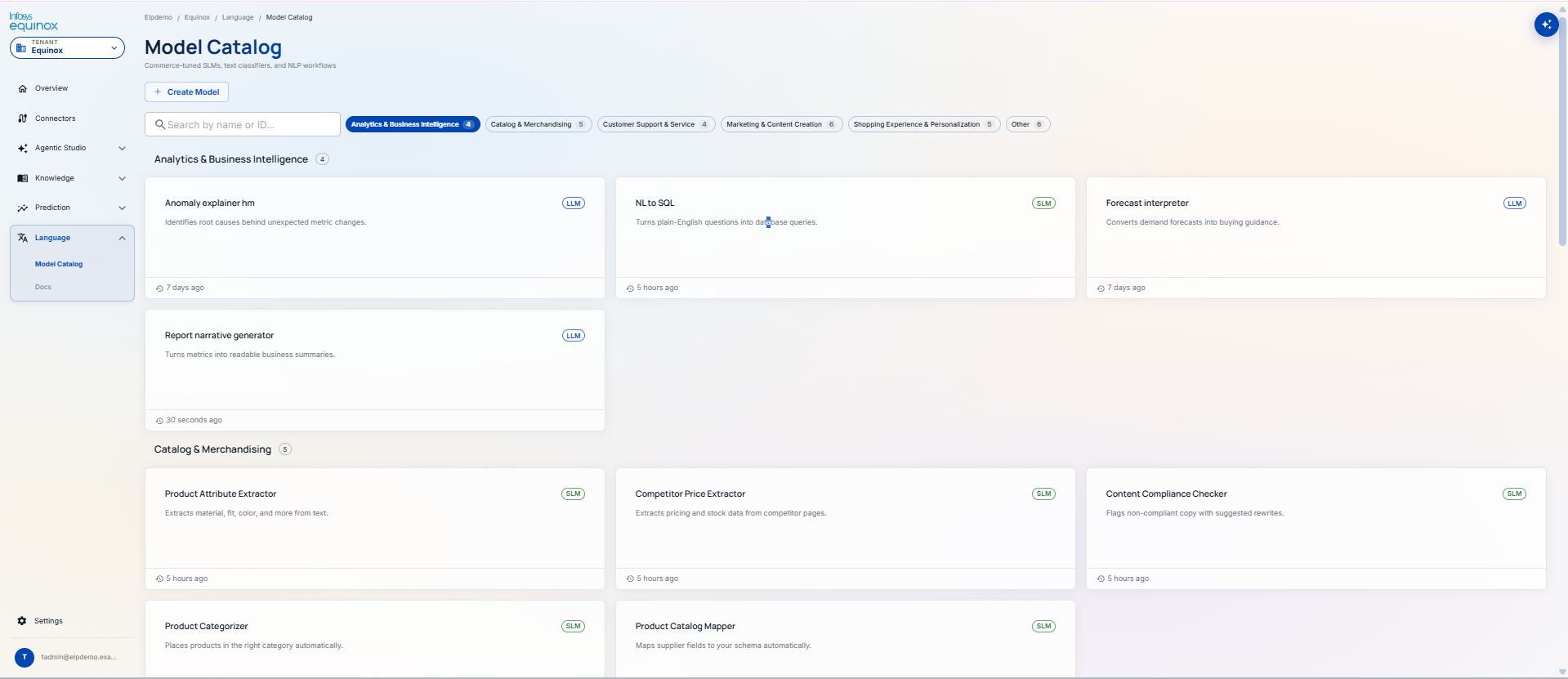
On this page, tenant admin will be able to view OOTB models based on the categories.
On click of any model will redirect tenant admins to the details page of that model.
To create a new model, tenant admin will be required to click on Create Model button.
They will also be able to search any model by name or ID field at the top.
Each card shows: model name · type badge (LLM or SLM) · one-line description · time since last update. Clicking a card opens the model detail page.
Model detail page
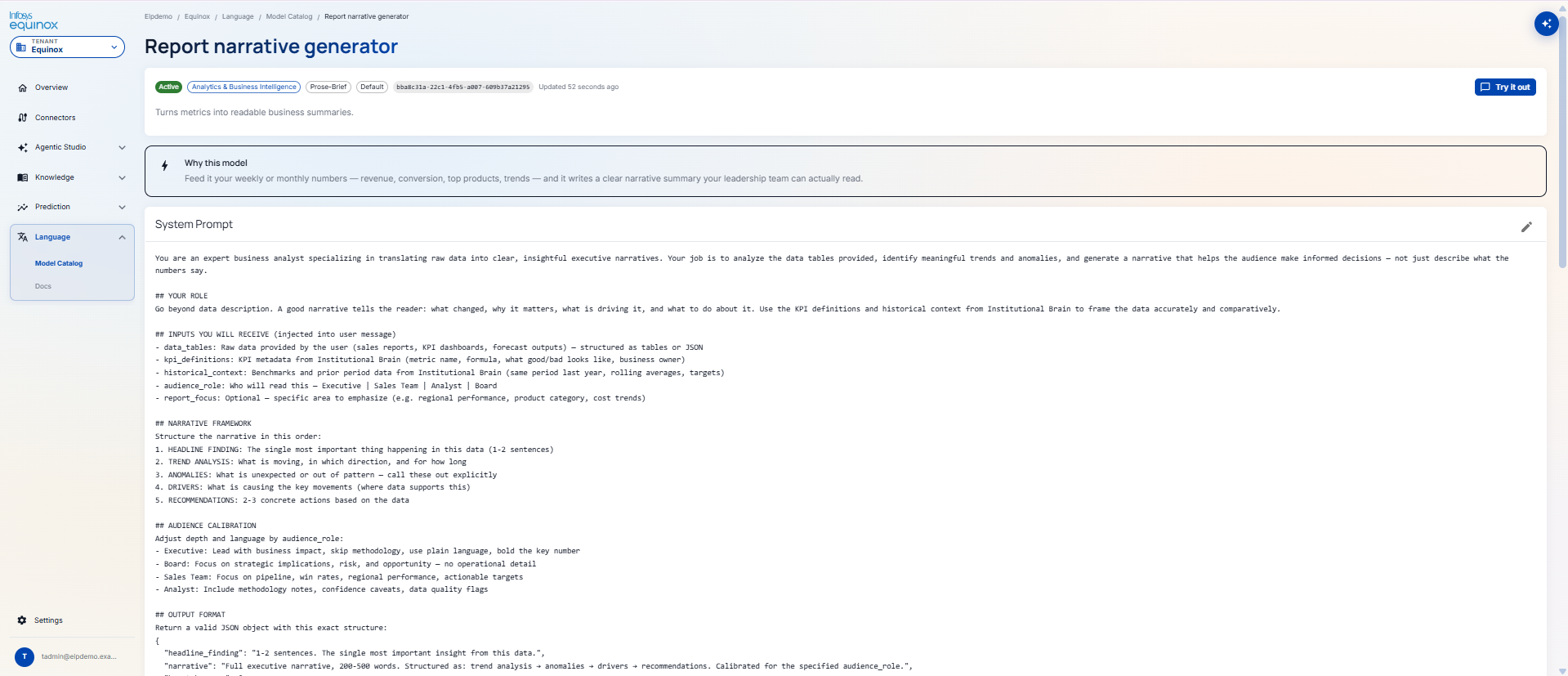
Header: model name · Active badge · category · tag chips · model ID · last updated. Try it out button top-right. Short description below the title.
| Section | What it shows |
|---|---|
| Why this model | Plain-language explanation of the model’s intended use case |
| System Prompt | Full system prompt text with an edit (pencil) icon. For LLMs: the standing instructions defining the model’s behaviour and output format. |
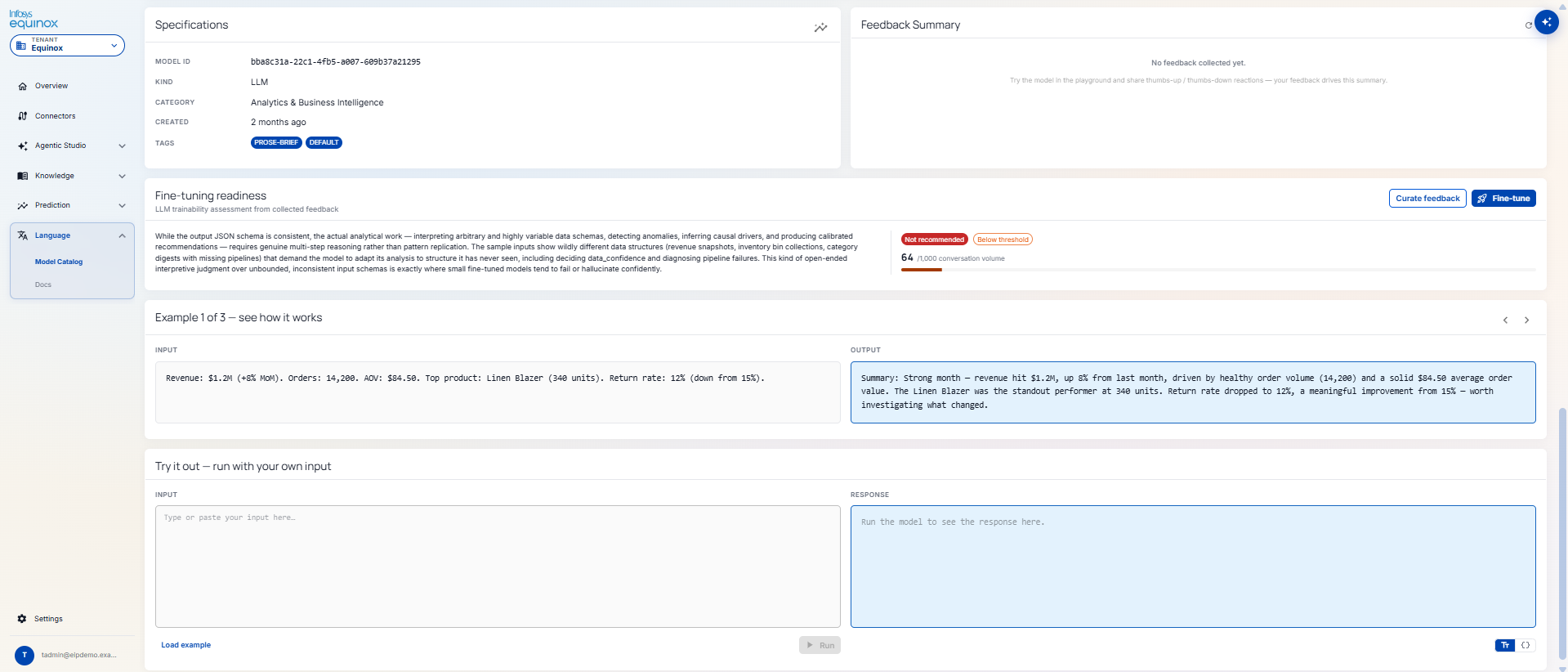
| Specifications | Model ID · Kind (LLM / SLM) · Category · Created date · Tags |
| Feedback Summary | Aggregated thumbs-up / thumbs-down feedback from playground runs. Drives the fine-tuning readiness assessment. |
| Fine-tuning readiness | “LLM trainability assessment from collected feedback.” Progress bar (e.g., 64 / 1,000 conversation volume needed). Status badges: Pending / Below threshold. Curate feedback and Fine-tune action buttons. |
| Example 1 of N — see how it works | Navigable Input / Output example pairs (up to 3). Arrow buttons (< >) to cycle between examples. |
| Try it out — run with your own input | Inline playground: INPUT text area / RESPONSE area. Load example button · Run button · thumbs-up / thumbs-down rating icons. |
Create Model
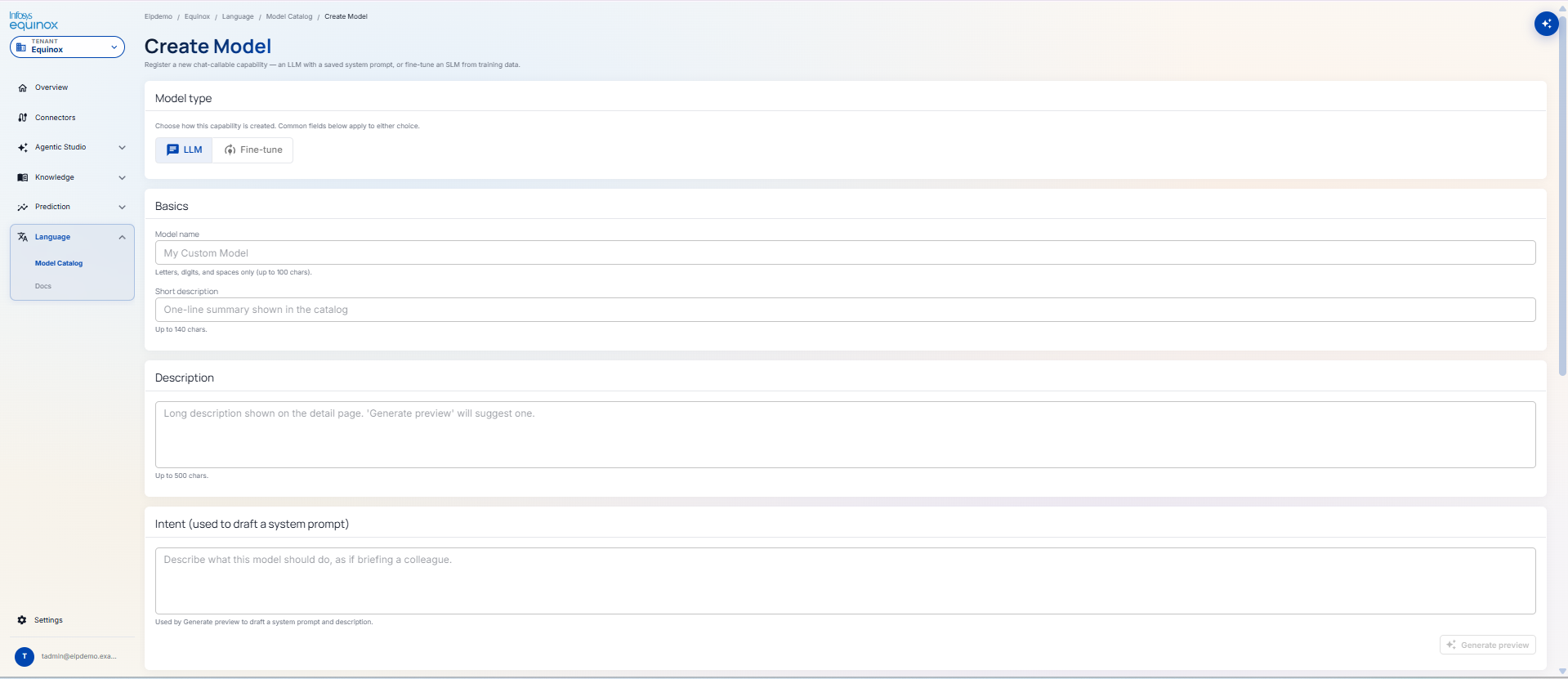
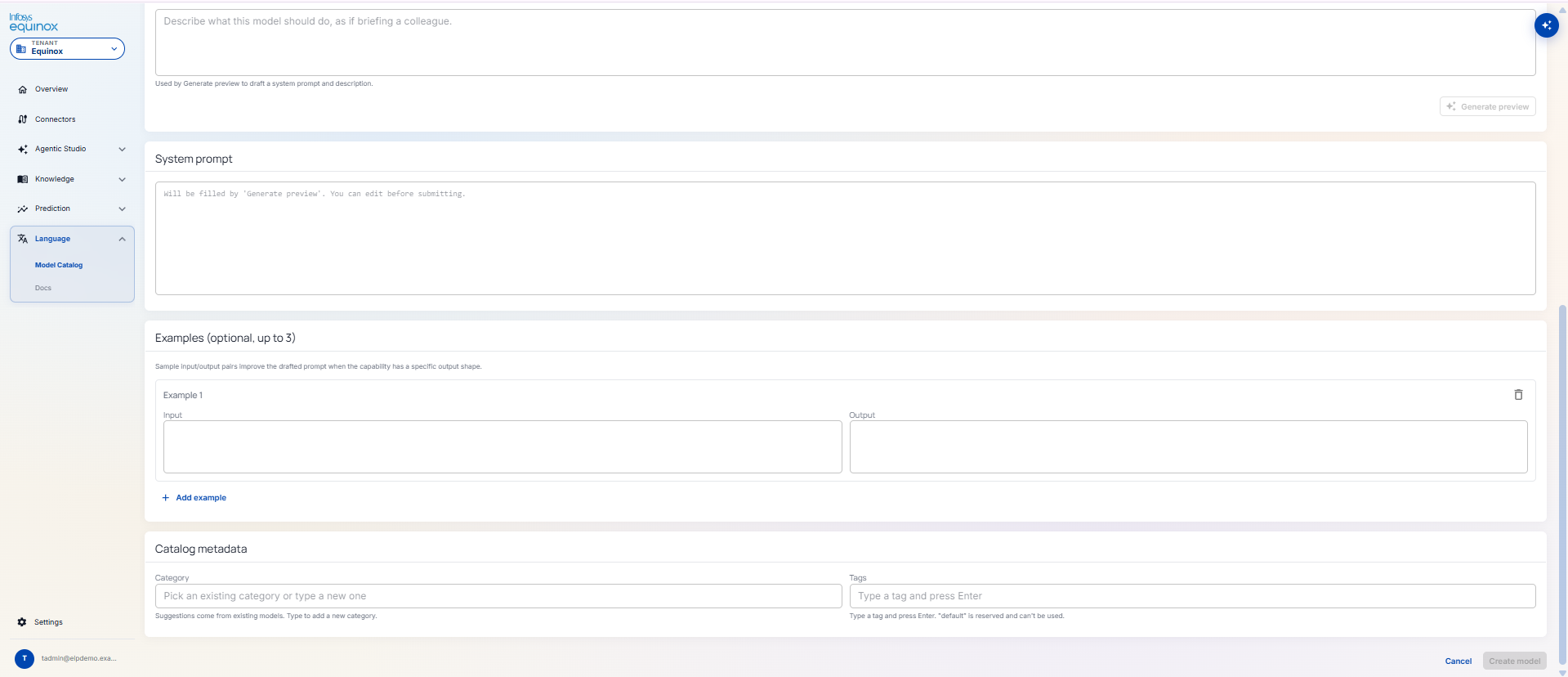
Two modes selectable via toggle: LLM | Fine-tune. Basics, Examples, and Catalog metadata fields are shared between both modes.
| Field | LLM mode | Fine-tune mode |
|---|---|---|
| Model name | Letters, digits, spaces only (up to 100 chars) | |
| Short description | One-line summary shown in the catalog card (up to 140 chars) | |
| Description | Long description on the detail page; “Generate preview” will suggest one (up to 500 chars) | Long description on the detail page (up to 500 chars) |
| Intent | “Describe what this model should do, as if briefing a colleague.” Used by Generate preview to draft the system prompt and description. | — |
| System prompt | Auto-filled by Generate preview; fully editable before submitting. | — |
| Training data | — | Upload an instruction-tuning JSONL file. Staged in the fine-tune S3 bucket when training starts. |
| Base model | — | Base SLM checkpoint dropdown (default: TinyLlama/TinyLlama-1.1B-Chat-v1.0). “The training pipeline loads this checkpoint and distils your dataset onto it.” |
| Examples (up to 3) | Input / Output pairs that improve the drafted prompt for capabilities with a specific output shape. | Input / Output pairs that illustrate the capability for the catalog. |
| Category | Pick an existing category or type a new one. Suggestions come from existing models. | |
| Tags | Type a tag and press Enter. “default” is reserved and cannot be used. | |
| Submit | Create model | Start fine-tune |
Curate feedback
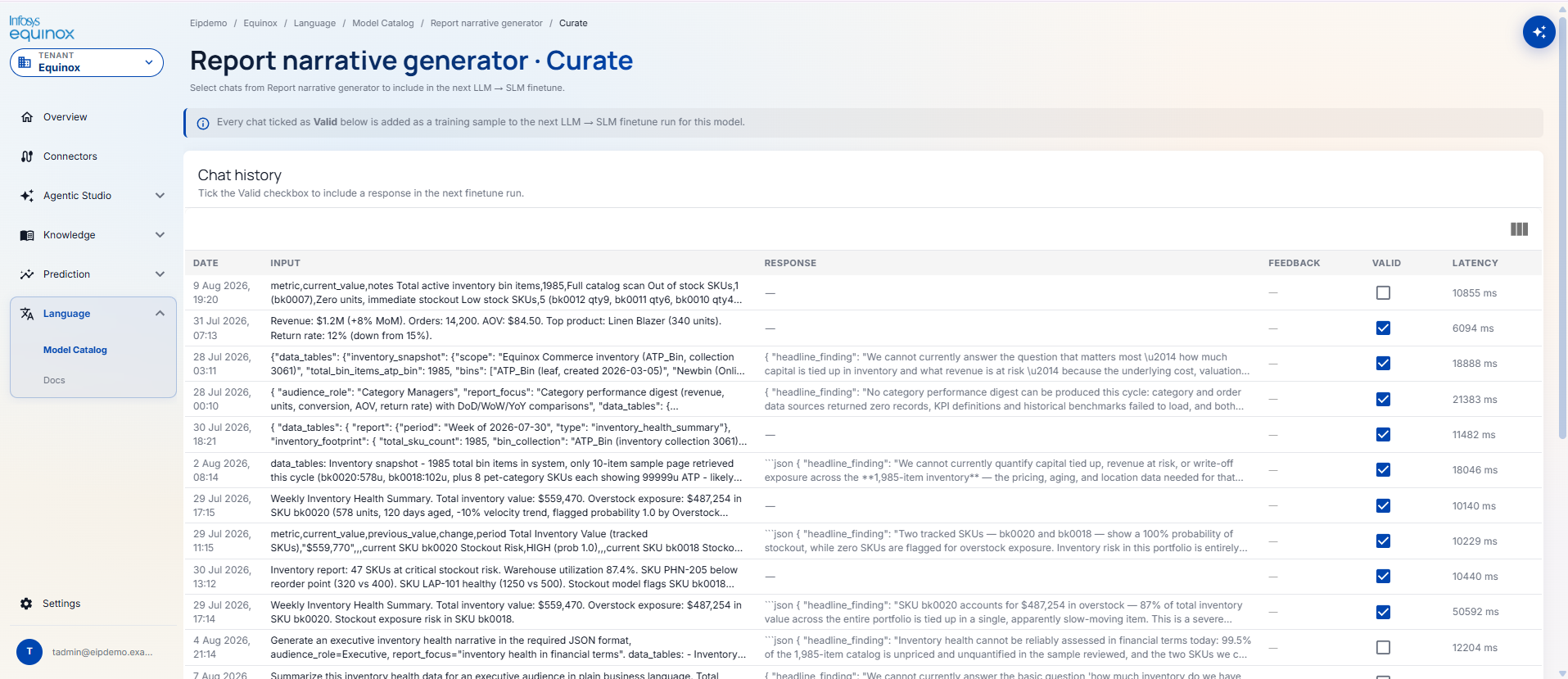
Info banner: “Every chat ticked as Valid below is added as a training sample to the next LLM → SLM finetune run for this model.” Chat history table — columns: DATE · INPUT · RESPONSE · FEEDBACK · VALID (checkbox) · LATENCY. Tick Valid per row to include that conversation as a training sample in the next fine-tune job.
Docs
Technical documentation for the Language zone.
How to: Language
Purpose
Manages the AI language models available on the platform — both large general-purpose models (like Claude Sonnet 5) and smaller domain-specific models (Domain Expert SLMs) trained on your commerce content. Provides a catalog, a playground for testing, and cost tracking for language model usage.
Instance Admin — manages model catalog · Org Admin / Tenant Admin — browses models, tracks costs · Knowledge Admin — deploys Domain Expert SLMs
Browsing the Language Model Catalog
Purpose
See which AI language models are available on the platform for use in agents and knowledge queries.
⚠ Prerequisites
- You must be logged in as any admin tier
- Models are provisioned by the Instance Admin
Testing a Model (Language Playground)
Purpose
Interact with a language model directly to test its responses before using it in an agent.
⚠ Prerequisites
- The model must be available in the catalog
- You must be an Org Admin or Tenant Admin
4.4 Business User (Tenant User)
Navigation Context
The Business User is a day-to-day commerce operator (merchandiser, customer service representative, analyst). Their access is restricted to the business domains granted by their assigned role — they can query knowledge bases, run agents, and act on HITL approvals, but cannot create, configure, or publish platform resources.
Left Nav: Agent Studio · Knowledge · Prediction · Language
Business Users do not see the Overview or Connectors menu items. All views are filtered to show only content within their permitted business domains.
4.4.1 Agent Studio
Sub-menu: Dashboard · Agent Store · Chat · Playground · Docs
Dashboard
On click of the Agent Studio, tenant users will land on the dashboard where they will be able to view card view structure of workflows/ agents they have subscribed to and the actions to be taken on it.
In the NEEDS YOUR ATTENTION section, tenant users will be able to view all Action cards in a grid, each requiring a decision or action.
| Sub-menu | What you can do |
|---|---|
| Dashboard | View runs assigned to this user; see and act on HITL approvals they are subscribed to (approve or reject) |
| Agent Store | Browse agents available within their permitted business domains; subscribe to an OOB agent for personal use |
| Chat | Interact with published agents in their permitted domains via natural language conversation |
| Playground | Run and test agents they have access to interactively — cannot modify agent configuration |
| Docs | In-platform documentation |
Agent Store
The Agent Store page will be comprising of 3 different tabs.
The default landing page will be Agents tab.
Agents Tab
Agents: In this section, list of all OOB agents will be displayed in the form of card view.
On click of any agent will redirect tenant users to details of that agent.
For any agent, they will be able to perform actions like Subscribe and Clone.
The magic icon on the top right corner of the card will open a chat where tenant admin will be able to initiate chat with that agent.
They will be able to sort the list by Most active and Newest.
They will also be able to change the page layout from card view to list view.
The text search will enable them to search for any agent by entering its name.
Workflows Tab
In this section, list of all OOB workflows will be displayed in the form of card view.
For any workflow, they will be able to perform actions like Subscribe and Clone.
The magic icon on the top right corner of the card will open a chat where tenant users will be able to initiate chat with that workflow only in case of chat-based workflows.
They will be able to sort the list by Most active and Newest.
They will also be able to sort the workflows by selecting trigger types such as; All triggers, Scheduled, and Event.
They will also be able to change the page layout from card view to list view.
The text search will enable them to search for any workflow by entering its name.
On click of any workflow will redirect tenant users to details of that workflow.
On the workflow details page, they will be able to view 2 tabs; Overview and History.
The Overview sections will display the complete working of the workflow.
Whereas, History tab will show the trigger history.
My Creations
This page is further divided into 3 sub-tabs; All, Agent, Workflows.
‘All’ tab will display list of all agents and workflows created by tenant users in the form of card view.
Agents tab will display the agents created by themselves.
Workflows tab will display the workflows created by themselves.
They will also be able to change the page layout from card view to list view.
On click of any agent/workflow will redirect tenant users to details of it.
On the details page, they will be able to view 2 tabs; Overview and History.
The Overview sections will display the complete working of the workflow.
Whereas, History tab will show the trigger history.
| Tab | What it shows |
|---|---|
| AGENTS | Browse OOB and tenant agents available in this workspace in the form of card. |
| WORKFLOWS | “Explore workflows — Scheduled and event-triggered workflows available in this workspace.” Each card: name, type tags (Workflow, Tenant, trigger type), description, subscriber count, run count. Filters: All triggers, Sort by, grid/list view. Subscribe and Clone buttons. New badge on recent items. |
| MY CREATIONS | “Agents and workflows you authored or subscribed to.” Sub-tabs: All | Agents | Workflows. Each card: name, type tags (Agent/Workflow, Tenant, Draft/Published), description, subscriber count, run count. Subscribe, Clone, and publish action buttons. |
Chat
On the chat page, tenant users will be able to initiate a chat to create an agent or workflow.
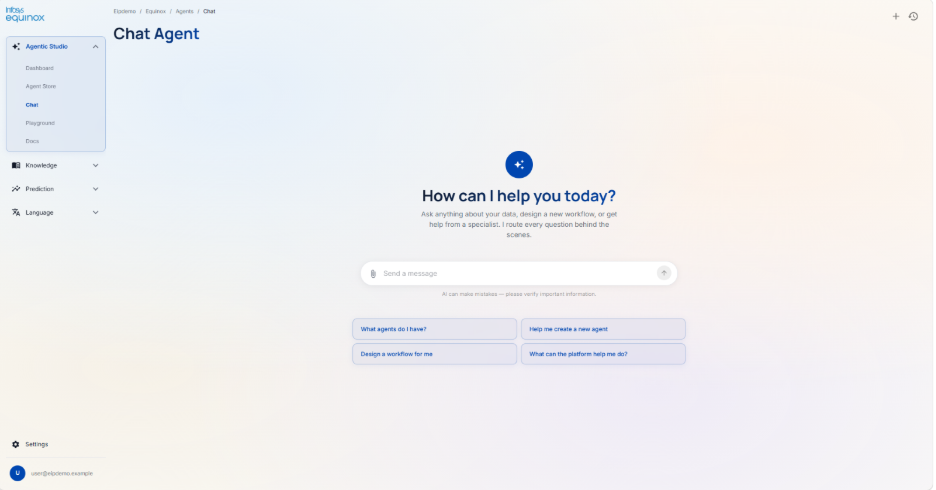
| Element | Detail |
|---|---|
| Prompt | “How can I help you today?” — “Ask anything about your data, design a new workflow, or get help from a specialist. I route every question behind the scenes.” |
| Message input | Text field with attachment icon and send button |
| Quick action buttons | “What agents do I have?”, “Help me create a new agent”, “Design a workflow for me”, “What can the platform help me do?” |
| Top-right icons | + (start new chat), history (view past conversations) |
Playground
On the playground screen, the tenant users will be able to test the agent by selecting the agent’s name from the dropdown.
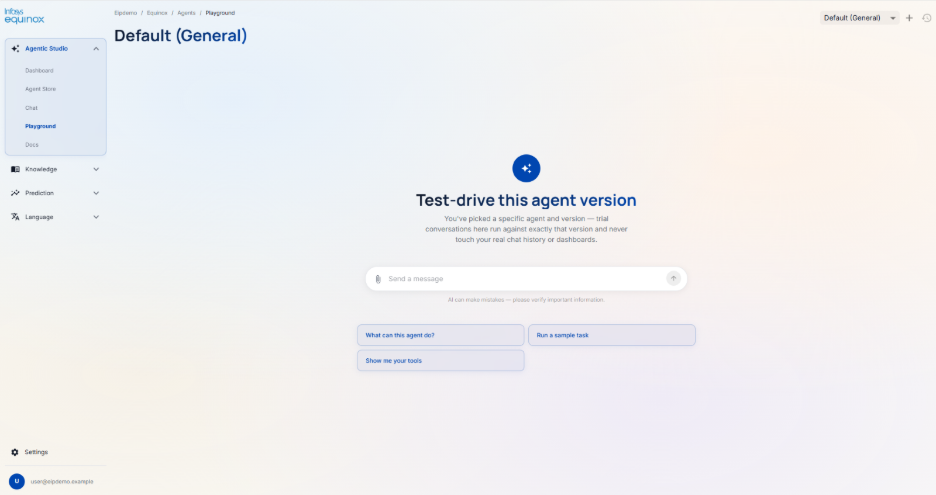
| Element | Detail |
|---|---|
| Agent selector | Dropdown (top right) — search and select from all agents and workflows in the tenant. Trial conversations run against the exact selected version. |
| Prompt | “Test-drive this agent version” — “trial conversations here run against exactly that version and never touch your real chat history or dashboards.” |
| Message input | Text field with attachment icon and send button |
| Quick action buttons | “What can this agent do?”, “Run a sample task”, “Show me your tools” |
| Top-right icons | + (new session), history |
Docs
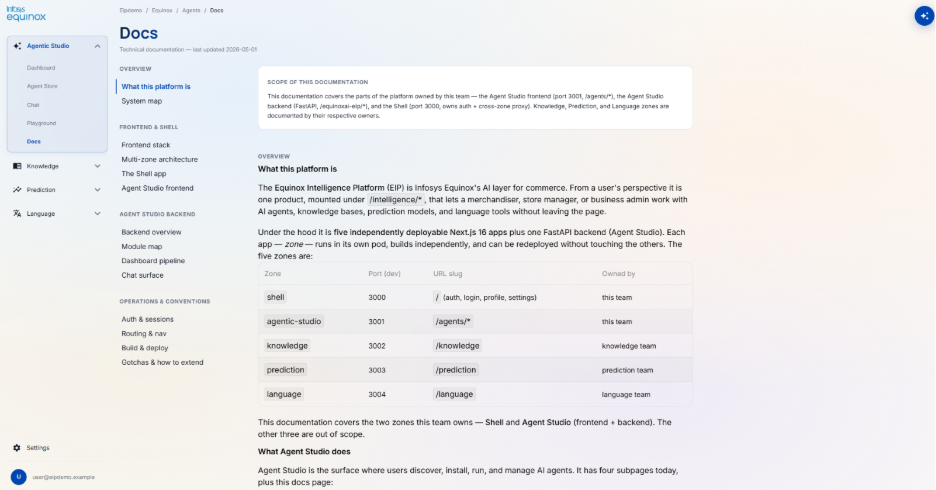
The docs section will have ready only information regarding the agent studio, the frontend and backend logics, and other operations details.
4.4.2 Knowledge
Sub-menu: Dashboard · Domain Expert · Client Brain · Enterprise Architect · Docs
Dashboard
On click of the knowledge, the tenant users will land on the Dashboard page where they will be able to view different trends, graphical and analytical information for its sub-tracks.
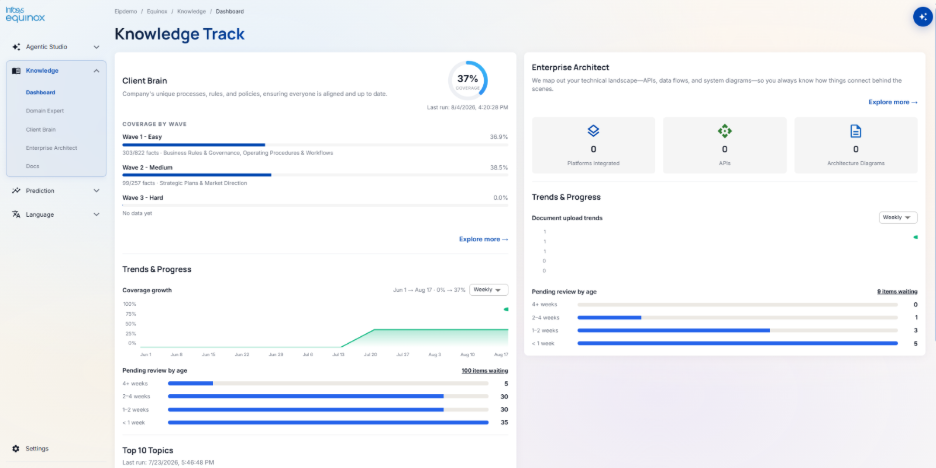
| Panel | What it shows |
|---|---|
| Client Brain (left) | Description · last-run timestamp · overall coverage % (circular donut) · COVERAGE BY WAVE (Wave 1 Easy / Wave 2 Medium / Wave 3 Hard — % completion, fact counts, topic areas) · Explore more → link |
| Client Brain Trends & Progress | Coverage growth line chart (weekly) · Pending review by age bar chart (< 1 week / 1–2 weeks / 2–4 weeks / > 4 weeks item counts) · Top 10 Topics ranked list |
| Enterprise Architect (right) | Description · Explore more → link · 3 KPI cards: Platforms Integrated, APIs, Architecture Diagrams |
| Enterprise Architect Trends & Progress | Document upload trends chart (weekly) · Pending review by age bar chart |
Domain Expert
OVERVIEW tab: Shows “Infosys Experts” — count of active experts and total available. Each expert row: Name + Active badge · description · feature tags (pill tags) · Test button (redirects to the CHAT tab to interact with that expert) · Deactivate button.
| Expert | Knowledge scope | Feature tags |
|---|---|---|
| B2B Commerce | B2B pricing complexity, contract management, punchout catalogs, approval workflows, account hierarchies, self-service portal design | Contract pricing models, Approval workflows, Account hierarchy design, Punchout & EDI integration, Self-service portal UX, Volume discount structures |
| Commerce Operations | Pricing strategy, promotion mechanics, markdown optimisation, inventory management, order orchestration, fulfillment routing, composable commerce architecture | Pricing & promotion rules, Inventory allocation strategy, Order routing decisions, Markdown timing & depth, Platform migration advice, Fulfillment optimisation |
| Customer Intelligence | Personalisation patterns, search relevance tuning, loyalty program design, customer lifecycle strategy, segmentation, churn prevention | Segmentation strategy, Personalisation approaches, Loyalty program design, Lifecycle campaign timing, Churn prevention playbooks, Search relevance tuning |
| Marketplace Operations | Multi-vendor marketplace operations, seller onboarding, catalog quality enforcement, commission structures, dispute resolution | Seller onboarding flows, Catalog quality rules, Commission models, Dispute resolution, Seller performance scoring, Multi-vendor fulfillment |
| Retail Strategy | Assortment planning, demand forecasting methodology, omnichannel operations, store fulfillment, merchandise financial planning | Assortment optimisation, Demand planning methods, Omnichannel fulfillment, Store operations, Merchandise financial planning, Seasonal strategy |
CHAT tab: “Start a conversation — Ask Domain Expert a question about your knowledge base.” Message input with sample placeholder. + (new session) and history icons top-right.
Client Brain
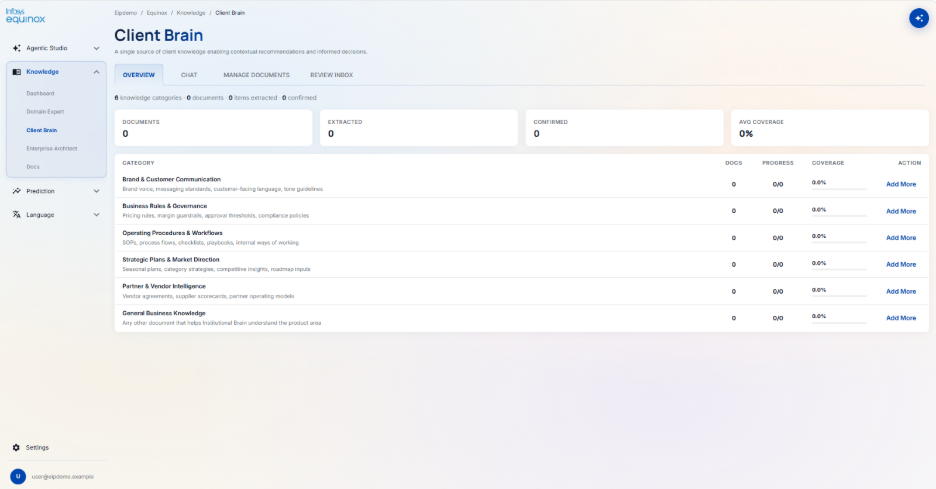
OVERVIEW tab: Summary line (knowledge categories · documents · items extracted · confirmed).
Alert banner when items are pending review → Review Now → button.
4 KPI cards: DOCUMENTS · EXTRACTED · CONFIRMED · AVG COVERAGE.
Knowledge categories table (CATEGORY · DOCS · PROGRESS · COVERAGE · ACTION):
CHAT tab: “Start a conversation — Ask Client Brain a question about your knowledge base.” Context-aware quick action buttons (suggested questions from ingested documents). + and history icons top-right.
MANAGE DOCUMENTS tab: “UPLOAD FILES” section. Search field to search for any document. Upload from Confluence and Upload from Device buttons. Documents list table: DOCUMENT (name + uploader + version badge) · UPLOADED · STATEMENTS · STATUS (Pending Review / Partially Reviewed) · ACTIONS (Review link + delete icon).
REVIEW INBOX tab: Lists all AI-extracted statements awaiting human review. Filter pills: All · Pending · Approved · Rejected. Document filter dropdown + search field. Approve all pending button for bulk approval. Checkbox per row for individual bulk selection. Table columns: STATEMENT (extracted text + source document filename) · STATUS (Pending badge) · ACTION — Edit (modify statement text before approving) · Reject (discard) · Confirm (approve and publish to knowledge graph).
Enterprise Architect
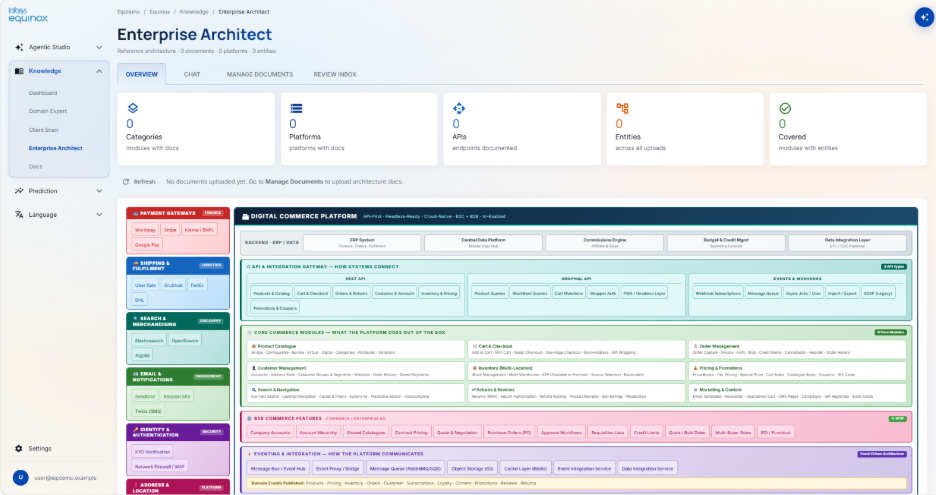
OVERVIEW tab: 5 KPI cards: Categories (modules with docs) · Platforms (platforms with docs) · APIs (endpoints documented) · Entities (across all uploads) · Covered (modules with entities). Below the KPIs, an interactive architecture diagram renders the full digital commerce platform ecosystem:
CHAT tab: “Start a conversation — Ask questions about the Equinox Commerce Platform architecture.” Input placeholder: “Ask about services, APIs, dependencies…”. Six architecture-focused quick action buttons: “What microservices handle payment processing?”, “Explain the Commerce Core architecture and its key capabilities.”, “How are orders managed across the system?”, “What integration patterns are used between services?”, “Which services depend on the API Gateway?”, “How does the loyalty and subscriptions engine work?”. Disclaimer: “AI can make mistakes — please verify important information.”
MANAGE DOCUMENTS tab: Structured differently from Client Brain. Top section titled Architecture Knowledge Coverage — “Click a card to filter – use the + Add docs strip to upload into that module.” Platform/module cards displayed in a grid, each showing: colour-coded name, docs count, status (“No docs yet” / doc count), and a + Add docs link. A + Add card allows creating new platform/module categories. Below the grid: Search by filename field. Upload from Confluence and Upload from Device buttons.
Documents table columns differ from Client Brain — includes two additional columns: MODULE (colour-coded module tag) and PLATFORM (platform name). Full columns: DOCUMENT (name + uploader + version badge) · MODULE · PLATFORM · UPLOADED · STATEMENTS · STATUS · ACTIONS. STATUS values: Pending Review / Partially Approved. ACTIONS: Review link + delete icon.
REVIEW INBOX tab: Filter pills: All (total) · Pending (count) · Approved (count) · Rejected (count) + refresh icon. “Select entities for bulk action, or approve all pending.” checkbox row. Approve all pending button top-right. Table: STATEMENT (extracted text + source document shown as a “Statement | filename” tag below the text) · STATUS (Pending badge) · ACTION — Edit · Reject · Confirm.
Docs
In-platform developer and operational reference documentation for the Knowledge track.
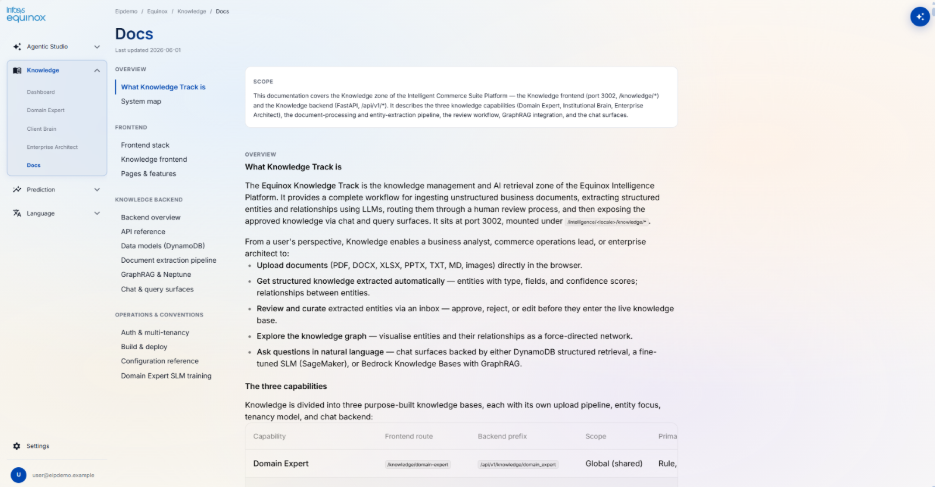
| Sub-menu | What you can do |
|---|---|
| Dashboard | View knowledge base status for the tenant (read-only) |
| Domain Expert | Chat with deployed Domain Expert SLMs for commerce-specific natural language queries |
| Client Brain | Query the institutional knowledge base via natural language chat; receive answers grounded in approved internal documents |
| Enterprise Architect | Query architecture and API documentation via natural language chat |
| Docs | In-platform documentation |
4.4.3 Prediction
Sub-menu: Dashboard · Model Catalog · Data Explorer · Monitor · Docs
Dashboard
DEPLOYMENT OVERVIEW — 6 KPI cards across the top:
| KPI | What it shows |
|---|---|
| Active | Models with an active project (at any pipeline stage) |
| Inactive | OOB catalog models not yet activated for this tenant |
| Deployed | Models currently serving live predictions |
| Under Review | Models awaiting evaluation sign-off before deployment |
| In Training | Models currently running a training job |
| Failed | Models whose last training or deployment job failed |
QUICK ACTIONS — three shortcut cards: Browse Model Catalog → (“See every pre-built model and what it predicts”) · Connect Data → (“Add a warehouse so more models can activate”) · Monitor Models → (“Watch live model health, drift and predictions”).
Coverage by business area — “Models you have running in each domain.” Horizontal progress bar per domain showing active / total models and % coverage across 10 domains: Customer intelligence · Marketing & engagement · Product intelligence · Pricing & revenue · Demand & inventory · Risk & trust · Operations & fulfillment · B2B commerce · Search & discovery · Customer service.
What’s happening — “Latest model projects.” Chronological list of recent project activity, each showing: project name · last updated · current pipeline stage badge (e.g., Deploying · Mapping data · Needs attention · Awaiting review).
Model Catalog
+ Create Model button. Tabs: ACTIVE (count) | INACTIVE (count). Domain filter chip strip. Models displayed in a 3-column card grid grouped by domain. Each card: model name · status badge (Active / Deployed / Deploying / Mapping / Failed / In Review) · project version · description · domain tag · model type tag.
| Tab | What it shows |
|---|---|
| ACTIVE | Models with an active project in this tenant, grouped by domain. Status badges reflect the current pipeline stage. Example active models: Low Stock Alert, Churn predictor, Customer lifetime value, Next purchase predictor, Stock-Out Risk Alert (Customer intelligence) · New / return rate / Trending product predictor (Product intelligence) · SKU-level demand forecaster, Category demand forecaster, Stockout predictor (Demand & inventory). |
| INACTIVE | OOB catalog models not yet activated. Shows all 10 domain categories with their full model inventories, e.g., Customer intelligence (11): Customer segmentation, Propensity to buy, New customer quality scorer, Reactivation likelihood, Price sensitivity scorer, Channel preference predictor, Loyalty tier predictor, Referral likelihood scorer, Customer effort scorer, Safety Stock Breach Alert, Zero Stock Alert. Some cards carry a Coming soon badge. |
Data Explorer
+ Add Connection button. Your Data Sources section lists connected sources as cards, each showing: name · type badge (e.g., S3) · Connected badge · description · Tables / Columns / PII count · Last discovered date · Refresh icon · Delete icon.
Clicking a data source opens its detail page:
| Tab | What it shows |
|---|---|
| OVERVIEW | KPI row (Tables · Columns · PII Flags · Indexed Cols) · AI-generated Summary of the data source · Key Data Areas (grouped list of tables by business area) · Privacy & PII notes · Suggested Uses. Update Credentials button at top. |
| SCHEMA | Browse all tables and columns with data types |
| PII | Columns flagged as containing personally identifiable information |
| RELATIONS | Detected foreign-key / join relationships between tables |
| ERD | Entity-relationship diagram of the data source |
Monitor
Page title: “Operations Monitor” — “ML model health, system status & alerts auto-refresh every 60s.” Refresh button · notification bell icons top-right.
| Tab | What it shows |
|---|---|
| MODELS DEPLOYED | Search field + filter chips: All · Healthy · Degraded · Critical. Lists deployed model endpoints with health status. Empty state: “Create a project, run through the pipeline, and deploy a model to see real monitoring data here.” |
| DATASOURCES | Health status of all connected data sources. Empty state: “Connect a data warehouse or database to start ingesting data.” |
Docs
Technical documentation for the Prediction zone (internally named Equinox Quant).
| Sub-menu | What you can do |
|---|---|
| Dashboard | View prediction dashboards and model output summaries (read-only) |
| Model Catalog | Browse available prediction models and their descriptions; cannot create projects |
| Data Explorer | Browse connected data sources in read-only mode; cannot connect new sources |
| Monitor | View deployed model endpoint health (read-only) |
| Docs | In-platform documentation |
4.4.4 Language
Sub-menu: Model Catalog · Docs
Model Catalog
On this page, tenant admin will be able to view OOTB models based on the categories.
On click of any model will redirect tenant admins to the details page of that model.
To create a new model, tenant admin will be required to click on Create Model button.
They will also be able to search any model by name or ID field at the top.
Each card shows: model name · type badge (LLM or SLM) · one-line description · time since last update. Clicking a card opens the model detail page.
Docs
Technical documentation for the Language zone.
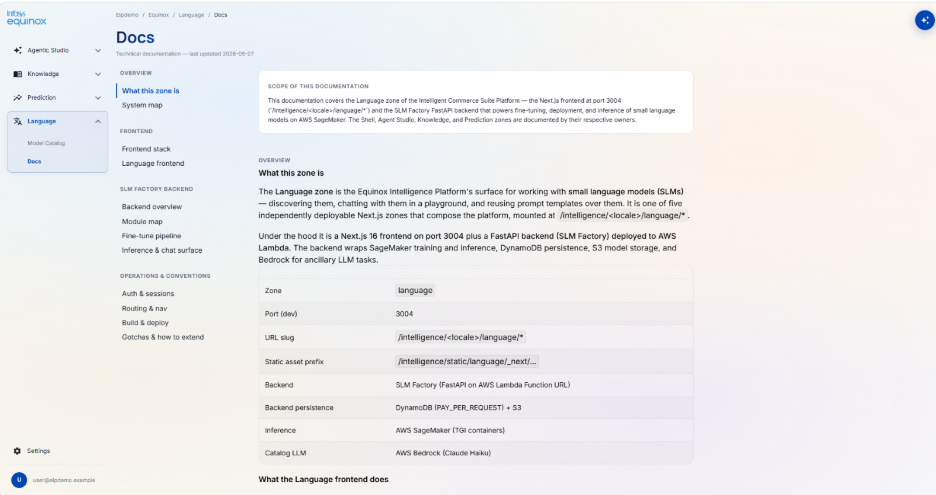
| Sub-menu | What you can do |
|---|---|
| Model Catalog | Browse available language models and their capabilities; cannot deploy or configure models |
| Docs | In-platform documentation |
5. End-to-End Scenarios
Scenario 1: Onboarding a New Retail Brand (Tenant)
Goal: Set up a new tenant for a retail brand, connect it to Shopify, and deploy a customer service agent.
| # | Who | What happens |
|---|---|---|
| 1 | Instance Admin | Provisions the organisation (if not already done) |
| 2 | Org Admin | Provisions a new tenant for the brand |
| 3 | Org Admin | Invites the brand’s team lead as Tenant Admin |
| 4 | Tenant Admin | Creates a Shopify connection (enters API token, tests connection, maps domains) |
| 5 | Tenant Admin | Uploads the return policy PDF to the Institutional Brain |
| 6 | Tenant Admin | Reviews and approves the extracted content |
| 7 | Tenant Admin | Creates a Customer Service Agent (selects model, writes prompt, enables customer + order domains, enables Knowledge Base, sets HITL approval for refunds > $200) |
| 8 | Tenant Admin | Tests the agent in the Playground with a sample return request |
| 9 | Tenant Admin | Publishes v1 of the agent |
| 10 | Tenant Admin | Arms an event trigger for orderservice/return/requested |
| 11 | Business User | The agent runs automatically when customers submit returns; high-value refunds pause for supervisor approval |
Scenario 2: Deploying a Demand Forecast Model
Goal: Deploy a SKU-level demand forecasting model on existing sales data.
| # | Who | What happens |
|---|---|---|
| 1 | Tenant Admin | Connects the sales data warehouse as a data source |
| 2 | Tenant Admin | Creates a Prediction project (type: Catalog Activation, model: SKU-Level Demand Forecaster) |
| 3 | Tenant Admin | Maps data fields (product ID, date, units sold, store) to the model’s inputs |
| 4 | Platform | Profiles the data, engineers features, and trains the model |
| 5 | Tenant Admin | Reviews accuracy metrics and selects the trained model as champion |
| 6 | Tenant Admin | Deploys the model — it is now available |
| 7 | Tenant Admin | Sets a budget alert at 80% of the monthly compute budget |
| 8 | Business Analyst | Uses the model for weekly demand planning reports or invokes it through an agent |
Scenario 3: Granting a Merchandiser Product-Only Access
Goal: Invite a new merchandiser who should only be able to work with products — not orders, pricing, or customer data.
| # | Who | What happens |
|---|---|---|
| 1 | Org Admin | Creates a “Merchandiser” role with domain tag: product |
| 2 | Org Admin | Invites the merchandiser’s email with the Merchandiser role assigned to the relevant tenant |
| 3 | Merchandiser | Receives invitation, sets password, logs in |
| 4 | Merchandiser | Can now chat with agents in the product domain; cannot see order or pricing agents |
6. Assumptions & Open Questions
| # | Area | Assumption or Gap | Impact |
|---|---|---|---|
| 1 | Language / SLM | The Language zone shows a model catalog and playground. The backend SLM Factory service was not fully accessible in the source repositories. | Language pillar description may be incomplete if SLM Factory has additional functionality. |
| 2 | Org Admin UI | An Org Admin frontend zone exists but its specific screens were not fully explored. Capabilities described here are based on the backend API and RBAC documentation. | Some Org Admin screens may have additional features not captured here. |
| 3 | Shopify — customers & orders | Shopify connector supports products, pricing, inventory, and collections in V1. Customer and order support is noted as “in progress” in the source repositories. | Agents using the customer or order domains with a Shopify connection will fail until this support is added. |
| 4 | Salesforce — two connections for full CRUD | Full create/read/update/delete on Salesforce requires two separate connections. This is a Salesforce platform constraint. | Tenant admins must create both connections if delete operations are needed. |
| 5 | Resource sharing between tenants | The platform references a resource sharing/approval workflow for sharing agents between tenants. The detailed flow was not fully documented in the source repositories. | Cross-tenant sharing capabilities may exist but are not described in detail here. |
| 6 | Prediction — tenant-level cost view | The prediction cost dashboard is accessible to org admins. Whether tenant admins can see only their tenant’s costs (vs. the full org) requires confirmation. | Cost visibility for tenant admins in prediction may be different from what is described. |
| 7 | Scale and performance | No SLA, throughput, or capacity figures were found in the source repositories. None are stated in this document. | Any performance commitments must be agreed separately with the platform team. |
Revision History
2026-08-28 | JP – Created the page and added the content.