This page equips administrators with a user guide for the AI Studio in the Infosys Equinox Commerce platform. AI Studio is a unified environment for building, governing, and operating AI-driven commerce agents and automated workflows.
Admin User Guide – AI Studio
Overview
The AI Studio is the primary workspace where admin users create agents, design and run workflows, and manage the prerequisites that agents and workflows depend on. It is organized around three core pillars:
| Module | Purpose |
| Agents | Create, configure, and manage intelligent agents, including prebuilt personified agents for common e-commerce domains. |
| Workflows | Design, test, and execute automated multi-step processes using the conversational Workflow Builder. |
| Management | Configure the foundational infrastructure that agents and workflows rely on — MCP servers, LLM providers, knowledge bases, guardrails, prompts, and skills. |
Service Glossary
- Agent – an AI entity configured with a system prompt, LLM, tools, and knowledge that can autonomously respond to queries or execute tasks within a defined scope.
- Chunking Strategy – the method by which documents are split into smaller segments for indexing and retrieval in a knowledge base.
- Embedding Model – a machine learning model that converts text into vector representations for use in semantic search and retrieval-augmented generation (RAG).
- Guardrail – a set of rules and content safety policies that control what an agent can accept as input and produce as output.
- Knowledge Base – a structured repository of domain-specific documents that agents can search and reason over at runtime.
- LLM (Large Language Model) – the underlying AI model used by an agent to process inputs and generate responses.
- LiteLLM – a provider-agnostic interface that normalizes API calls to multiple LLM providers (for example, OpenAI, Anthropic, AWS Bedrock) behind a single API surface.
- MCP (Model Context Protocol) – an abstraction layer that standardizes how AI agents securely interact with backend commerce APIs and external services.
- MCP Server – a configured endpoint that exposes tools and services to agents via the MCP standard.
- Orchestrator – an agent designated to coordinate other agents or workflows as part of a larger automated process.
- RAG (Retrieval-Augmented Generation) – a technique that enriches LLM responses with relevant content retrieved from an external knowledge base at query time.
- Scope – the visibility level of a configuration resource: Store, Business, or Global.
- Supervisor Agent – the central coordinating agent within the Workflow Builder that manages sub-agents and communicates with the end user throughout workflow creation.
- Workflow – a saved, multi-step automated process that can be triggered by chat, webhook events, or a schedule.
Prerequisites
Before using AI Studio, ensure the following conditions are met:
- Valid Credentials: You must have valid login credentials with the Business Admin, Store Admin, or Super Admin role to access AI Studio features. Feature availability varies by role — see Agent Role Access for details.
- AI Studio Enabled: The AI Studio microservice must be enabled for your business through the Foundation Admin Console. Contact your Infosys Equinox Account Manager if the module is not available.
- LLM Provider Configured: At least one LLM provider must be configured in the Management module before agents or workflows can be created.
- MCP Servers Available (optional): If agents require tool-calling capabilities, the relevant MCP servers must be configured and in scope before agent creation.
Accessing AI Studio
To navigate to AI Studio:
- Log in to the Infosys Equinox Admin Console using your credentials.
- On the StoreOps page, click AI Studio.
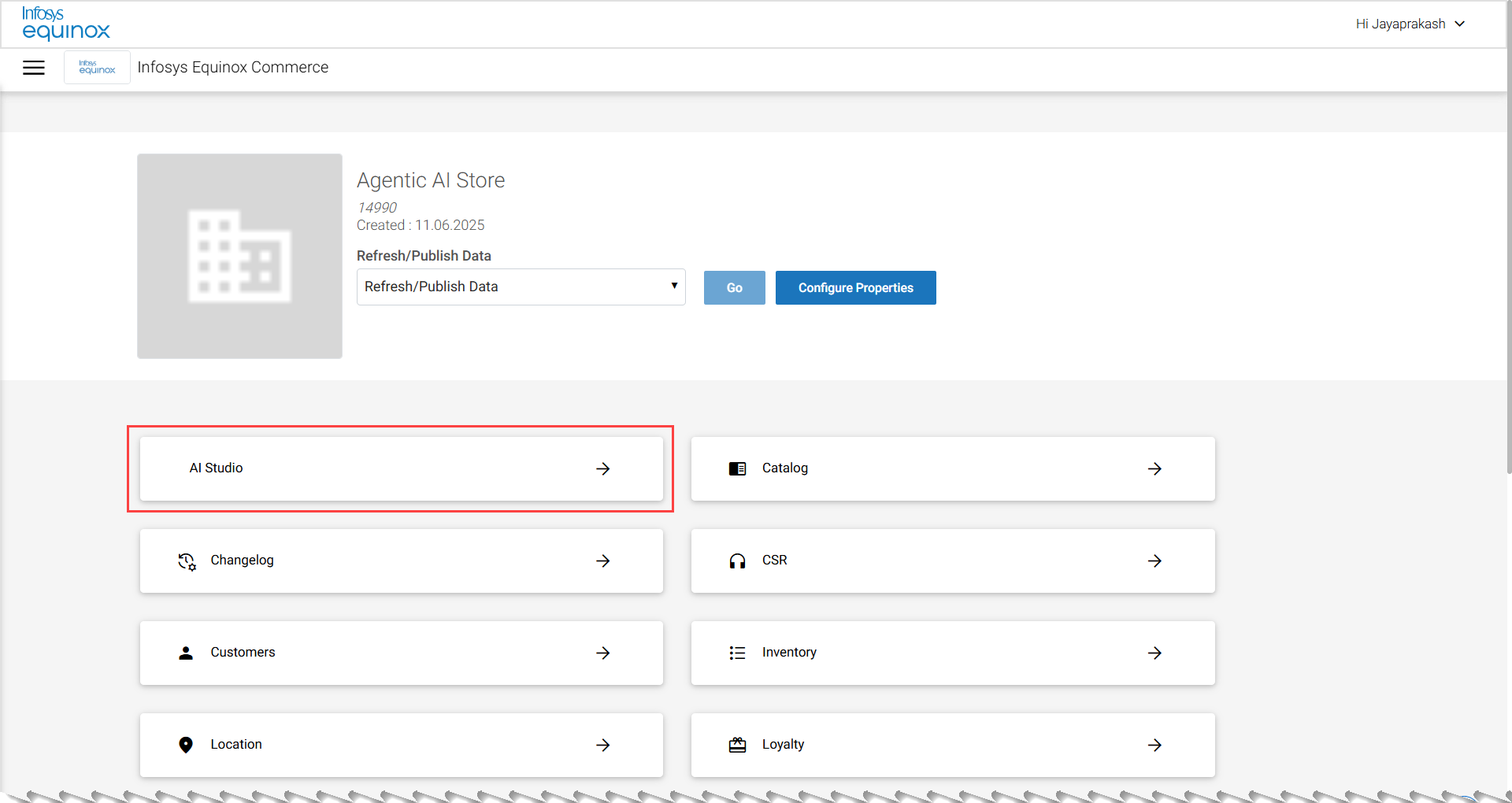
(OR)
If you are already on any of the admin, then on the left navigation panel, click AI Studio.
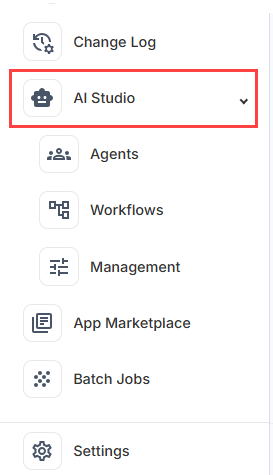
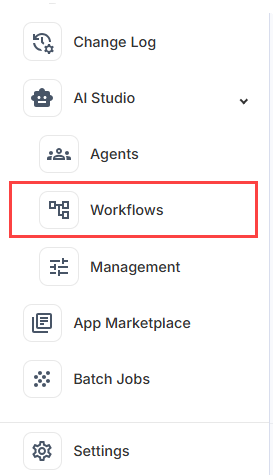
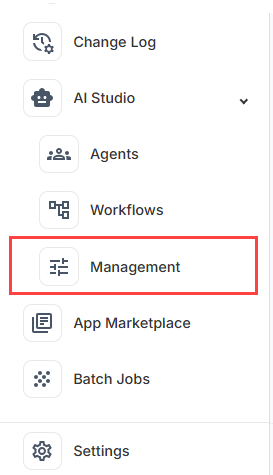
The AI Studio panel expands to display the three module sections: Agents, Workflows, and Management, - Click on the module you want to work in.
Understanding Scope
Scope defines the accessibility level of any configuration resource — such as an MCP server, LLM provider, knowledge base, or guardrail — within the platform.
| Scope | Accessibility |
| Store | Accessible only to agents within the same store. Ensures store-specific operations, configurations, and data remain isolated. |
| Business | Accessible to all agents within a specific business or business group, enabling shared capabilities while maintaining boundaries across other businesses. |
| Global | Accessible across all stores, businesses, and agents, supporting unified enterprise-wide automation. |
Agent Module
The Agent module enables creation of intelligent, persona-based AI agents that serve as chat assistants or automated workflow participants. Agents are configured with a system prompt, LLM, tools, knowledge, and safety policies.
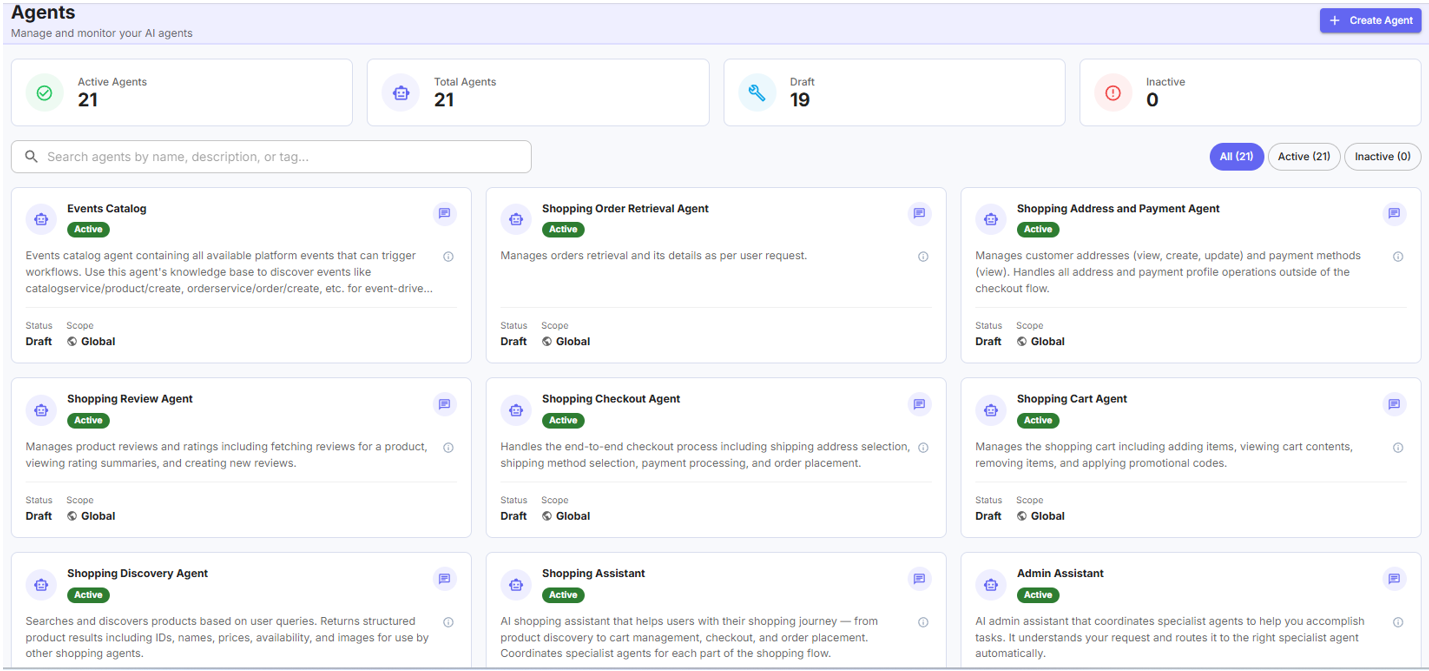
Creating an Agent
To create an agent
- Log in to the Infosys Equinox Admin Console using your credentials.
- On the left navigation panel, go to AI Studio > Agents, then click Create Agent.
- In the Basic Information section, complete the following fields:
Field Description Agent Name A unique display name for the agent. Description A short description of the agent’s identity and purpose. Scope Select the scope of the agent: Store or Global. Orchestrator Eligibility Select the agent’s primary role: Admin (admin-facing tasks), Shopping (customer-facing tasks), or Workflow (internal task orchestration). - In the System Prompt section, enter the agent’s system prompt in the text area:
The system prompt:
- Defines the agent’s personality and tone.
- Sets operational rules and constraints.
- Specifies the agent’s responsibilities and response guidelines.
- In the MCP Servers dropdown list under the Tools & MCPs section, select one or more MCP servers from the dropdown.
- After selecting an MCP server, select the specific tool-execution capabilities the agent is permitted to use from the Selected Tools dropdown list.
- In the Chat LLM Configuration section, select the LLM provider and model the agent will use.
- In the Guardrails section, select one or more guardrails from the dropdown to enforce content safety policies on this agent.
- In the Knowledge Base section, select a knowledge base if the agent needs to refer to external documents.
- In the Embedding Model for File Processing dropdown list, select the embedding model used for processing file uploads or user-provided documents.
- In the Memory Configuration section, optionally configure the following:
Setting Description Memory Type Enable short-term (session) or long-term memory for the agent. Maximum Tokens Set the token limit for memory context. Memory LLM Provider Select the LLM provider used for memory processing. - Click Save to create the agent.
The agent is now available for chat interactions and as a participant in workflows.
Chatting with an Agent
- Log in to the Infosys Equinox Admin Console using your credentials.
- On the left navigation panel, go to AI Studio > Agents.
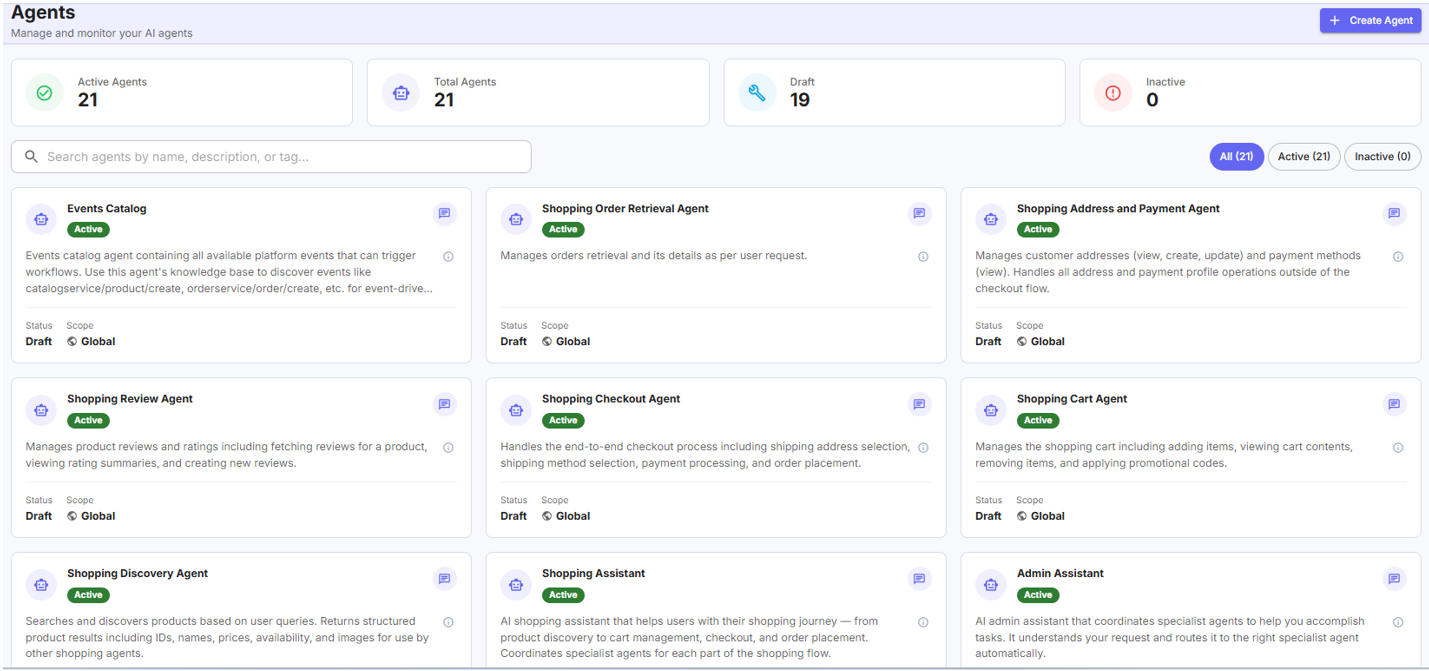
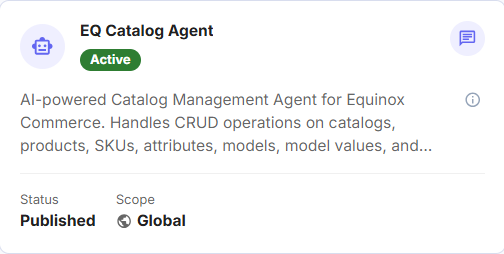
- On the Agents dashboard, click the Chat icon on the agent card. For example, an agent card in the dashboard:
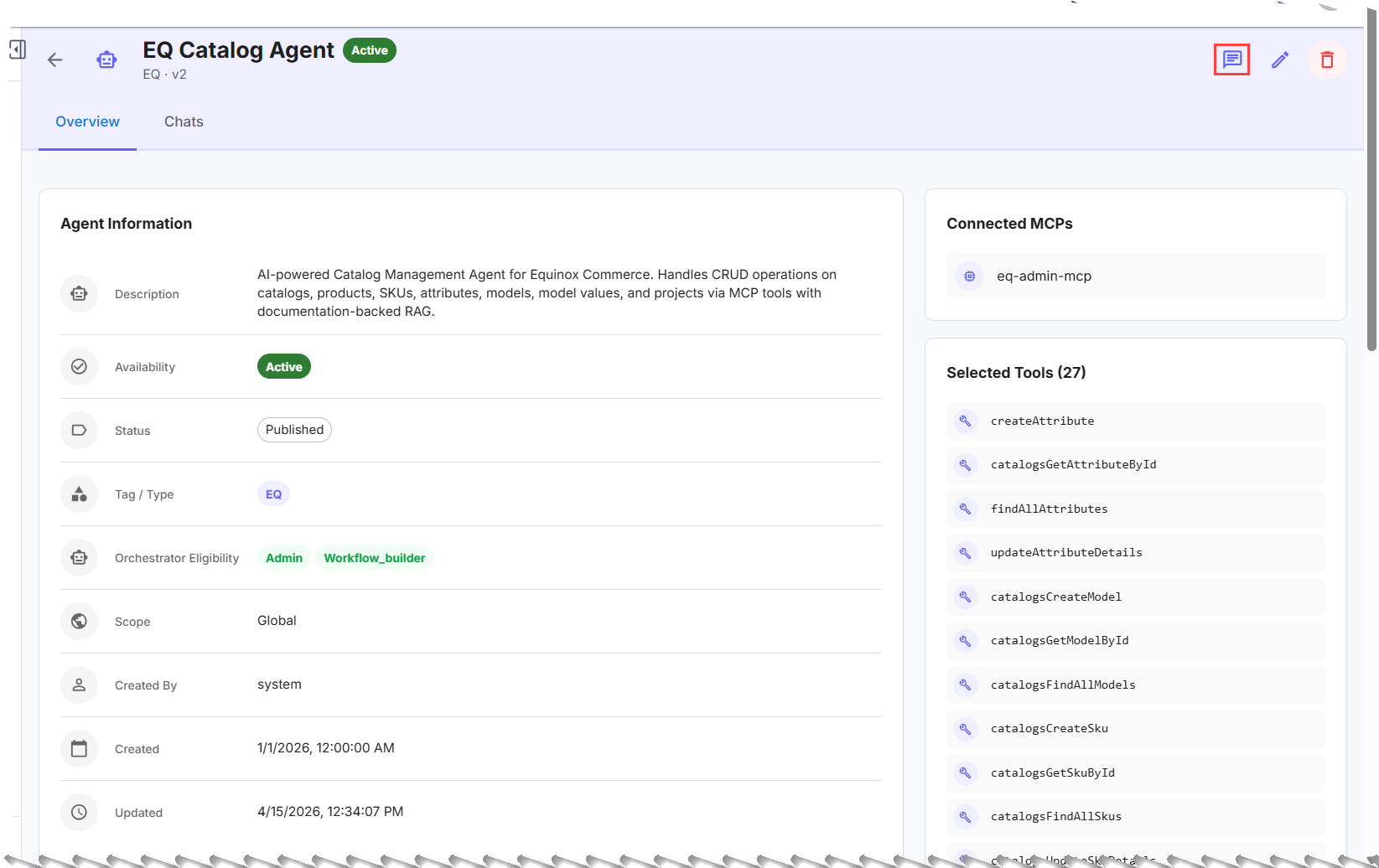
- Open the agent’s detail page and click the Chat icon.
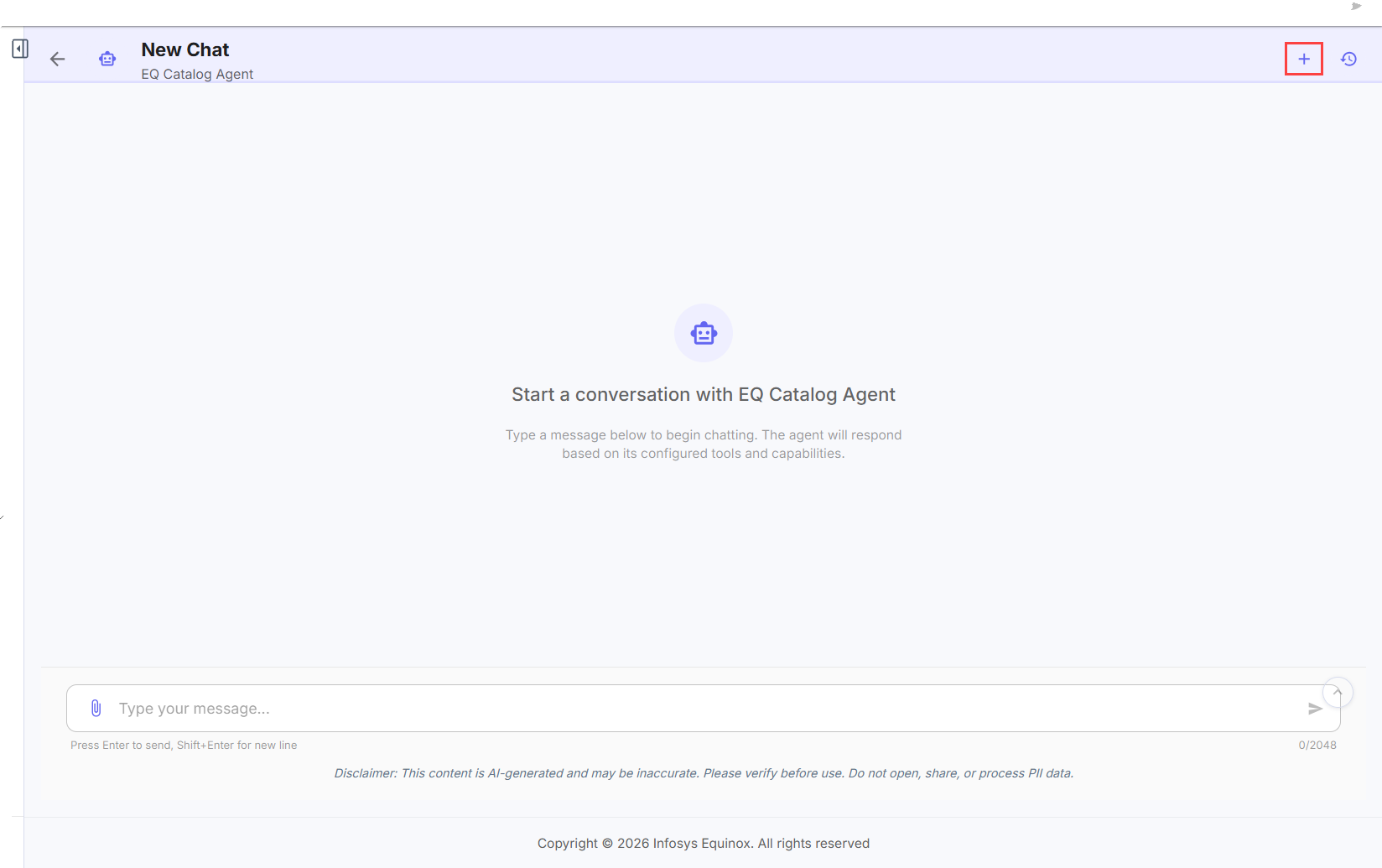
Note: To view prior conversations, open the agent’s detail page and select the Chat tab.
Agent Role Access
The scope of an agent’s accessibility and editability depends on the role of the admin user who created it:
| Created by | Accessible to | Can be edited by |
| Super Admin | All businesses and stores | Super Admin only |
| Business Admin | All stores under that business | Business Admin, Super Admin |
| Store Admin | Users within that store only | Store Admin, Business Admin, Super Admin |
Prebuilt Personified Agents
AI Studio includes a set of prebuilt, domain-specific agents designed for common e-commerce operations. These agents use MCP tools to fetch real-time data, provide structured responses, and perform domain-specific actions automatically.
| Agent | Description |
| Catalog Agent | Manages products, SKUs, attributes, models, and catalog structures to keep product data organized and consistent. |
| Review Agent | Manages customer reviews, ratings, and product Q&A, and provides insights into customer sentiment and product performance. |
| Inventory Agent | Organizes inventory bins, tracks stock levels, manages inventory movements, and applies inventory rules. |
| Price Agent | Manages prices, price lists, pricing rules, and price analysis to support flexible and accurate pricing across products and regions. |
| Account Agent | Manages business accounts, users, contracts, invoices, and account-related orders, including customization through account attributes. |
| Order Agent | Retrieves and reviews orders, payment details, customer information, product availability, and order analytics. |
| Promotion Agent | Creates and manages promotions, promotion groups, promotion lists, and product-level offers, including cross-project promotional workflows. |
| Loyalty Agent | Manages the full loyalty lifecycle — programs, rewards, rules, customer points, transactions, tiers, and loyalty configuration. |
| CSR Agent | Manages customer profiles, addresses, payments, orders, carts, loyalty details, subscriptions, and custom attributes for customer support. |
| Notification Agent | Creates, views, and updates system notifications across email and SMS, including access to templates, triggers, and configuration references. |
| Subscription Agent | Manages and modifies customer subscriptions through a conversational interface, including status changes, date adjustments, and subscription action reviews. |
| Merchandise Agent | Manages products, categories, navigation, and milestone management across merchandising workflows, including storefront structures and campaign-driven milestones. |
| Shopping Manager | Assists end users in product discovery from the storefront — product search, add to cart, shipping address and payment management, checkout, and product reviews. |
Workflow Module
The Workflow module enables creation of automated, multi-step processes that can be triggered by chat, webhook events, or a schedule — without requiring repeated manual input.
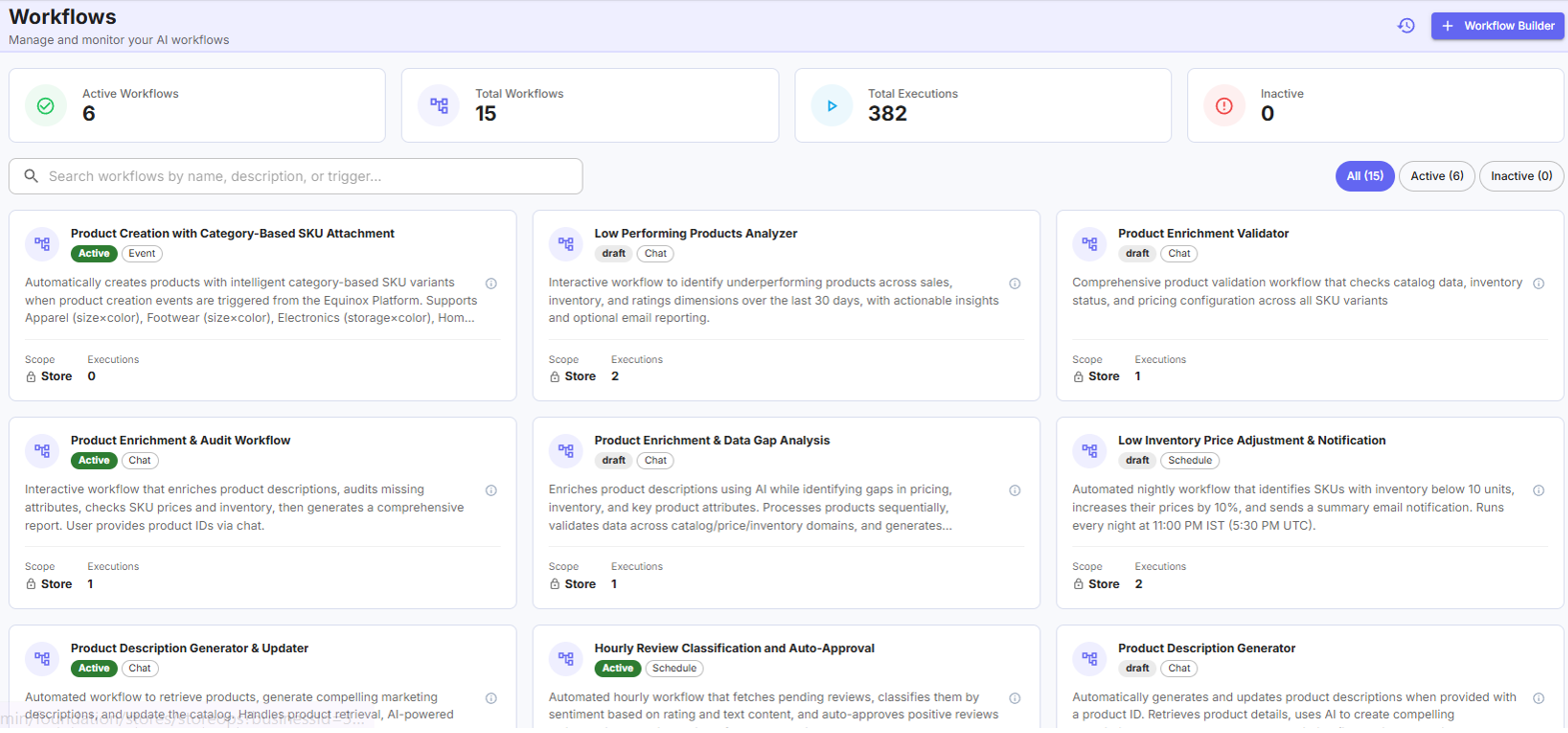
Workflow Types
| Type | Trigger |
| Chat-based | Initiated when an admin user starts a chat with the workflow. |
| Webhook-based | Executed when a configured event fires (for example, product.create, product.update). |
| Scheduled | Triggered automatically at configured times or intervals. |
Note: Workflows are created at the store level only.
Creating a Workflow
AI Studio uses a conversational Workflow Builder powered by five specialized sub-agents. You describe the task you want to automate, and the system interprets, designs, creates, tests, and activates the workflow on your behalf.
To create a workflow,
- Log in to the Infosys Equinox Admin Console using your credentials.
- On the left navigation panel, go to AI Studio > Workflows.
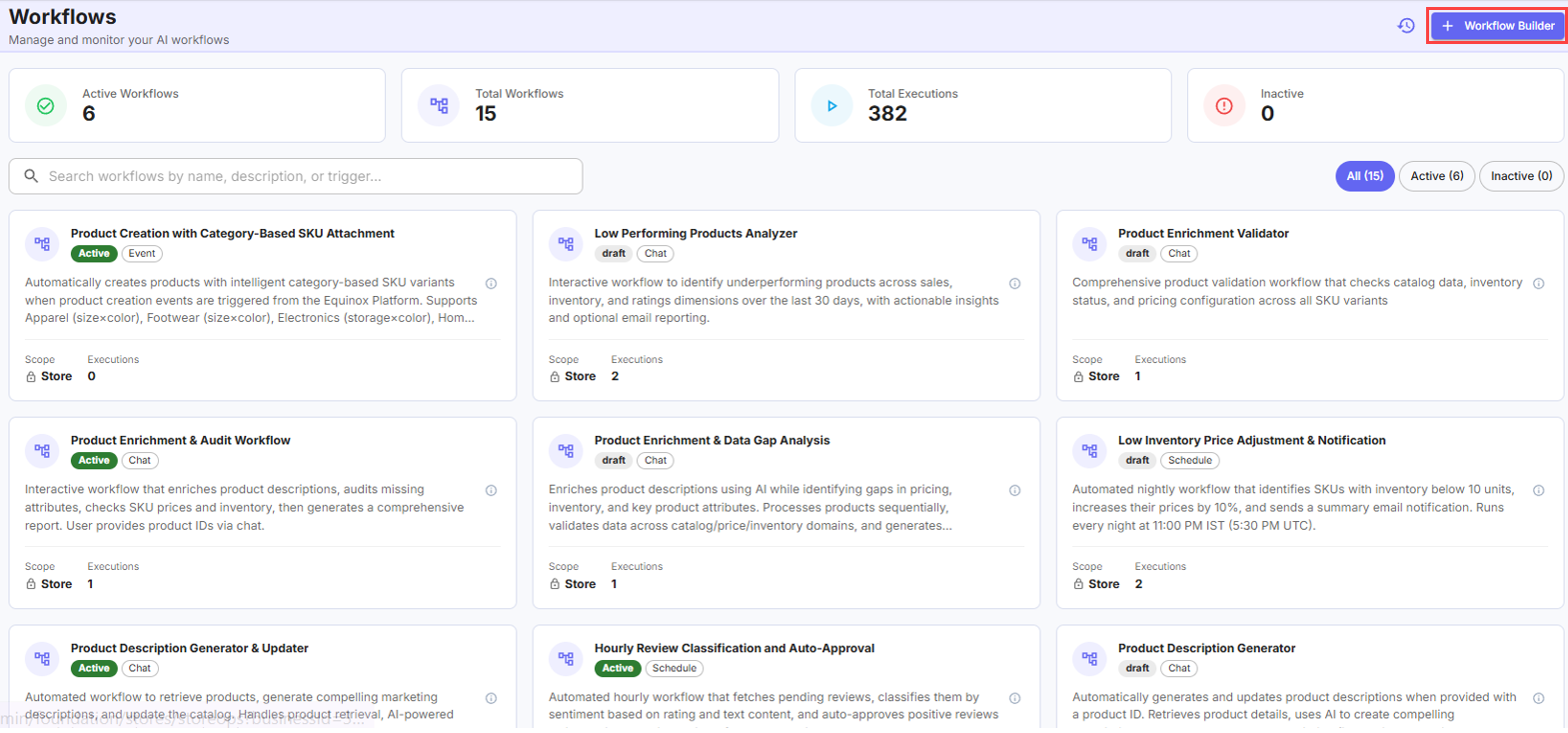
- Click Workflow Builder.
- In the Workflow Builder page, enter a prompt describing the task you want to automate.
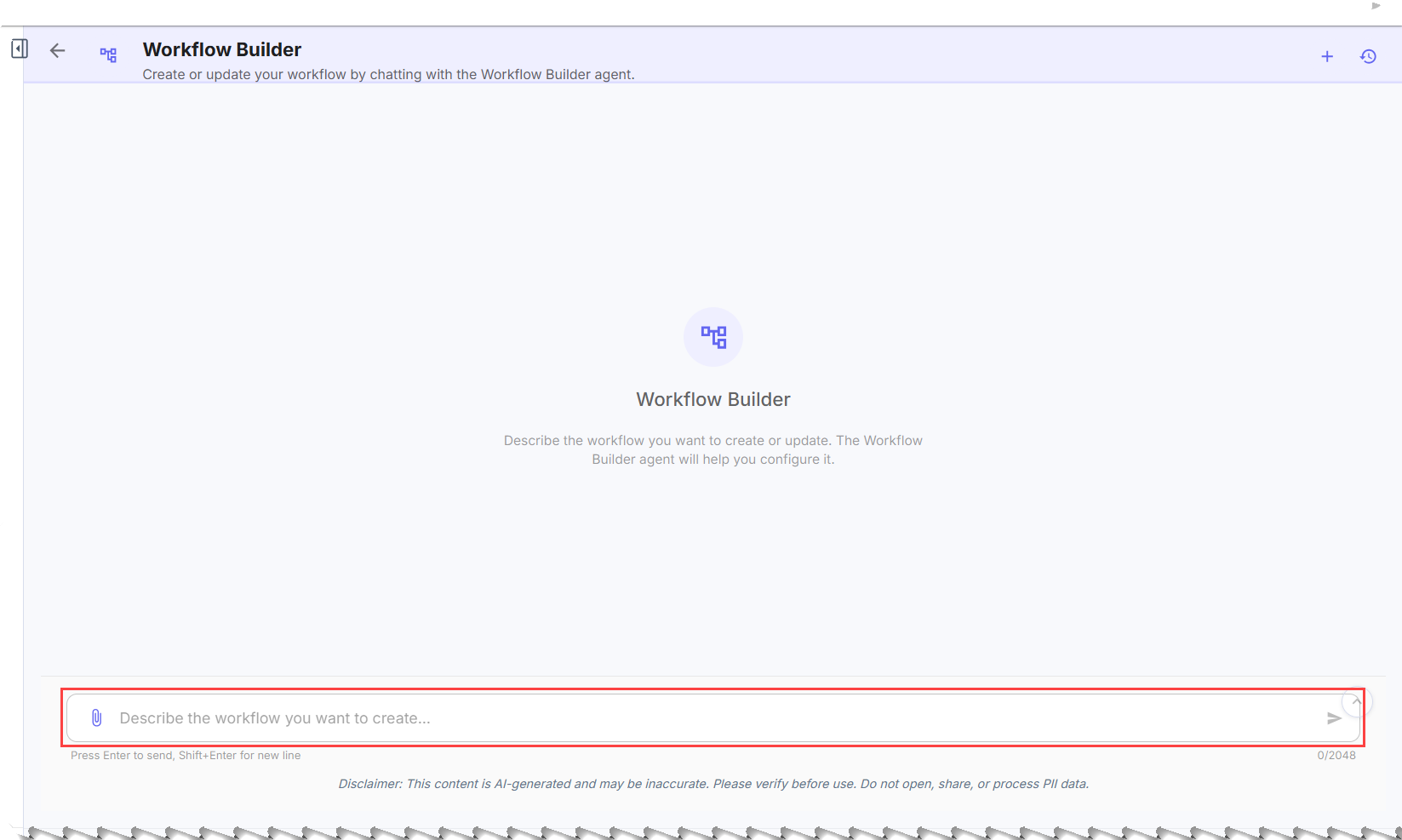
The Supervisor Agent reads your prompt and presents its interpretation and proposed approach in conversational form. - Review the Supervisor Agent’s explanation. Confirm or provide clarifications.
The Supervisor Agent engages the Resource Explorer sub-agent, which identifies the agents, knowledge bases, guardrails, MCP servers, and LLM providers required for the workflow. - The Supervisor Agent presents the proposed resource selections — which agents will be used, why they were selected, and how each contributes. Confirm to proceed.
The Workflow Designer sub-agent receives the confirmed intent and designs the workflow end-to-end in JSON format, validating structural correctness, logical flow, and agent compatibility. - The Supervisor Agent presents the workflow structure to you. Review and confirm the design.
The Workflow Manager sub-agent creates the workflow based on the validated JSON. The Supervisor Agent describes the newly created workflow to you. - Choose whether to test or activate the workflow:
-
- To test: Provide test input when prompted. The Workflow Tester sub-agent executes the workflow, invokes the associated agents, and returns the test output.
- If the test output is satisfactory, confirm — the Supervisor Agent proceeds to activate the workflow.
- If changes are needed, request revisions — the Supervisor Agent coordinates a redesign.
- To activate directly: Confirm activation to make the workflow available for use.
- To test: Provide test input when prompted. The Workflow Tester sub-agent executes the workflow, invokes the associated agents, and returns the test output.
Workflow Builder Sub-Agents
The following five agents operate in sequence under the Supervisor Agent’s coordination during workflow creation:
- Supervisor Agent
Role: Central coordinator and the only agent that directly interacts with the end user through the UI.
Responsibilities:- Reads and interprets the user’s prompt.
- Explains findings and the proposed approach in conversational form.
- Requests user confirmation before advancing to the next stage.
- Coordinates all four sub-agents: Resource Explorer, Workflow Designer, Workflow Manager, and Workflow Tester.
- Determines when to engage each sub-agent based on user confirmations.
- Resource Explorer
Role: Identifies the components required for the workflow.
Responsibilities:
- Explores available agents, knowledge bases, guardrails, MCP servers, and LLM providers.
- Evaluates which resources best match the workflow requirements.
- Sends findings to the Supervisor Agent.
Outcome: The Supervisor Agent uses these findings to explain resource selection to the user before proceeding to design.
- Workflow Designer
Role: Translates confirmed business intent into a structured workflow representation.
Responsibilities:- Designs the end-to-end workflow in JSON format.
- Validates the JSON for structural correctness, logical flow consistency, and agent compatibility.
- Returns the validated workflow design to the Supervisor Agent.
Outcome: After the user approves the design, the Supervisor Agent invokes the Workflow Manager to create the workflow.
- Workflow Manager
Role: Manages the lifecycle of workflows (create, edit, delete).
Responsibilities:
- Creates new workflows from the validated JSON provided by the Workflow Designer.
- Edits existing workflows when changes are requested.
- Deletes workflows if required.
- Workflow Tester
Role: Executes and validates the created workflow.Responsibilities:
- Executes the workflow when the user provides test input.
- Invokes the associated agents according to the workflow design.
- Returns test results to the user via the Supervisor Agent.
Outcome: The user either confirms the output (activation proceeds) or requests changes (redesign begins).
Executing and Managing Workflows
Viewing Workflow Details
- Log in to the Infosys Equinox Admin Console using your credentials.
- On the left navigation panel, go to AI Studio > Workflows.
The Workflows dashboard displays all workflows available in your current scope. - On the Workflows dashboard, click on any workflow.
The workflow detail page opens on the Overview tab by default, displaying read-only workflow information. - Use the three tabs on the workflow detail page as follows:
| Tab | Description |
| Overview | Displays the workflow configuration (read-only).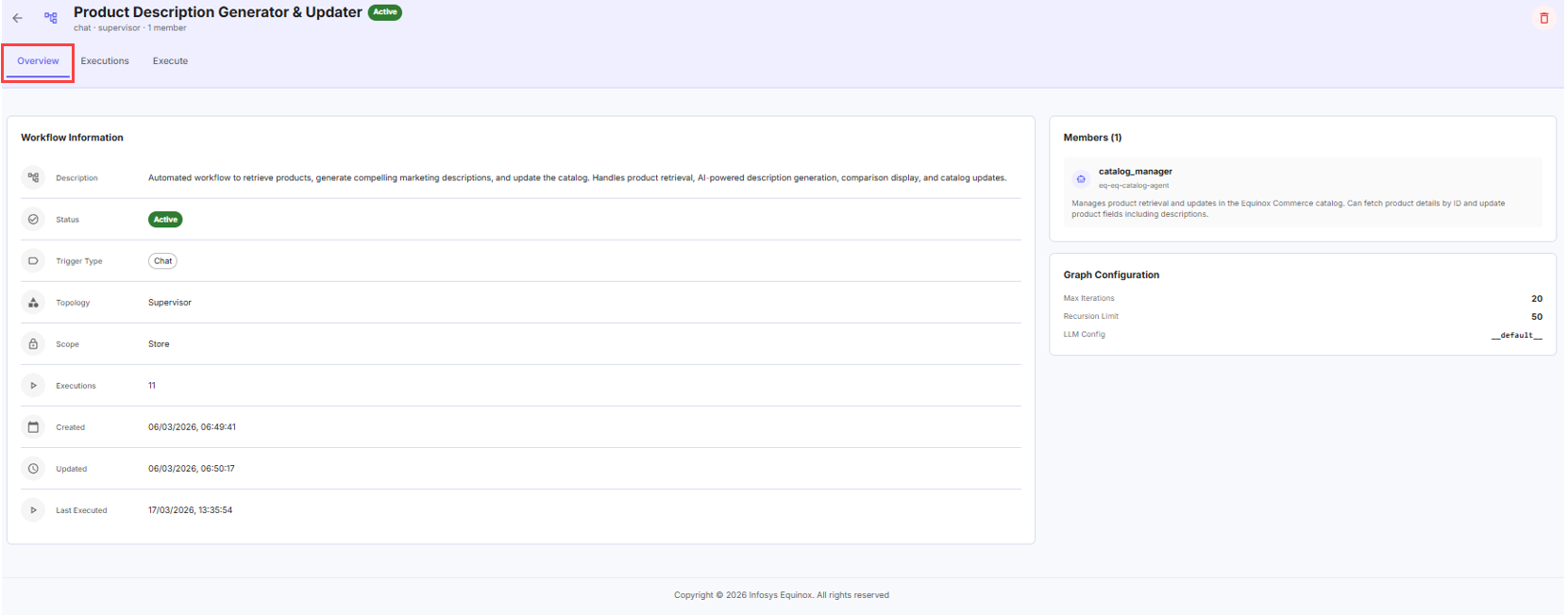 |
| Executions | Lists all past execution runs for the workflow. Click the Play icon on any run to view its execution details in read-only mode.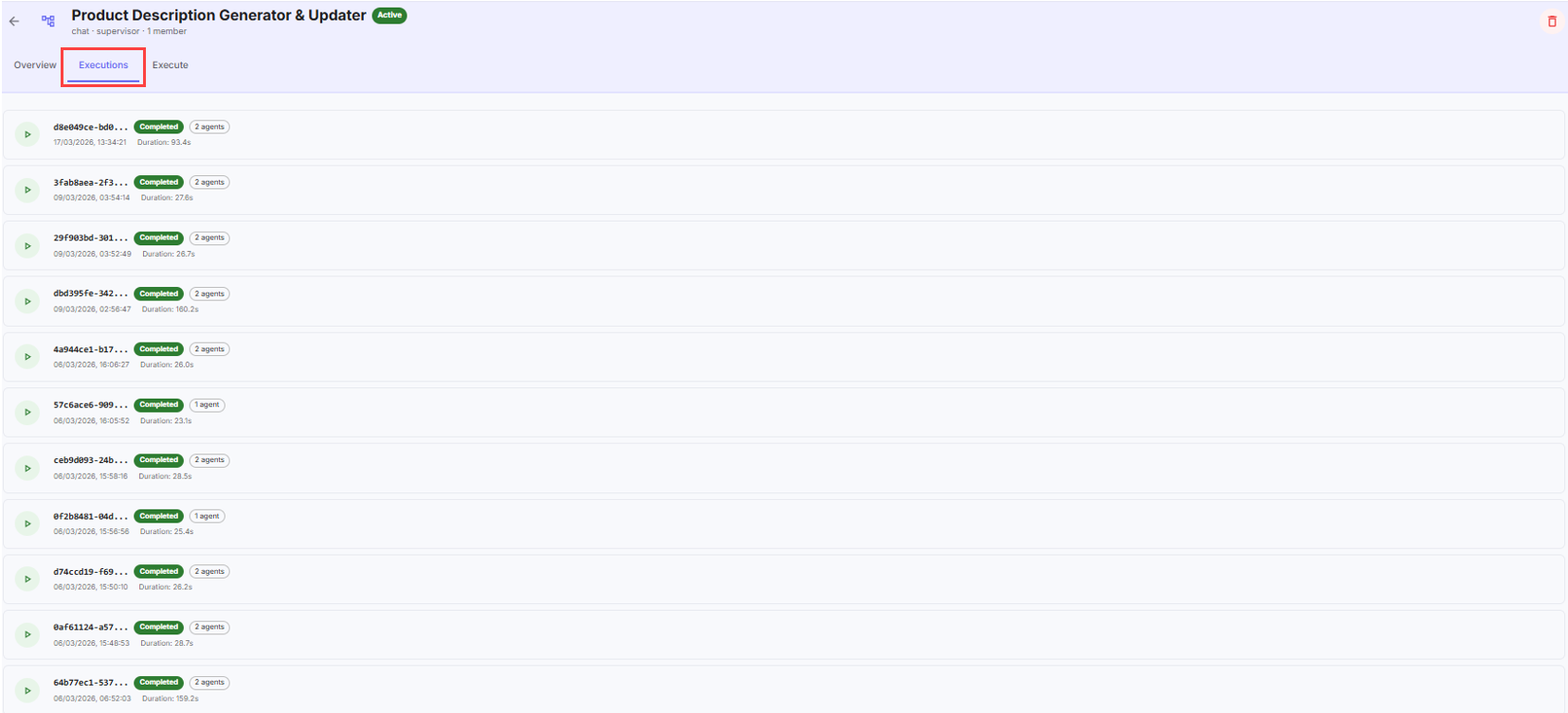 |
| Execute | Allows you to initiate a new chat-based execution. Enter a prompt or greeting in the text area to start. Click the History icon to view prior execution conversations.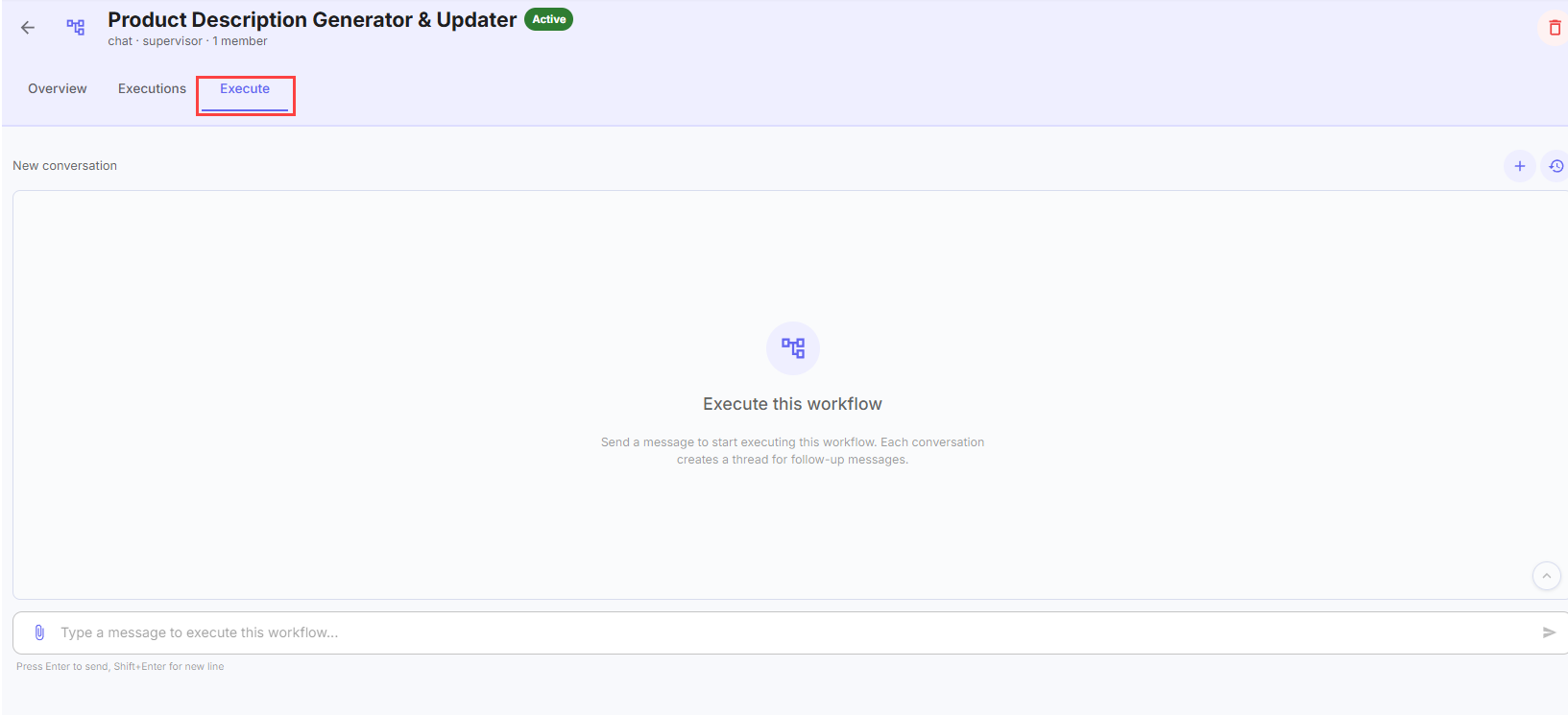 |
Workflow States
A workflow can be saved and managed in the following states:
- Draft — saved but not active; can be edited before activation.
- Active — deployed and available for execution based on its trigger type.
Note: During workflow execution, the response list is limited to five items by default to manage token consumption. If more results are needed, refine your prompt to request a specific subset.
Management Module
The Management module provides the foundational setup that agents and workflows require to function. It contains six configuration areas: MCP servers, LLM providers, knowledge bases, guardrails, prompts, and skills.
Configuring MCP Servers
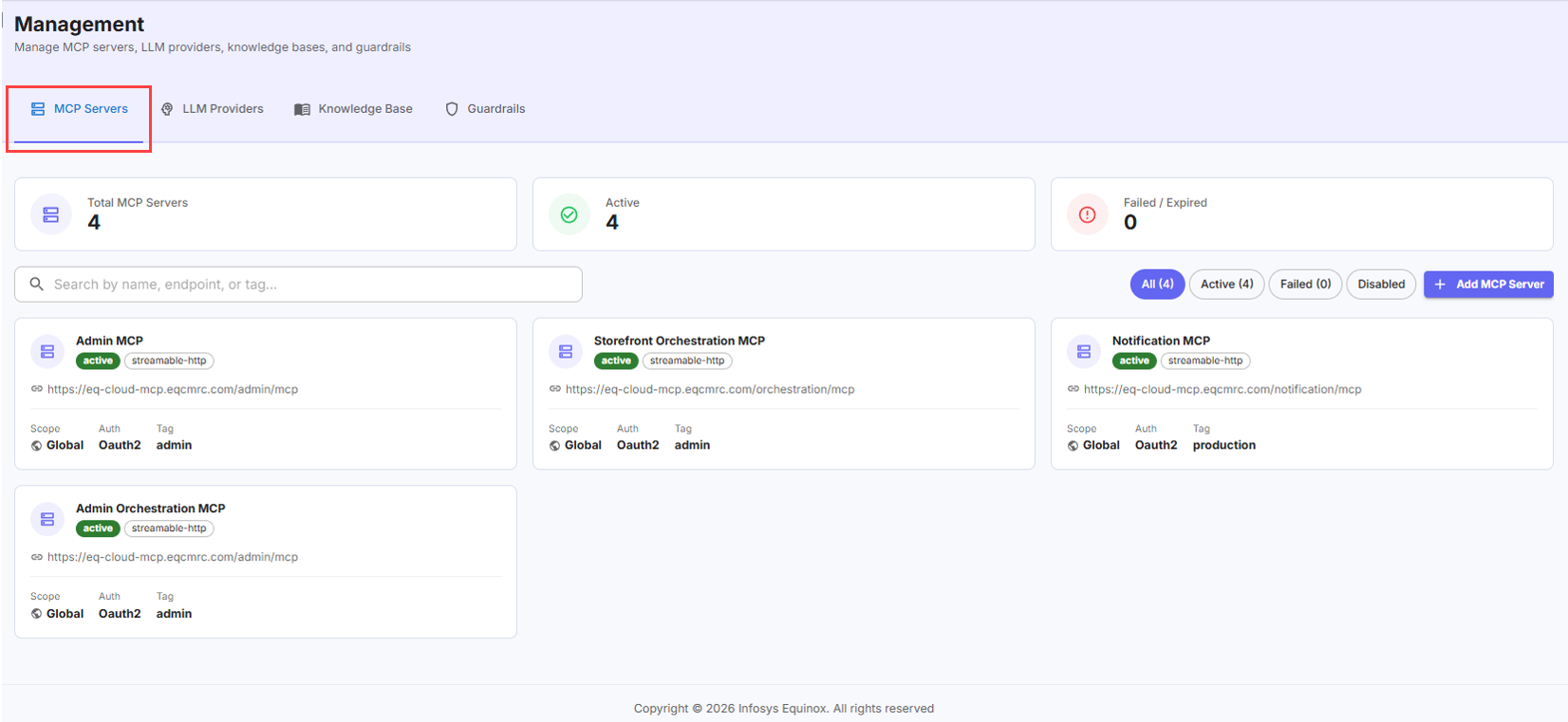
MCP servers allow agents to interact with internal tools and services — for example, product services, pricing services, and admin orchestration APIs. Each MCP server stores connection details, authentication credentials, and scope configuration for a given endpoint.
Adding an MCP Server
To add an MCP server,
- Log in to the Infosys Equinox Admin Console using your credentials.
- On the left navigation panel, go to AI Studio > Management.
- In the Management page, click the MCP Servers tab.
- On the MCP Servers page, click Add MCP Server.
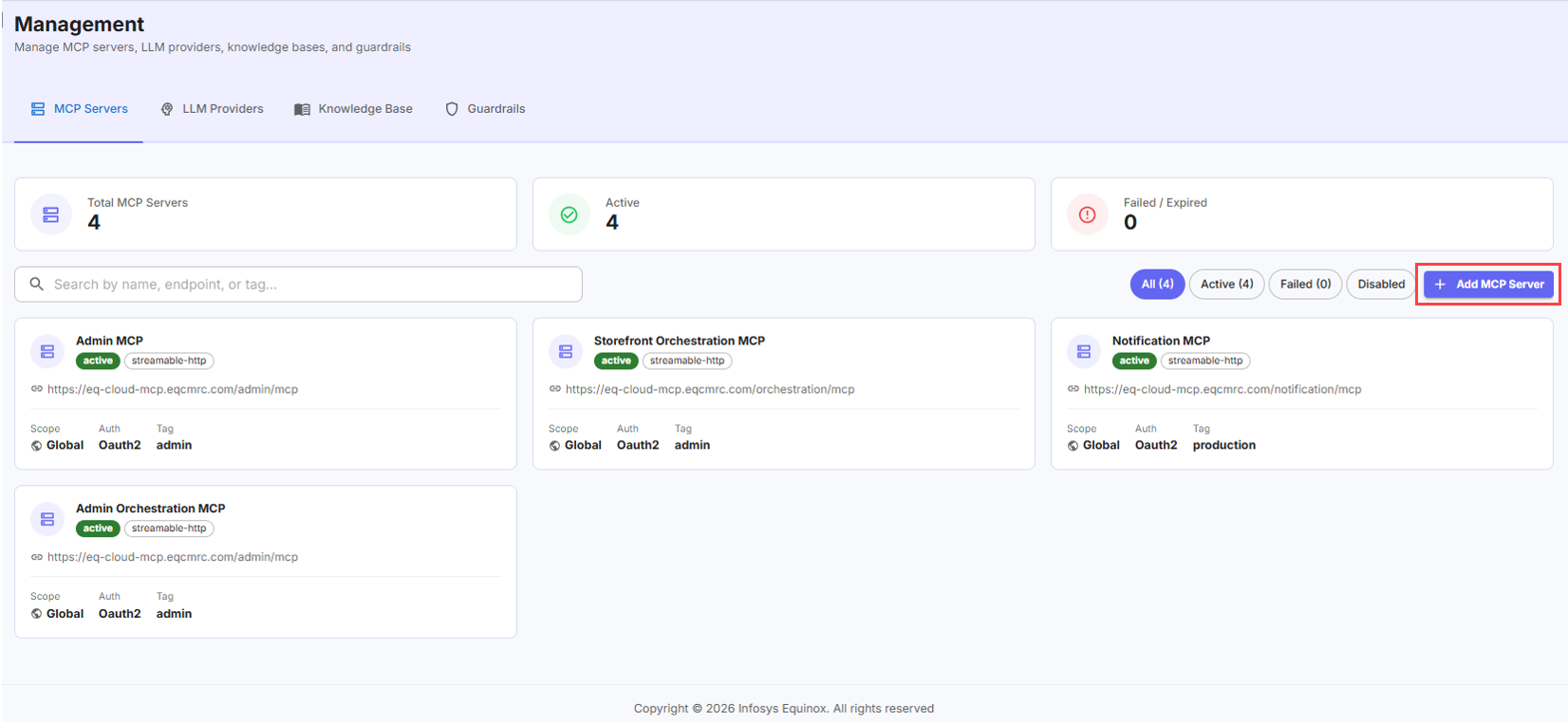
The following screen appears to register a new MCP server:
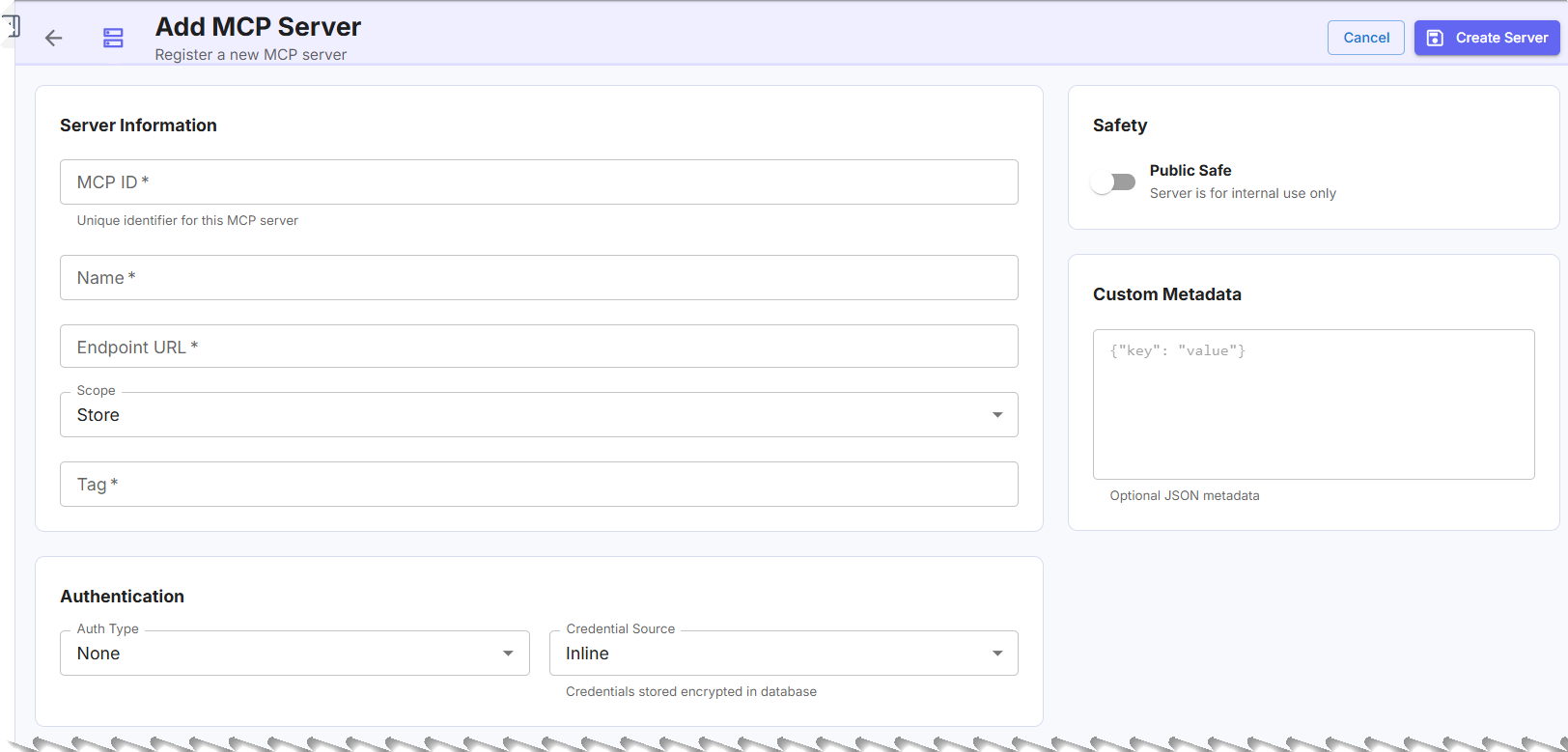
- In the Server Information section, complete the following fields:
Field Description MCP ID Alphanumeric identifier for the server. This value cannot be changed after saving. Name A display name that identifies the MCP server. Endpoint The base URL that agents will call. Transport Type The protocol used to send requests and receive responses. Select one of: SSE, Streamable HTTP, or Stdio (used for local testing only). Tag A text label used for filtering MCP servers in the list view. Scope The visibility level for this server:
- Store – the visibility of agent for that configured store only.
- Business – the visibility of agent across all stores within that business only.
- Global – the visibility of agent across all businesses and all stores.
- In the Authentication section, select an Auth Type:
- Header — Provide the following:
- Header Key — the authentication header name.
- Header Value — the authentication header value.
- OAuth2 — Provide the following:
Field Description Grant Type The OAuth2 grant flow (for example, client credentials). Client ID Created and managed by the Super Admin using the Equinox Auth Service. Client Secret Created and managed by the Super Admin using the Equinox Auth Service. Token Endpoint The URL used to obtain the access token. OAuth Scope The permission scope requested during token acquisition.
- Header — Provide the following:
- Click Create Server.
After saving, the MCP server becomes available to all agents within its configured scope for tool execution.
Deleting an MCP Server
Only a Super Admin can delete an MCP server. Deleting an MCP server removes it from the platform permanently. Agents that reference this server will lose access to its tools.
To delete an MCP server,
- Log in to the Infosys Equinox Admin Console using your credentials.
- On the left navigation panel, go to AI Studio > Management.
- In the Management page, click the MCP Servers tab.
- On the MCP Servers page, locate the server you want to remove.
- Click Delete.
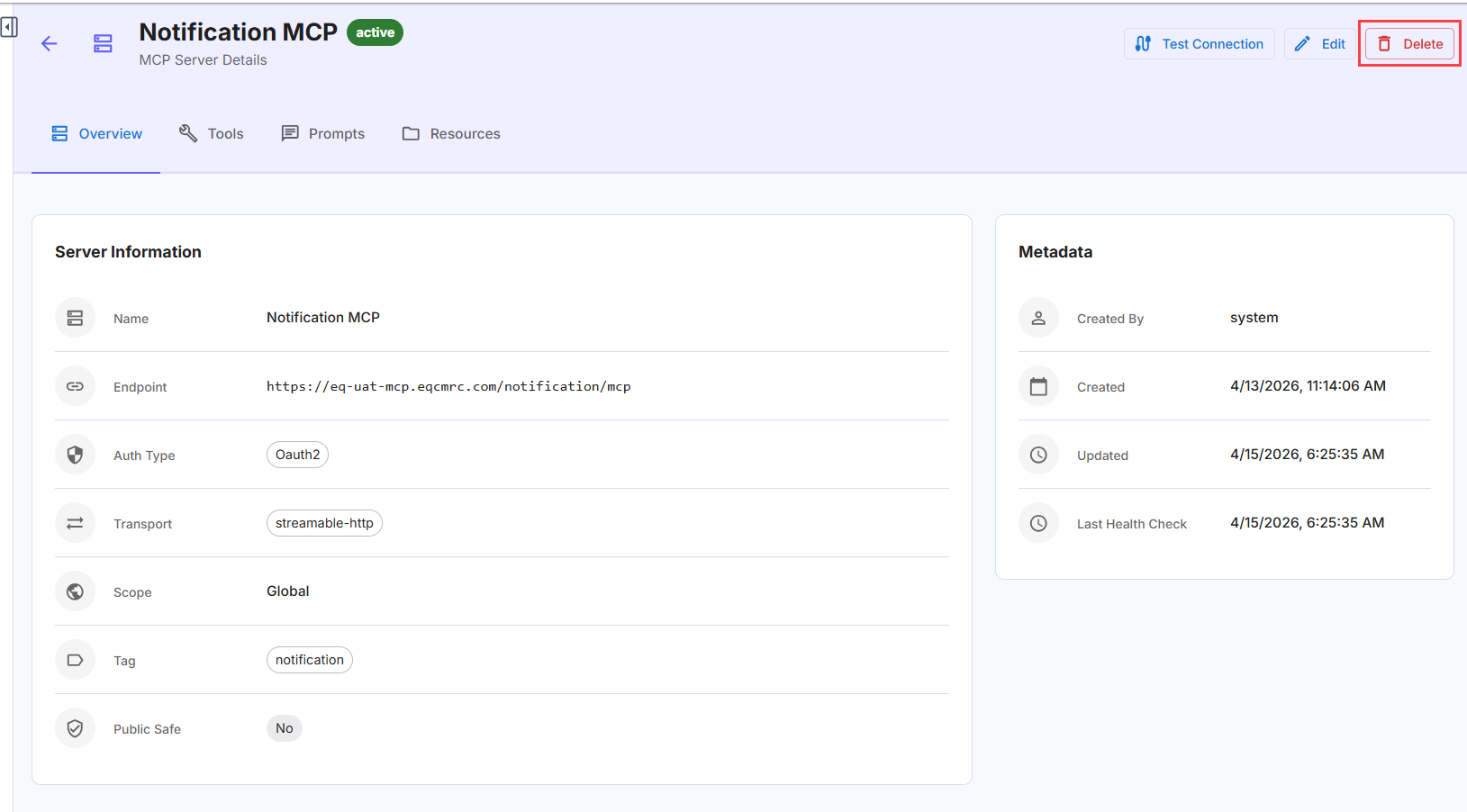
- Confirm the deletion when prompted.
Configuring LLM Providers
LLM Providers connect the platform to language models and embedding models through LiteLLM, enabling flexible, provider-agnostic model selection for agents and workflows.
Adding an LLM Provider
To add an LLM provider,
- Log in to the Infosys Equinox Admin Console using your credentials.
- On the left navigation panel, go to AI Studio > Management.
- Click LLM Providers.
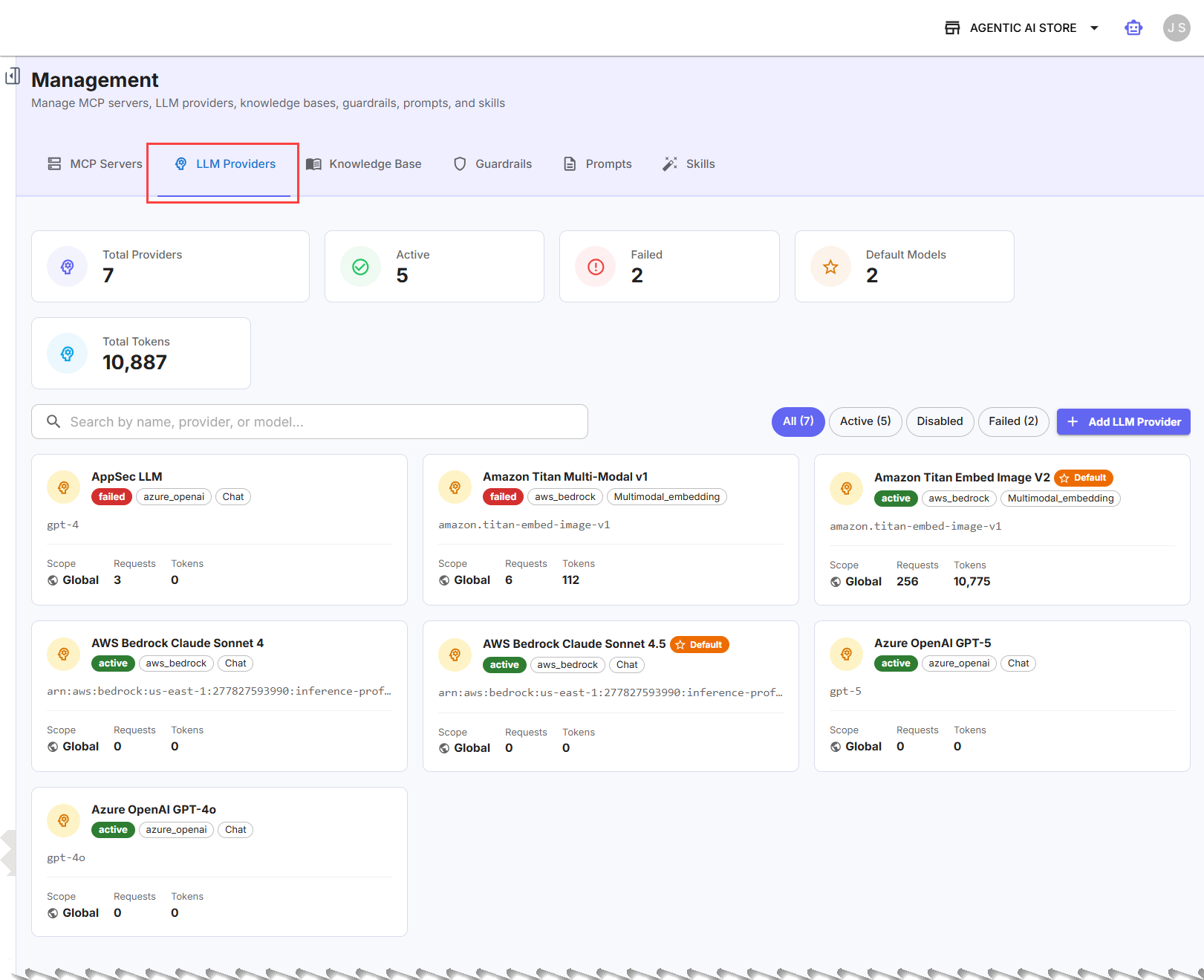
- On the LLM Providers page, click Add LLM Provider.
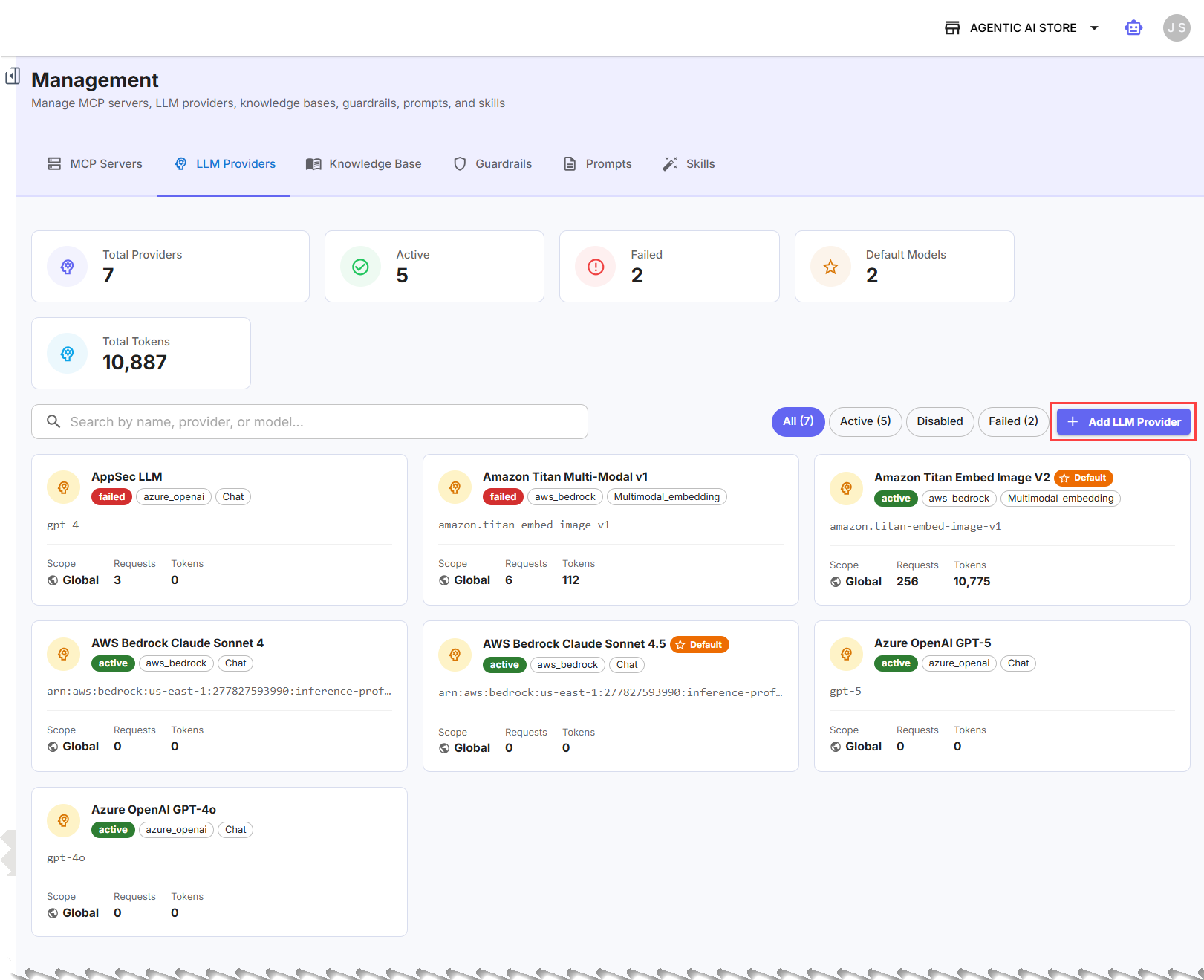
- In the Basic Information section, complete the following fields:
Field Description Name A display name for the LLM configuration. Description A short summary describing the purpose of this model configuration. Provider Select the model provider from the dropdown (for example, OpenAI, Anthropic, Azure OpenAI, AWS Bedrock). Model Type Select the type of model: Chat, Embedding, or Multi-Modal Embedding. Model ID The specific model identifier from the provider (for example, gpt-4o,claude-3-5-sonnet).Default Model Toggle On to designate this model as the default for its type and scope. - In the Credential Details section, enter the credentials required by the selected provider:
This section appears only for few model types.
Provider Required Credentials All providers API Key Azure OpenAI API Key, API Base URL, API Version, Deployment Name AWS Bedrock AWS Access Key ID, AWS Secret Access Key, AWS Region - In the Default Parameters section, optionally configure:
- Temperature — Controls the randomness of model responses.
- Max Tokens — Sets the maximum response length in tokens.
- In the Metadata section, configure with the JSON value for custom tags or labels.
- Click Create Provider.
Note: Each model type (Chat, Embedding, Multi-Modal Embedding) supports a default model setting. Embedding and Multi-Modal Embedding types have a single available choice per scope and are automatically set as default. For Chat models, you explicitly choose which configuration is the default at store, business, or global scope.
Configuring Knowledge Bases
Knowledge Bases allow agents to access domain-specific information that the underlying LLM was not trained on. Each knowledge base acts as a dedicated repository with its own document set, chunking strategy, and embedding model.
Creating a Knowledge Base
To create a knowledge base,
- Log in to the Infosys Equinox Admin Console using your credentials.
- On the left navigation panel, go to AI Studio > Management.
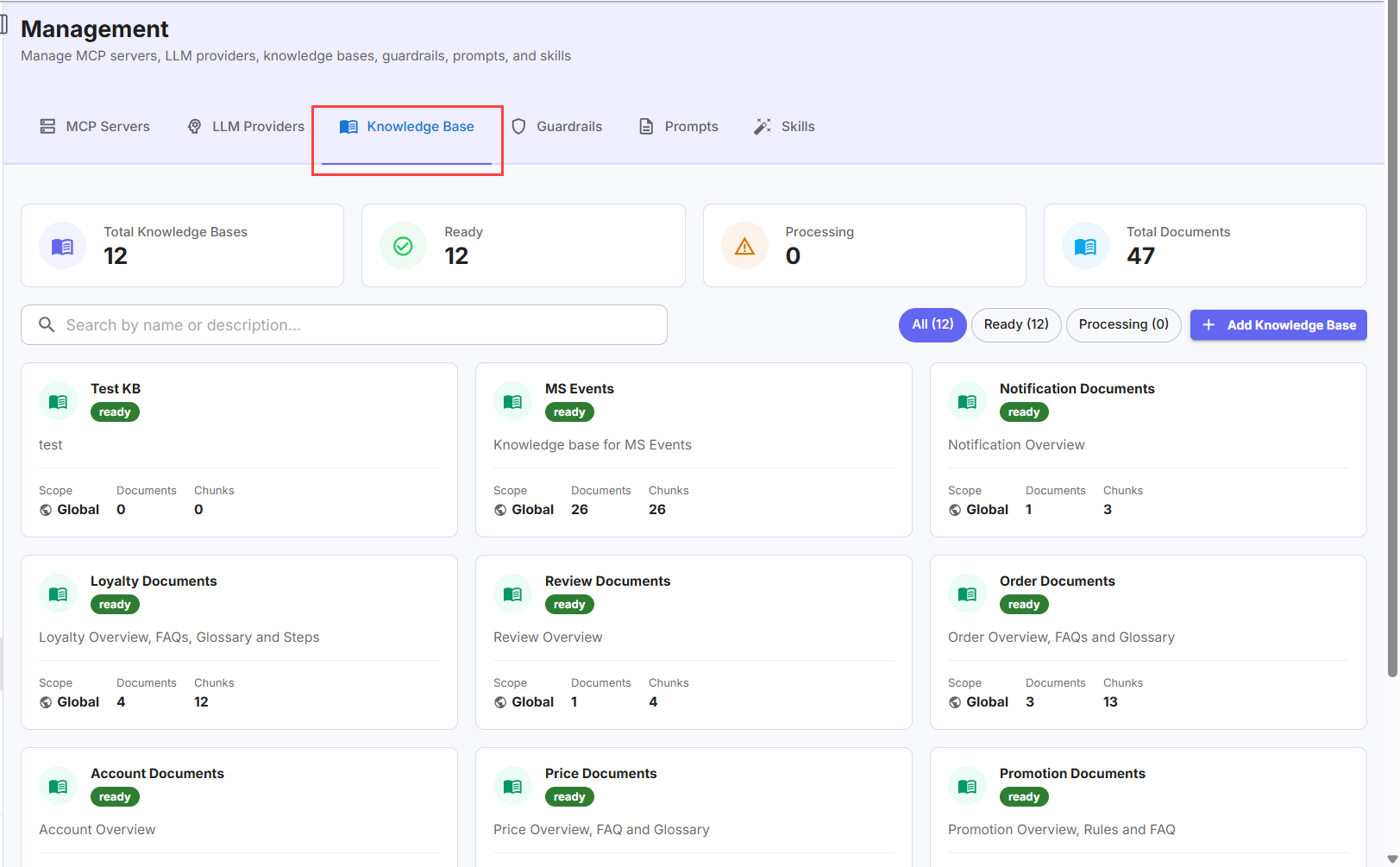
- Click Knowledge Base.
- On the Knowledge Bases page, click Add Knowledge Base.
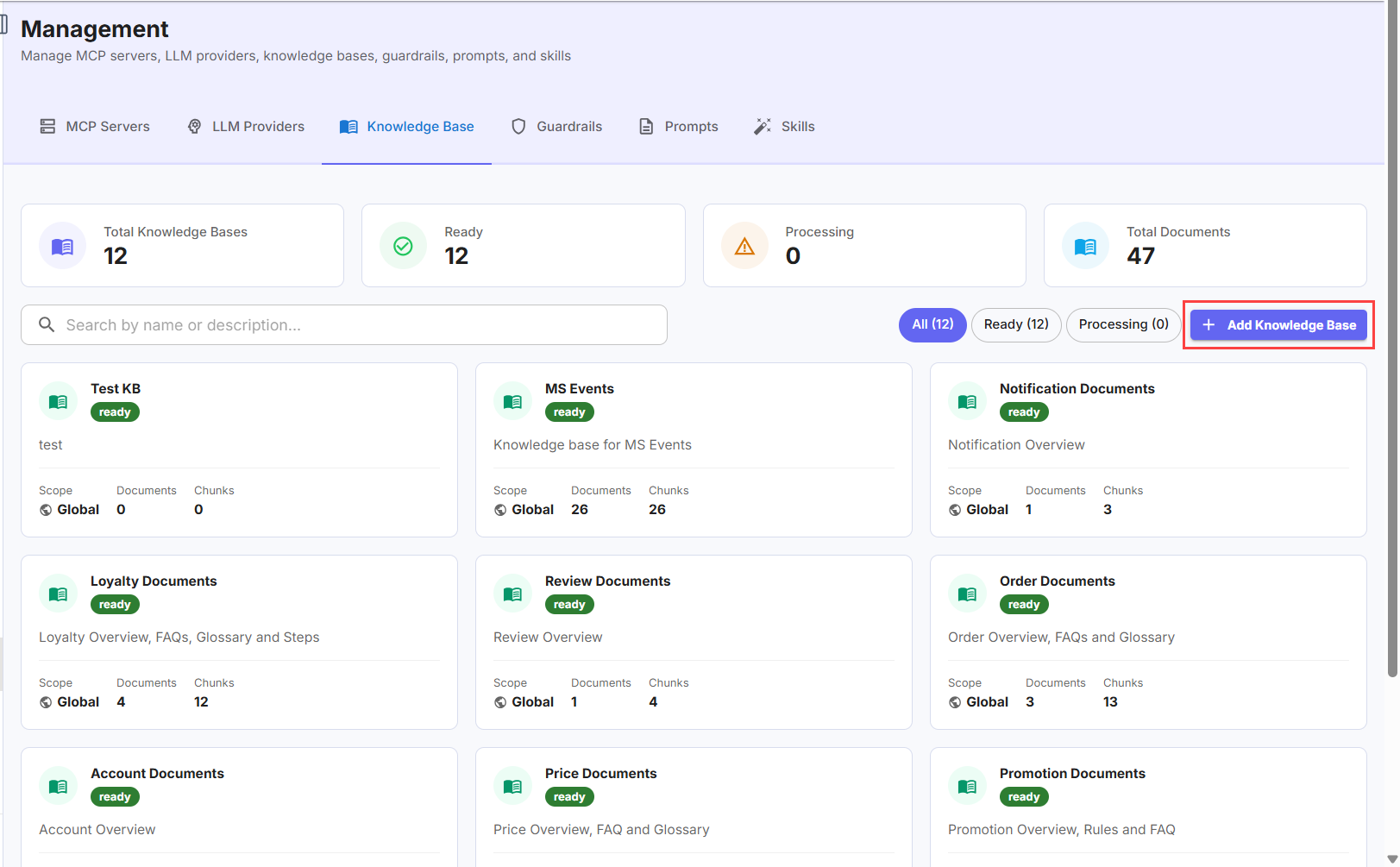
The Create Knowledge Base page appears:
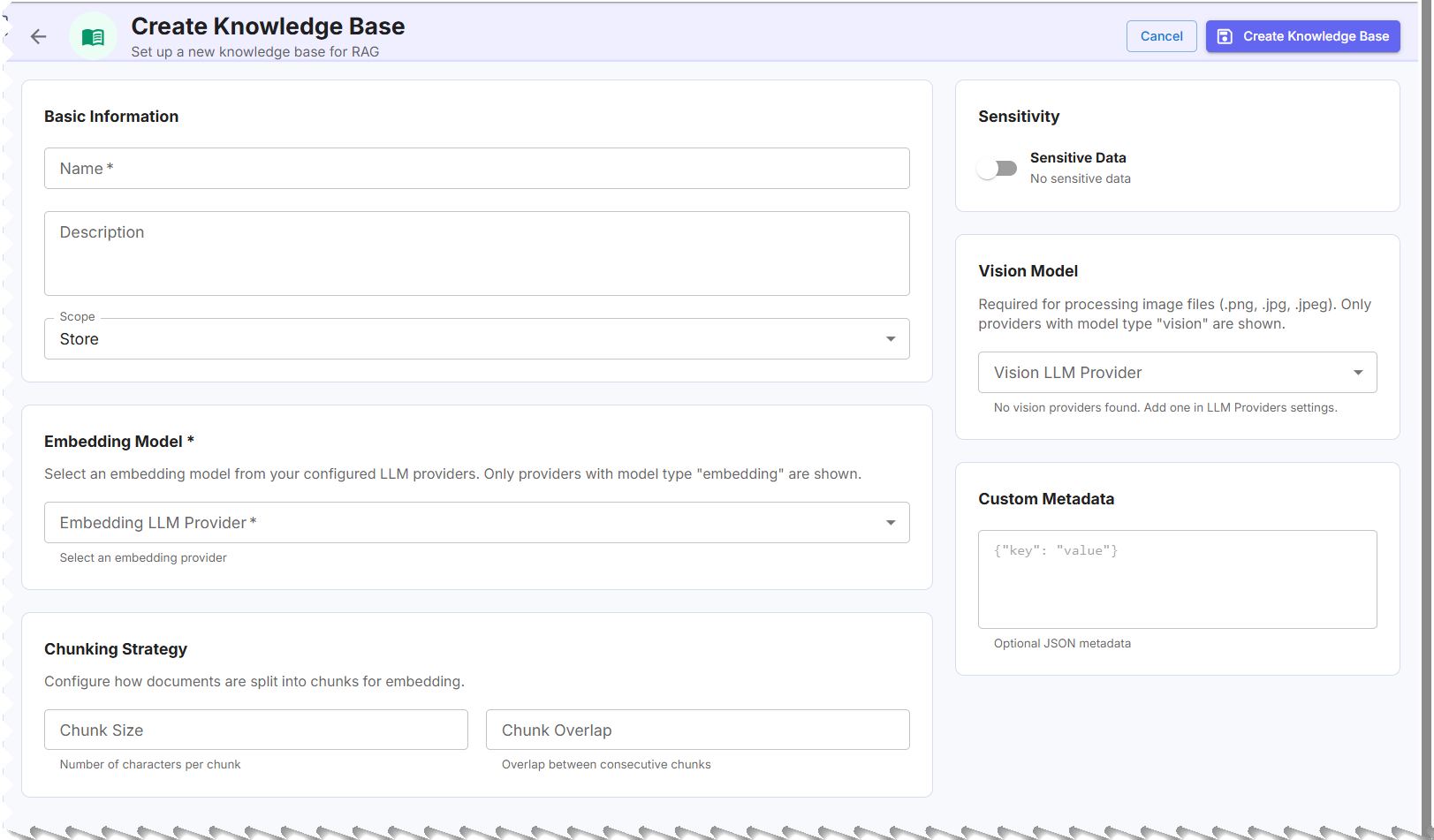
- In the Basic Information section, complete the following fields:
Field Description Knowledge Base Name A unique identifier and display name for the repository. Description A summary describing the purpose and contents of the knowledge base. Scope The visibility level: Store, Business, or Global. - In the Embedding Model section, select the model used to convert document chunks into vector embeddings; for example:
- Amazon Titan Multi-Modal v1
- Azure Embedding – Ada – 002
- In the Chunking Strategy section, configure how documents are split for indexing:
Setting Description Chunk Size The number of characters or tokens per chunk (for example, 500 tokens). Larger chunks preserve more context; smaller chunks improve precision. Chunk Overlap The number of overlapping characters or tokens between consecutive chunks (for example, 20–50 tokens). Overlap prevents context loss at chunk boundaries. - In the Sensitivity section, toggle Sensitive Data on if the knowledge base will contain sensitive or regulated content. When enabled, additional access controls are applied to the repository.
- In the Vision Model section, optionally select a Vision LLM Provider to enable processing of image files (
.png,.jpg,.jpeg). Only LLM providers configured with model type Vision are listed. If no vision providers are available, add one in LLM Providers settings before proceeding. - In the Custom Metadata section, optionally enter key-value pairs in JSON format (for example,
{"key": "value"}). Custom metadata can be used to tag and categorize the knowledge base for filtering or organizational purposes. - Click Create Knowledge Base.
The knowledge base is created. You can now view its overview, manage documents, and run test queries from the detail page.
Uploading Documents
To upload documents,
- Log in to the Infosys Equinox Admin Console using your credentials.
- On the left navigation panel, go to AI Studio > Management.
- Click Knowledge Base.
- Open a knowledge base and select the Documents tab.
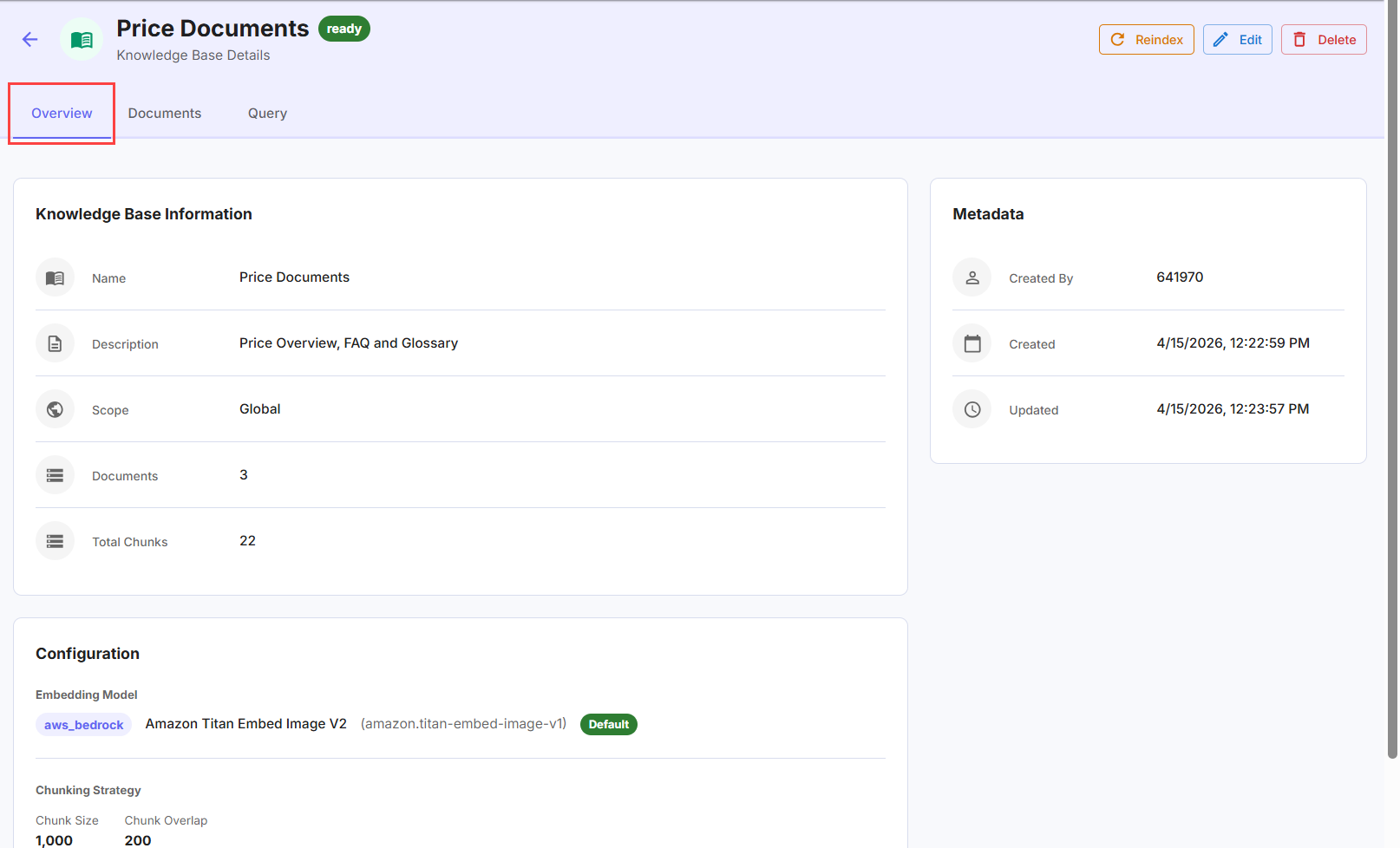
- Click Upload to add files.
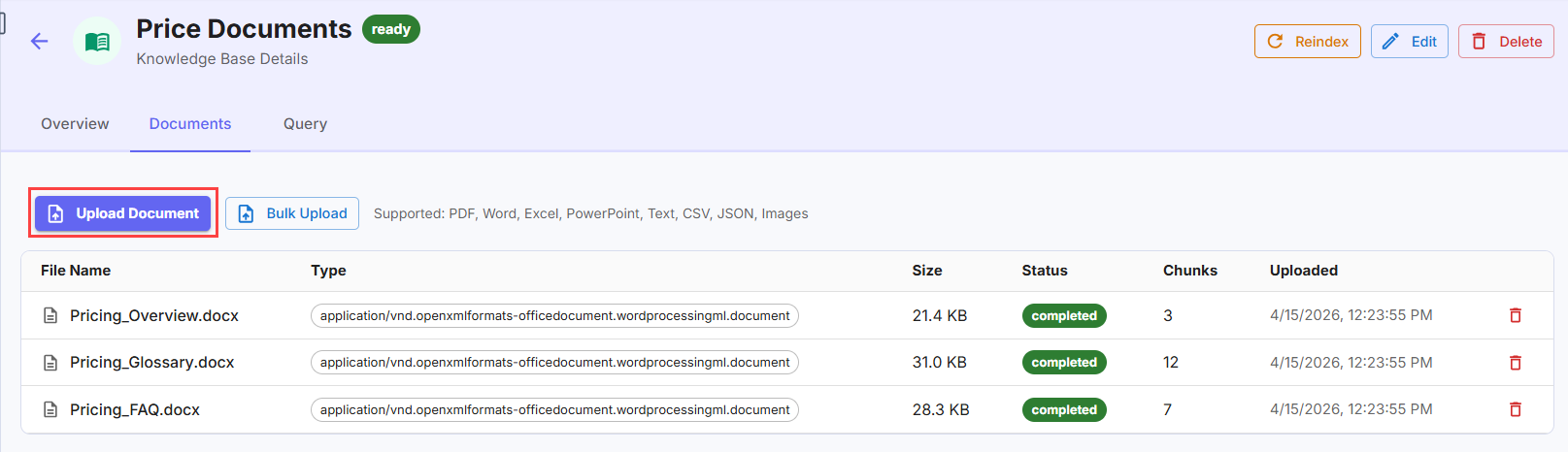
- To upload a single file, select the file and click Open.
- To upload multiple files at once, select all files and click Open.
Uploaded documents are indexed automatically.
Note: Supported file formats: PDF, Word (.docx), Excel (.xlsx), PowerPoint (.pptx), plain text (.txt), CSV, JSON, and image files.
Testing a Knowledge Base Query
To test a knowledge base query,
- Log in to the Infosys Equinox Admin Console using your credentials.
- On the left navigation panel, go to AI Studio > Management.
- Click Knowledge Base.
- Open the knowledge base and select the Query tab.
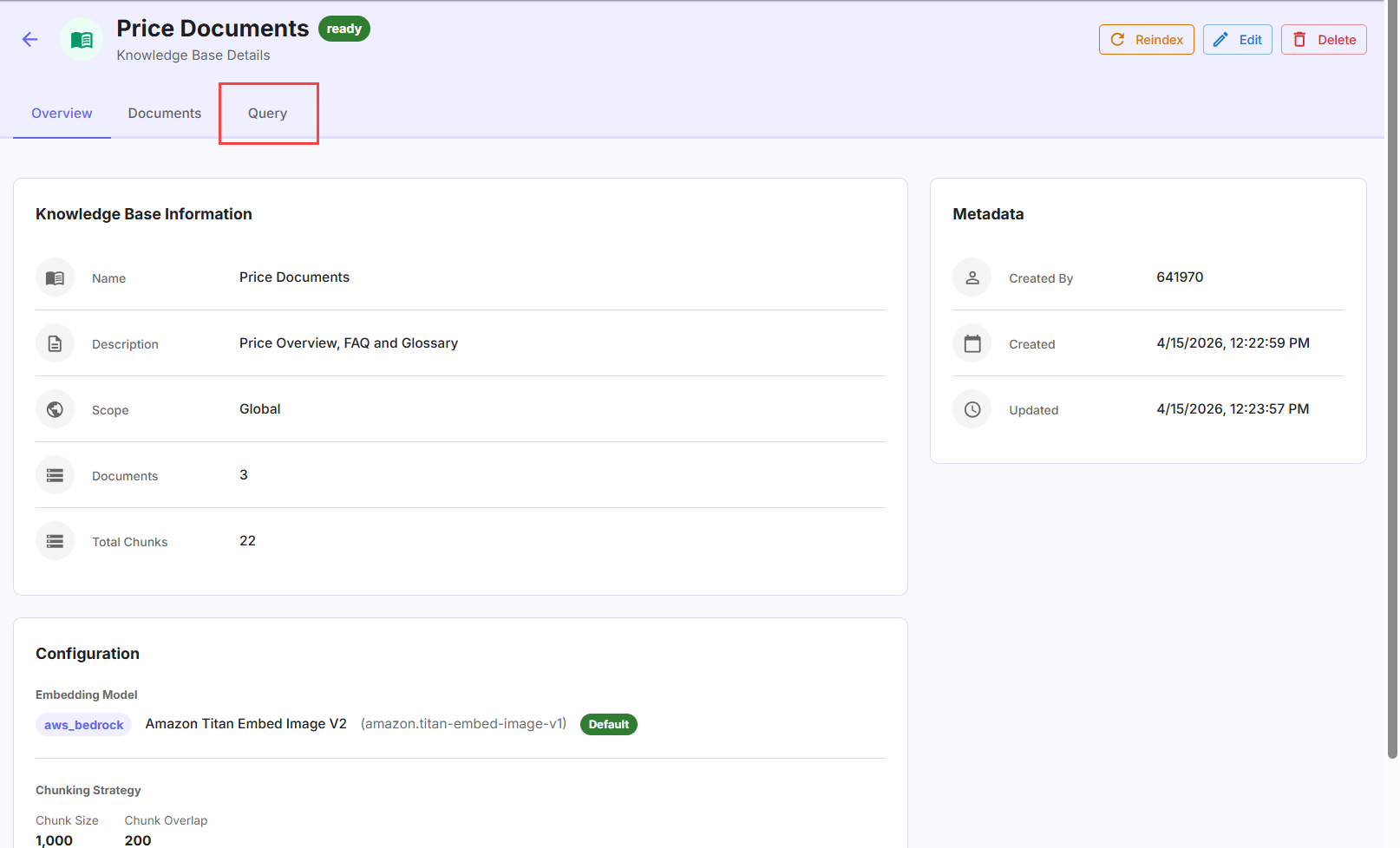
- Enter a question or query in the text area.
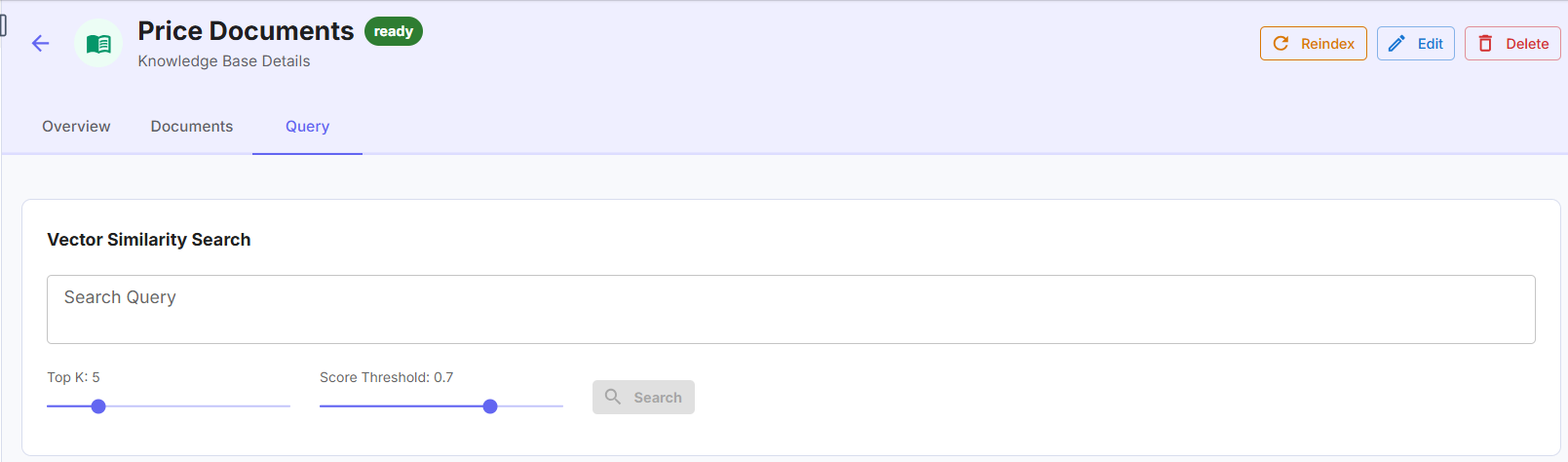
- Optionally configure:
- Top K — the maximum number of results to return.
- Score Threshold — the minimum relevance score for a result to be included.
- Review the returned results to verify retrieval accuracy.
Configuring Guardrails
Guardrails enforce safety policies on agent inputs and outputs, ensuring all interactions are compliant, free from policy violations, and aligned with business rules.
Creating a Guardrail
An agent without a guardrail has no content safety enforcement. Attach at least one guardrail to agents operating in customer-facing or regulated contexts.
To create a guardrail,
- Log in to the Infosys Equinox Admin Console using your credentials.
- On the left navigation panel, go to AI Studio > Management.
- Click Guardrails.
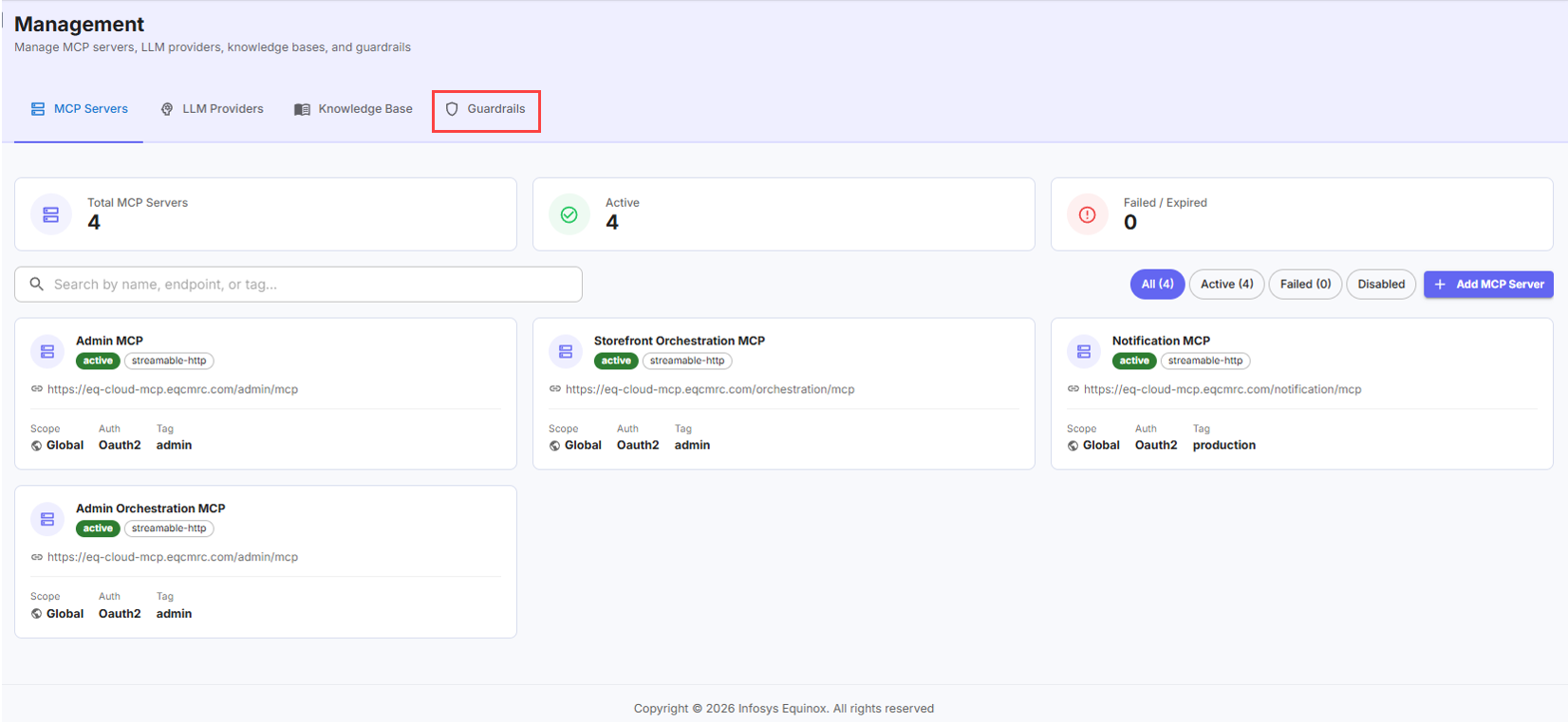
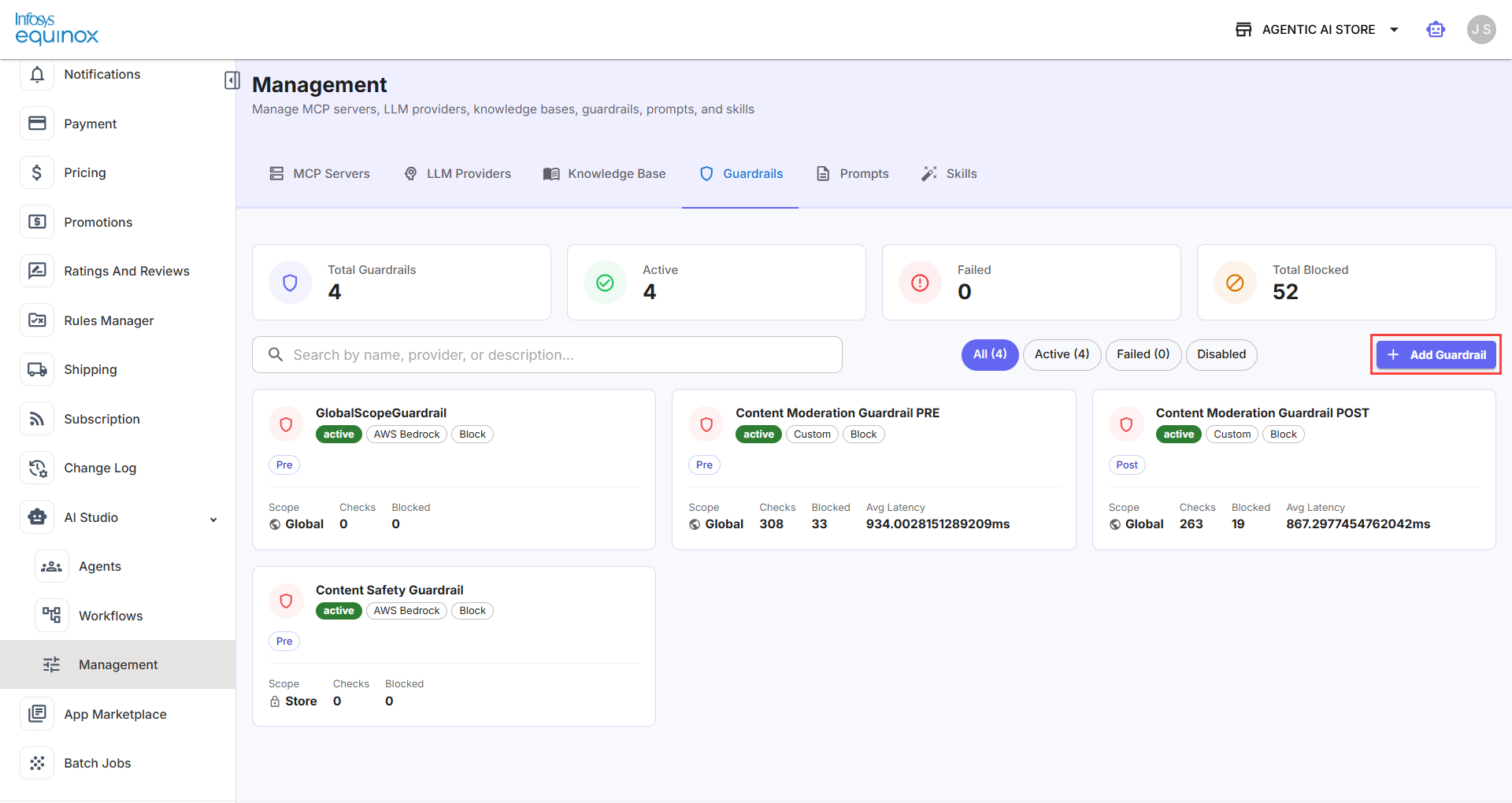
- On the Guardrails page, click Add Guardrail.
The Create Guardrail page appears:
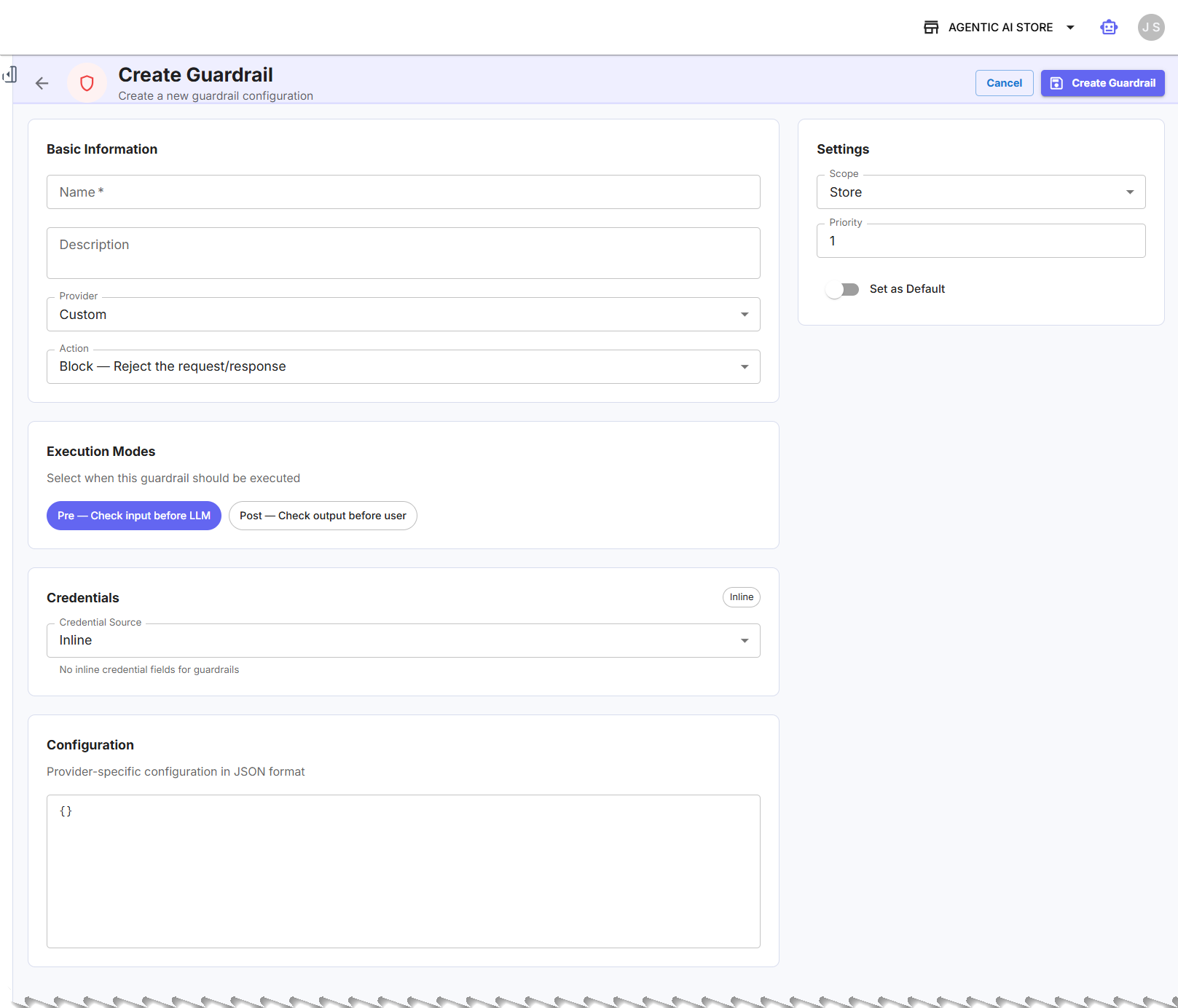
- In the Basic Information section, complete the following fields:
Field Description Name A display name for the guardrail configuration. Description A short summary describing the guardrail’s purpose and rules. Provider Select the content safety provider from the dropdown (for example, Custom, AWS Bedrock).
Action Select the enforcement action when the guardrail is triggered:
- Block – To reject the request/response
- Warn – To allow but log warning
- Mask – To mask sensitive content
- Log – To log only, no action
Scope The visibility level: Store, Business, or Global. - In the Execution Modes section, select when the guardrail is applied:
- Pre-Call — validates the user’s input before it is sent to the model.
- Post-Call — validates the model’s output before it is returned to the user.
- In the Credentials section, select the Credential Source for the guardrail provider:
- Inline — credentials are entered directly in the form. Field availability depends on the selected provider.
- AWS Secret Manager — credentials are retrieved securely from an AWS Secrets Manager secret, avoiding the need to enter sensitive values directly in the form.
- In the Configuration section, provide the provider-specific rules and thresholds in JSON format.
- In the Settings section, configure the following:
Field Description Scope The visibility level for this guardrail: Store, Business, or Global. Priority A numeric value that determines the order in which guardrails are evaluated when multiple guardrails apply. Lower numbers are evaluated first. Set as Default Toggle On to designate this guardrail as the default for its scope. - Click Create Guardrail.
The guardrail becomes available for attachment to agents within its configured scope.
Configuring Prompts
Prompts are reusable system prompt templates that define an agent’s persona, tone, and behavioral rules. They can be created, versioned, and shared across agents within a configured scope.
The Prompts dashboard displays all prompts available in your current scope, with summary counts for Total Prompts, Active, Draft, and Total Usage.
Creating a Prompt
To create a prompt,
- Log in to the Infosys Equinox Admin Console using your credentials.
- On the left navigation panel, go to AI Studio > Management.
- Click the Prompts tab.
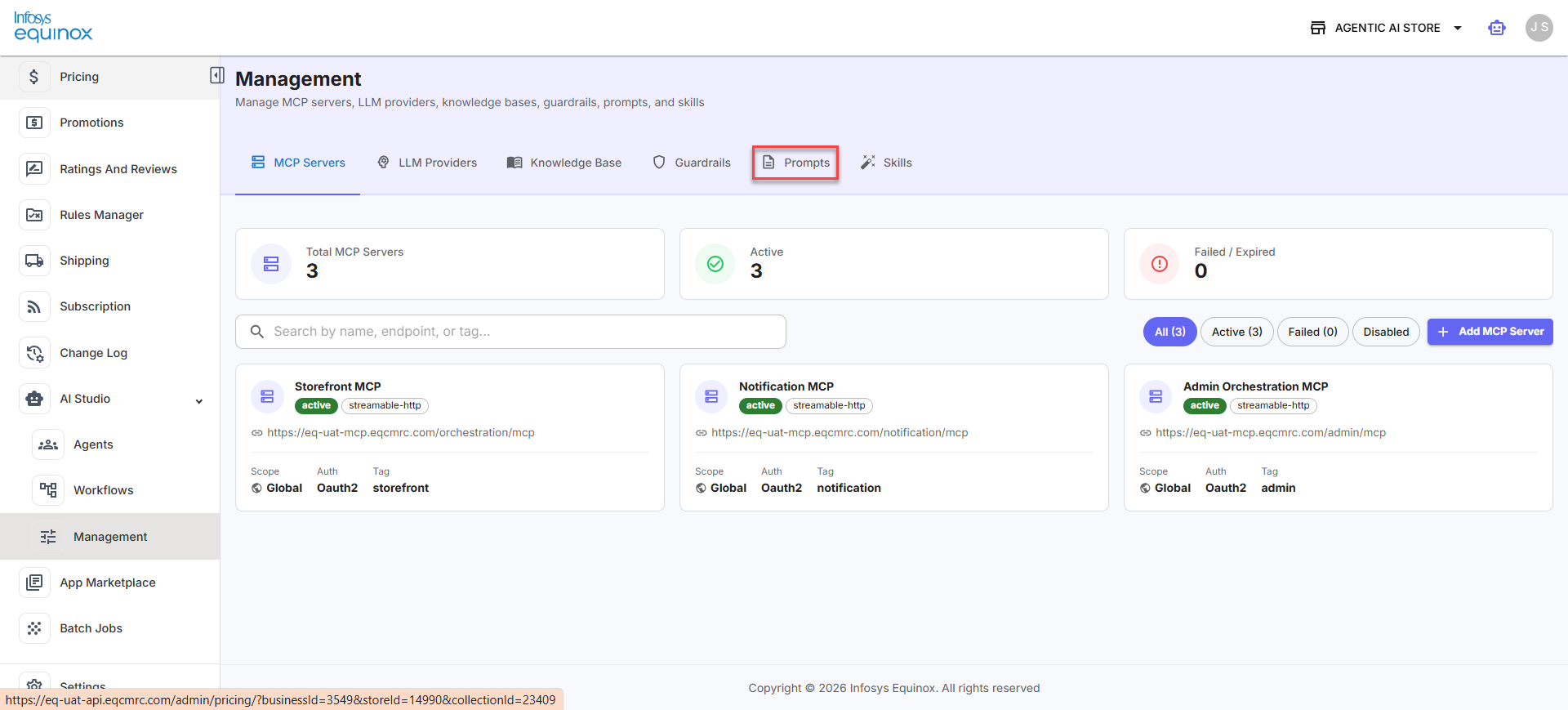
- On the Prompts page, click Add Prompt.
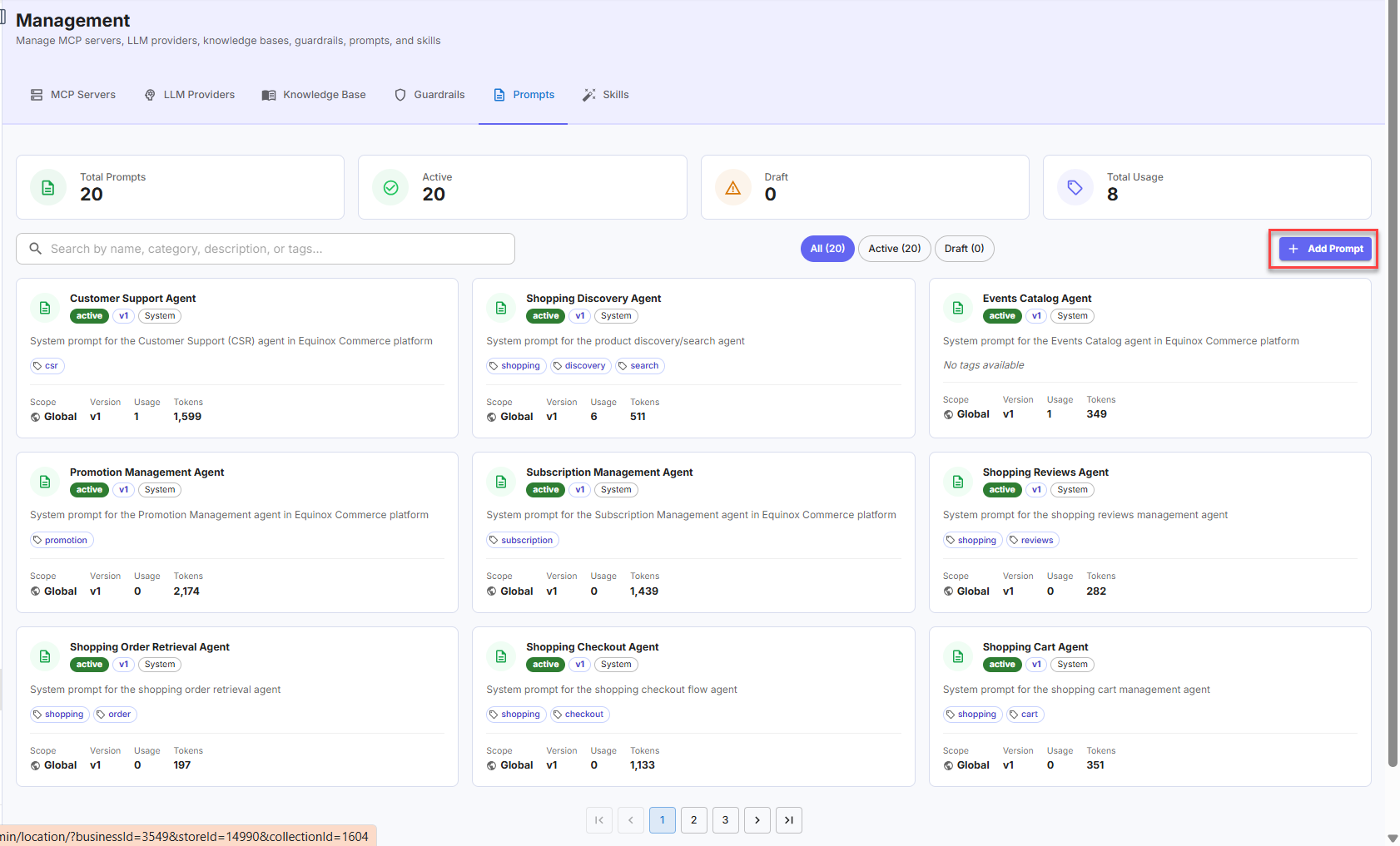
The Create Prompt page appears:
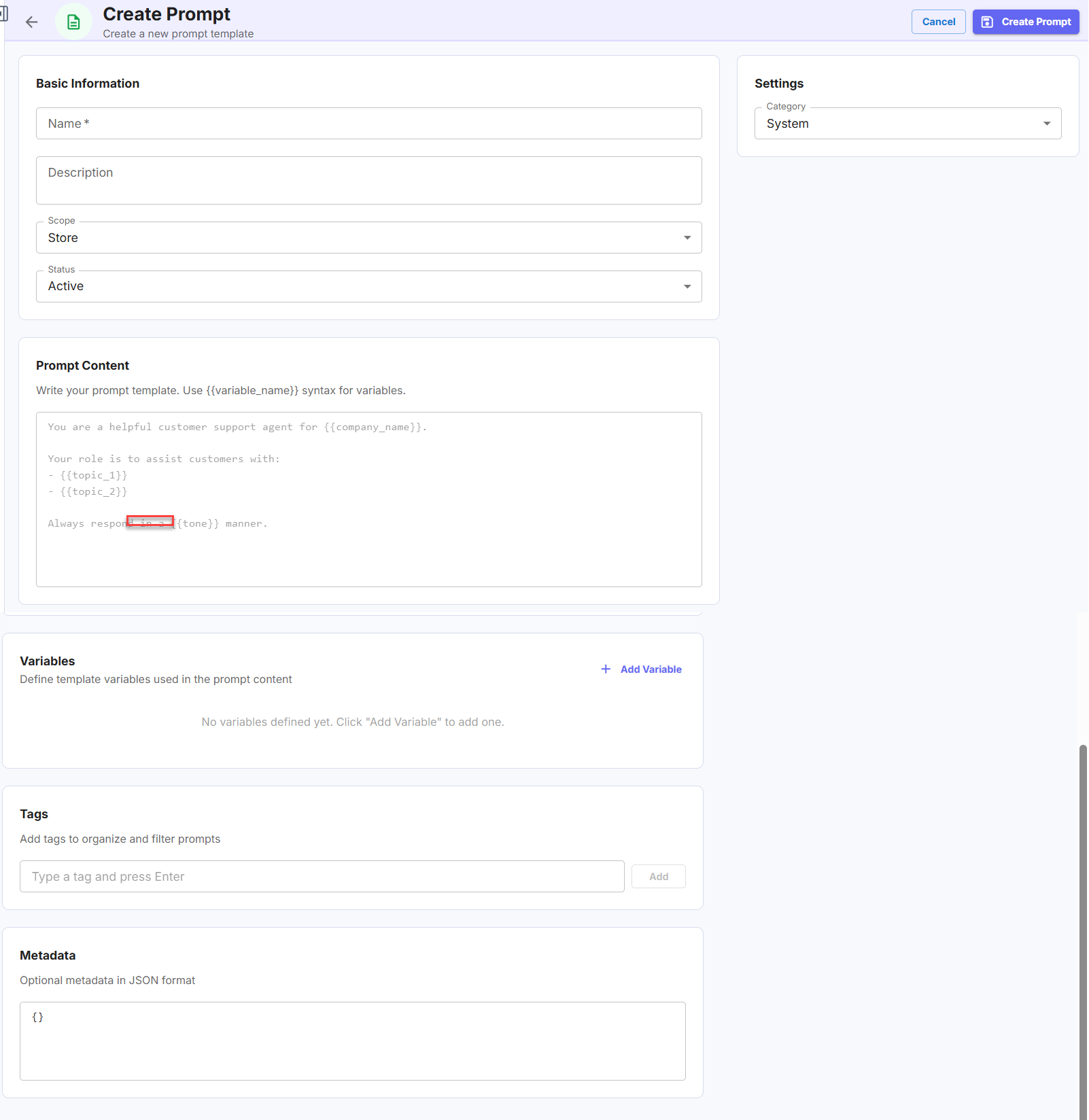
- In the Basic Information section, complete the following fields:
Field Description Name A unique display name for the prompt template. Description A short summary describing the prompt’s purpose and intended use. Scope The visibility level: Store, Business, or Global. Status Set to Active to make the prompt immediately available, or Draft to save it for further editing before publishing. - In the Prompt Content section, write the prompt template in the text area.
Use{{variable_name}}syntax to define dynamic placeholders within the prompt. For example:You are a helpful customer support agent for {{company_name}}. - In the Variables section, click Add Variable to define each template variable referenced in the prompt content.
Variables allow the same prompt template to be reused across different agents or contexts by substituting values at runtime. If no variables are used in the prompt content, this section can be left empty. - In the Tags section, type a tag in the input field and press Enter or click Add to attach it.
Tags are used to organize and filter prompts in the list view. Add multiple tags as needed. - In the Metadata section, optionally enter additional context in JSON format (for example,
{"key": "value"}). - In the Settings panel, select the Category:
- System — a platform-managed prompt, typically used for prebuilt agents.
- Custom categories may also be available depending on your configuration.
- Click Create Prompt.
The prompt becomes available for selection when configuring agents within its configured scope.
Prompt Details
Each prompt card in the dashboard displays the following metadata:
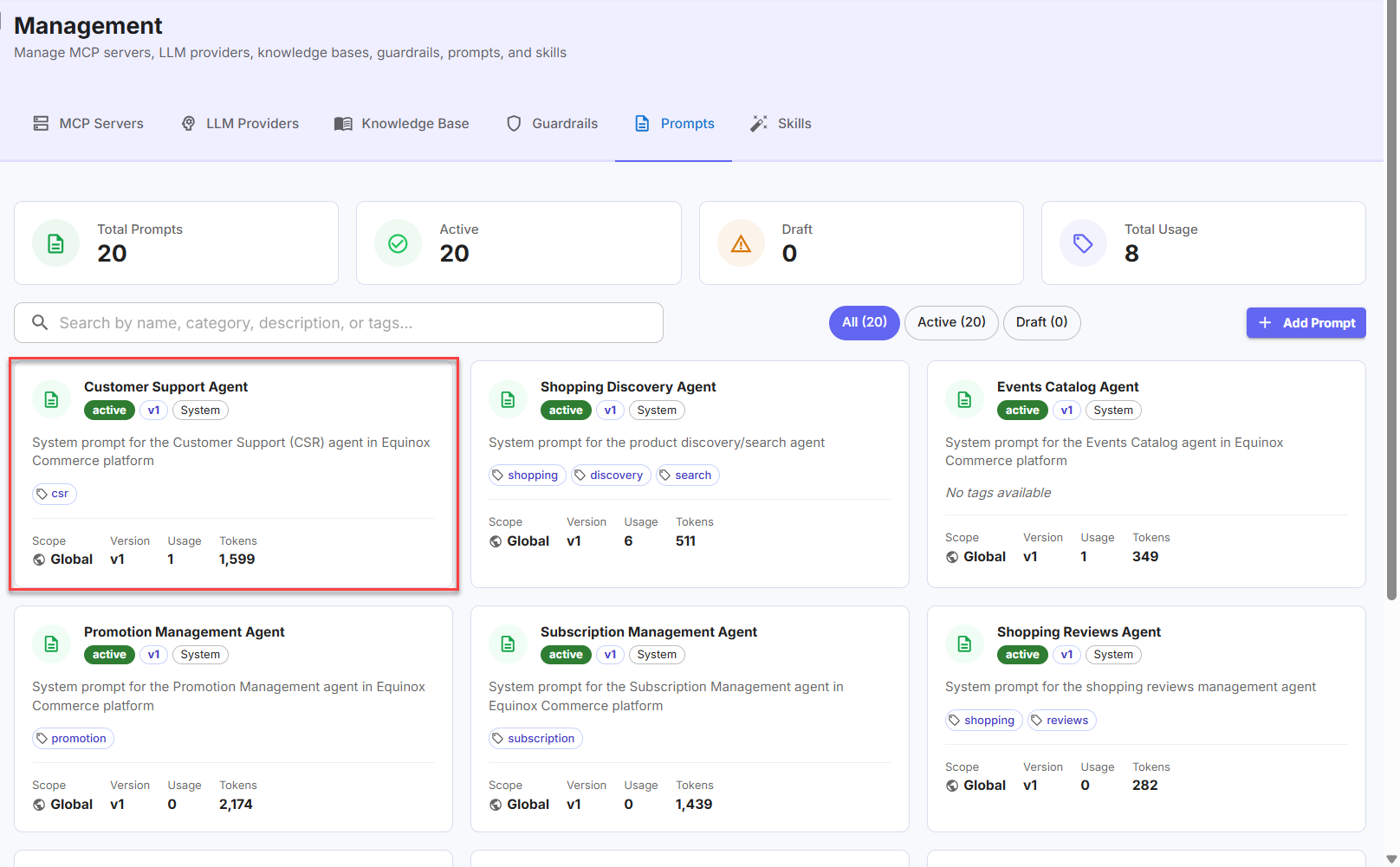
The below table explains the details in the above card:
| Field | Description |
| Name | The display name of the prompt. |
| Status | The current state: Active or Draft. |
| Version | The version number of the prompt (for example, v1). |
| Type | The prompt type: System (platform-provided) or custom. |
| Scope | The visibility level: Store, Business, or Global. |
| Usage | The number of agents currently using this prompt. |
| Tokens | The total token count of the prompt content. |
Configuring Skills
Skills are reusable capability bundles — either prompt-based or tool/composite — that can be attached to agents to extend their behavior without modifying the agent’s core system prompt.
The Skills dashboard displays all skills available in your current scope, with summary counts for Total Skills, Active, Prompt Skills, and Tool / Composite skills.
Skill Types
| Type | Description |
| Prompt | A skill defined by a prompt template that instructs the agent on a specific behavior or domain (for example, customer service communication patterns, promotion rules). |
| Tool / Composite | A skill that combines multiple tools or sub-skills into a single reusable capability unit. |
Creating a Skill
To create a skill,
- Log in to the Infosys Equinox Admin Console using your credentials.
- On the left navigation panel, go to AI Studio > Management.
- Click the Skills tab.
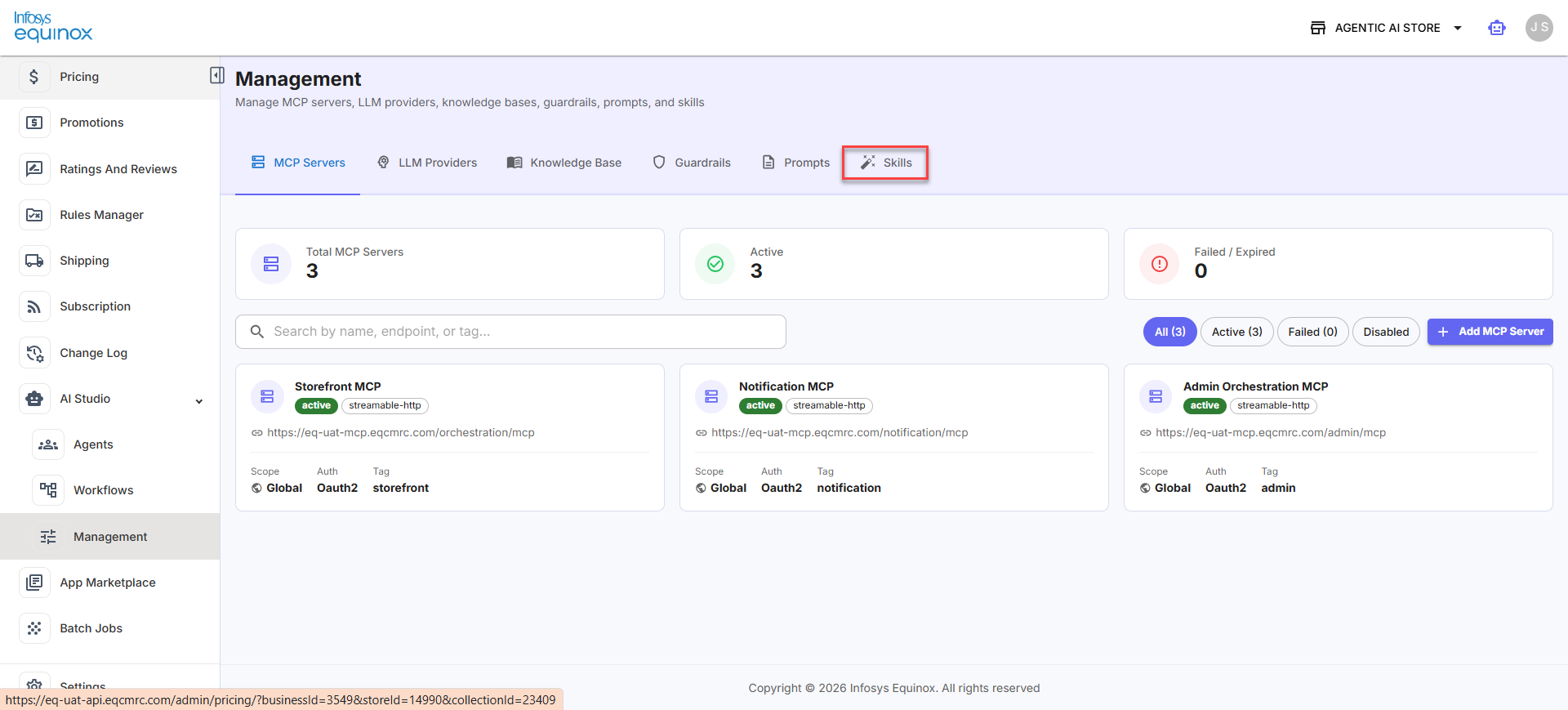
- On the Skills page, click Add Skill.
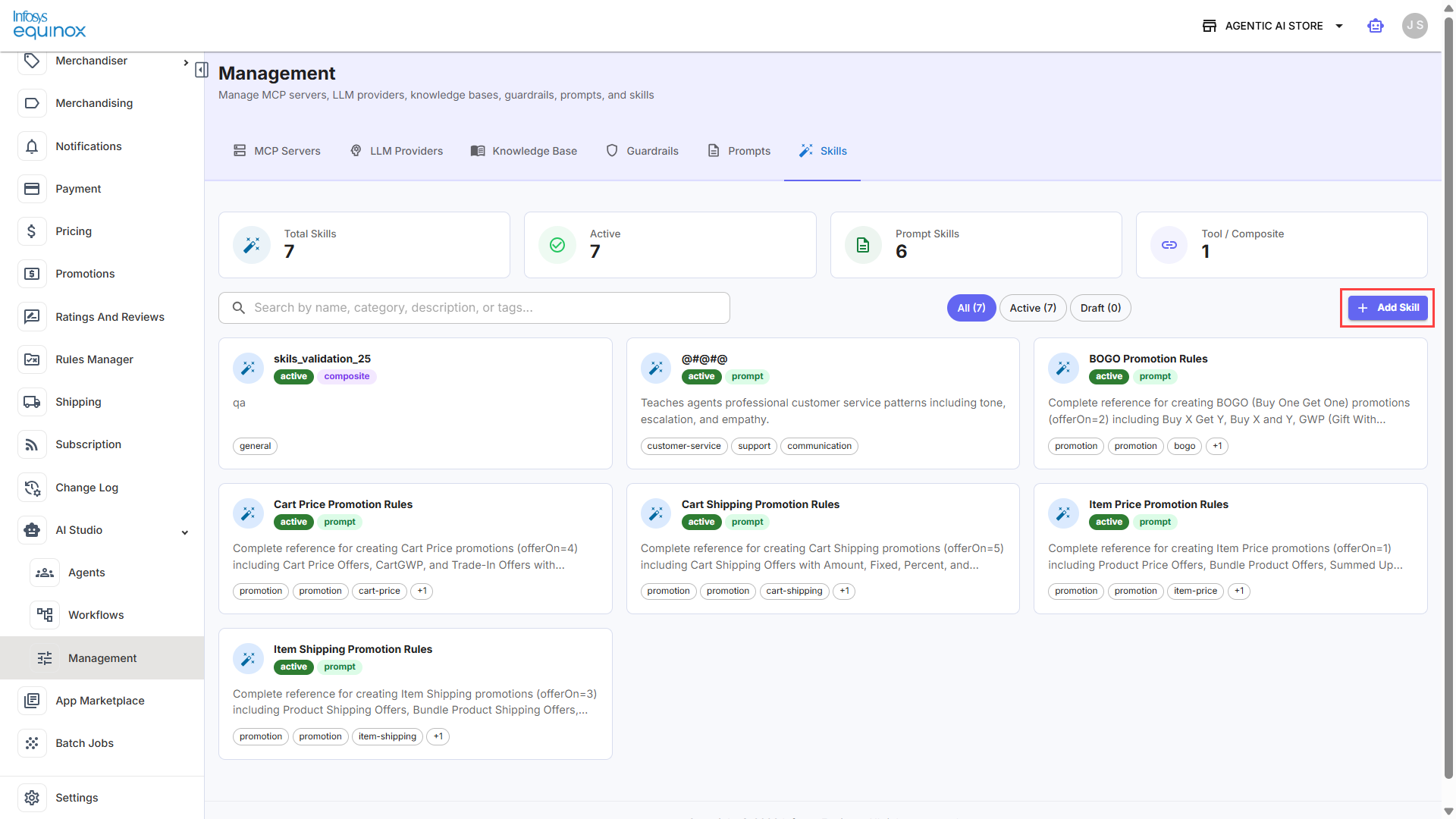
The Create Skill page appears:
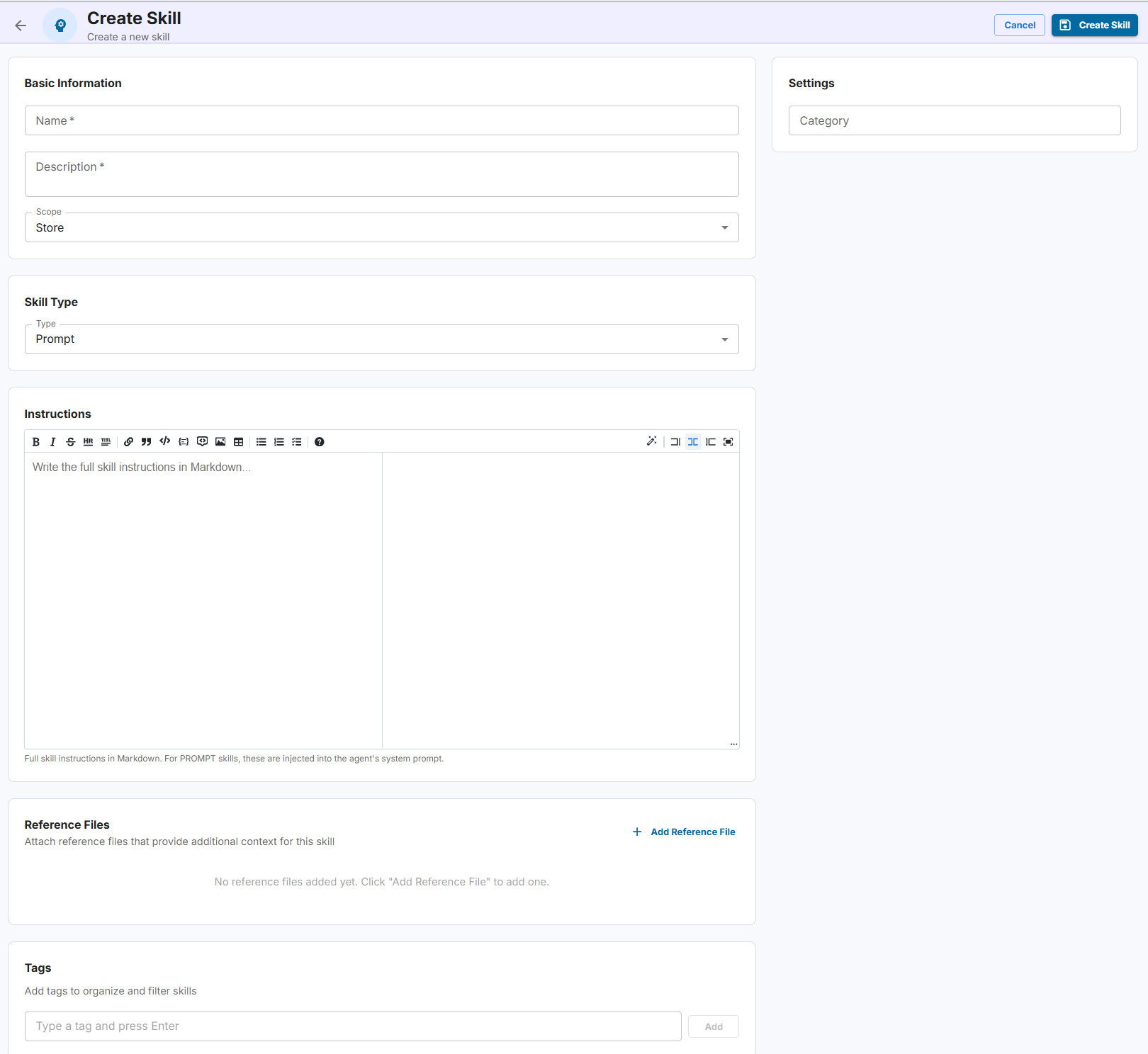
- In the Basic Information section, complete the following fields:
Field Description Name A unique display name for the skill. Description A short summary describing the skill’s purpose and intended behavior. Scope The visibility level: Store, Business, or Global. - In the Skill Type section, select the Type:
- Prompt — the skill is defined by a set of instructions that are injected directly into the agent’s system prompt at runtime.
- Composite — the skill combines multiple tools or sub-skills into a single reusable capability unit.
- In the Instructions section, write the full skill instructions in the rich text editor using Markdown.
For Prompt skills, the instructions are injected into the agent’s system prompt. Use clear, directive language that defines the agent’s expected behavior for this skill. - In the Reference Files section, optionally click Add Reference File to attach supporting documents that provide additional context for this skill.
- In the Tags section, type a tag in the input field and press Enter or click Add to attach it.
Tags are used to organize and filter skills in the list view. Add multiple tags as needed. - In the Settings panel, optionally select a Category to classify the skill for organizational purposes.
- Click Create Skill.
The skill becomes available for attachment to agents within its configured scope.
Appendix
Role-Based Access Control: Module-Level Permission Matrix
MCP Module
|
Operation |
AI Studio Admin |
AI Studio Manager |
AI Studio User |
|
List MCPs |
✅ All scopes (global + business + store) |
✅ Global + Business + Accessible stores |
✅ Global + Business + Own store |
|
Get MCP |
✅ All scopes |
✅ Global + Business + Accessible stores |
✅ Global + Business + Own store |
|
Create MCP |
✅ Any scope |
❌ Read-only |
❌ Read-only |
|
Update MCP (PATCH) |
✅ Any scope |
❌ Read-only |
❌ Read-only |
|
Replace MCP (PUT) |
✅ Any scope |
❌ Read-only |
❌ Read-only |
|
Delete MCP |
✅ Any scope (soft delete) |
❌ Read-only |
❌ Read-only |
|
Call MCP Tool |
✅ All accessible |
✅ All accessible |
✅ All accessible |
|
Scope Transitions |
✅ Can broaden store→business→global |
❌ Cannot mutate |
❌ Cannot mutate |
LLM Providers Module
|
Operation |
AI Studio Admin |
AI Studio Manager |
AI Studio User |
|
List Configs |
✅ All scopes (global + business + store) |
✅ Global + Business + Accessible stores |
✅ Global + Business + Own store |
|
Get Config |
✅ All scopes |
✅ Global + Business + Accessible stores |
✅ Global + Business + Own store |
|
Create Config |
✅ Any scope |
❌ Read-only |
❌ Read-only |
|
Update Config (PATCH) |
✅ Any scope |
❌ Read-only |
❌ Read-only |
|
Replace Config (PUT) |
✅ Any scope |
❌ Read-only |
❌ Read-only |
|
Delete Config |
✅ Any scope (soft delete) |
❌ Read-only |
❌ Read-only |
|
Generate Text |
✅ All accessible |
✅ All accessible |
✅ All accessible |
|
Scope Transitions |
✅ Can broaden store→business→global |
❌ Cannot mutate |
❌ Cannot mutate |
Knowledge Bases Module
|
Operation |
AI Studio Admin |
AI Studio Manager |
AI Studio User |
|
List KBs |
✅ All scopes (global + business + store) |
✅ Global + Business + Accessible stores |
✅ Global + Business + Own store |
|
Get KB |
✅ All scopes |
✅ Global + Business + Accessible stores |
✅ Global + Business + Own store |
|
Create KB |
✅ Any scope |
✅ Business/Store scope |
✅ Store scope only |
|
Update KB |
✅ Any scope |
✅ Business/Store scope |
✅ Store scope only |
|
Delete KB |
✅ Any scope (soft delete) |
✅ Business/Store scope |
✅ Store scope only |
|
Upload Document |
✅ All accessible |
✅ All accessible |
✅ All accessible |
|
Query/Search |
✅ All accessible |
✅ All accessible |
✅ All accessible |
|
Scope Transitions |
✅ Can broaden store→business→global |
✅ Can broaden store→business only |
❌ Cannot change scope |
Guardrails Module
|
Operation |
AI Studio Admin |
AI Studio Manager |
AI Studio User |
|
List Guardrails |
✅ All scopes (global + business + store) |
✅ Global + Business + Accessible stores |
✅ Global + Business + Own store |
|
Get Guardrail |
✅ All scopes |
✅ Global + Business + Accessible stores |
✅ Global + Business + Own store |
|
Create Guardrail |
✅ Any scope |
❌ Read-only |
❌ Read-only |
|
Update Guardrail (PATCH) |
✅ Any scope |
❌ Read-only |
❌ Read-only |
|
Replace Guardrail (PUT) |
✅ Any scope |
❌ Read-only |
❌ Read-only |
|
Delete Guardrail |
✅ Any scope (soft delete) |
❌ Read-only |
❌ Read-only |
|
Test Guardrail |
✅ All accessible |
✅ All accessible |
✅ All accessible |
|
Scope Transitions |
✅ Can broaden store→business→global |
❌ Cannot mutate |
❌ Cannot mutate |
Agents Module
|
Operation |
AI Studio Admin |
AI Studio Manager |
AI Studio User |
|
List Agents |
✅ All scopes (global + business + store) |
✅ Global + Business + Accessible stores |
✅ Global + Business + Own store |
|
Get Agent |
✅ All scopes |
✅ Global + Business + Accessible stores |
✅ Global + Business + Own store |
|
Create Agent |
✅ Any scope (global/business/store) |
✅ Business + Store scopes only |
✅ Store scope only |
|
Update Agent (PATCH) |
✅ All accessible agents |
✅ Accessible agents (cannot change to global) |
✅ Own store agents (cannot change scope) |
|
Delete Agent |
✅ All accessible agents (soft delete – archive) |
✅ Accessible agents |
✅ Own store agents |
|
Execute Agent |
✅ All accessible agents |
✅ All accessible agents |
✅ All accessible agents |
|
Publish/Archive Agent |
✅ All accessible agents |
✅ Accessible agents |
✅ Own store agents |
|
Discover Tools |
✅ All accessible |
✅ All accessible |
✅ All accessible |
|
Compile/Validate Graph |
✅ All accessible |
✅ All accessible |
✅ All accessible |
|
Scope Transitions |
✅ Can create/change to any scope |
❌ Cannot create global or change to global |
❌ Cannot create business/global or change scope |
Workflows Module
|
Operation |
AI Studio Admin |
AI Studio Manager |
AI Studio User |
|
List Workflows |
✅ All scopes (global + business + store) |
✅ Global + Business + Accessible stores |
✅ Global + Business + Own store |
|
Get Workflow |
✅ All scopes |
✅ Global + Business + Accessible stores |
✅ Global + Business + Own store |
|
Create Workflow |
✅ Any scope (global/business/store) |
✅ Business + Store scopes only |
✅ Store scope only |
|
Update Workflow (PATCH) |
✅ All accessible workflows |
✅ Accessible workflows (cannot change to global) |
✅ Own store workflows (cannot change scope) |
|
Delete Workflow |
✅ All accessible workflows (hard delete) |
✅ Accessible workflows |
✅ Own store workflows |
|
Execute Workflow |
✅ All accessible workflows |
✅ All accessible workflows |
✅ All accessible workflows |
|
Start/Stop Workflow |
✅ All accessible workflows |
✅ Accessible workflows |
✅ Own store workflows |
|
Test Workflow |
✅ All accessible |
✅ All accessible |
✅ All accessible |
|
Scope Transitions |
✅ Can create/change to any scope |
❌ Cannot create global or change to global |
❌ Cannot create business/global or change scope |
Revision History
2026-04-28 | JP – Created the page and added the content.