Customizing Extensions
Overview
Extensions enable businesses to swiftly customize their order, navigation, account, and customer management processes by toggling specific features on or off. You can customize the JSON file to achieve the desired changes, ensuring that only the essential features are retained to meet the unique needs of each client.
Configuring Store Properties
CSR Admin uses the following store properties for managing the extensions:
|
Service Name |
Store Property Name |
Description |
|
Account |
Customizes account-related features with additional fields, advanced search options, and more. |
|
|
Customer |
Enhances customer management with configurable fields, editable properties, and more. |
|
|
Navigation |
Configures the main menu to show, hide, add new menu items, and more. |
|
|
Order |
Customizes order management screens, adds conditional display fields, and more. |
|
|
Subscription |
Configures the show/hide channel type, price edit, and upcoming order date. Also configures enable/disable other charges of the subscription order. |
|
|
Accounts & Customers |
Provides enhanced control and customization over the management of account and customer profiles, including visibility and edit permissions. |
Customizing Account UI Using Extensions
The purpose of the accountsExtension store property configuration is to enhance the account management experience by customizing search capabilities, display fields, bulk actions, and attribute visibility within the CSR Admin console. These settings empower users to streamline operations and tailor the interface to specific business needs.
- Configuring Quick Search: Enhance search functionality by adding default and custom fields to the quick search page.
- Configuring Advanced Search: Enable detailed and specific queries with default and customizable columns in the advanced search page.
- Configuring Additional Display Fields: Add extra fields to the account profile page for more detailed information.
- Configuring Bulk Action in Account Profile & Search Result Pages: Set up bulk actions for efficient management of account details and search results.
- Configuring Content: Display desired data in additional tabs at the top of the account profile page.
- Manage Account Attributes: Define which attributes are editable, non-editable, displayable, or hidden for accounts.
Configuring Quick Search
The Quick Search feature in the store property accountsExtension allows for the addition of custom fields to enhance the search functionality. Here are the key points:
- The sample Quick Search in the JSON format:
{
  "quickSearch": {
    "defaultFields": [
        "id"
    ],
"additionalFields": [
      {
        "name": "buyerEmail",
        "label": "Buyer Admin Email",
        "type": "input"
      },
      {
        "name": "status",
        "label": "Status",
        "type": "select",
        "options": [
          {
            "label": "Active",
            "value": "Active"
          },
          {
            "label": "Inactive",
            "value": "Inactive"
          },
          {
            "label": "Pending",
            "value": "Pending"
          },
          {
            "label": "Close",
            "value": "Close"
          },
          {
            "label": "Reject",
            "value": "Reject"
          },
          {
            "label": "Suspended",
            "value": "Suspended"
          }
        ]
      }
    ]
- Default Fields: The default fields are the standard fields shown in the vanilla CSR admin, such as Account ID for Search Account. Configure “defaultFields”: [] to load all the default fields. Specific fields can be loaded by providing the correct values, e.g., “defaultFields”: [“id”, “status”]. If “defaultFields”: null, no fields will load.
https://d1pun0hbam45iy.cloudfront.net/csr-admin-docs/configuring-csr-extensions/acct-extn-quk-src-defult-fields.png - Additional Fields: Custom fields can be loaded by entering valid JSON. The “name” property value will be the property name mapped from the API. The “label” property value will be shown on the UI. The “type” property value will determine the field input type:
- “type”: “input”: The input value is used to specify text or string fields.
- “type”: “select”: The select value is used for dropdown fields, and the “options” array is used to define the dropdown values and labels, e.g., “options”: [{“label”: “Option A”, “value”: “optionA”}, …].
You can add new fields like Account Name, Buyer Email ID, Status, etc. to the quick search page by updating the JSON configuration.
https://d1pun0hbam45iy.cloudfront.net/csr-admin-docs/configuring-csr-extensions/acct-extn-quk-src-addl-fields.png
In the above screen, under Search Account, you can notice that the Account ID is from the default field and Buyer Email ID and Status are from the custom defined fields.
Configuring Advanced Search
The Advanced Search feature in the accountsExtension store property enhances the search capabilities by allowing for more detailed and specific queries. There is a separate Advanced Search page and its search result page available for Accounts. Both pages can be configured using the store property.
The Advanced Search in the JSON format:
"dataTable": {
    "defaultColumns": [
      {
        "type": "string",
        "name": "id",
        "label": "Account ID"
      },
      {
        "type": "input",
        "name": "name",
        "label": "Account Name"
      },
      {
        "type": "enum",
        "name": "typeId",
        "label": "Account Type"
      },
      {
        "type": "enum",
        "name": "status",
        "label": "Status"
      },
      {
        "type": "string",
        "name": "accountRepEmail",
        "label": "Account Rep Mail"
      },
      {
        "type": "string",
        "name": "buyerEmail",
        "label": "Account Email"
      }
    ],
    "additionalColumns": [
      {
        "type": "string",
        "name": "contractId",
        "label": "Contract ID"
      },
      {
        "type": "string",
        "name": "cartId",
        "label": "Cart ID"
      }
    ]
  },
|
Here are the key points:
- Data Table: This component is used to display Advanced Search and Search Result pages in a structured format. It includes both default and additional columns that can be customized based on business needs. When these properties receive data through the API, the values will be mapped to the corresponding fields on the page.
Under the dataTable property, the two columns defaultColumns and additionalColumns must be configured.
- Default Columns: In the JSON value of the accountsExtension store property, configure the column defaultColumns to provide the default columns in the Advanced Search and Search Result pages.
If the defaultColumns is left blank, i.e., “defaultColumns”: [], the default fields will load. Specific fields can be loaded by providing the correct values, e.g., “defaultColumns”: [“id”, “name”, “typeId”, “buyerEmail”, “status”, accountRepEmail] as shown in the above JSON.
- Additional Columns: In the JSON value of the accountsExtension store property, configure the custom fields or columns using the property additionalColumns to provide additional columns in the Advanced Search and Search Result pages.
Custom fields can be loaded by entering valid JSON here. The “name” value will be the property name that is mapped through the API. The “label” value will be shown on the UI. The “type” property will determine the field input type. The “path” property value is for search object mapping. The rest of the properties and values are for the data grid features on the UI.
You can add new columns like contract ID to the advanced search page and its search results page by updating the JSON configuration.
Example 1: In the Search Account page, you can see the default IDs such as Account ID, Account Name, Account Type, Status, and Account Rep Mail are displayed and for the additional columns, you can see the Contract ID and Cart ID.
https://d1pun0hbam45iy.cloudfront.net/csr-admin-docs/configuring-csr-extensions/acct-extn-adv-src-addl-fields.png
Example 2: In the Search Account results page, you can see the same default fields are displayed, such as Account ID, Account Name, Account Type, Status, and Account Rep Mail. For the additional columns, you can see the Contract ID and Cart ID on the far right of the search results page.
https://d1pun0hbam45iy.cloudfront.net/csr-admin-docs/configuring-csr-extensions/acct-extn-adv-src-result.png
Configuring Additional Display Fields
The additionalDisplayFields property in the store property accountsExtension allows for the customization of the account profile page by adding extra fields that provide more detailed information and can be either view-only or editable based on the requirements.
Under the additionalDisplayFields, configure the JSON as follows:
"additionalDisplayFields": [
    {
      "label": "Primary Owner First Name",
      "type": "string",
      "path": "bfirstName",
      "enableEdit": false
    },
    {
      "label": "Primary Owners Last Name",
      "type": "string",
      "path": "blastName",
      "enableEdit": false
    }
  ],
|
- “name”: This value will be the property name that is mapped through the API.
- “label”: This value will be shown on the UI as the field label.
- “type”: This property determines the field input type (e.g., text, select).
- “path”: This property value is used for object mapping.
- “enableEdit”: This property controls whether a field is editable or view-only. Set it to true to make the field editable, or false to make it view-only.
For example,
https://d1pun0hbam45iy.cloudfront.net/csr-admin-docs/configuring-csr-extensions/acct-extn-addl-display-fields.png
Configuring Bulk Action in Account Profile & Search Result Pages
The store property accountsExtension allows for the configuration of bulk actions that can be performed by the CSR on the customer details screen and search result page. The action happens based on the details provided in the configuration. This triggers the required APIs mentioned in the configuration.
Under the actions, configure the JSON as follows:
"actions": [
    {
      "type": "bulkAction",
      "event": "global",
      "label": "Resync",
      "embeddedUrl": "https://local.eqcmrc.resync.com:8001"
    },
    {
      "type": "bulkAction",
      "event": "global",
      "label": "Email Details",
      "embeddedUrl": "https://local.eqcmrc.email.com:8001"
    }
  ]
|
Configure the actions property as follows:
- “type”: This configuration defines two bulk actions: “Resync” and “Email Details”. Set to “bulkAction” to define the action as a bulk operation.
- “event”: This default configuration “global” applies the action globally.
- “label”: This value will be shown on the UI in the bulk action selector, making it easy for the CSR to identify and select the action.
- “embeddedUrl”: This property value is used to trigger the respective API that will perform the required action and/or return the results.
Example 1: In the Account Profile page, the CSR can select the Email Details to perform the action:
https://d1pun0hbam45iy.cloudfront.net/csr-admin-docs/configuring-csr-extensions/acct-extn-adv-prfl-action.png
Example 2: In the ACTIONS dropdown list of the Advanced Search Result page, the configured Email Details appear, and CSR can select one or more rows to perform the bulk action. The action happens based on the details provided in the configuration.
https://d1pun0hbam45iy.cloudfront.net/csr-admin-docs/configuring-csr-extensions/acct-extn-adv-src-action.png
Configuring User Data Grid Custom Columns
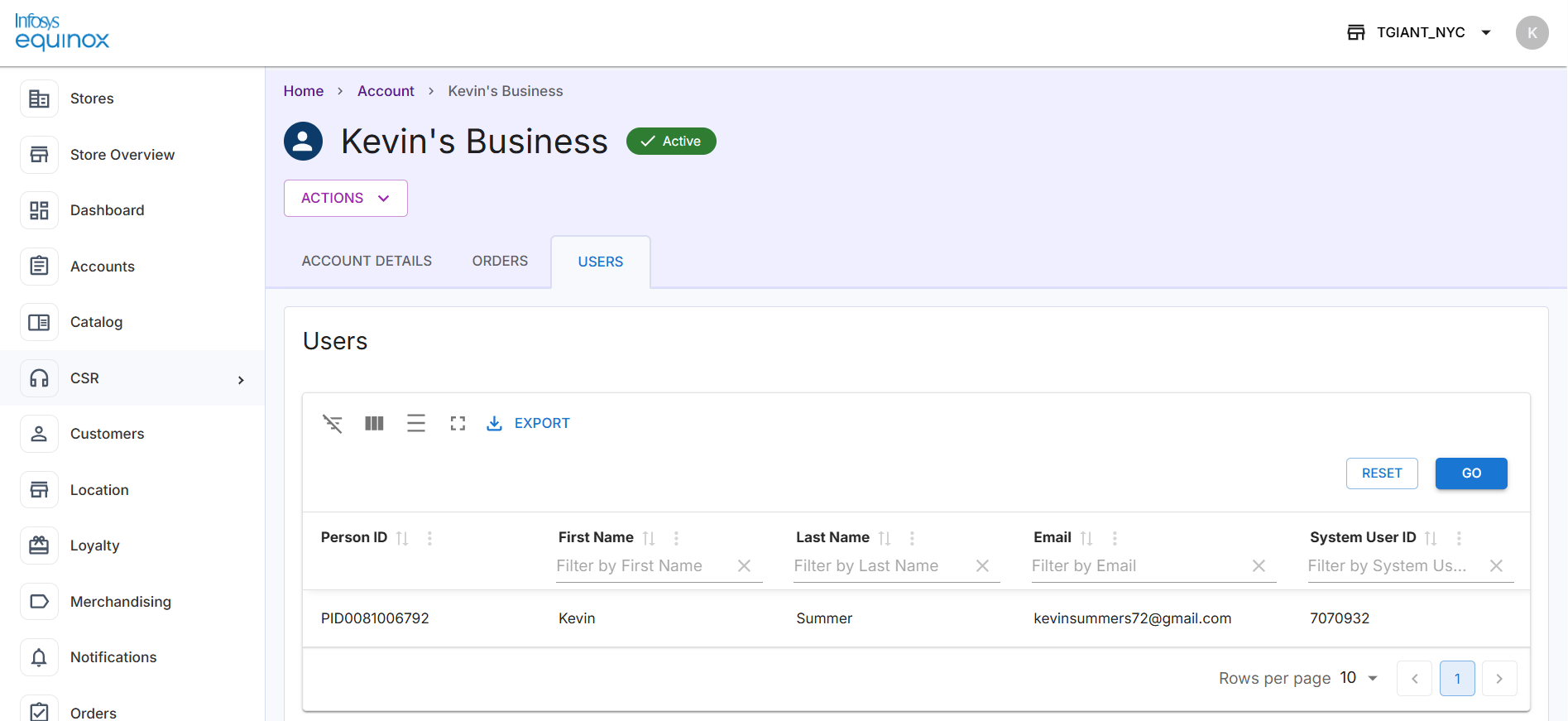
It is used to customize the columns of the user data grid in the Users’ tab of the account details page. Both the default columns and the additional columns can be defined.
Under the userDataTable object, configure the JSON as follows:
"userDataTable": {
    "defaultColumns": [
      {
        "type": "id",
        "name": "referenceAttribute",
        "label": "Person ID",
        "enableFilter": false,
        "enableSearch": false
      },
      {
        "type": "string",
        "name": "firstName",
        "label": "First Name"
      },
      {
        "type": "string",
        "name": "lastName",
        "label": "Last Name"
      },
      {
        "type": "string",
        "name": "email",
        "label": "Email"
      }
    ],
    "additionalColumns": [
      {
        "type": "string",
        "name": "userId",
        "label": "System USER ID"
      }
    ]
  },
|
In the below example, you can see that the default and additional columns are displayed in the table grid:
Configuring Content
For the store property accountsExtension, we also have a content object, which loads and shows the desired data into additional cards at the bottom of the page of the account profile page. Apart from the default “Orders” and “Users” tabs, the “History” tab is also added through this configuration and the data as per the API used in the configuration is shown.
Under the content object, configure the JSON as follows:
"content": [
    {
      "title": "History",
      "renderAt": "tab:new",
      "component": "DataTable",
      "dataUrl": "https://local.eqcmrc.history.com:8001",
      "requestModel": {
        "pathParams": [
          {
            "key": "<%ACCOUNT_ID%>",
            "value": "$.accountId"
          }
        ],
        "queryParams": {
          "collectionId": "$.collectionId",
          "storeId": "$.storeId",
          "businessId": "$.businessId",
          "draw": 1,
          "page": 1,
          "size": 10
        }
      },
      "transformModel": {
        "tableData": "$.accountHistories"
      }
    }
  ],
|
Configure the content property as follows:
- “title”: This configuration defines the title of the tab.
- “component”: This default configuration “DataTable” creates the tab in the table format.
- “dataUrl”: This property value is used to trigger the API from which the history data will be fetched.
For example, the “History” tab after the “Orders” and “Users” tabs on the Account Profile page:
https://d1pun0hbam45iy.cloudfront.net/csr-admin-docs/configuring-csr-extensions/acct-extn-content-tab.png
Manage Account Attributes
The accountsExtension store property allows you to manage which account attributes are editable, non-editable, displayable, or non-displayable. For example, attributes like Sponsor ID and business types can be marked as non-editable or hidden on the account page.
Manage which customer attributes are editable, non-editable, displayable, or non-displayable. For example, Business Type and Sponsor ID can be marked as non-editable or hidden on the customer profile page.
Configuration Details:
- Non-Editable Attributes: To disable any account profile fields, use the nonEditableAttributeproperty in the account extension configuration.
For example,"nonEditableAttribute": [ "businessType", "sponsorId", ]
Example: The Business Type and Sponsor ID have been disabled as shown below:
https://d1pun0hbam45iy.cloudfront.net/csr-admin-docs/configuring-csr-extensions/acct-extn-non-edtble-attr.png - Non-Displayable Attributes: To hide any account profile fields, configure the nonDisplayableAttributeproperty in the JSON.
For example,
"nonDisplayableAttribute": [
"businessType",
]
Example: The Business Type is now hidden as shown below:
https://d1pun0hbam45iy.cloudfront.net/csr-admin-docs/configuring-csr-extensions/acct-extn-non-display-attr.png - Disable and Hide Contract Section: To disable and hide the contract section, use the following properties in the JSON:
{ "isDisableContract": true, "isHideContract": true } - Make Account Address as Optional: To make the account address optional, use the following property:
{
  "isAccountAddressOptional": true
}
Customizing Customer UI Using Extensions
The purpose of the customersExtension store property configuration is to optimize customer management workflows—ranging from enhancing search capabilities and customizing display fields to managing customer attributes and controlling available actions within the CSR Admin console. These settings empower users to streamline operations and tailor the interface to specific business needs.
- Configuring Quick Search: Enhance search functionality by adding default and custom fields to the quick search page.
- Configuring Advanced Search: Enable detailed and specific queries with default and customizable columns in the advanced search page.
- Configuring Additional Display Fields: Add extra fields to the account profile page for more detailed information.
- Configuring Custom Editable Fields with Validations: Use Custom Fields feature to add view-only or editable fields with validations to the customer details card.
- Configuring Bulk Action in Account Profile & Search Result Pages: Set up bulk actions for efficient management of customer details and search results.
- Manage Customer Attributes: Define which attributes are editable, non-editable, displayable, or hidden for customers.
- Control Action Options: Enable or disable specific actions (e.g., New Order, Reset Password) through configuration settings.
Configuring Quick Search
The Quick Search feature in the store property customersExtension allows for the addition of custom fields to enhance the search functionality. Here are the key points:
- The sample Quick Search in the JSON format:
  "quickSearch": {
    "defaultFields": [
      {
        "type": "input",
        "name": "id",
        "label": "Customer ID"
      },
      {
        "type": "string",
        "name": "firstName",
        "label": "Customer First Name"
      },
      {
        "type": "input",
        "name": "email",
        "label": "Email Address"
      }
    ],
    "additionalFields": [
      {
        "label": "Phone Number",
        "name": "phoneNumber",
        "type": "input"
      },
      {
        "label": "Person ID",
        "name": "referenceAttribute",
        "type": "input"
      },
      {
        "name": "status",
        "label": "Status",
        "type": "select",
        "options": [
          {
            "label": "Active",
            "value": "Active"
          },
          {
            "label": "Inactive",
            "value": "Inactive"
          },
          {
            "label": "Pending",
            "value": "Pending"
          },
          {
            "label": "Frozen",
            "value": "Frozen"
          },
          {
            "label": "Delete",
            "value": "Delete"
          }
        ]
      }
    ]
  },
|
- Default Fields: The default fields are the standard fields shown in the vanilla CSR admin, such as Customer ID, first name, and Email Address for Search Customer. The JSON provided can be used in the customerExtension store property. Configure “defaultFields”: [] to load all the default fields. Specific fields can be loaded by providing the correct values, e.g., “defaultFields”: [“id”, “status”]. If “defaultFields”: null, no fields will load.
https://d1pun0hbam45iy.cloudfront.net/csr-admin-docs/configuring-csr-extensions/cust-extn-quk-src-defult-fields.png
- Additional Fields: Custom fields can be loaded by entering valid JSON. The “name” property value will be the property name mapped from the API. The “label” property value will be shown on the UI. The “type” property value will determine the field input type:
- “type”: “input”: The input value is used to specify text or string fields.
- “type”: “select”: The select value is used for dropdown fields, and the “options” array is used to define the dropdown values and labels, e.g., “options”: [{“label”: “Option A”, “value”: “optionA”}, …].
You can add new fields like Person ID, Business ID, Phone Number, Status, etc. to the quick search page by updating the JSON configuration.
https://d1pun0hbam45iy.cloudfront.net/csr-admin-docs/configuring-csr-extensions/cust-extn-quk-src-addl-fields.png
In the above screen, under Search Customer, you can notice that the Customer ID, First Name, and Email Address are from the default field and Person ID, Business ID, Phone Number, Status, etc. are from the custom defined fields.
Configuring Advanced Search
The Advanced Search feature in the customerExtension store property enhances the search capabilities by allowing for more detailed and specific queries. There is a separate Advanced Search page and its search result page available for Customers. Both pages can be configured using the store property.
Here are the key points:
- Data Table: This component is used to display Advanced Search and Search Result pages in a structured format. It includes both default and additional columns that can be customized based on business needs. When these properties receive data through the API, the values will be mapped to the corresponding fields on the page.
Under the dataTable property, the two columns defaultColumns and additionalColumns must be configured."dataTable": { "defaultColumns": [ { "type": "input", "name": "id", "label": "Customer ID" }, { "type": "input", "name": "firstName", "label": "First Name" }, { "type": "input", "name": "lastName", "label": "Last Name" }, { "name": "status", "label": "Status", "type": "select", "options": [ { "label": "Active", "value": "Active" }, { "label": "Inactive", "value": "Inactive" }, { "label": "Pending", "value": "Pending" }, { "label": "Frozen", "value": "Frozen" }, { "label": "Delete", "value": "Delete" } ] }, { "type": "input", "name": "phoneNumber", "label": "Phone Number" }, { "type": "input", "name": "email", "label": "Email Address" } ], "additionalColumns": [ { "label": "Person ID", "name": "referenceAttribute1", "type": "string", "path": "referenceAttribute1", "enableFilter": true, "enableSort": true, "enableSearch": true }, { "label": "Busines ID", "name": "referenceAttribute", "type": "string", "path": "referenceAttribute", "enableFilter": true, "enableSort": true, "enableSearch": true } ] }, - Default Columns: In the JSON value of the accountsExtension store property, configure the column defaultColumns to provide the default columns in the Advanced Search and Search Result pages.
If the defaultColumns is left blank, i.e., “defaultColumns”: [], the default fields will load. Specific fields can be loaded by providing the correct values, e.g., “defaultColumns”: [“id”, “firstName”, “typeId”, “email”, ” phoneNumber “] as shown in the above JSON.
- Additional Columns: In the JSON value of the accountsExtension store property, configure the custom fields or columns using the property additionalColumns to provide additional columns in the Advanced Search and Search Result pages.
- Custom fields can be loaded by entering valid JSON here. The “name” value will be the property name that is mapped through the API. The “label” value will be shown on the UI. The “type” property will determine the field input type. The “path” property value is for search object mapping. The rest of the properties and values are for the data grid features on the UI.
You can add new columns like Person ID, Business ID, etc. to the advanced search page and its search results page by updating the JSON configuration.
Example 1: In the Search Customer page, you can see the default IDs such as Customer ID, First Name, Last Name, Status, Phone Number, and Email Address are displayed and for the additional columns, you can see the Person ID and Business ID.
https://d1pun0hbam45iy.cloudfront.net/csr-admin-docs/configuring-csr-extensions/cust-extn-adv-src-addl-fields.png
Example 2: In the Search Account results page, you can see the same default fields are displayed, such as Customer ID, First Name, Last Name, Status, Phone Number, and Email Address are displayed. For the additional columns, you can see the Person ID and Business ID on the far right of the search results page.
https://d1pun0hbam45iy.cloudfront.net/csr-admin-docs/configuring-csr-extensions/cust-extn-adv-src-result.png
Configuring Additional Display Fields
The additionalDisplayFields property in the store property customerExtension allows for the customization of the customer profile page by adding extra fields that provide more detailed information and can be either view-only or editable based on the requirements.
Under the additionalDisplayFields, configure the JSON as follows:
{
      "type": "state",
      "path": "$.customProperties.personType",
      "value": "$.customProperties.personType"
    },
    {
      "type": "state",
      "path": "$.customProperties.type",
      "value": "$.customProperties.type"
    },
    {
      "type": "state",
      "label": "Verified",
      "conditions": {
        "all": [
          {
            "fact": "activeData",
            "operator": "isExistsAndEqual",
            "value": "$.customProperties.isPhoneNumberVerified"
          }
        ]
      }
    },
|
- “label”: The Primary label will be shown on the customer profile UI.
- “type”: The state type field displays the status label on the profile page header.
- “path”: This property value is used for object mapping.
- “conditions”: The conditions for activating the label are specified in the JSON configuration and can be modified as needed.
For example,
https://d1pun0hbam45iy.cloudfront.net/csr-admin-docs/configuring-csr-extensions/cust-extn-addl-display-fields.png
Configuring Custom Editable Fields with Validations
The Custom Fields feature allows you to add fields on the customer details card, which can be either view-only or editable with field validations.
Configure the JSON as follows:
{
      "label": "Person ID",
      "name": "personId",
      "type": "string",
      "path": "referenceAttribute1",
      "enableEdit": true,
      "fieldType": {
        "type": "input",
        "validateType": "text",
        "validateBy": [
          {
            "rule": "required",
            "expectedToBe": true,
            "errorMsg": "Please enter a valid Person ID"
          }
        ]
      }
    },
    {
      "label": "Business ID",
      "type": "string",
      "path": "referenceAttribute",
      "enableEdit": false
    }
|
Here are the key points:
- “label”: This value will be shown on the UI as the field label.
- “name”: This value will be the property name that is mapped through the API.
- “type”: This property determines the field input type (e.g., text, select).
- “path”: This property value is used for object mapping.
- “enableEdit”: To make a field editable, set the property “enableEdit”: true.
- “fieldType”: This property is used to define the field details.
- “type”: For string fields, use “type”: “input”.
- “validateType” and “validateBy”: These properties are used to define the field validations, ensuring data integrity.
On the Customer Details card, the person ID field is added:
https://d1pun0hbam45iy.cloudfront.net/csr-admin-docs/configuring-csr-extensions/cust-extn-custm-edtble-field-profl.png
While editing the customer details, you can see Person ID can be provided:
https://d1pun0hbam45iy.cloudfront.net/csr-admin-docs/configuring-csr-extensions/cust-extn-custm-edtble-field-drwr.png
Configuring Bulk Action in Account Profile & Search Result Pages
The store property customerExtension allows for the configuration of bulk actions that can be performed by the CSR on the customer details screen and search result pages. The action happens based on the details provided in the configuration. This triggers the required APIs mentioned in the configuration.
Under the actions, configure the JSON as follows:
"actions": [
    {
      "type": "bulkAction",
      "event": "global",
      "label": "ReSync",
      "apiUrl": "https://eqcmrc.services.local:8080/"
    },
]
|
Configure the actions property as follows:
- “type”: This configuration defines two bulk actions: “Resync” and “Email Details”. Set to “bulkAction” to define the action as a bulk operation.
- “event”: This default configuration “global” applies the action globally.
- “label”: This value will be shown on the UI in the bulk action selector, making it easy for the CSR to identify and select the action.
- “apiUrl”: This property value is used to trigger the respective API that will perform the required action and/or return the results.
Example 1: On the Customer’s profile page, the CSR can select the ReSync to perform the action:
https://d1pun0hbam45iy.cloudfront.net/csr-admin-docs/configuring-csr-extensions/cust-extn-bulk-actns-prfl-pg.png
Example 2: In the ACTIONS dropdown list of the Search Customer’s advanced search result page, the action ReSync appears, and CSR can select one or more rows to perform the bulk action. The action happens based on the details provided in the configuration.
https://d1pun0hbam45iy.cloudfront.net/csr-admin-docs/configuring-csr-extensions/cust-extn-bulk-actns-src-pg.png
Manage Customer Attributes
The customerExtension store property allows you to manage which customer attributes are editable, non-editable, displayable, or non-displayable. For example, attributes like Sponsor ID and business types can be marked as non-editable or hidden on the account page.
Manage which customer attributes are editable, non-editable, displayable, or non-displayable. For example, Affiliate ID and Is Phone Number Verified fields can be marked as non-editable or hidden on the customer profile page.
Configuration Details:
- Non-Editable Attributes: To disable any customer profile fields, use the nonEditableAttributeproperty in the customer extension configuration.
"nonEditableAttribute": [
    "affiliateId",
    "type",
  "isPhoneNumberVerified"
  ],
Example: The Affiliate ID has been disabled as shown below:
https://d1pun0hbam45iy.cloudfront.net/csr-admin-docs/configuring-csr-extensions/cust-extn-non-edtble-attr.png
Steps: Navigate to the customer profile. In the Customer Details drawer, click the ADD ATTRIBUTES button. In the Attribute List drawer, you will notice that the Affiliate ID has been disabled. - Non-Displayable Attributes: To hide any account profile fields, configure the nonDisplayableAttributeproperty in the JSON.
 "nonDisplayableAttribute": [
 "isPhoneNumberVerified"
],
Example: The “Is Phone Number Verified” is now hidden as shown below:
https://d1pun0hbam45iy.cloudfront.net/csr-admin-docs/configuring-csr-extensions/cust-extn-non-edtble-attr-hidn.png
Control Action Option
Using the customerExtension configuration property, you can enable or disable options like New Order, Reset Password, New Quotation, Act on Behalf, and Delete Customer by setting their respective properties to true or false.
- New Order: Set enableNewOrder to true to enable or false to disable the option to create new orders.
- Reset Password: Set enableResetPassword to true to enable or false to disable the option to reset passwords.
- New Quotation: Set enableNewQuotation to true to enable or false to disable the option to create new quotations.
- Act on Behalf: Set enableActOnBehalf to true to enable or false to disable the option to act on behalf of a customer.
- Delete Customer: Set enableDeleteCustomer to true to enable or false to disable the option to delete a customer.
For example,
"enableNewOrder": true, "enableResetPassword": false, "enableNewQuotation": false, "enableActOnBehalf": false, "enableDeleteCustomer": false, |
After navigating to a customer, on the Customer Details page, you will see that action buttons like New Order, Act on Behalf, and Delete Customer have been enabled and displayed. However, the Reset Password option is disabled and non-displayable, as shown below:
https://d1pun0hbam45iy.cloudfront.net/csr-admin-docs/configuring-csr-extensions/cust-extn-enb-dis-action.png
Customizing Navigation Extensions
The navigationExtension in the CSR platform allows for extensive customization of the main menu to better suit your business needs. You can configure which menu items are visible or hidden. This helps streamline the user interface by displaying only the relevant options.
On the default menu, the Quick Search option is available for searching order, accounts, and customers.
https://d1pun0hbam45iy.cloudfront.net/csr-admin-docs/configuring-csr-extensions/nav-extn-quk-src-defult-menu.png
Here are the key points:
- Disable & Show Features: The “Add New Account” option can be hidden, and the new “Reports” menu can be displayed on the left menu using the following JSON format.
{ "disableFeature": [ "Add New Account" ], "links": [ { "label": "Reports", "parentLink": "CSR > Orders", "link": "admin/v2/csr/en", "basePage": "/extensions/reports", "isVisible": true, "embeddedUrl": "https://local.eqcmrc.com:8001" } ] } - Link Property: Can be configured using the “links”: [] property in the JSON setup for the left navigation.
- Label Property: The “label” property value will be shown on the UI in the left navigation panel.
- Parent Link Property: Can be configured to provide the menu hierarchy details.
- Embedded URL and Base Page Properties: Both the embedded URL and base page slug will form the complete URL, which loads when clicking “Reports” in the left navigation panel.
Example 1: You can see that the Add New Account option is not available now.
https://d1pun0hbam45iy.cloudfront.net/csr-admin-docs/configuring-csr-extensions/nav-extn-quk-src-no-reports-nav.png
Example 2: You can see that the Reports menu has been added under CSR:
https://d1pun0hbam45iy.cloudfront.net/csr-admin-docs/configuring-csr-extensions/nav-extn-quk-src-reports-nav.png
Customizing Order Using Extensions
Order extensions allow businesses to quickly customize their order management processes by enabling or disabling specific features. This ensures that only the necessary features are shown that are appropriate for their business. Here are the key features that can be configured in the store properties:
- Configure Quick Search
- Configure Advanced Search
- Configure Additional Display Fields
- Enable/Disable Add New Item Button for Replace Orders
- Cancel an Order Before Editing
- Enable Full Cancellation of Orders
- Enable/Disable Item Level Charges
- Enable/Disable Order Level Charges
- Enable/Disable Order Level Vouchers
- Enable/Disable Shipping Cost Updates
- Print Order Using Dynamic Templates
- Print Order with Logos
- Configure Custom Reasons for Returns
- Configure Custom Reasons for Replacements
- Configure Custom Reasons for Cancellations
- Map Order Statuses in Customer Profiles
- Map Order Channels in Customer Profiles
- Configure Order item Processing Steps
Configuring Quick Search
The Quick Search feature in the ordersExtension allows for the addition of custom fields to enhance the search functionality. Here are the key points:
- The sample Quick Search in the JSON format:
{ "quickSearch": { "defaultFields": [], "additionalFields": [ { "name": "orderType", "label": "Order Type", "type": "select", "options": [ { "label": "Default", "value": "Default" }, { "label": "Return", "value": "Return" }, { "label": "Exchange", "value": "Exchange" }, { "label": "Replace", "value": "Replace" }, { "label": "Correction", "value": "Correction" } ] } ] }, - Default Fields: The default fields are the standard fields shown in the vanilla CSR admin, such as Order ID for Search Order. The JSON provided can be used in the ordersExtension store property. Configure “defaultFields”: [] to load all the default fields. Specific fields can be loaded by providing the correct values, e.g., “defaultFields”: [“id”]. If “defaultFields”: null, no fields will load.
https://d1pun0hbam45iy.cloudfront.net/csr-admin-docs/configuring-csr-extensions/ord-extn-quk-src-defult-fields.png - Additional Fields: Custom fields can be loaded by entering valid JSON. The “name” property value will be the property name mapped from the API. The “label” property value will be shown on the UI. The “type” property value will determine the field “input” type:
- “type”: “input”: The input value is used to specify text or string fields.
- “type”: “select”: The select value is used for dropdown fields, and the “options” array is used to define the dropdown values and labels, e.g., “options”: [{“label”: “Option A”, “value”: “optionA”}, …].
You can add new fields such as Order Type, etc. to the quick search page by updating the JSON configuration.
https://d1pun0hbam45iy.cloudfront.net/csr-admin-docs/configuring-csr-extensions/ord-extn-quk-src-addl-fields.pngIn the above screen, under Search Order, you can notice that the Order ID is from the default field and Order Type is from the custom defined fields.
Configuring Advanced Search
The Advanced Search feature in the ordersExtension store property enhances the search capabilities by allowing for more detailed and specific queries. There is a separate Advanced Search page and its search result page available for Orders. Both pages can be configured using the store property.
Here are the key points:
- The sample Quick Search in the JSON format:
"dataTable": { "defaultColumns": [ { "type": "string", "name": "orderId", "label": "Order ID" }, { "type": "enummultiselect", "name": "orderSource", "label": "Order Source", "path": "otherproperties.orderSource", "enableFilter": true, "enableSort": true, "enableSearch": false, "filterSelectOptions": [ { "label": "One Time", "value": "OneTime" }, { "label": "Subscription Order", "value": "Subscription" } ] }, { "type": "enummultiselect", "name": "channel", "label": "Channel" }, { "type": "string", "name": "friendlyAccountId", "label": "Account ID" } ], "additionalColumns": [ { "type": "string", "name": "cartId", "label": "Cart ID" }, { "type": "string", "name": "transactionId", "label": "Transaction ID" } ] }, - Data Table: This component is used to display Advanced Search and Search Result pages in a structured format. It includes both default and additional columns that can be customized based on business needs. When these properties receive data through the API, the values will be mapped to the corresponding fields on the page.
Under the dataTable property, the two columns defaultColumns and additionalColumns must be configured. - Default Columns: In the JSON value of the ordersExtension store property, configure the column defaultColumns to provide the default columns in the Advanced Search and Search Result pages.
If the defaultColumns is left blank, i.e., “defaultColumns”: [], the default fields will load. Specific fields can be loaded by providing the correct values, e.g., the default columns will contain Order ID, From Date, To Date, Order Type, First Name, Order Status, and Channel.
https://d1pun0hbam45iy.cloudfront.net/csr-admin-docs/configuring-csr-extensions/ord-extn-adv-src-defult-fields.png - Additional Columns: In the JSON value of the ordersExtension store property, configure the custom fields or columns using the property additionalColumns to provide additional columns in the Advanced Search and Search Result pages.
Custom fields can be loaded by entering valid JSON here. The “name” value will be the property name that is mapped through the API. The “label” value will be shown on the UI. The “type” property will determine the field input type. The “path” property value is for search object mapping. The rest of the properties and values are for the data grid features on the UI.
You can add new columns like Store ID and Order Source to the advanced search page and its search results page by updating the JSON configuration.
https://d1pun0hbam45iy.cloudfront.net/csr-admin-docs/configuring-csr-extensions/ord-extn-adv-src-addl-fields.pngThe default and additional columns in the search results page:
https://d1pun0hbam45iy.cloudfront.net/csr-admin-docs/configuring-csr-extensions/ord-extn-adv-src-result.png
Configuring Additional Display Fields
The additionalDisplayFields property in the store property ordersExtension allows for the customization of the Orders Details page (for example, while creating a new order) by adding extra fields that provide more detailed information.
- Under the additionalDisplayFields, configure the JSON as follows:
  "additionalDisplayFields": [
    {
      "label": "Cart ID",
      "name": "cartId",
      "path": "otherproperties.cartId",
      "type": "string"
    },
    {
      "label": "Order Source",
      "name": "orderSource",
      "path": "otherproperties.orderSource",
      "type": "string"
    },
    {
      "label": "Drop Shipment",
      "name": "dropShipment",
      "type": "feature",
      "conditions": {
        "any": [
          {
            "fact": "activeData",
            "operator": "isExistsAndEqual",
            "value": "$.cart.dropShipment"
          },
          {
            "any": [
              {
                "fact": "activeData",
                "operator": "custom.equal",
                "value": [
                  "$.currentAddressId",
                  "$.defaultAddressId"
                ]
              },
              {
                "any": [
                  {
                    "fact": "activeData",
                    "operator": "custom.equal",
                    "value": [
                      "$.cart.deliveryDetails.address.firstName",
                      "$.user.firstName"
                    ]
                  },
                  {
                    "fact": "activeData",
                    "operator": "custom.equal",
                    "value": [
                      "$.cart.deliveryDetails.address.lastName",
                      "$.user.lastName"
                    ]
                  }
                ]
              }
            ]
          }
        ]
      }
    }
  ],
- “label”: The label will be shown on the Order Details section.
- “name”: This value will be the property name that is mapped through the API.
- “type”: The feature type field displays the required feature which is displayed on the Order Details section based on the defined conditions. It provides a checkbox which can be selected or deselected.
- “conditions”: The conditions for activating the label are specified in the JSON configuration and can be modified as needed.
Let us edit the shipping address:
https://d1pun0hbam45iy.cloudfront.net/csr-admin-docs/configuring-csr-extensions/ord-extn-addl-display-fields-1.png
As per the above JSON, if the default address is changed to another address with a different first name and last name, the Drop Shipment feature is disabled. If the default address is changed to another address with the same first name and last name, the Drop Shipment feature is enabled.
Custom conditions and the name of the feature type field can be configured as needed.
https://d1pun0hbam45iy.cloudfront.net/csr-admin-docs/configuring-csr-extensions/ord-extn-addl-display-fields-2.png
Enable/Disable Add New Item Button for Replace Orders
The disableAddNewItemForReplace property in the ordersExtension configuration determines the availability of the ADD ITEMS button for replace orders. When set to:
- true: The ADD ITEMS button is disabled and will not work for replace orders.
https://d1pun0hbam45iy.cloudfront.net/csr-admin-docs/configuring-csr-extensions/ord-extn-add-itm-replc-true.png
- false: The ADD ITEMS button is available, allowing users to add more products to replace the item(s).
https://d1pun0hbam45iy.cloudfront.net/csr-admin-docs/configuring-csr-extensions/ord-extn-add-itm-replc-false.png
Cancel an Order Before Editing
The cancelBeforeEditOrder property in the ordersExtension configuration determines the behavior of orders being edited. When set to true, the order being edited is cancelled, and a new edit order is placed.
https://d1pun0hbam45iy.cloudfront.net/csr-admin-docs/configuring-csr-extensions/ord-extn-cancl-bfr-edt-odr.png
Enable Full Cancellation of Orders
The enableFullCancel property in the ordersExtension configuration determines the cancellation behavior for orders. When set to true, items cannot be partially cancelled; the entire order is cancelled.
To achieve this, navigate to the required order. Click Cancel in the Action dropdown list.
https://d1pun0hbam45iy.cloudfront.net/csr-admin-docs/configuring-csr-extensions/ord-extn-enable-full-cancel.png
All items are selected by default, allowing for the full cancellation of the order.
https://d1pun0hbam45iy.cloudfront.net/csr-admin-docs/configuring-csr-extensions/ord-extn-enable-partial-cancel.png
Enable/Disable Item Level Charges
The disableItemLevelCharges property in the ordersExtension configuration determines the visibility and update capability of item-level charges.
When set to false, the item-level charge is enabled:
https://d1pun0hbam45iy.cloudfront.net/csr-admin-docs/configuring-csr-extensions/ord-extn-itm-lvl-chrgs-false.png
On clicking, able to update the item-level charges:
https://d1pun0hbam45iy.cloudfront.net/csr-admin-docs/configuring-csr-extensions/ord-extn-itm-lvl-chrgs-false-scr.png
When set to true, the item-level charge is disabled and cannot be updated. The highlighted item-level charge icon will not appear.
https://d1pun0hbam45iy.cloudfront.net/csr-admin-docs/configuring-csr-extensions/ord-extn-itm-lvl-chrgs-true.png
Enable/Disable Order Level Charges
The disableOrderLevelCharges property in the ordersExtension configuration determines the visibility and update capability of order-level charges.
https://d1pun0hbam45iy.cloudfront.net/csr-admin-docs/configuring-csr-extensions/ord-extn-ord-lvl-chrgs-false.png
When set to true, the order-level charge is hidden. The highlighted “Other Charges” at the order level will not appear:
https://d1pun0hbam45iy.cloudfront.net/csr-admin-docs/configuring-csr-extensions/ord-extn-ord-lvl-chrgs-true.png
Enable/Disable Order Level Vouchers
The disableOrderLevelVouchers property in the ordersExtension configuration determines the visibility and update capability of order-level vouchers.
https://d1pun0hbam45iy.cloudfront.net/csr-admin-docs/configuring-csr-extensions/ord-extn-ord-lvl-vouch-false.png
When set to true, the order-level voucher is hidden. The highlighted “Vouchers” will not appear:
https://d1pun0hbam45iy.cloudfront.net/csr-admin-docs/configuring-csr-extensions/ord-extn-ord-lvl-vouch-true.png
Enable/Disable Shipping Cost Updates
The disableShippingCostUpdate property in the ordersExtension store property configuration determines the update capability of shipping costs.
https://d1pun0hbam45iy.cloudfront.net/csr-admin-docs/configuring-csr-extensions/ord-extn-shpg-cost-updt-false.png
When set to true, the shipping cost is disabled and cannot be updated. The highlighted custom shipping cost update is disabled.
https://d1pun0hbam45iy.cloudfront.net/csr-admin-docs/configuring-csr-extensions/ord-extn-shpg-cost-updt-true.png
Print Order Using Dynamic Templates
The orderPrintTemplate property in the ordersExtension configuration allows you to use dynamic templates for order print. You need to provide a link to the template.
"orderPrintTemplate":"htmlTemplate" |
Navigate to the recently delivered order and click the print icon as shown below:
https://d1pun0hbam45iy.cloudfront.net/csr-admin-docs/configuring-csr-extensions/ord-extn-ord-print-icon.png
After clicking the print icon, the page shown below is displayed for printing:
https://d1pun0hbam45iy.cloudfront.net/csr-admin-docs/configuring-csr-extensions/ord-extn-ord-print-tmplt.png
Print Order with Logos
The orderPrintLogo property in the ordersExtension configuration allows you to include logos in the order print template. You need to provide a link for the logo on the template.
https://d1pun0hbam45iy.cloudfront.net/csr-admin-docs/configuring-csr-extensions/ord-extn-ord-print-tmplt.png
Configure Custom Reasons for Returns
The orderReturnReasons property in the orderitemsExtension configuration allows you to define custom return reasons. In the JSON value, specify custom-defined return reasons as shown below:
"orderReturnReasons": [
    {
      "label": "Manager Override",
      "value": "Manager Override",
      "reasonCode": "10"
    },
    {
      "label": "ExceptionOrOther",
      "value": "ExceptionOrOther",
      "reasonCode": "20"
    },
    {
      "label": "Overstock-Regular Item",
      "value": "Overstock-Regular Item",
      "reasonCode": "30"
    },
    {
      "label": "Unpaid Return",
      "value": "Unpaid Return",
      "reasonCode": "50"
    },
    {
      "label": "LifePak Guarantee",
      "value": "LifePak Guarantee",
      "reasonCode": "60"
    },
    {
      "label": "DamagedOrOther",
      "value": "DamagedOrOther",
      "reasonCode": "70"
    },
    {
      "label": "SubstandardOrOther",
      "value": "SubstandardOrOther",
      "reasonCode": "80"
    },
    {
      "label": "Expired Date on product",
      "value": "Expired Date on product",
      "reasonCode": "90"
    },
    {
      "label": "Discontinued Items",
      "value": "Discontinued Items",
      "reasonCode": "100"
    },
    {
      "label": "Adverse Response",
      "value": "Adverse Response",
      "reasonCode": "110"
    },
    {
      "label": "Back Order Refund",
      "value": "Back Order Refund",
      "reasonCode": "120"
    }
  ],
|
You will see the above value as a reason while processing the return.
https://d1pun0hbam45iy.cloudfront.net/csr-admin-docs/configuring-csr-extensions/orditms-extn-ord-retrn-reasns.png
Configure Custom Reasons for Replacements
The orderReplaceReasons property in the orderitemsExtension configuration allows you to define custom replace reasons. In the JSON value, specify custom-defined replace reasons as shown below:
"orderReplaceReasons": [
    {
      "label": "ExceptionOrOther",
      "value": "ExceptionOrOther",
      "reasonCode": "1010"
    },
    {
      "label": "DamagedOrOther",
      "value": "DamagedOrOther",
      "reasonCode": "1020"
    },
    {
      "label": "SubstandardOrOther",
      "value": "SubstandardOrOther",
      "reasonCode": "1030"
    },
    {
      "label": "Replacement over 60 days",
      "value": "Replacement over 60 days",
      "reasonCode": "1050"
    }
  ]
|
You will see the above value as a reason while processing the replacement.
https://d1pun0hbam45iy.cloudfront.net/csr-admin-docs/configuring-csr-extensions/orditms-extn-ord-replc-reasns.png
Configure Custom Reasons for Cancellations
The orderCancelReasons property in the orderitemsExtension configuration allows you to define custom cancel reasons. In the JSON value, specify custom-defined cancel reasons as shown below:
"orderCancelReasons": [
    {
      "label": "Order Created by Mistake",
      "value": "Order Created by Mistake"
    },
    {
      "label": "Ordered Wrong Item",
      "value": "Ordered Wrong Item"
    },
    {
      "label": "No Longer Want the Order",
      "value": "No Longer Want the Order"
    },
    {
      "label": "Item(s) Would Not Arrive on Time",
      "value": "Item(s) Would Not Arrive on Time"
    },
    {
      "label": "Shipping Cost Too High",
      "value": "Shipping Cost Too High"
    },
    {
      "label": "Item Price Too High",
      "value": "Item Price Too High"
    },
    {
      "label": "Found Less Expensive Somewhere Else",
      "value": "Found Less Expensive Somewhere Else"
    },
    {
      "label": "Need to Change Shipping Address",
      "value": "Need to Change Shipping Address"
    },
    {
      "label": "Need to Change Shipping Method",
      "value": "Need to Change Shipping Method"
    },
    {
      "label": "Need to Change Billing Address",
      "value": "Need to Change Billing Address"
    },
    {
      "label": "Need to Change Payment Method",
      "value": "Need to Change Payment Method"
    },
    {
      "label": "Other",
      "value": "Other"
    }
  ]
|
You will see the above value as a reason while processing the cancelation.
https://d1pun0hbam45iy.cloudfront.net/csr-admin-docs/configuring-csr-extensions/orditms-extn-ord-cancl-reasns.png
Map Order Statuses in Customer Profiles
The orderStatus property in the orderitemsExtension configuration maps order statuses to specific sub-tabs within the ORDERS tab in the customer profile. In the JSON value, define the statuses that will appear in sub-tabs such as Open Orders, Recently Delivered, and so on.
Example 1: The configurations for the Open Order sub tab:
"orderStatus": [
    {
      "type": "open",
      "label": "In Process",
      "value": "In_Process"
    },
    {
      "type": "open",
      "label": "In Promotion Validation",
      "value": "In_Promotion_Validation"
    },
    {
      "type": "open",
      "label": "In Payment Review",
      "value": "In_Payment_Review"
    },
    {
      "type": "open",
      "label": "In Inventory Review",
      "value": "In_Inventory_Review"
    },
    {
      "type": "open",
      "label": "Ready to Edit",
      "value": "Ready_To_Edit"
    },
    {
      "type": "open",
      "label": "Freeze Edit",
      "value": "Freeze_Edit"
    },
    {
      "type": "open",
      "label": "Submitted to Fulfillment",
      "value": "Submitted_To_Fulfillment"
    },
    {
      "type": "open",
      "label": "Received by Fulfillment",
      "value": "Received_By_Fulfillment"
    },
    {
      "type": "open",
      "label": "Backordered",
      "value": "BackOrdered"
    },
    {
      "type": "recent",
      "label": "Shipped",
      "value": "Shipped"
    },
    {
      "type": "recent",
      "label": "Manifested",
      "value": "Manifested"
    },
    {
      "type": "recent",
      "label": "Invoiced",
      "value": "Invoiced"
    },
    {
      "type": "recent",
      "label": "Completed",
      "value": "Completed"
    },
    {
      "type": "recent",
      "label": "Return submitted",
      "value": "Return_Submitted"
    },
    {
      "type": "recent",
      "label": "Picked Up",
      "value": "PickedUp"
    }
  ],
|
In the respective sub tabs, the status that is updated in the configuration has been mapped as shown below:
https://d1pun0hbam45iy.cloudfront.net/csr-admin-docs/configuring-csr-extensions/orditms-extn-ord-sts.png
Example 2: The configurations for the Recently Delivered sub tab:
{
  "type": "recent",
  "label": "Shipped",
  "value": "Shipped"
},
|
The Recently Delivered sub tab with Shipped status:
https://d1pun0hbam45iy.cloudfront.net/csr-admin-docs/configuring-csr-extensions/orditms-extn-recnty-delv.png
Map Order Channels in Customer Profiles
The orderChannel property in the orderitemsExtension configuration maps order channels to specific sub-tabs within the ORDERS tab in the customer profile. In the JSON value, define the channels that will appear in sub-tabs such as Open Orders, Recently Delivered, and so on.
Example 1: The configurations for the Open Order sub tab:
"orderChannel": [
    {
      "label": "Online",
      "value": "STOREFRONT,WEB,PHONE,Web,Phone,Storefront"
    },
    {
      "label": "CSR",
      "value": "CSR"
    },
    {
      "label": "Walk in Center",
      "value": "WIC"
    },
    {
      "label": "In Person",
      "value": "InPerson"
    }
  ]
|
In the respective sub tabs, the channel that is updated in the configuration will be mapped. For example, in the “View All” tab:
https://d1pun0hbam45iy.cloudfront.net/csr-admin-docs/configuring-csr-extensions/orditms-extn-order-channel.png
Configuring Order Item Processing Steps
The orderItemSteps property in the orderitemsExtension configuration defines the steps shown for each product of an order through various stages while the order is being processed. In the JSON value, specify the steps for each item in the order.
For example,
{
  "orderItemSteps": [
    {
      "key": "In_Process",
      "title": "Order Created"
    },
    {
      "key": "Submitted_to_Fulfillment",
      "title": "Submitted To Fulfillment"
    },
    {
      "key": "Shipped",
      "title": "Shipped"
    },
    {
      "key": "Completed",
      "title": "Completed"
    },
    {
      "key": "Canceled",
      "title": "Order Canceled"
    }
  ],
|
Once an order is processed, the steps for each item are updated according to the extension property settings.
https://d1pun0hbam45iy.cloudfront.net/csr-admin-docs/configuring-csr-extensions/orditms-extn-order-item-steps.png
Customizing Subscriptions Using Extensions
The purpose of the subscriptionsExtension store property is to configure visibility and control for key elements on the New Subscription Order page, including channel type selection, price editing, upcoming order dates, and additional charges:
- Show/Hide Channel Type
- Show/Hide Price Edit
- Enable/Disable Other Charges at Subscription Order Level
- Show/Hide Upcoming Order Date
Show/Hide Channel Type
The property “disableChannelType” in the store property subscriptionsExtension allows to show or hide the field “Select Channel Type” in the New Subscription Order page.
For example,
"disableChannelType": false |
When the property is set to false, the field “Select Channel Type” is shown in the SUBSCRIPTION tab.
https://d1pun0hbam45iy.cloudfront.net/csr-admin-docs/configuring-csr-extensions/subsc-extns-enable-channel-type.png
When the property is set to true, the field “Select Channel Type” is hidden on the SUBSCRIPTION tab:
https://d1pun0hbam45iy.cloudfront.net/csr-admin-docs/configuring-csr-extensions/subsc-extns-disable-channel-type.png
Show/Hide Price Edit
The property “disablePriceEdit” in the store property subscriptionsExtension allows to show or hide the feature “Edit Price” on the New Subscription Order page.
For example,
"disablePriceEdit": false |
When the property is set to false, the Edit icon is displayed to open the “Price Edit” drawer, which allows a CSR to provide a new price and the reason for the price override while creating a new subscription order.
https://d1pun0hbam45iy.cloudfront.net/csr-admin-docs/configuring-csr-extensions/subsc-extns-disable-price-edit-false.png
When the property is set to true, the Edit icon is not displayed on the SUBSCRIPTION tab:
https://d1pun0hbam45iy.cloudfront.net/csr-admin-docs/configuring-csr-extensions/subsc-extns-disable-price-edit-true.png
Enable/Disable Other Charges at Subscription Order Level
The disableOtherCharges property in the ordersExtension configuration determines the visibility and update capability of other charges while creating a new order.
When set to false, the “Other Charges” under “Charges / Discounts” is shown to add other charges for the new subscription order:
https://d1pun0hbam45iy.cloudfront.net/csr-admin-docs/configuring-csr-extensions/subsc-extns-enable-other-charges.png
When set to true, the “Other Charges” is hidden as shown below:
https://d1pun0hbam45iy.cloudfront.net/csr-admin-docs/configuring-csr-extensions/subsc-extns-disable-other-charges.png
Show/Hide Upcoming Order Date
The showItemLevelOrderDates property in the ordersExtension configuration determines the visibility of the item’s upcoming order date in the Subscription Items section.
When set to false, the item’s upcoming order date cannot be viewed in the Subscription Items section:
https://d1pun0hbam45iy.cloudfront.net/csr-admin-docs/configuring-csr-extensions/subsc-extns-shwhid-upcmg-ord-dt-false.png
When set to true, the item’s upcoming order date can be viewed in the Subscription Items section:
https://d1pun0hbam45iy.cloudfront.net/csr-admin-docs/configuring-csr-extensions/subsc-extns-shwhid-upcmg-ord-dt-true.png
Using Rules Extensions for Accounts and Customers
The purpose of the rulesExtension store property configuration is to provide enhanced control and customization over the management of account and customer profiles within the CSR Admin console.
For Accounts:
- Disable Profile Updates by Country Code: Prevent updates to account profiles based on specific conditions, such as being outside the home country or matching certain attribute values.
- Disable Account Update by Attribute: Use custom conditions and logic to restrict updates and display corresponding messages.
- Disable Account Update by Account Property: Apply restrictions and display messages for guest accounts and customer profiles.
For Customers:
- Disable Profile Updates by Country Code: Prevent updates to customer profiles based on specific conditions, such as being outside the home country or matching certain attribute values.
- Disable Profile Update by Attribute: Use custom conditions and logic to restrict updates and display corresponding messages.
- Disable Profile Update by Property: Apply restrictions and display messages for guest accounts and customer profiles.
Disable Account Profile Updates by Country Code
The disableUserUpdate property in the rulesExtension configuration allows you to disable profile updates for accounts that are not part of the home country. This ensures that only users within the specified home country can update their profiles.
Under the actions node, provide the JSON value to configure the property disableUserUpdate. This includes specifying the home country, conditions, and messages to be displayed.
Note: You need to configure this property for Customer Profile to ensure proper functionality. For more information, see Disable Customer Profile Updates by Country Code.
  "actions": [
    {
      "event": "auto",
      "type": "disableUserUpdate",
      "data": {
        "countryCode": "US"
      },
      "conditions": {
        "all": [
          {
            "fact": "activeData",
            "operator": "custom.notEqual",
            "value": [
              "$.currentCountryCode",
              "$.defaultCountryCode"
            ]
          }
        ]
      },
      "onSuccess": {
        "message": "The customer has not signed a purchase agreement or cannot purchase outside their home market due to customer type."
      }
    }
  ]
|
The Update Account drawer is disabled:
https://d1pun0hbam45iy.cloudfront.net/csr-admin-docs/configuring-csr-extensions/ruls-extn-disable-usr-updt-acct-prfl-1.png
The corresponding message mentioned in the configuration is also shown:
https://d1pun0hbam45iy.cloudfront.net/csr-admin-docs/configuring-csr-extensions/ruls-extn-disable-usr-updt-acct-prfl-2.png
Disable Account Update by Attribute
The disableAccountByAttribute property in the store property configuration rulesExtension allows you to restrict updates to account details based on custom attribute values.
Provide attributes and values in the actions node to disable accounts and display configured messages:
{
      "event": "auto",
      "type": "disableAccountByAttribute",
      "data": {
        "SOH": true,
        "CSOH": true
      },
      "conditions": {
        "any": [
          {
            "fact": "activeData",
            "operator": "custom.equal",
            "value": [
              "$.currentSOHValue",
              "$.defaultSOHValue"
            ]
          },
          {
            "fact": "activeData",
            "operator": "custom.equal",
            "value": [
              "$.currentCSOHValue",
              "$.defaultCSOHValue"
            ]
          }
        ]
      },
      "onSuccess": {
        "message": "There is a SOH/CSOH hold on the account."
      }
    },
|
The Update Account drawer has been disabled:
https://d1pun0hbam45iy.cloudfront.net/csr-admin-docs/configuring-csr-extensions/ruls-extn-acct-disable-acct-attr-drwr1.png
The corresponding message mentioned in the configuration is also shown:
https://d1pun0hbam45iy.cloudfront.net/csr-admin-docs/configuring-csr-extensions/ruls-extn-acct-disable-acct-mssg.png
Disable Account Update by Account Property
Using the store property rulesExtension, you can disable guest accounts and customer profiles based on custom conditions and logic.
Configured messages will be displayed, and profiles cannot be updated.
{
      "event": "auto",
      "type": "disableUserAccount",
      "data": {
        "accountId": null
      },
      "conditions": {
        "all": [
          {
            "fact": "activeData",
            "operator": "nullish",
            "value": "$.referenceAttribute1"
          }
        ]
      },
      "onSuccess": {
        "message": "The requested information cannot be displayed as some of the required data is not available. (Account Details Not Available)"
      }
    },
|
The Update Account drawer has been disabled:
https://d1pun0hbam45iy.cloudfront.net/csr-admin-docs/configuring-csr-extensions/acct-extn-disable-updt-acct-drwr.png
The corresponding message mentioned in the configuration is also shown:
https://d1pun0hbam45iy.cloudfront.net/csr-admin-docs/configuring-csr-extensions/acct-extn-disable-updt-acct-mssg.png
Disable Customer Profile Updates by Country Code
The disableUserUpdate property in the rulesExtension store property configuration allows you to disable profile updates for customers that are not part of the home country. This ensures that only users within the specified home country can update their profiles.
Under the actions node, provide the JSON value to configure the property disableUserUpdate. This includes specifying the home country, conditions, and messages to be displayed.
Note: You need to configure this property for Accounts Profile to ensure proper functionality. For more information, see Disable Account Profile Updates by Country Code.
  "actions": [
    {
      "type": "bulkAction",
      "event": "global",
      "label": "ReSync",
      "apiUrl": "https://admin/orchs/admin/services/"
    },
    {
      "event": "auto",
      "type": "disableUserUpdate",
      "data": {
        "countryCode": "US"
      },
      "conditions": {
        "all": [
          {
            "fact": "activeData",
            "operator": "custom.equal",
            "value": [
              "$.currentCountryCode",
              "$.defaultCountryCode"
            ]
          }
        ]
      },
      "onSuccess": {
        "message": "The customer has not signed a purchase agreement or cannot purchase outside their home market due to customer type."
      }
    },
|
The Customer Details drawer is disabled:
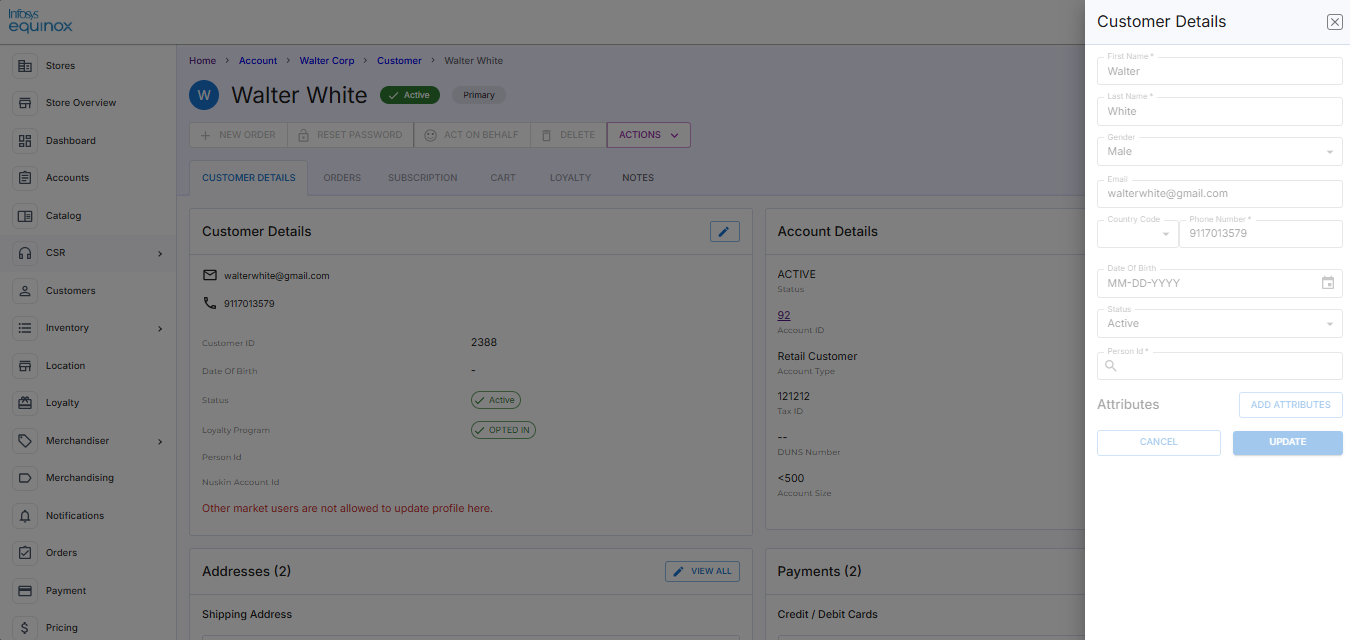
Note: Other information (like Addresses, Payments’ drawers) will also be disabled.
The corresponding message mentioned in the configuration is also shown:
https://d1pun0hbam45iy.cloudfront.net/csr-admin-docs/configuring-csr-extensions/ruls-extn-disable-usr-updt-cust-prfl-2.png
Disable Account Update by Attribute
The disableAccountByAttribute property in the rulesExtension store property configuration allows you to restrict updates to account details based on custom attribute values.
Provide attributes and values in the actions node to disable accounts and display configured messages:
{
  "event": "auto",
  "type": "disableAccountByAttribute",
  "data": {
    "SOH": true,
    "CSOH": true
  },
  "conditions": {
    "any": [
      {
        "fact": "activeData",
        "operator": "custom.equal",
        "value": [
          "$.currentSOHValue",
          "$.defaultSOHValue"
        ]
      },
      {
        "fact": "activeData",
        "operator": "custom.equal",
        "value": [
          "$.currentCSOHValue",
          "$.defaultCSOHValue"
        ]
      }
    ]
  },
  "onSuccess": {
    "message": "There is a SOH/CSOH hold on the account."
  }
}
|
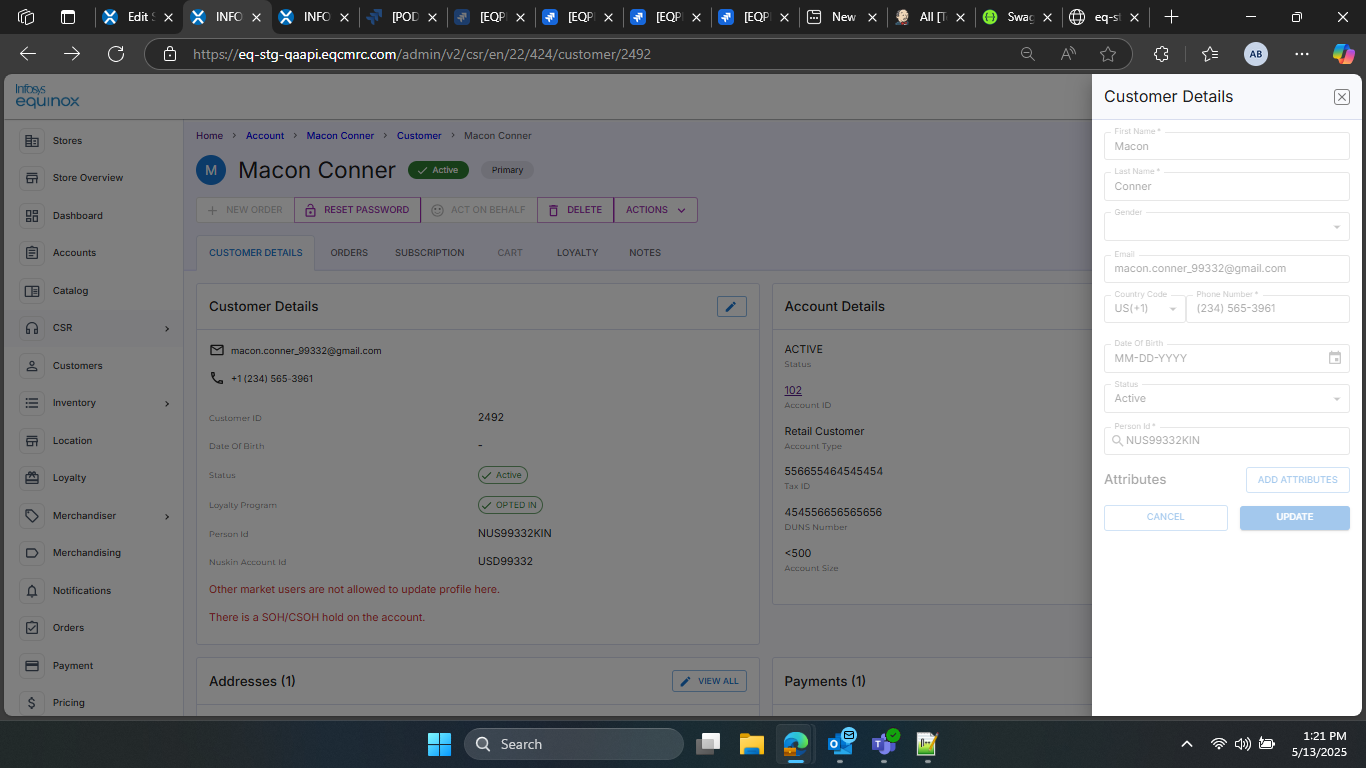
The Customer Details drawer has been disabled:
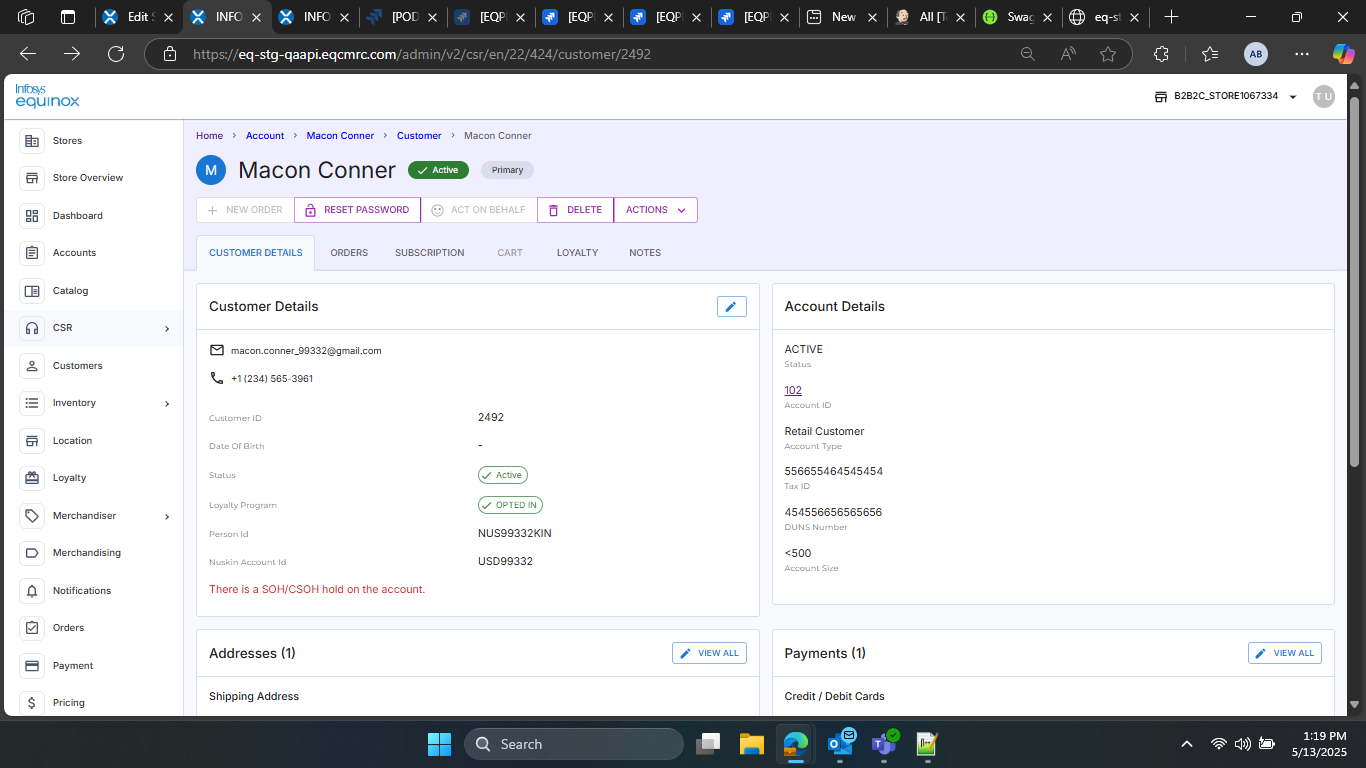
The corresponding message mentioned in the configuration is also shown:
Disable Account Update by Account Property
Using the store property rulesExtension, you can disable guest accounts and customer profiles based on custom conditions and logic.
Configured messages will be displayed, and profiles cannot be updated.
    {
      "event": "auto",
      "type": "disableUserAccount",
      "data": {
        "accountId": null
      },
      "conditions": {
        "all": [
          {
            "fact": "activeData",
            "operator": "nullish",
            "value": "$.referenceAttribute1"
          }
        ]
      },
      "onSuccess": {
        "message": "The requested information cannot be displayed as some of the required data is not available. (Account Details Not Available)"
      }
    },
|
After the above configuration, the Customer Details drawer is disabled:
https://d1pun0hbam45iy.cloudfront.net/csr-admin-docs/configuring-csr-extensions/cust-extn-disable-profl-updt.png
The corresponding message mentioned in the configuration is also shown:
https://d1pun0hbam45iy.cloudfront.net/csr-admin-docs/configuring-csr-extensions/cust-extn-disable-profl-mssg.png
Revision History
2025-05-12 | JP – Created the page; added the content