Quote Workflow Management Overview
This guide covers:
- The Quote lifecycle, statuses, and transitions
- Required configurations to enable quote functionality
- The roles and responsibilities of key personas
- How to configure and control approval workflows
- Detailed actions performed by Buyer Users, Buyer Admins, Seller Representatives, and Seller Admins
- The process of converting an approved quote into an order
The workflow supports:
- End-to-end quote lifecycle management from RFQ submission to order conversion
- Configurable approval controls for Buyer Admin and Seller Admin
- Iterative negotiation cycles through rejection and resubmission
- Threshold-based validation for seller discounts
- Auditability through quote versioning, comments, and status tracking
This guide is intended for administrators and business users responsible for managing quote workflows in B2B commerce scenarios.
Prerequisites
Before enabling Quotation Settings, ensure the following are in place:
|
Requirement |
Details |
|
Quote Workflow Enabled |
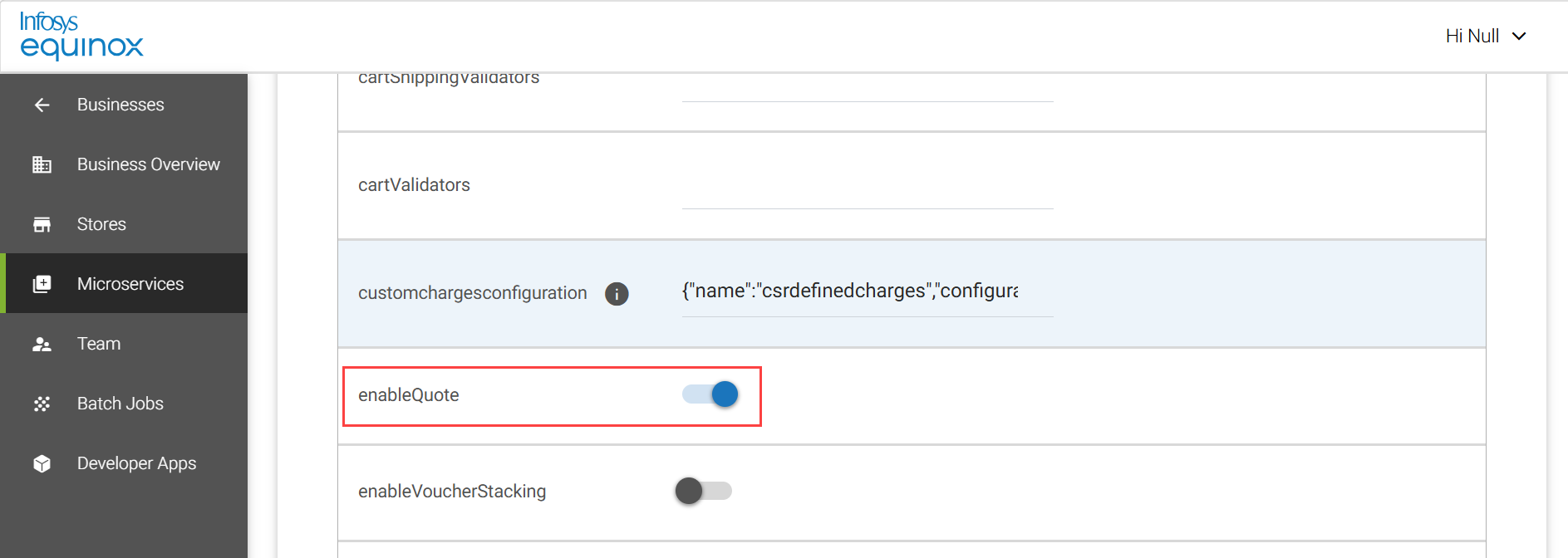
The quote capability (enableQuote) must be turned on in the Cart microservice via the Foundation Admin Console See Collection Properties – Cart for more information. |
|
RFQ-Eligible Products |
At least one product or SKU must be configured as RFQ Eligible in the Merchandiser Admin console. |
|
B2B Storefront Configured |
A B2B storefront must be set up with Buyer User and Buyer Admin access |
|
CSR Admin Console Access |
Seller Representative and Seller Admin roles must be configured in the CSR Admin Console |
Key terms
- RFQ (Request for Quote) – A formal request raised by a buyer to obtain pricing and terms from a seller.
- Quote – A response from the seller that provides pricing, discounts, delivery details, and terms for the requested items.
- Buyer User – A storefront user who creates and submits RFQs, reviews quotes, and accepts or rejects seller responses.
- Buyer Admin – An administrative user who reviews RFQs and approved quotes (when enabled), and controls whether they progress in the workflow.
- Seller Representative (Seller Rep) – A seller-side user who reviews RFQs, creates quotes, negotiates with buyers, and applies pricing and discounts.
- Seller Admin – A seller-side administrative user who reviews and approves quotes when discount thresholds are exceeded.
- Business Admin – A user responsible for configuring RFQ workflow settings such as approval toggles and discount thresholds.
- CSR (Customer Service Representative) Console – The seller-side administrative interface used by Seller Reps and Seller Admins to manage quotes.
- Storefront (SF) – The buyer-facing application where Buyer Users and Buyer Admins create and manage quotes.
- Buyer Admin Approval – A configurable setting that requires Buyer Admin review before an RFQ is sent to the seller and before final order conversion.
- Seller Admin Threshold – A configuration that defines the maximum allowable discount a Seller Rep can provide without requiring Seller Admin approval.
- Negotiation Loop – The iterative process in which a quote is rejected and sent back between buyer and seller for updates until agreement is reached.
- Quote Versioning – The system-generated version history that tracks changes made to a quote during negotiation.
- Submitted – The status indicating that an RFQ or quote has been sent to the seller for review.
- Buyer Review Pending – The status indicating that the buyer must review the latest update from the seller.
- Buyer Admin Review Pending – The status indicating that a Buyer Admin must review and approve the quote.
- Seller Admin Review Pending – The status indicating that a Seller Admin must review a quote due to threshold conditions.
- Seller Quote Approved – The status indicating that the seller has finalized the quote and shared it with the buyer.
- Rejected (Negotiation) – A state where the quote is sent back to the counterparty (buyer or seller) for further updates.
- Cancelled – The status indicating that the quote has been terminated and cannot be processed further.
- Expired – The status indicating that the quote validity period has ended.
- Ordered – The final status indicating that the quote has been accepted and converted into an order.
- Advance Payment – The percentage of the total order value that must be paid upfront during checkout.
- Discount Threshold – The configured percentage limit that determines whether Seller Admin approval is required.
Approval Workflows
The table below outlines the different statuses of the quote workflow:
|
Status |
Description |
|---|---|
| Draft | The quote is saved but not submitted. |
| Buyer Admin Review Pending | The quote is awaiting approval from the Buyer Admin. Note: This status is applicable only when the Buyer Admin Approval toggle is enabled in the Settings Admin.
|
| Submitted | The quote is submitted to the seller for review. |
| Buyer Review Pending | The quote is waiting for the buyer to review seller updates.
Indicates the quote is waiting for buyer-side action during negotiation.
|
| Rejected (Negotiation) | The quote is sent back to the counterparty (buyer or seller) for further negotiation updates. |
| Seller Admin Review Pending |
The quote requires Seller Admin approval when the applied discount exceeds the configured threshold. Note: This status appears only when the Seller Admin Threshold setting is enabled and the quote exceeds the defined discount limit. |
| Seller Quote Approved |
The quote has been finalized by the seller and shared with the buyer for review. |
| Ordered | The quote is accepted and converted into an order. |
| Cancelled | The quote has been cancelled and cannot be actioned further. Important: A quote can be cancelled at multiple stages by Buyer User, Buyer Admin, Seller Rep, or Seller Admin. Once cancelled, the quote cannot be reactivated. |
| Expired | The quote validity period has ended. |
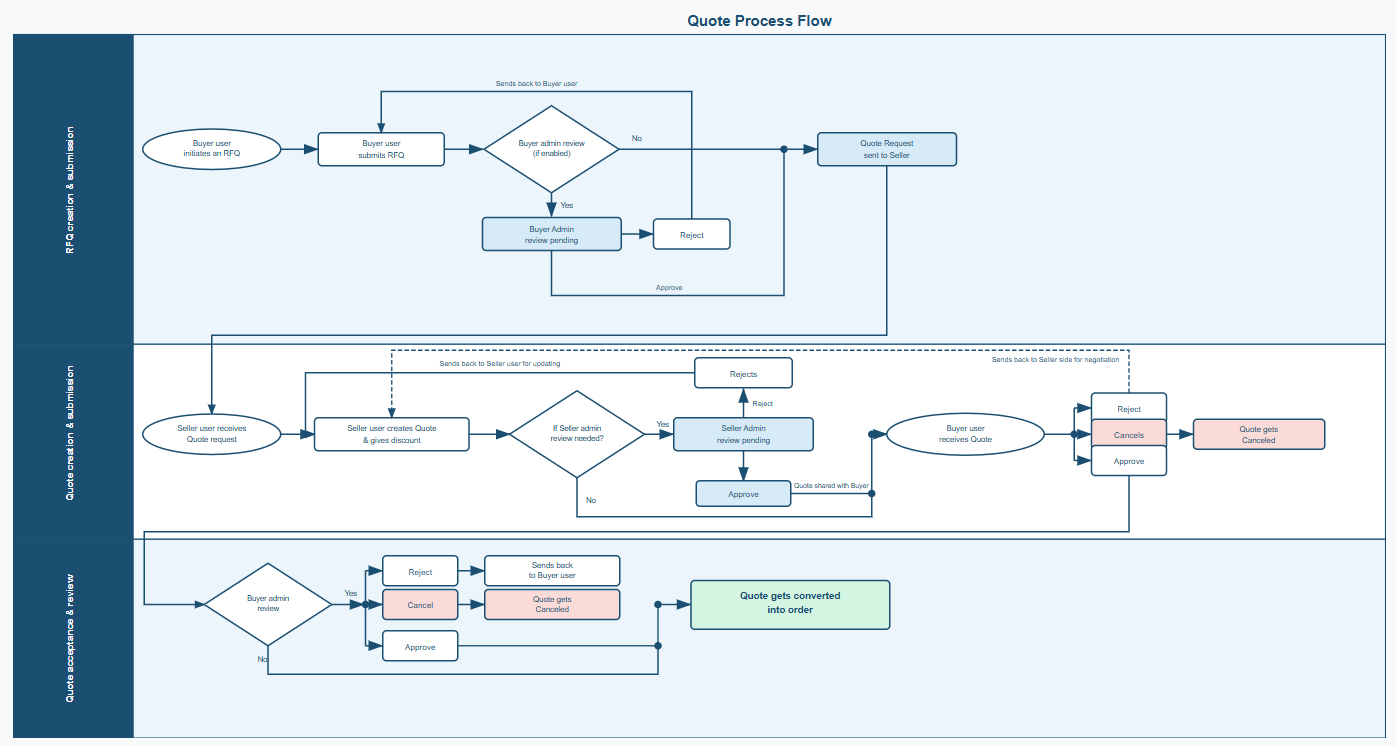
Enabling Quote Workflow Functionality
This setup involves two key configurations:
- Foundation Admin Configuration – Enables the quote capability at the cart microservice level.
- Product or SKU Eligibility Configuration – Marks specific products or SKUs as RFQ-eligible so they can participate in quote requests.
Once both configurations are completed, the system supports end-to-end quote workflows, enhancing flexibility for B2B and high-value transactions.
Foundation-Level Configuration for Enabling Quote Functionality
To enable the quote capability in the cart microservice to activate RFQ functionality,
- Log in to the Foundation service for your business (URL provided by Infosys Equinox).
- Navigate to the required Business.
- Click Microservices in the left navigation panel.
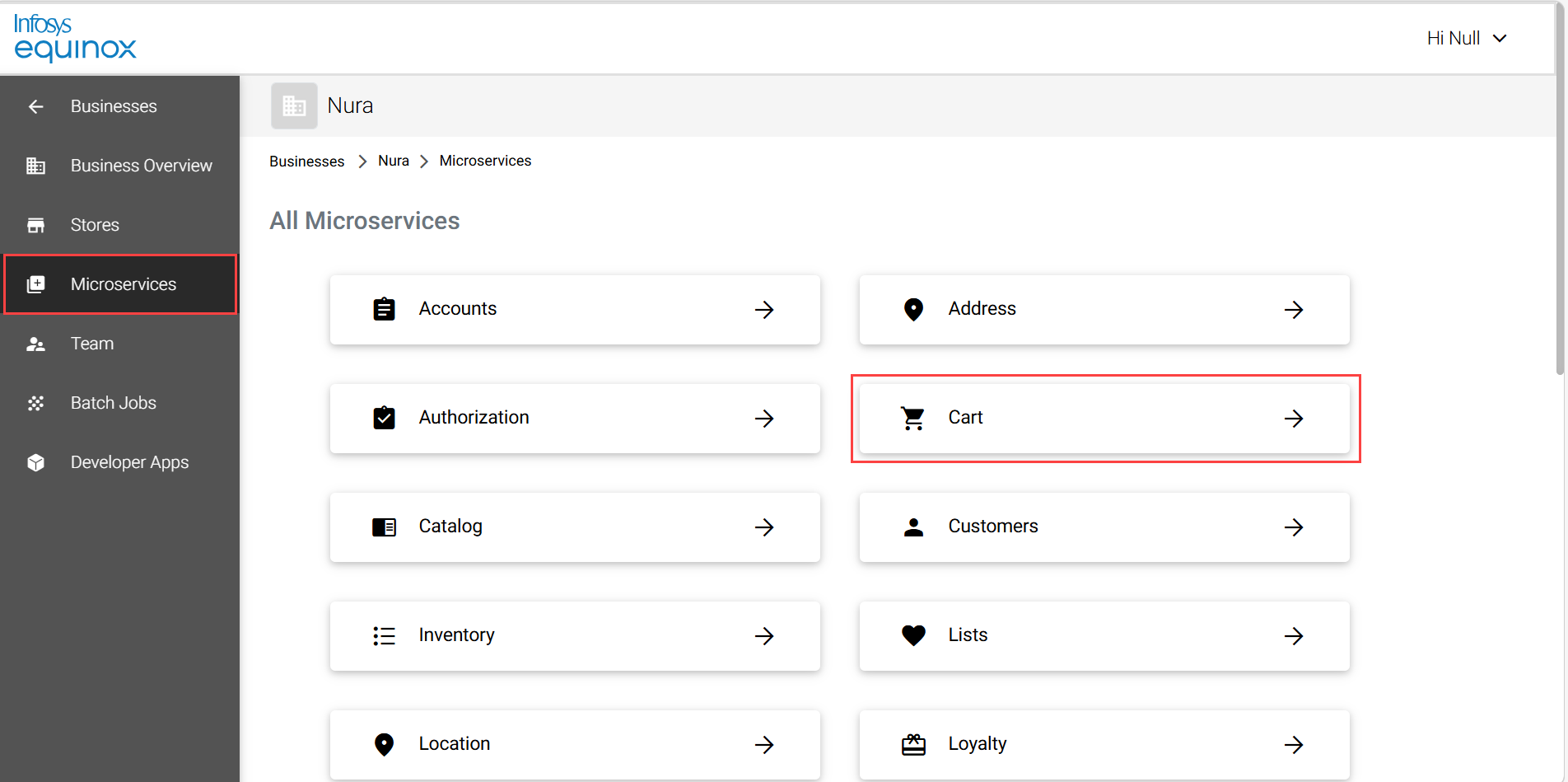
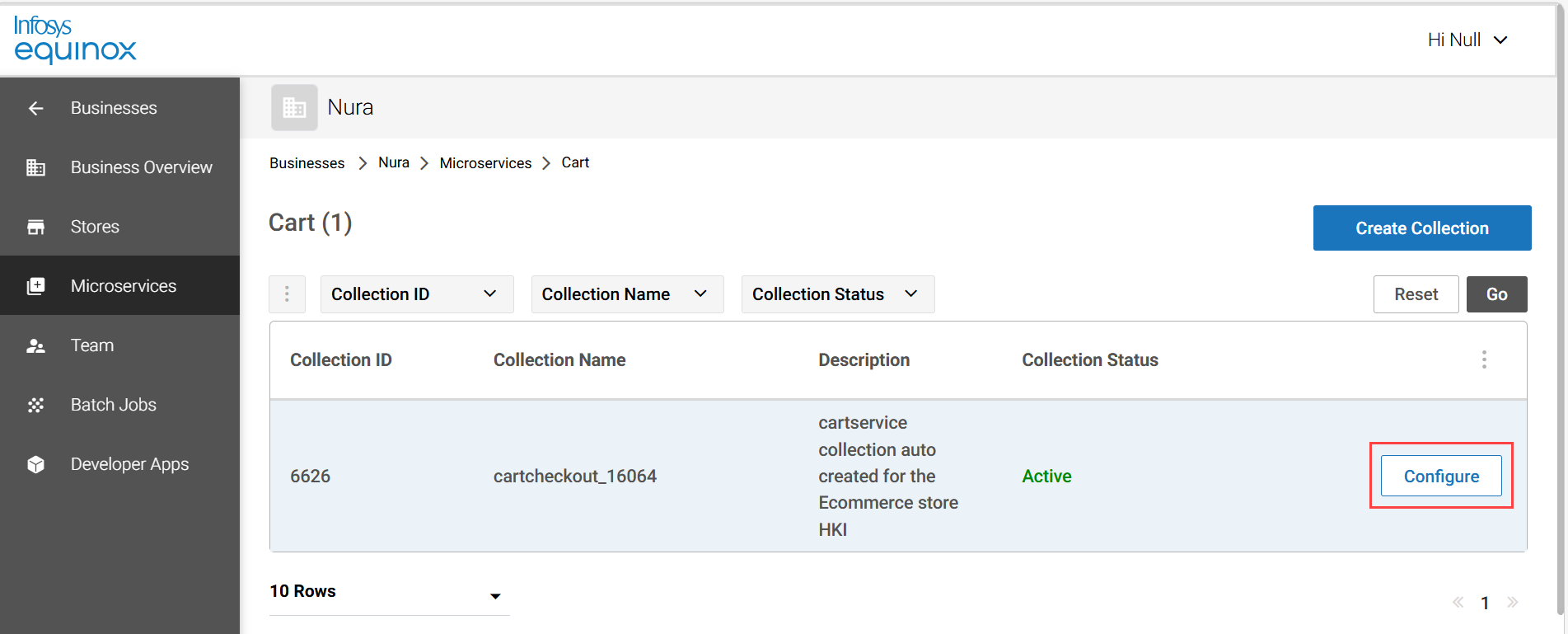
- Click Cart microservice.
- Click Configure.
- Enable the collection property enableQuote.
RFQ Eligibility Setup for Product or SKU
Prerequisite
Ensure the custom attribute IsRFQEligible is created and assigned to the appropriate product or variant attribute group before configuring RFQ eligibility.
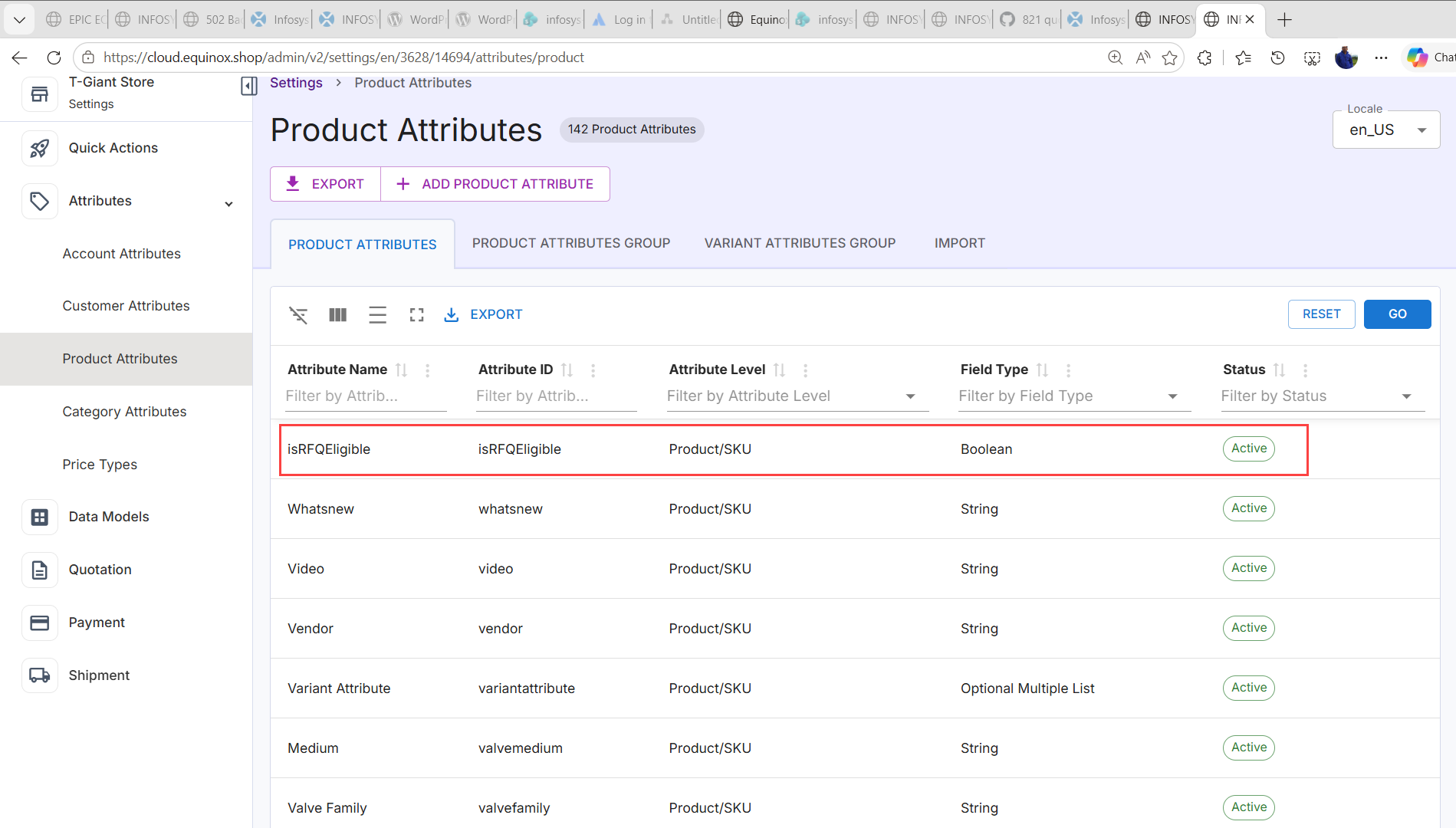
For more information, see Product Attributes in the Settings Admin Guide.
Set RFQ Eligibility at Product or SKU Level
To configure a product or SKU for inclusion in quote requests:
- Open the StoreOps page for the required store.
- Open the Merchandiser Console.
- Open the required product or SKU.
- Set the IsRFQEligible attribute to Yes.
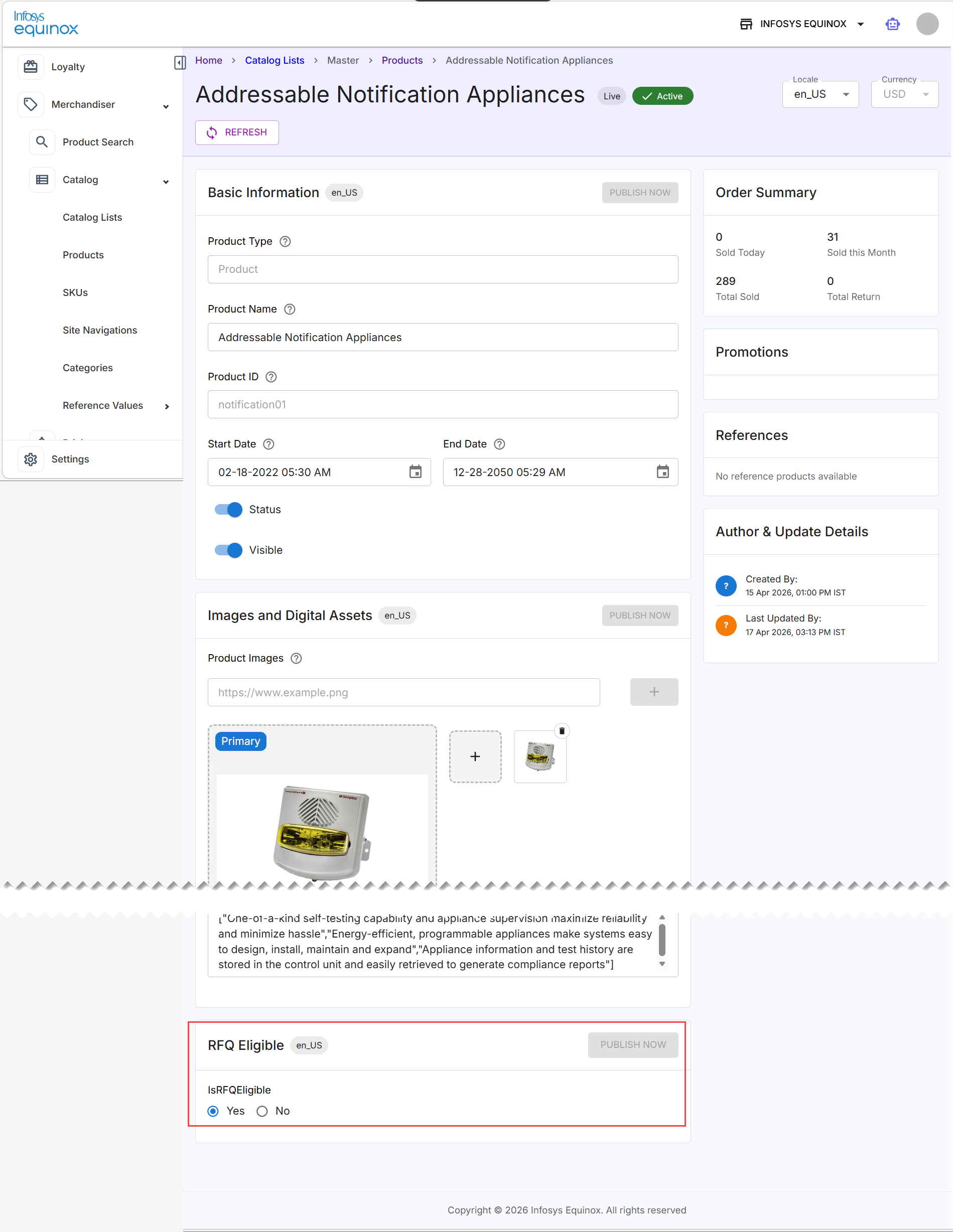
Note: Repeat this configuration for all required products or SKUs.
Key Personas of Quote Workflow Process
The following table outlines the personas involved in the quote workflow process:
| Persona | Role in Process | Key Control |
|---|---|---|
| Buyer User | Initiates & submits quote | Creates RFQ |
| Buyer Admin | Reviews buyer quotes | Approval before seller |
| Seller Representative | Negotiates quote | Pricing, discounts |
| Seller Admin | Governs approvals | Discount threshold validation |
| Business Admin | Configures Workflow | Feature toggles, rules |
Configuring Approval Workflows
The following configurations control approval flows:
-
Seller Admin Threshold: Controls whether discounts above a set limit require seller admin approval, or can be approved directly by seller reps without escalation.
- Buyer Admin Approval: Controls whether all buyer-created quotes require buyer admin review before quotes are submitted to sellers or are sent directly without approval.
Buyer User Actions
| Quote Status | Possible Actions |
|---|---|
| All Statuses | View quote details, search, filter, track status |
| Draft | Initiate and submit a quote, update details, add/remove items |
| Submitted | View quote, cancel quote |
| Buyer Review Pending |
Review seller response, approve quote, reject quote (send back to seller for negotiation), add comments, cancel quote |
| Buyer Admin Review Pending | View quote (await admin approval; no direct modification typically) |
| Seller Quote Approved | Convert to order, place order, view finalized quote |
| Ordered | View order details, track order |
| Cancelled | View quote, recreate/duplicate quote (if supported) |
| Expired | View quote, recreate/duplicate quote (if supported) |
Initiating and Submitting a Quote
A buyer user can initiate and submit a quote.
To initiate and submit a quote,
- Login to the B2B storefront.
- Navigate to Product Detail Page of the RFQ eligible product.
- Provide the required quantity.
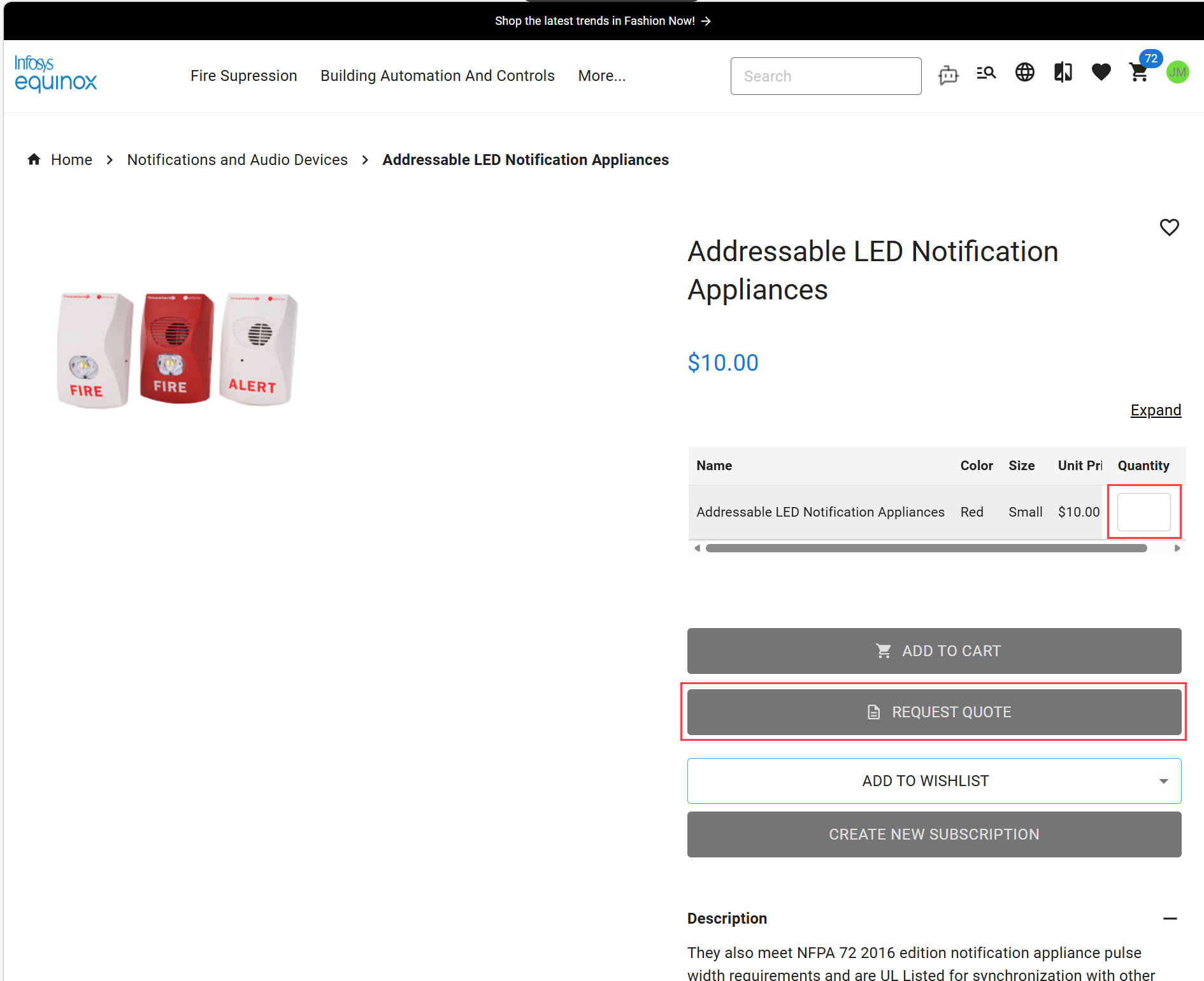
- Click Request Quote to initiate a quote.
The Quote Details page appears:
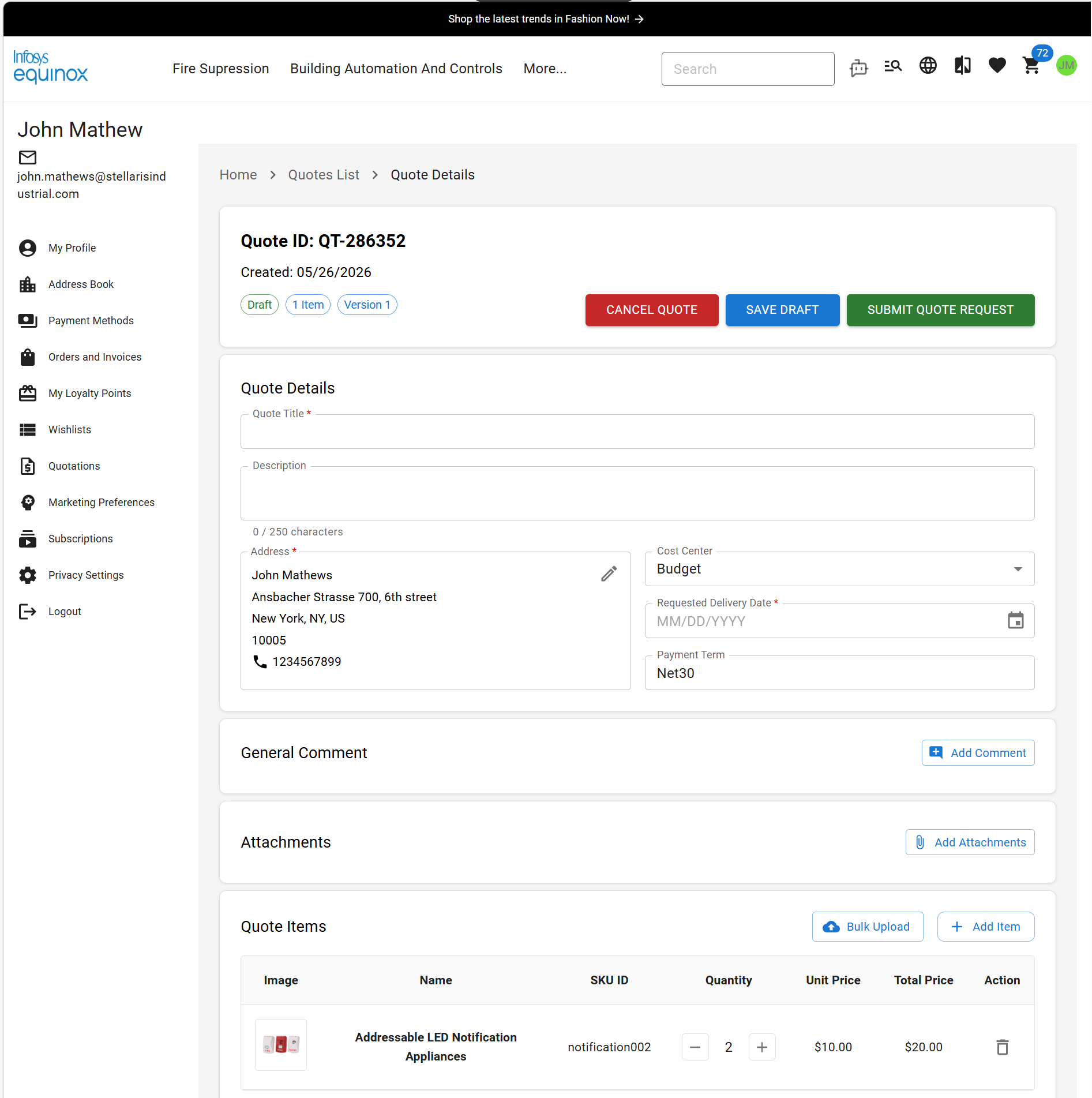
Note: Fields marked with * are mandatory. -
Provide quote details:
- Title and description
- Delivery location
- Estimated delivery date
- Click Add Comment to add the comments.
- Click Add Attachments to upload supporting documents.
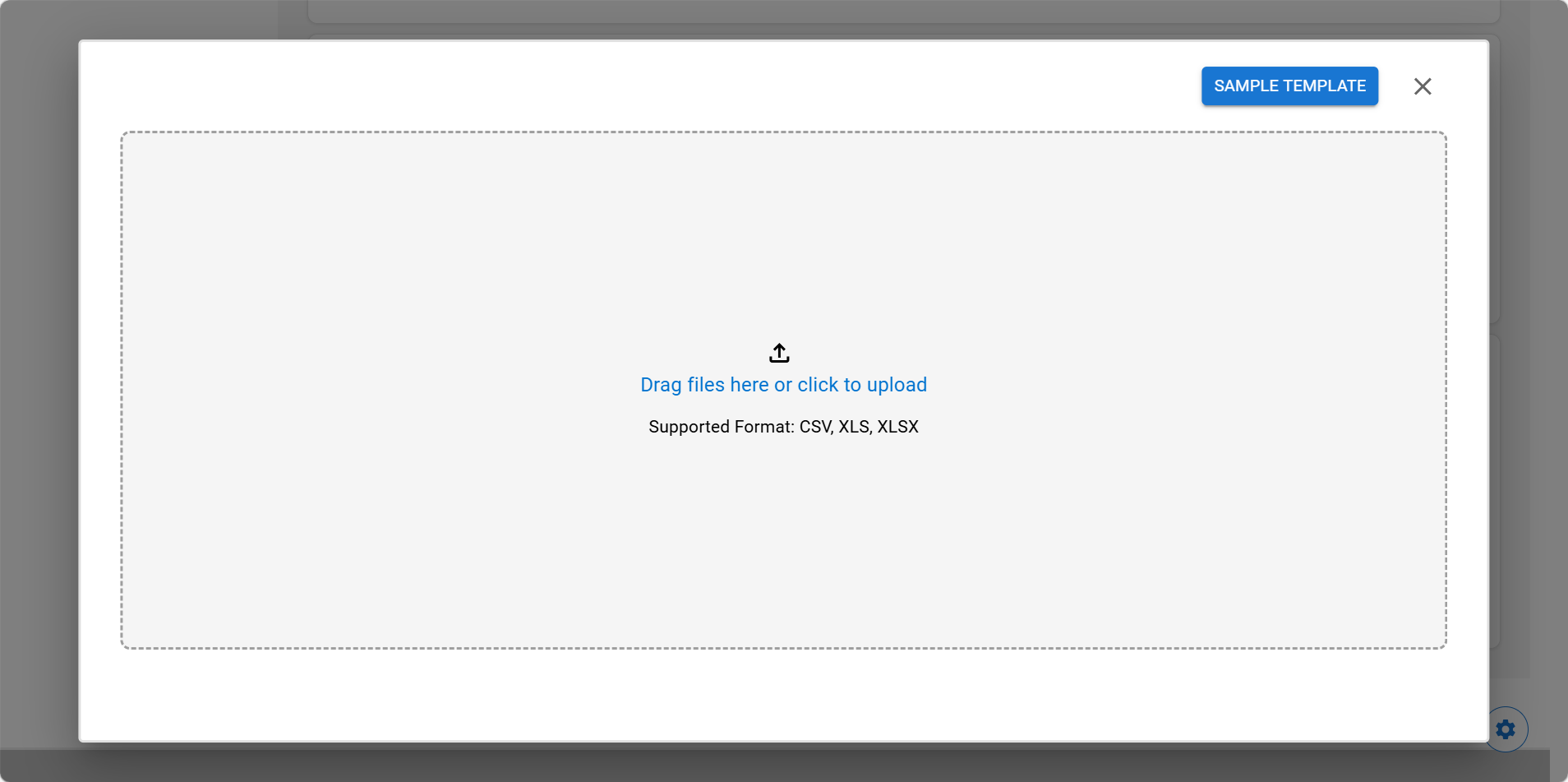
- Click Bulk Upload to upload products in bulk to the quote:
 Note:
Note:
-
-
To view a sample template for preparing upload files, select SAMPLE TEMPLATE.
-
Ensure that the products are RFQ eligible.
-
Prepare the file in a supported format such as .csv, .xls, or .xlsx.
-
(Or)
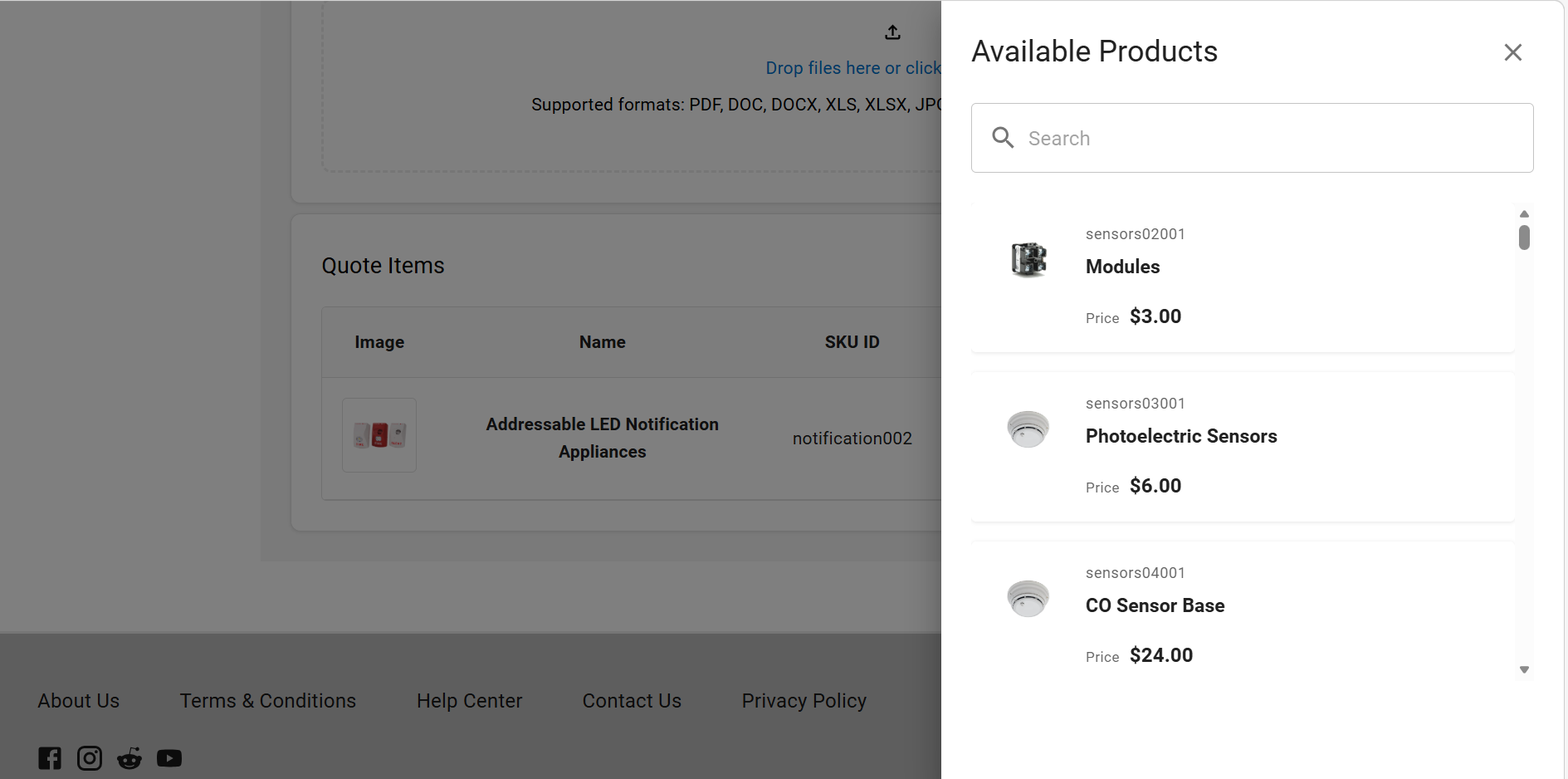
Click Add Items to add items to the quote:
-
- Click SAVE DRAFT to save the quote as a draft for later review or updates.
Note:- Click SUBMIT QUOTE REQUEST to submit the quote to the buyer admin for review process. Once submitted the status of the quote is changed from Draft to Buyer Admin Review Pending.
- Click CANCEL QUOTE to cancel the quote and permanently deletes all associated details.
Buyer Admin Actions
| Quote Status | Possible Actions |
|---|---|
| All Statuses | View quote details, search, filter, switch between My Quotes and My Users Quotes |
| Draft | Edit quote, update details, add/remove items, submit/approve quote |
| Submitted | View quote, cancel quote |
| Buyer Review Pending | Review seller response, accept quote, reject quote (send back to buyer/seller for negotiation), add comments, cancel quote |
| Buyer Admin Review Pending | |
| Seller Quote Approved | Convert to order, place order, view finalized quote |
| Ordered | View order details, track order |
| Cancelled | View quote, recreate/duplicate quote (if supported) |
| Expired | View quote, recreate/duplicate quote (if supported) |
| My Users Quotes (Scope) | View and manage all user quotes; take actions based on status (approve, review, cancel) |
Reviewing and Approving a Quote from a Buyer
In the B2B storefront, Buyer Admin can review and approve quotes submitted by other users when Buyer Admin Approval is enabled.
To review and approve a quote submitted by a buyer user,
- Login to the B2B storefront.
- Go to My Account.
- Click Quotations in the left navigation panel.
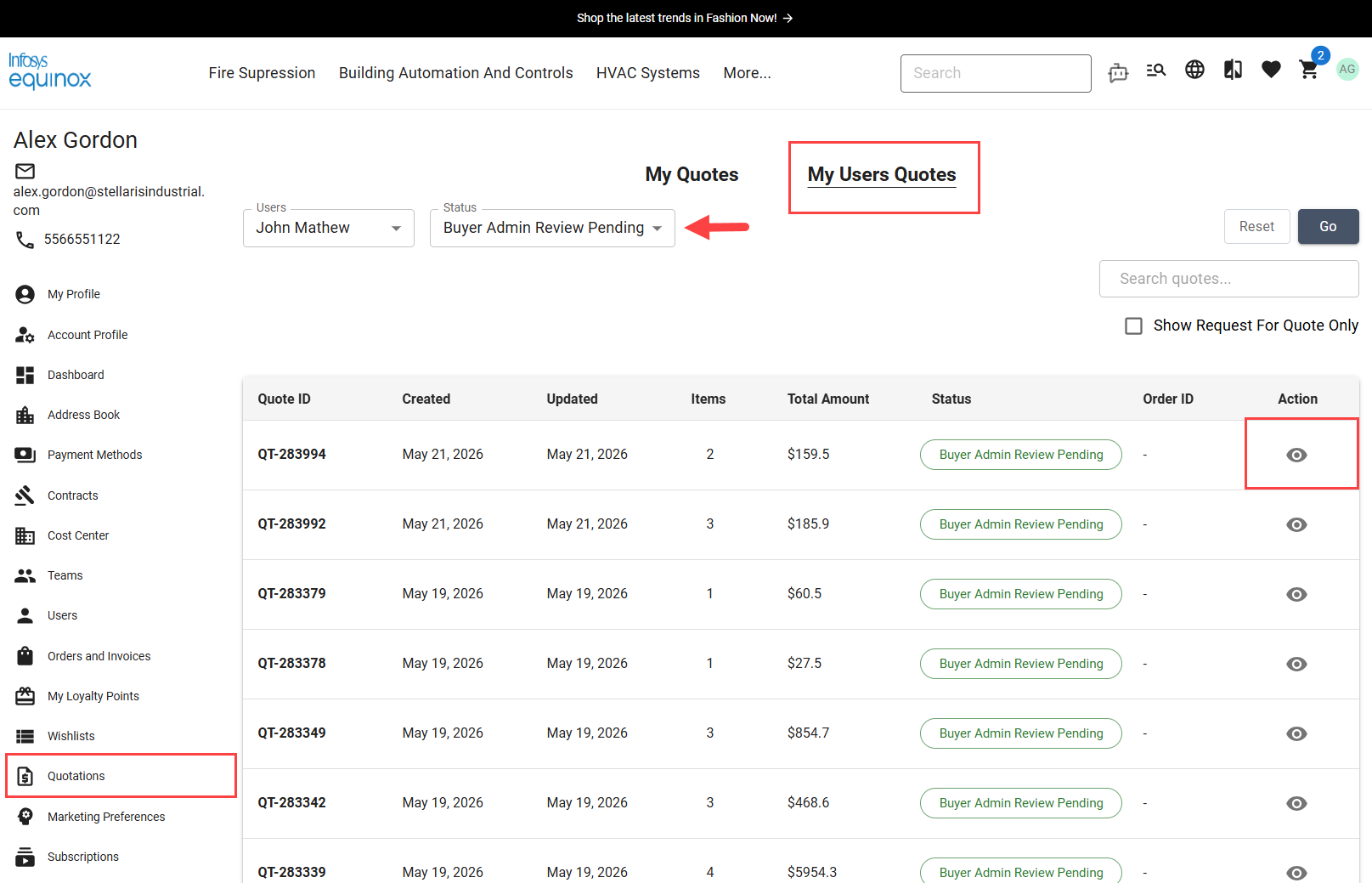
- Select My Users Quotes option.
- Filter the quotes with the status Buyer Admin Review Pending.
- Click on action icon.
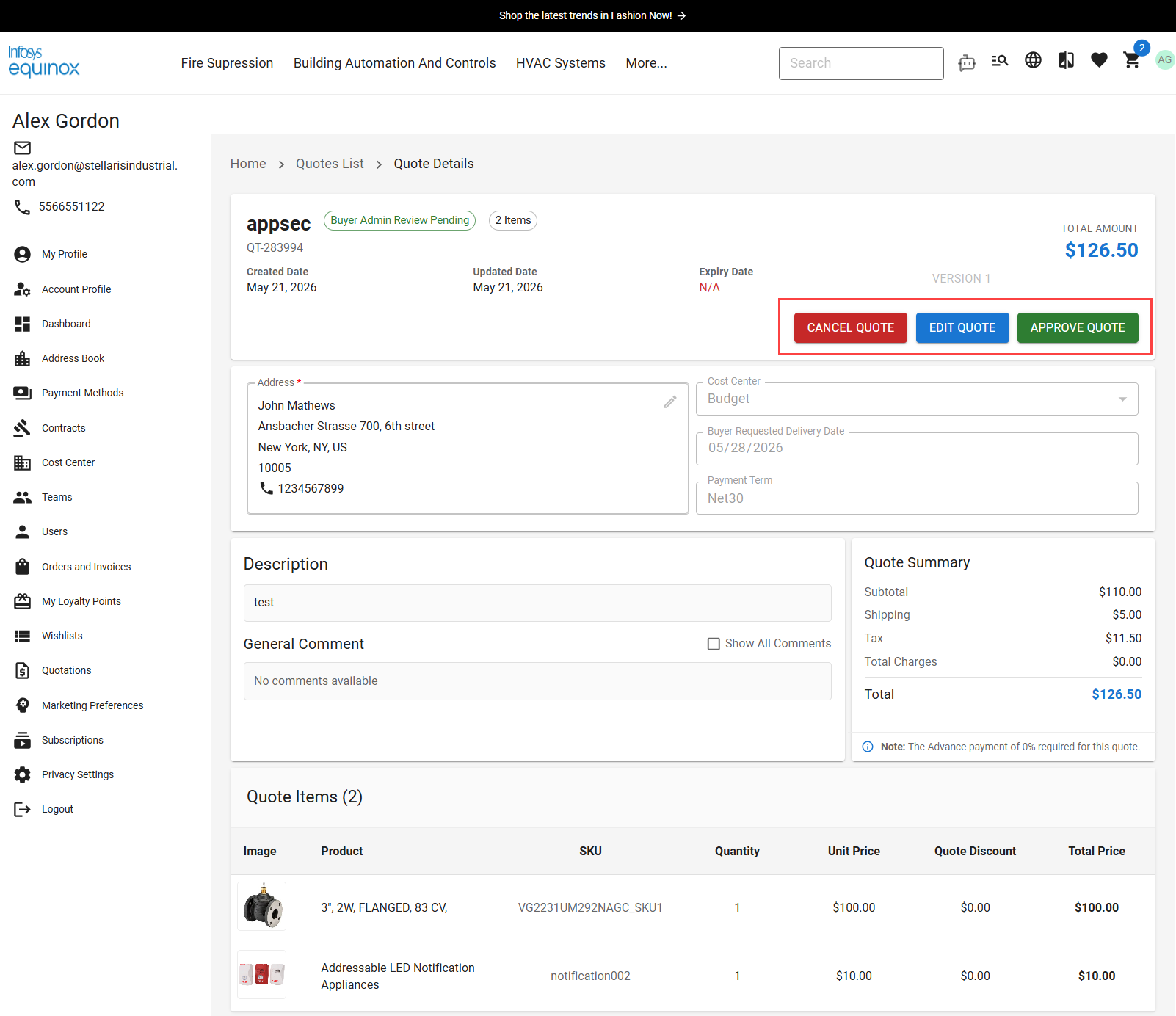
The Quote Details page appears:
-
Click APPROVE QUOTE to send the quote to the seller and initiate negotiation.
Note:
-
Click EDIT to update details such as delivery date, product quantities, or to add and remove items.
- Click CANCEL QUOTE to discard the request.
-
Important: After the first negotiation and resubmission, the quote version updates automatically (for example, Version 1 → Version 2). Each subsequent negotiation increments the version number.
After the Buyer Admin approves the quote, the quote status changes to Submitted.
Seller Representative Actions
After a Buyer Admin submits a quote, the Seller Rep reviews and negotiates the quote. During review, the Seller Rep can:
-
Modify or add items.
-
Add comments.
-
Upload attachments.
-
Add item-level charges.
-
Add cart-level charges, including:
-
Predefined charges (Quote Cart Charges and Restocking Fees)
-
Custom charges
-
- Reject the quote to send it back to the buyer for further negotiation.
Result: Quote status updates to Buyer Review Pending
Reviewing and Negotiating a Quote by a Seller Rep
- Sign in to the CSR Admin console as a Seller Rep.
- Go to QUOTATIONS and open a quote with Submitted status.
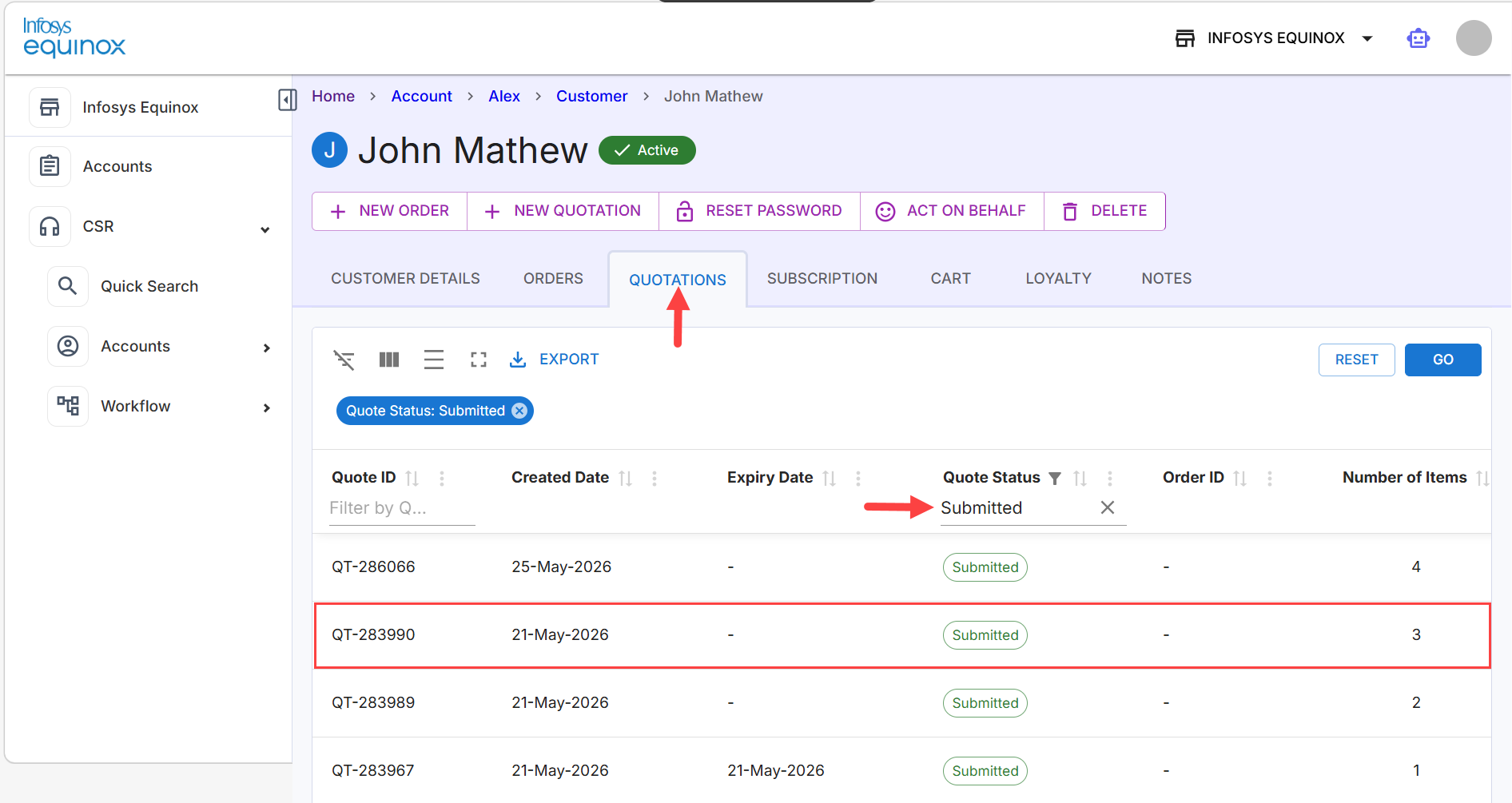
- Review the quote details provided by the buyer.
- Click the edit icon.
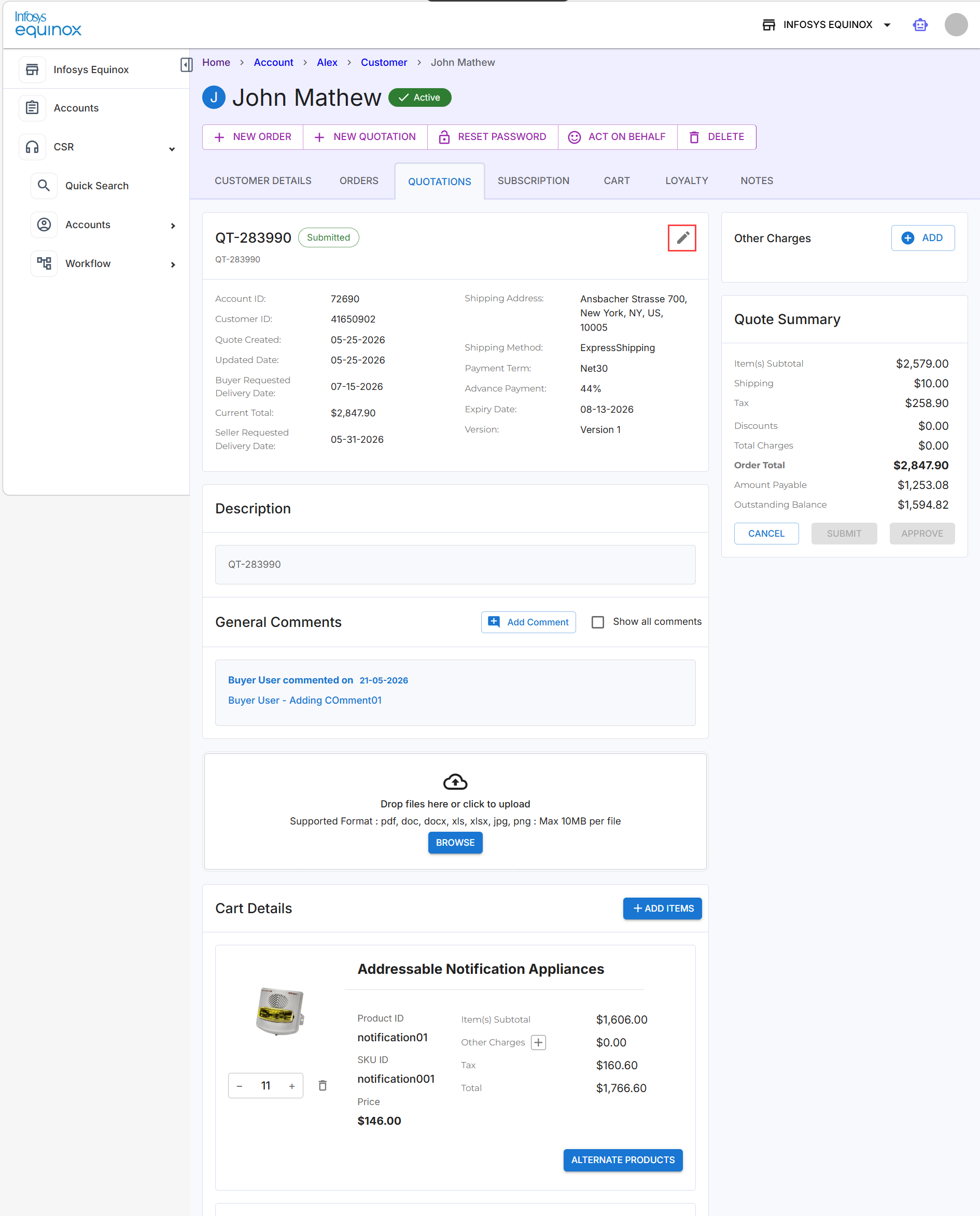
This shows the quote details:
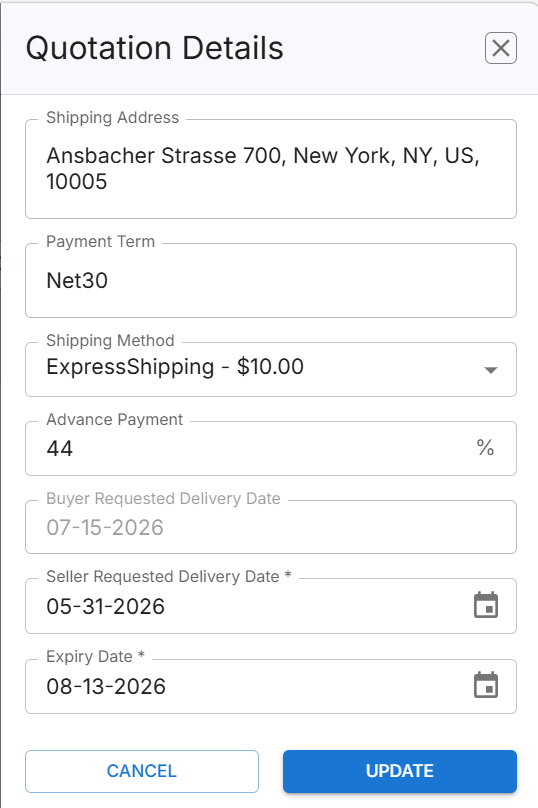
- Update the quote as needed:
- Enter advance payment percentage
Note: For more details, see Understand Advance Payment Calculations. - Set the seller-requested delivery date
- Define the quote expiry date
- Enter advance payment percentage
- Click Update.
Note: Click Cancel to discard the changes. - Add supporting information:
- Enter comments for buyer communication
- Upload documents
- Add or update items in the quote
- Apply discounts at the item or cart level using Other Charges.
- During negotiation, perform one of the following actions:
- Click Cancel to cancel the quote (status updates to Cancelled)
- Click Submit to continue negotiation
- Click Approve to finalize the quote when both parties agree
Understand Advance Payment Calculations
The advance payment percentage determines the Amount Payable and Outstanding Balance in the Quote Summary.
|
Advance payment |
Amount payable |
Outstanding balance |
|---|---|---|
|
0% |
$0.00 |
Full order total |
|
Partial (e.g., 30%) |
Order Total × (Advance Payment % ÷ 100) |
Order Total − Amount Payable |
|
100% |
Full order total |
$0.00 |
Example: If the Order Total is $1,000 and the Advance Payment is 30%, then Amount Payable = $300 and Outstanding Balance = $700.
Understand Discount Thresholds
|
Discount provided by Seller Rep |
Resulting status |
|---|---|
|
Greater than the threshold % |
Seller Admin Review Pending |
|
Less than or equal to the threshold % |
Seller Quote Approved |
If the quote moves to Seller Admin Review Pending, the Seller Admin must complete the negotiation and approve the quote before it advances to Seller Quote Approved.
Seller Admin Actions
The Seller Admin reviews quotes escalated for approval when the discount exceeds the configured threshold. Such quotes are routed to the Seller Admin for validation before proceeding in the workflow.
Reviewing and Negotiating a Quote by a Seller Admin
To review and negotiate a quote,
-
Sign in to the CSR Admin console as a Seller Admin.
-
Navigate to the QUOTATIONS tab.
-
View the list of quotes submitted by buyers.
-
Filter or locate quotes in Seller Admin Review Pending status.
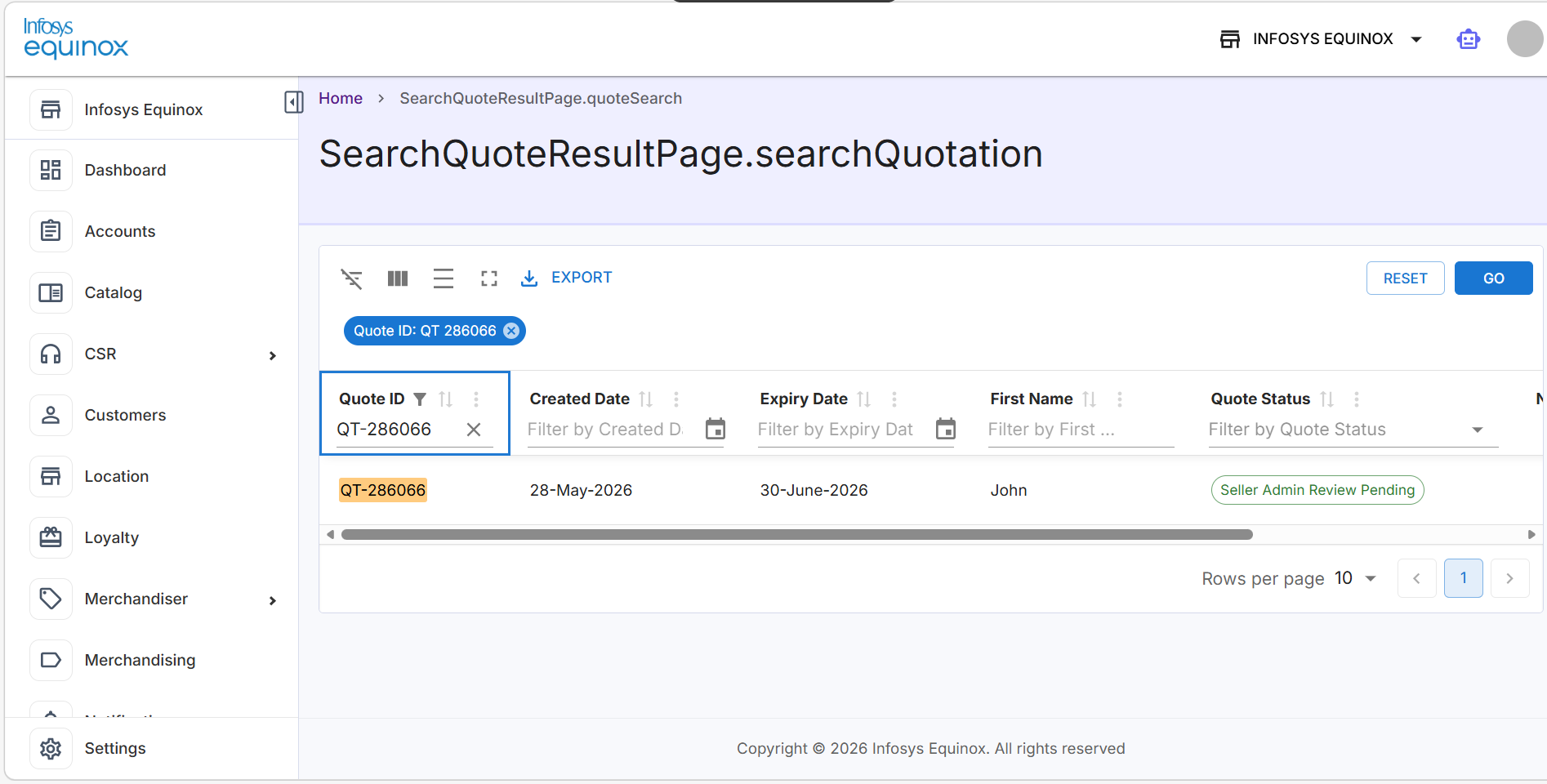
-
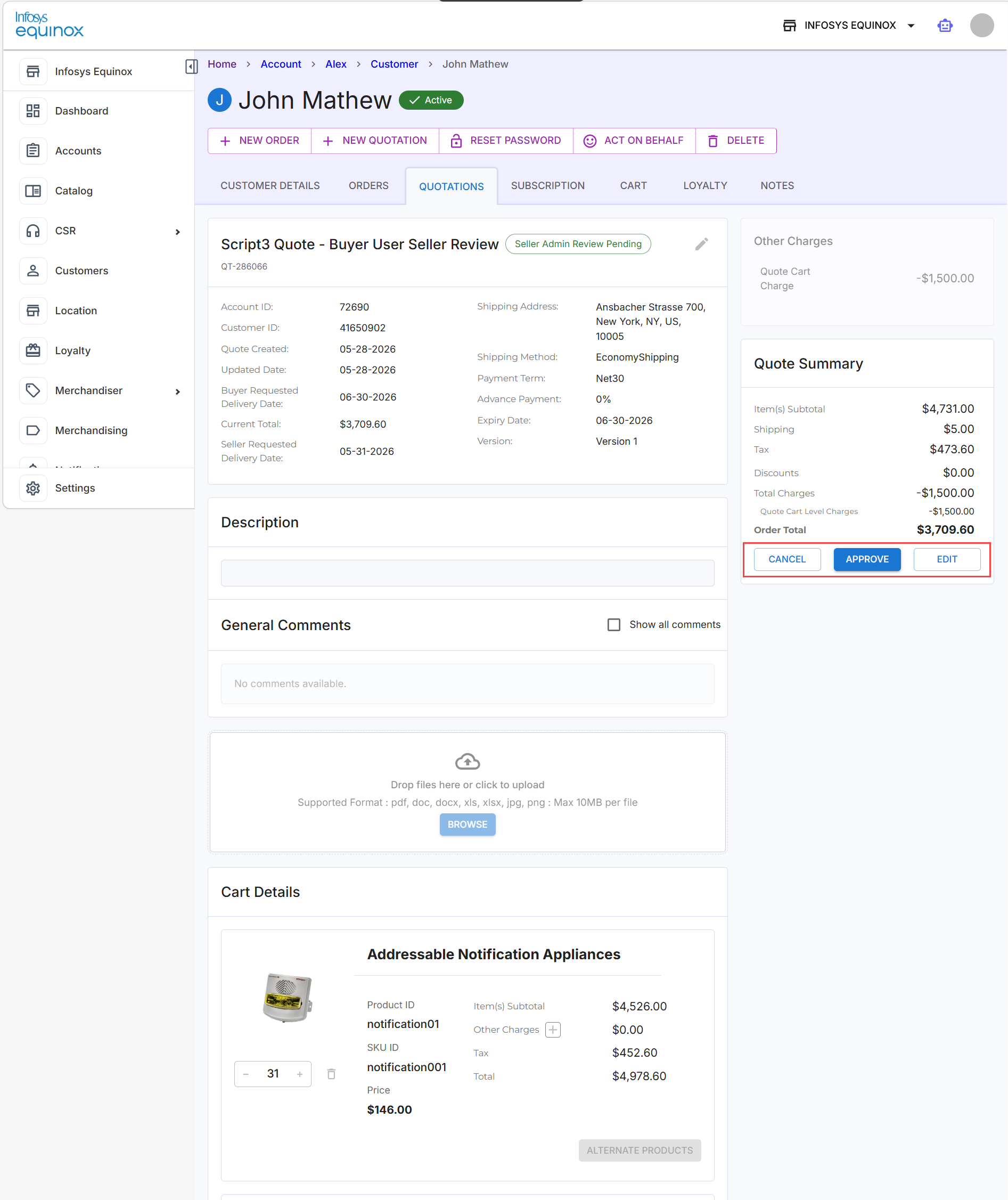
Open the required quote to review its details.
-
Perform one of the following actions:
- Click APPROVE to confirm the quote and move it forward in the workflow.
- Click EDIT to update details such as discounts or other fields, and then proceed with approval.
- Click CANCEL to terminate the quote and end the negotiation.
-
After approval, verify that the quote status changes to Seller Quote Approved.
Final Buyer Admin Review Before Order Conversion
If Buyer Admin Approval is enabled, quotes approved by the buyer user are routed to the Buyer Admin for final validation before conversion to an order.
- Approve – Quote is converted into an order.
Result: Status changes to Ordered. - Reject – Quote is sent back to the buyer user.
Result: Buyer must review and resubmit. - Cancel – Quote is cancelled.
Result: Status changes to Cancelled.
Converting Quote to Order
The approved quote becomes available to the buyer, who can proceed to place the order.
To convert a quote to an order,
- Sign in to the storefront as a Buyer User.
- Ensure the quote is in Seller Quote Approved status.
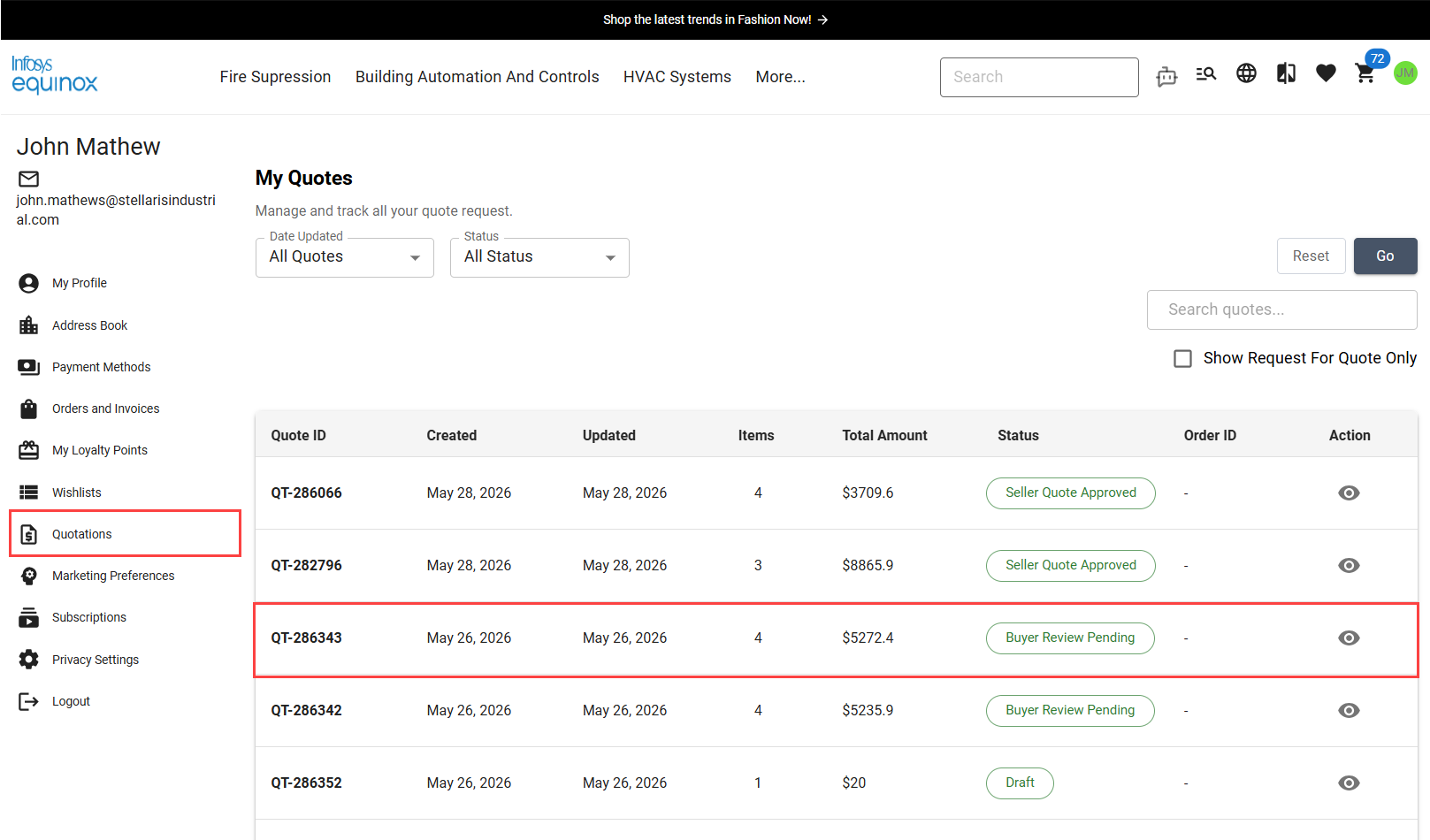
- Open the approved quote from the Quotes section.
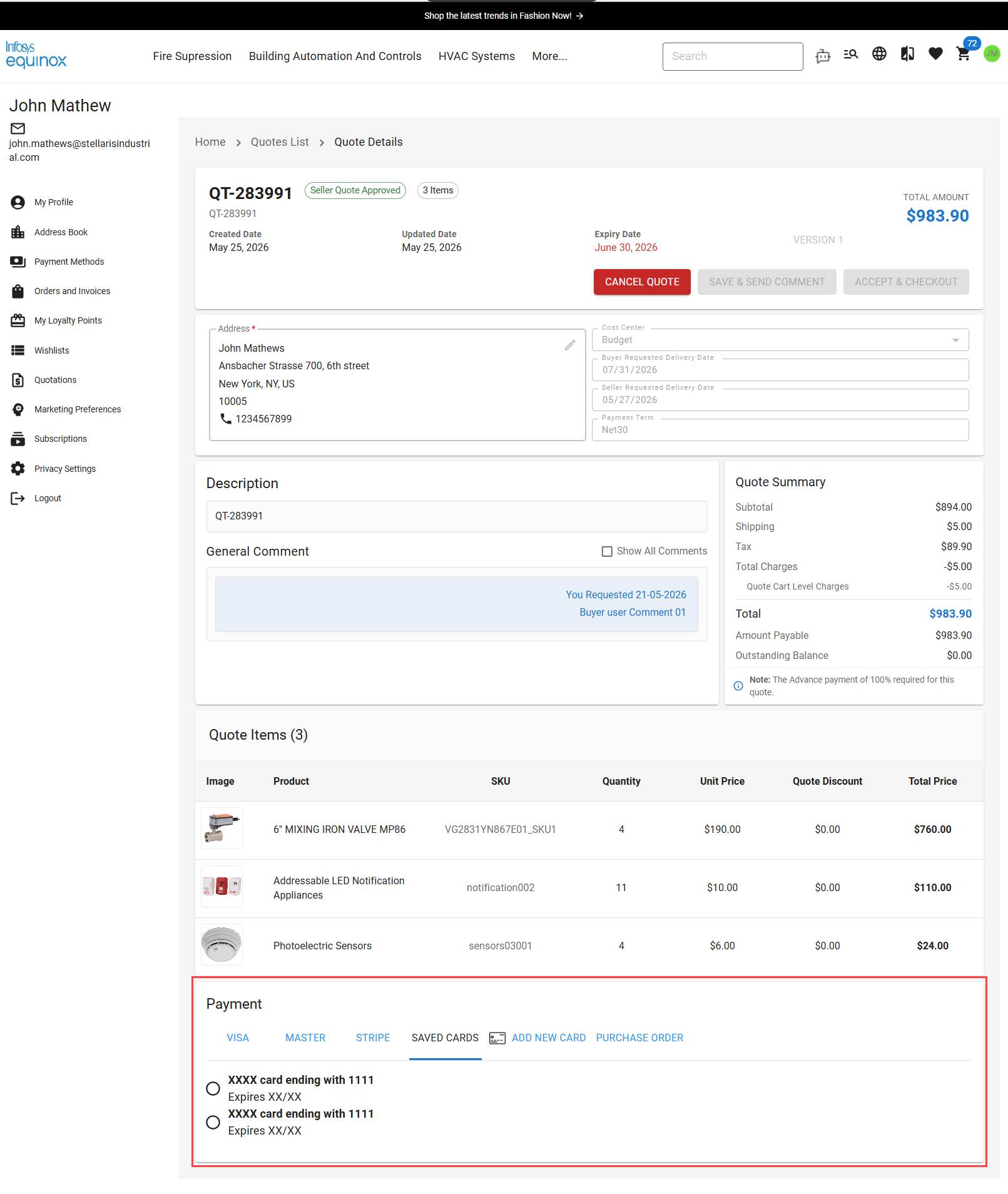
- Review the quote details.
- Add the required payment information.
Note:-
If the advance payment is 0%, you can check out directly without adding a payment method.
-
If the advance payment is greater than 0%, you must add a credit card or purchase order (PO) method before completing checkout.
-
- Verify that the ACCEPT AND CHECKOUT button is enabled.
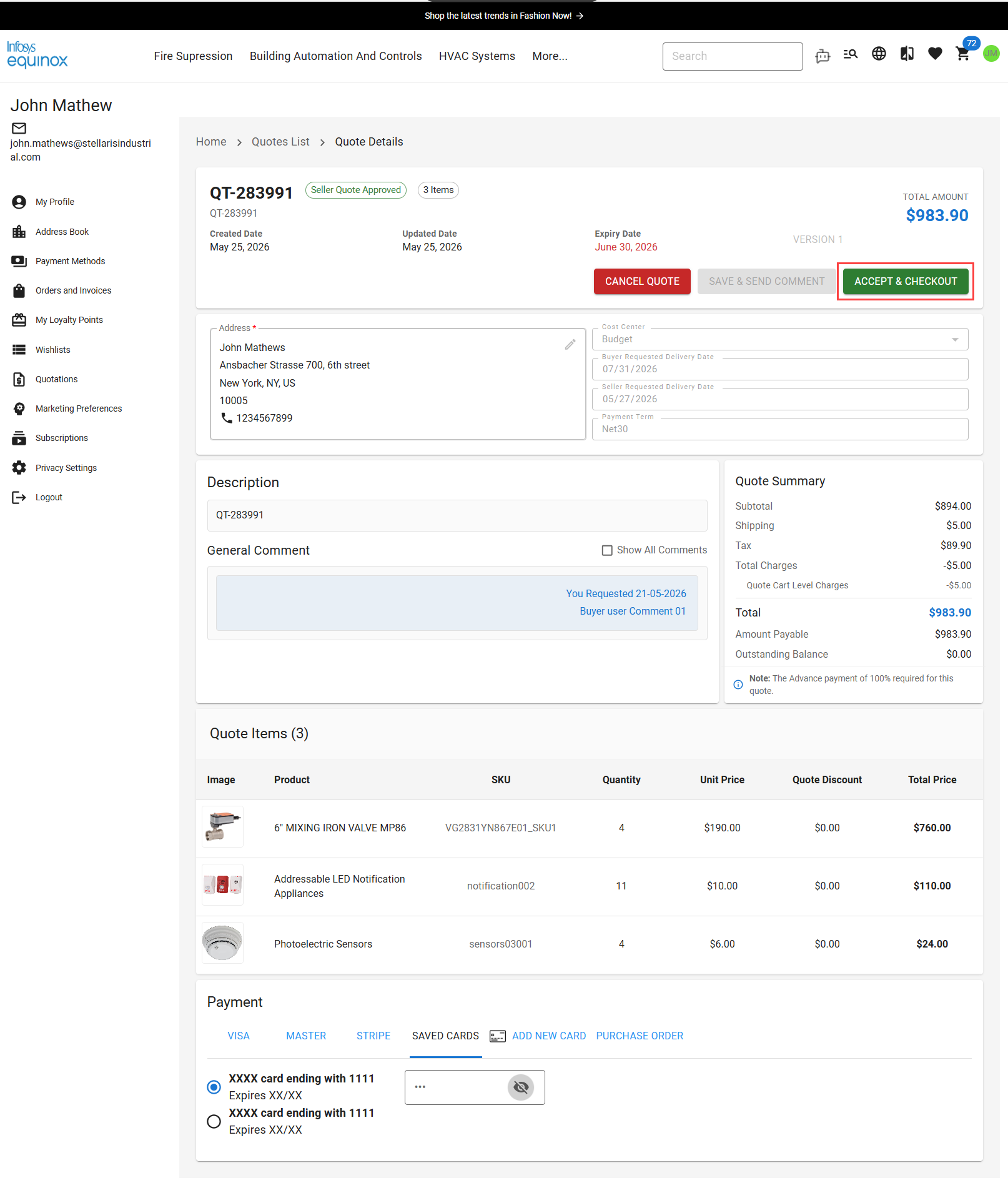
Note: If Buyer Admin Approval is enabled, the ACCEPT AND CHECKOUT action is available only after Buyer Admin approval.
- Click ACCEPT AND CHECKOUT to confirm the quote.
The quote is converted into an order, and the checkout process is completed. The order is linked to the quote.
Viewing the Order Summary after Checkout
After you successfully place an order, you can view the order details on the My Account page under Orders and Invoices.
The Items Included section lists all ordered products with the following details:
-
Product Name
-
SKU ID
-
Quantity ordered
-
Unit Price
-
Total price for the item
-
Item-level charges (if applicable)
-
Item Status (for example, Submitted to Fulfillment)
Order status and payment:
-
Order status reflects successful placement (for example, Submitted to Fulfillment).
-
Payment is shown as completed after checkout succeeds.
-
The paid amount equals the order total when full payment is collected.
Compare Quote Versions
Each time a quote is edited during negotiation or review, the system creates a new version.
Viewing and Comparing Versions
-
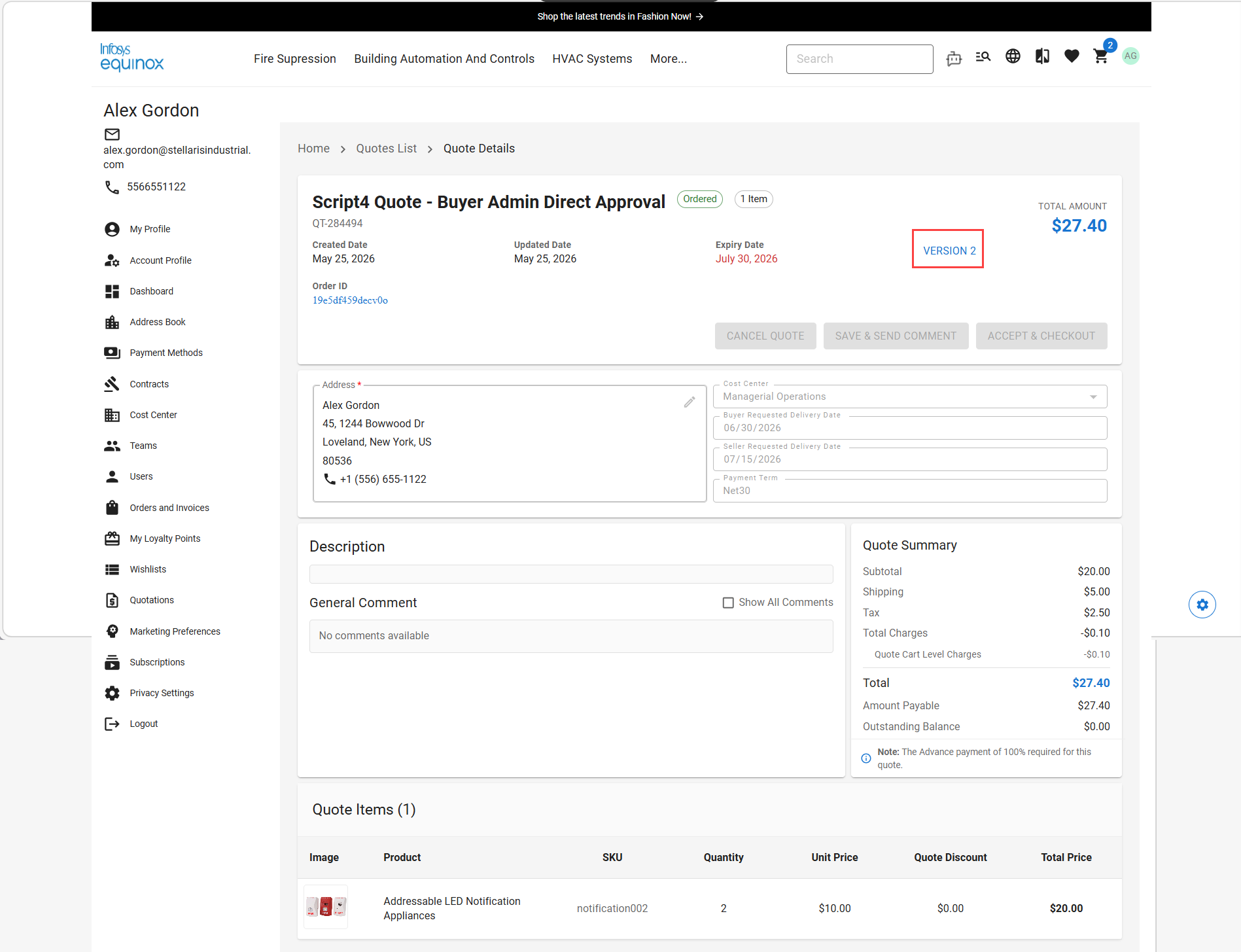
On the Accept & Checkout page, find the current version number (for example, Version 3) near the quote header.
-
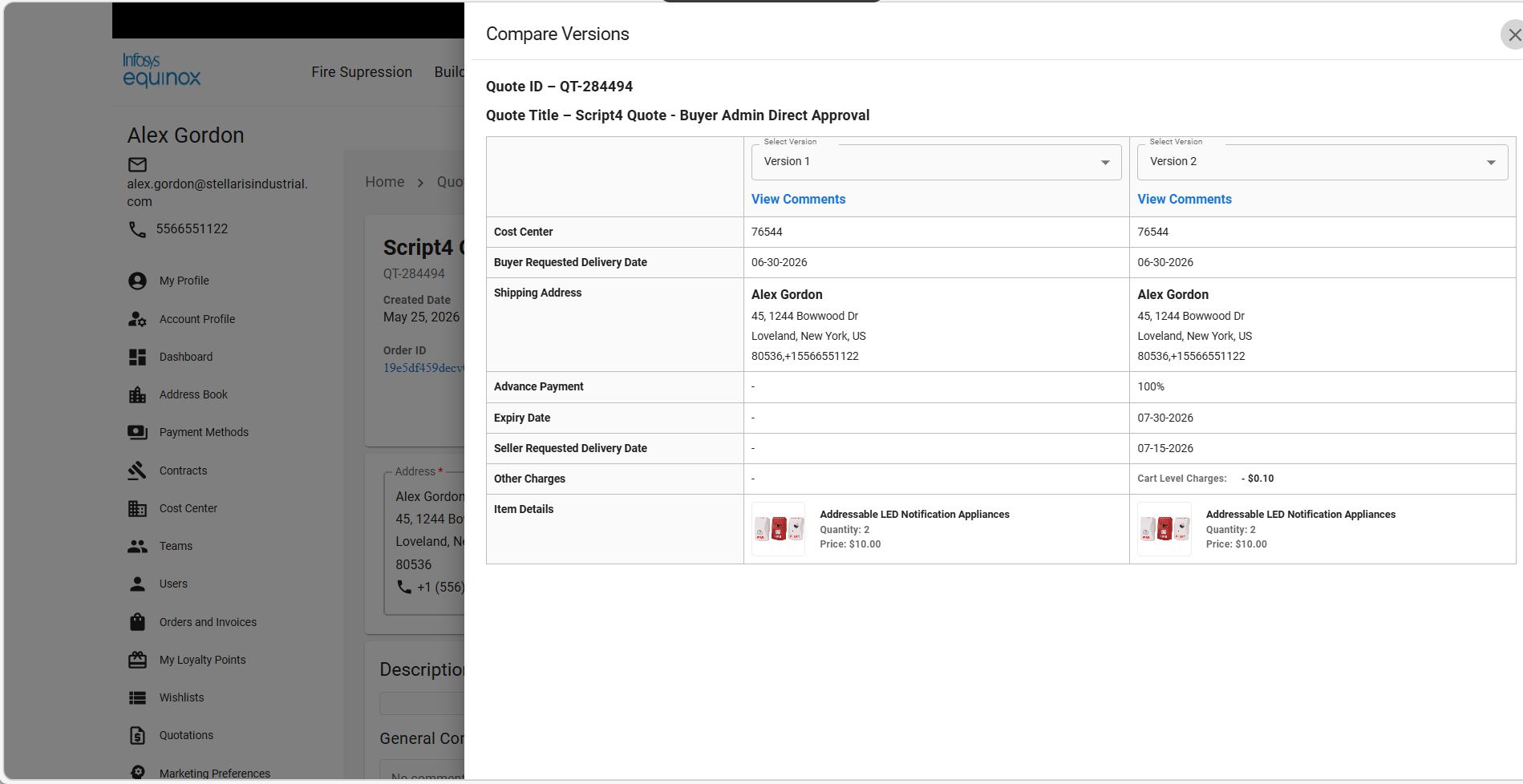
Select the version number to open the Compare Versions view.
-
Use the two dropdown menus to select any two versions (for example, Version 1 and Version 3).
The system displays the selected versions side by side. The following details are compared across versions:
-
-
Cost Center
-
Buyer Requested Delivery Date
-
Shipping Address
-
Advance Payment percentage
-
Expiry Date
-
Seller Requested Delivery Date
-
Cart-level charges
-
Item-level charges
-
Other charges
-
Item quantities and prices
-
Only values that changed between versions appear different.
Viewing Version-specific Comments
Each quote version has its own set of comments.
-
Select View Comments for a version.
-
In the comments panel, review the following details:
-
Comment text
-
Commented by (Buyer Admin, Seller Rep, or Seller Admin)
-
Comment date
-
Revision History
2026-06-08 | AN – Created the page and uploaded the contents.