This page equips Business administrators with a user guide for configuring store-level Settings in the Infosys Equinox Commerce platform. The Settings module provides a centralized location to manage payment methods, shipping methods, entity attributes, price types, and data models for a store.
Settings Overview
The Settings module in Infosys Equinox Commerce enables Business administrators to configure the foundational operational parameters of a store. These configurations govern how transactions are processed, how shipments are handled, how entities such as accounts, customers, products, and categories are enriched with additional data, and how the underlying data models are structured.
Settings are store-specific, meaning each store within a business maintains its own independent configuration. Changes made in Settings take effect immediately for the associated store and influence behaviors across the Storefront, order processing, and catalog management.
The Settings module is organized into the following functional areas:
- Account Attributes: Define custom attributes to enrich account-level data.
- Customer Attributes: Define custom attributes to extend customer profiles.
- Product Attributes: Define custom attributes to extend product and SKU records.
- Category Attributes: Define custom attributes to extend product category records.
- Price Types: Configure the price types associated with products in the store.
- Data Models: Create and manage reference and template data models used across the platform.
- Quotation: Configure the quote approval workflow for a B2B store.
- Payment Methods: Configure and manage the payment methods available at checkout for the store.
- Shipment Methods: Configure and manage the shipping methods available for order fulfillment.
Service Glossary
- Account – a business entity (such as a company or organization) associated with a store, which can place orders on behalf of its members or users.
- App – an application integrated into the platform that provides payment or shipment processing capabilities through a defined connector.
- Attribute – a custom data field added to an entity (account, customer, product, or category) to capture additional information beyond the default fields provided by the platform.
- Attribute Group – a logical grouping of attributes used to organize related fields within an entity’s profile or detail page. See Product Attributes Group and Variant Attributes Group.
- Attribute Level – the scope at which a product attribute applies; for example, Product/SKU indicates the attribute applies to both the product and its individual SKU variants.
- Business – the parent entity of a store or set of stores. A business manages shared resources such as users, catalogs, and configurations for its associated stores.
- Business Admin – the role responsible for managing business-level and store-level settings, including enabling microservices and configuring operational parameters.
- Catalog – the collection of products and categories available in a store. Settings such as category attributes apply to the active catalog.
- Data Model – a structured schema definition (Reference or Template type) used across the platform to define how entity data is stored and referenced in promotions, reporting, and integrations.
- Locale – the language and regional format setting applied to a store, affecting how content, currency, and dates are displayed.
- Payment Method – a supported transaction mechanism available to customers at checkout (for example, a credit card gateway app, wallet, purchase order, or a plugin-based loyalty payment).
- Plugin – a platform-native extension that provides payment capabilities without requiring an external application connector.
- Price Type – a classification applied to a product’s pricing (for example, Transaction Price, Floor Price, Bundle Price, Retail Price, Member Price, Wholesale Price) enabling differentiated pricing strategies.
- Shipment Method – a supported delivery option offered to a customer at checkout (for example, standard shipping, express delivery, in-store pickup).
- SKU (Stock Keeping Unit) – a specific variant of a product that is available for purchase, uniquely identified by attributes such as size, color, or configuration.
- Store – a specific commerce instance associated with a business, representing an online channel with its own catalog, pricing, promotions, and settings.
- Store Manager – a role that manages store-level operations, including associating price lists and overseeing store configurations.
- Template – a data model type that defines a reusable schema structure, as distinct from a Reference model, which represents a specific entity instance.
Prerequisites
Before configuring Settings, ensure the following conditions are met:
- Valid Credentials: You must have valid login credentials with the Business Admin role (or equivalent privileges) to access and modify store Settings.
- Active Store: A store must already be created and active within the business. Settings are configured per store. If no store exists, contact your Infosys Equinox Account Manager to provision one.
- Microservices Enabled: The relevant microservices (for example, Catalog for product/category attributes, Orders for payment and shipment) must be enabled for the business through the Foundation Admin Console.
- Locale: Before modifying locale-sensitive settings (such as Product Attributes, Category Attributes, or Data Models), ensure the correct Locale is selected from the Locale dropdown in the top-right corner of the admin interface.
- Platform Access URL: You must have the platform access URL provided by Infosys Equinox for your environment (syntax:
https://<domain>/admin/v2/).
Accessing Settings Admin
To navigate to the Settings module:
- Log in to the Infosys Equinox Admin Console using your credentials.
- On the left navigation panel, click Settings.
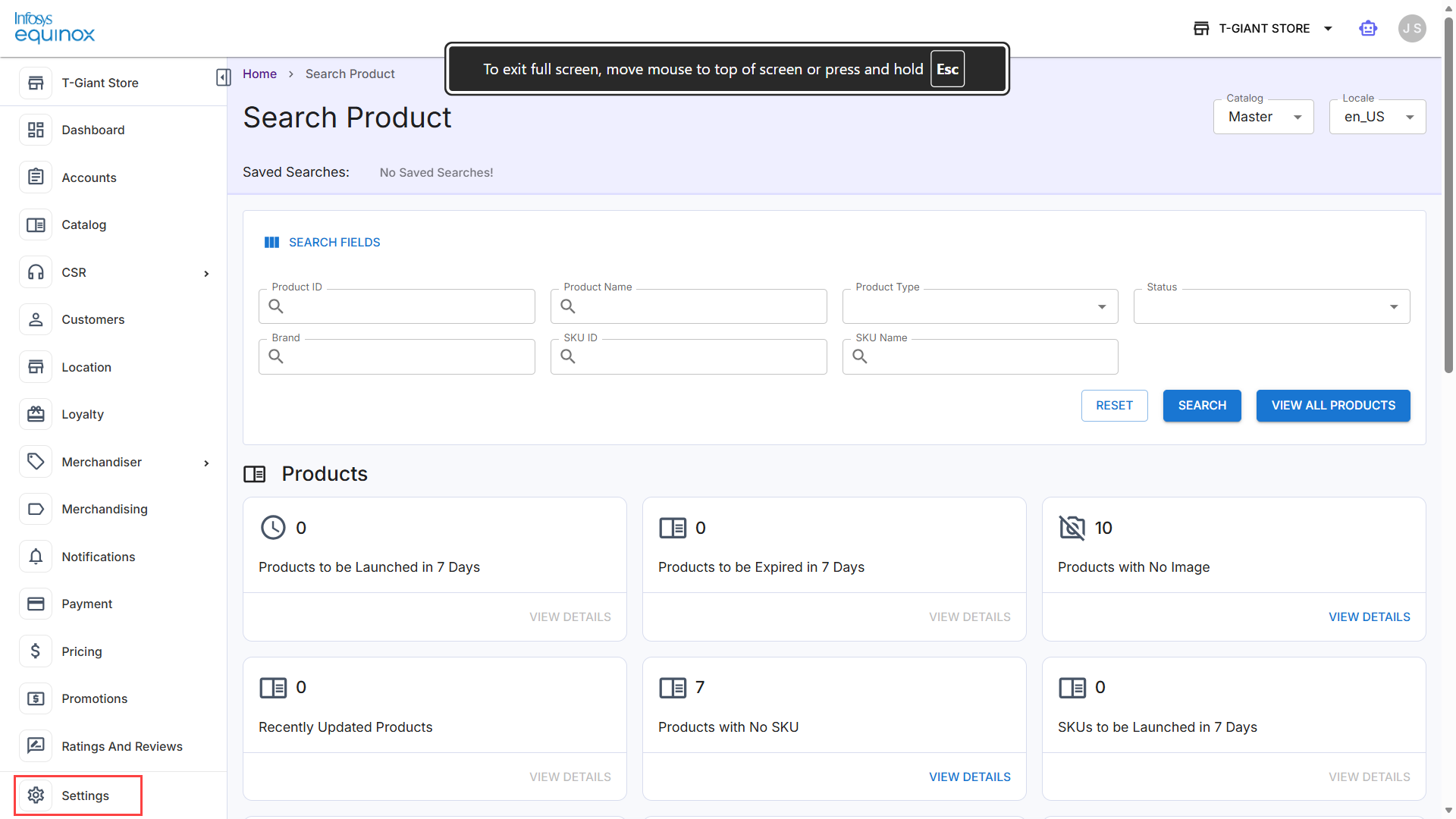
The Settings panel expands to show the following sub-sections:- Quick Actions
- Attributes (expandable: Customer Attributes, Product Attributes, Category Attributes, Price Types)
- Data Models
- Payment
- Shipment
- Click Quick Actions to view the Settings landing page, which displays tiles for all configurable setting categories available for the store.
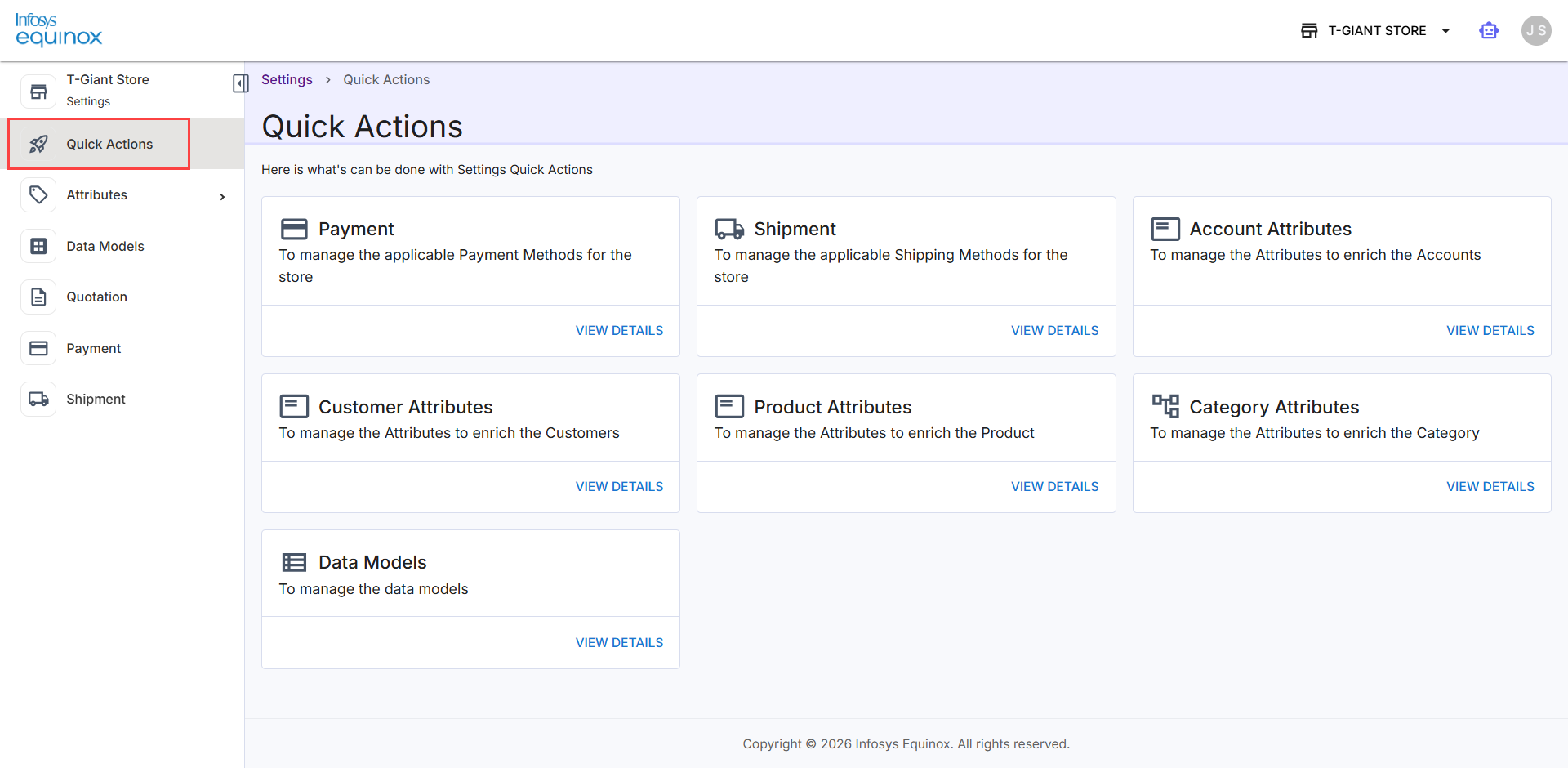
- Click View Details on any tile to navigate directly to that configuration section, or click the section name directly in the left navigation panel.
Setting Up Attributes
The Attributes section in the left navigation panel expands into five sub-sections:
| Sub-section | Description |
| Account Attributes | Define and manage custom fields that extend account (organization or company) records with business-specific data. |
| Customer Attributes | Define and manage custom fields that enrich customer profiles with additional data beyond the platform defaults. |
| Product Attributes | Define and manage custom fields that extend product and SKU records with descriptive or operational data. |
| Category Attributes | Define and manage custom fields that extend product category records with additional metadata. |
| Price Types | Configure the pricing classifications applied to products, enabling differentiated pricing strategies for different customer segments. |
Each sub-section allows administrators to define and manage the custom data fields that extend the corresponding entity type across the store.
Note: For more information, see the video Settings Admin Enhancements.
Account Attributes
Account Attributes extend the default account (organization or company) record with additional custom fields relevant to the business. These attributes support B2B use cases where accounts represent corporate buyers, contract holders, or other organizational entities that require data beyond the platform’s out-of-the-box account fields.
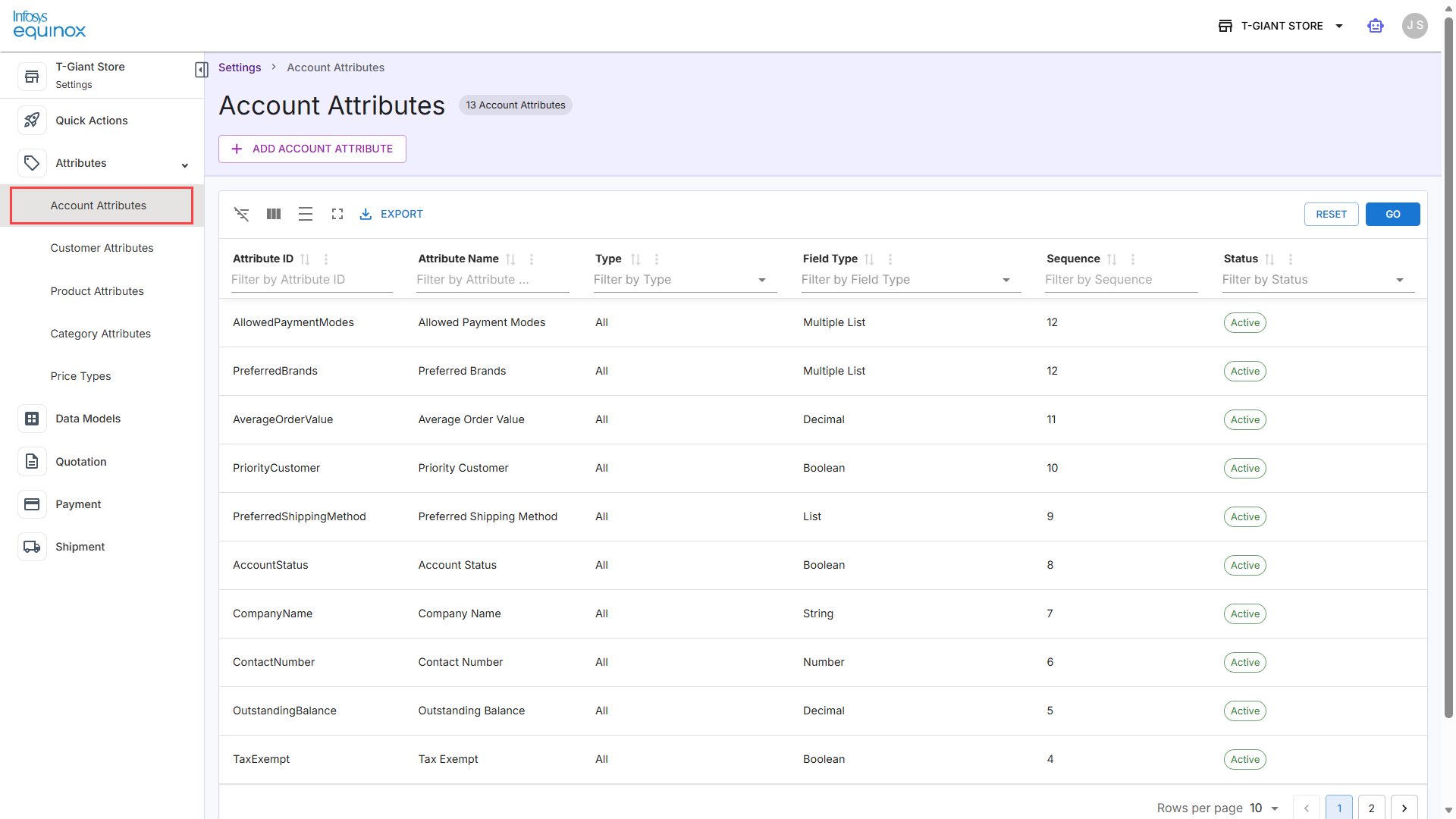
Viewing Account Attributes
- Log in to the Infosys Equinox Admin Console using your credentials.
- On the left navigation panel, click Settings > Attributes > Account Attributes.
The Account Attributes page opens at the path: Settings > Account Attributes.
A badge next to the page title (for example, 6 Account Attributes) indicates the total number of attributes currently configured.The Account Attributes table contains the following columns:
Column Description Attribute ID The unique system identifier for the attribute. Sortable and filterable by text. Attribute Name The human-readable label for the attribute. Sortable and filterable by text. Type The entity scope to which the attribute applies. Possible values include Accounts (account-level only), Contract (contract records), and All (applies across all account-related entity types). Filterable by dropdown. Field Type The data type of the attribute value (for example, Boolean, String, Number). Filterable by dropdown. Sequence The display order of the attribute within the account profile form. Sortable and filterable by text. Status The activation state of the attribute: Active or Inactive. Filterable by dropdown.
Create an Account Attribute
- Log in to the Infosys Equinox Admin Console using your credentials.
- On the left navigation panel, click Settings > Attributes > Account Attributes.
- On the Account Attributes page, click ADD ACCOUNT ATTRIBUTE.
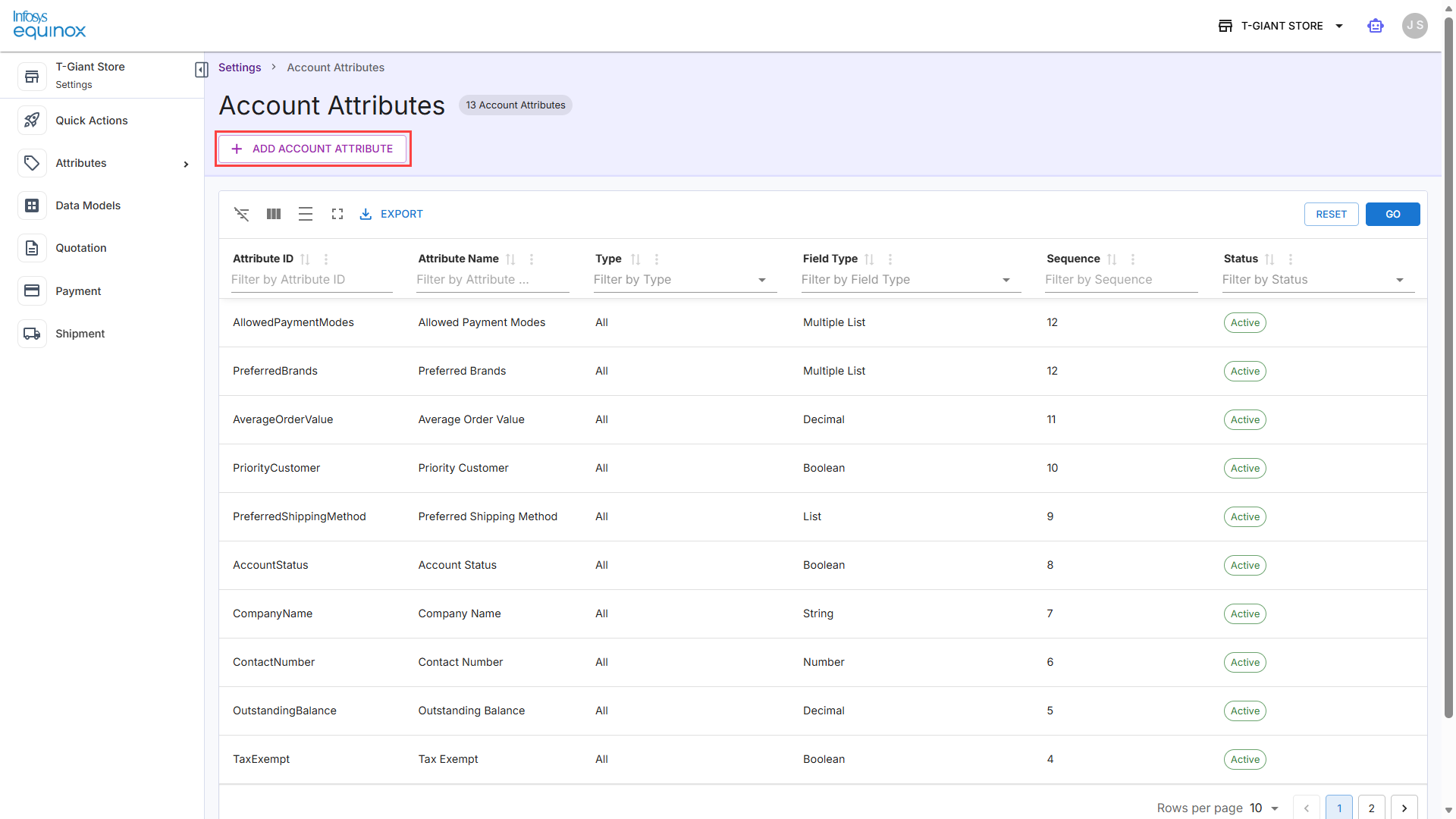
The Add Account Attribute panel opens on the right side of the screen.
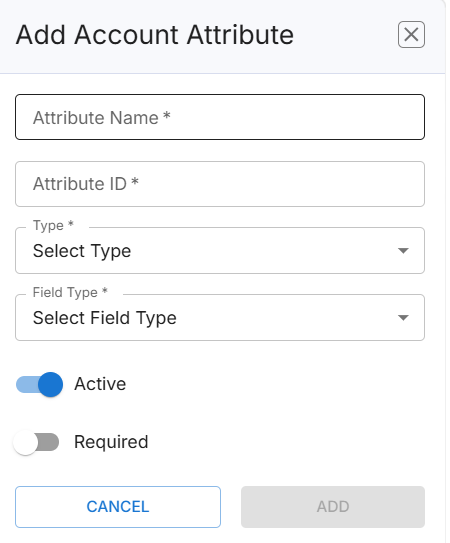
Complete the following required fields:Field Description Notes Attribute Name Enter a human-readable label for the attribute displayed in the account profile UI and admin views. For example: Country Code, Contract Type. Attribute ID Enter a unique system identifier used in API payloads, promotion rule conditions, and integrations.
The Attribute ID is permanent. It cannot be modified after the attribute is created. Choose an ID that follows your organization’s naming conventions.
Use alphanumeric characters only; no spaces (for example: countryCode, contractType). Cannot be changed after the attribute is created. Type Select the entity scope for this attribute using the Select Type dropdown. Select Accounts for account-level data, Contract for contract-related data, or All to apply across all account entity types. Field Type Select the data type of the attribute value using the Select Field Type dropdown. Supported types include Boolean, String, Number, Decimal, List, and others. The selected type determines how the value is stored, validated, and rendered. - Configure the attribute behavior toggles:
Toggle Default Description Active On When enabled, the attribute is active and applied to account records. Disable to temporarily deactivate the attribute without deleting it. Required Off When enabled, a value for this attribute must be provided whenever an account record is created or updated. - Click ADD to create the attribute.
The new attribute appears in the Account Attributes table. To discard the form without saving, click CANCEL.
Edit an Account Attribute
- Log in to the Infosys Equinox Admin Console using your credentials.
- On the left navigation panel, click Settings > Attributes > Account Attributes.
- Locate the attribute in the table.
- Click the attribute name or its row action control. The attribute panel opens.
- Modify the required fields.
- The Attribute ID field cannot be edited after creation.
- Use the row-level action controls to toggle the attribute Status between Active and Inactive.
- Inactive attributes are not applied to account records at runtime.
- Click ADD to save your changes.
Export Account Attributes
- Log in to the Infosys Equinox Admin Console using your credentials.
- On the left navigation panel, click Settings > Attributes > Account Attributes.
- Click EXPORT to download the current attributes list. The export includes all attributes regardless of active filter settings.
Filter the Table
Use the filter row beneath each column header (such as Attribute ID, Attribute Name, Type, Field Type, Sequence, or Status by typing in the respective field. Click GO to apply the filters.
Note: To clear all active filters and return to the default view, click RESET.
Customer Attributes
Customer Attributes extend the default customer profile with additional custom fields relevant to the business (for example, loyalty eligibility flags or CSR-specific identifiers).
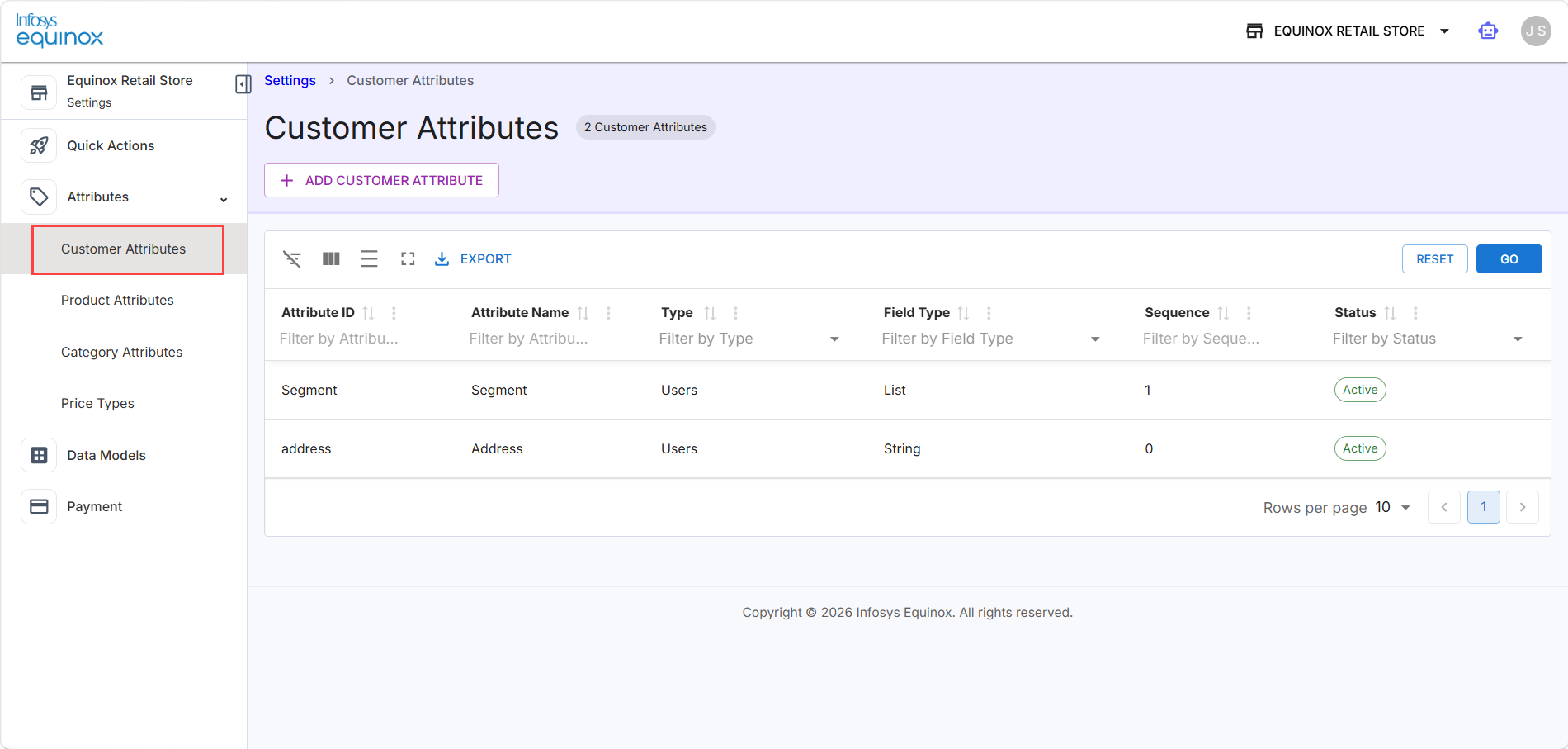
Viewing Customer Attributes
- Log in to the Infosys Equinox Admin Console using your credentials.
- On the left navigation panel, click Settings > Attributes > Customer Attributes.
The Customer Attributes page opens at the path: Settings > Customer Attributes. A badge next to the page title (for example, 6 Customer Attributes) indicates the total number of attributes currently configured.
The Customer Attributes table displays the following details:
| Column | Description |
| Attribute ID |
A unique system identifier for the attribute used in promotion rule conditions and integrations (for example, loyalty_member). Use alphanumeric characters and underscores; no spaces. This value cannot be changed after creation. |
| Attribute Name | The human-readable name of the attribute that appears in the customer profile UI and admin views (for example, Loyalty Member). |
| Type |
The entity type this attribute is associated with. For customer attributes, select Users. |
| Field Type |
The data type of the attribute value. Select from the options listed in the Field Type reference table below. |
| Sequence | The display order of the attribute within the customer profile form. Sortable and filterable. |
| Status | The activation state of the attribute: Active or Inactive. Filterable by dropdown. |
Create a Customer Attribute
To create a new customer attribute,
- Log in to the Infosys Equinox Admin Console using your credentials.
- On the left navigation panel, click Settings > Attributes > Customer Attributes.
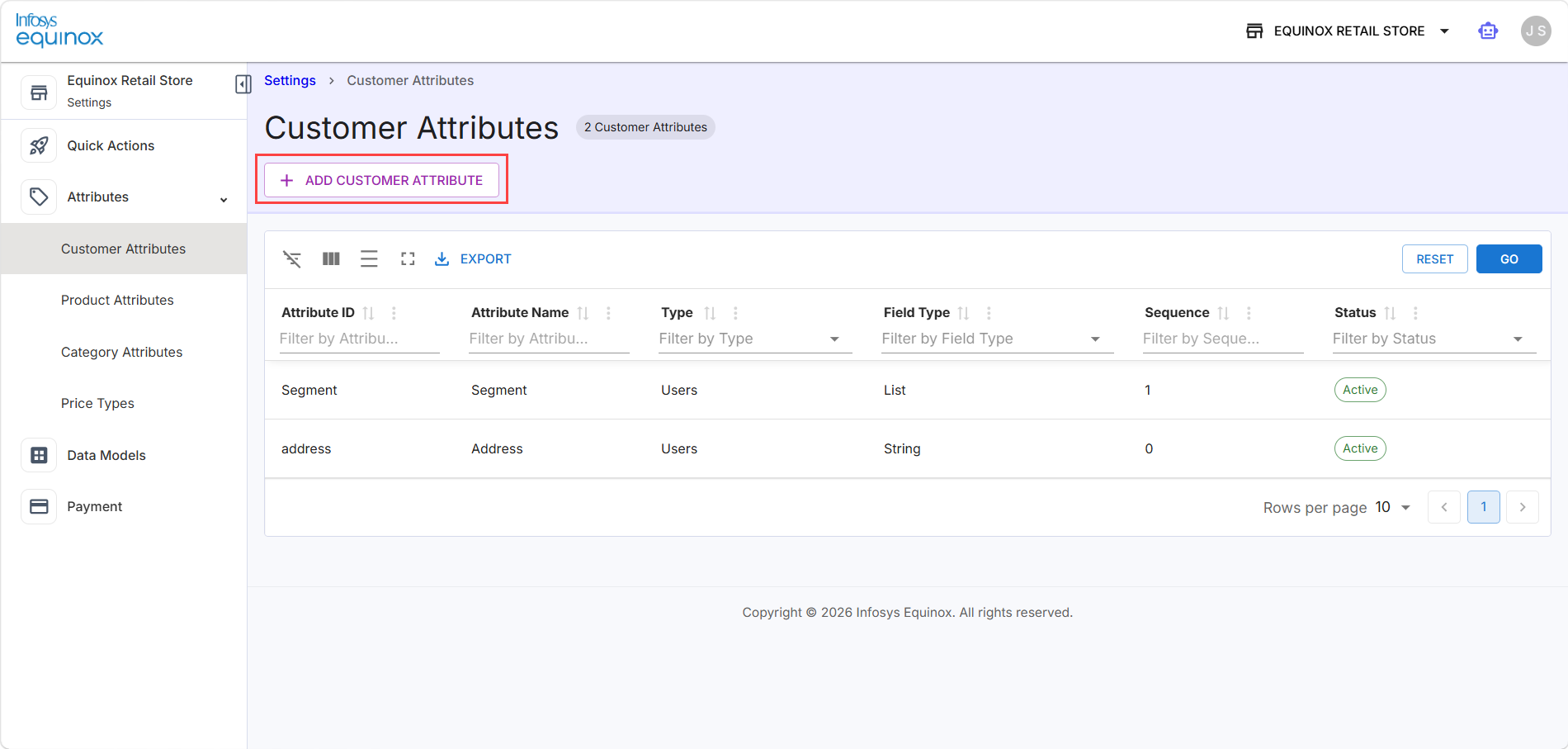
- On the Customer Attributes page, click ADD CUSTOMER ATTRIBUTE.
- Complete the attribute form as shown in the screenshot below:
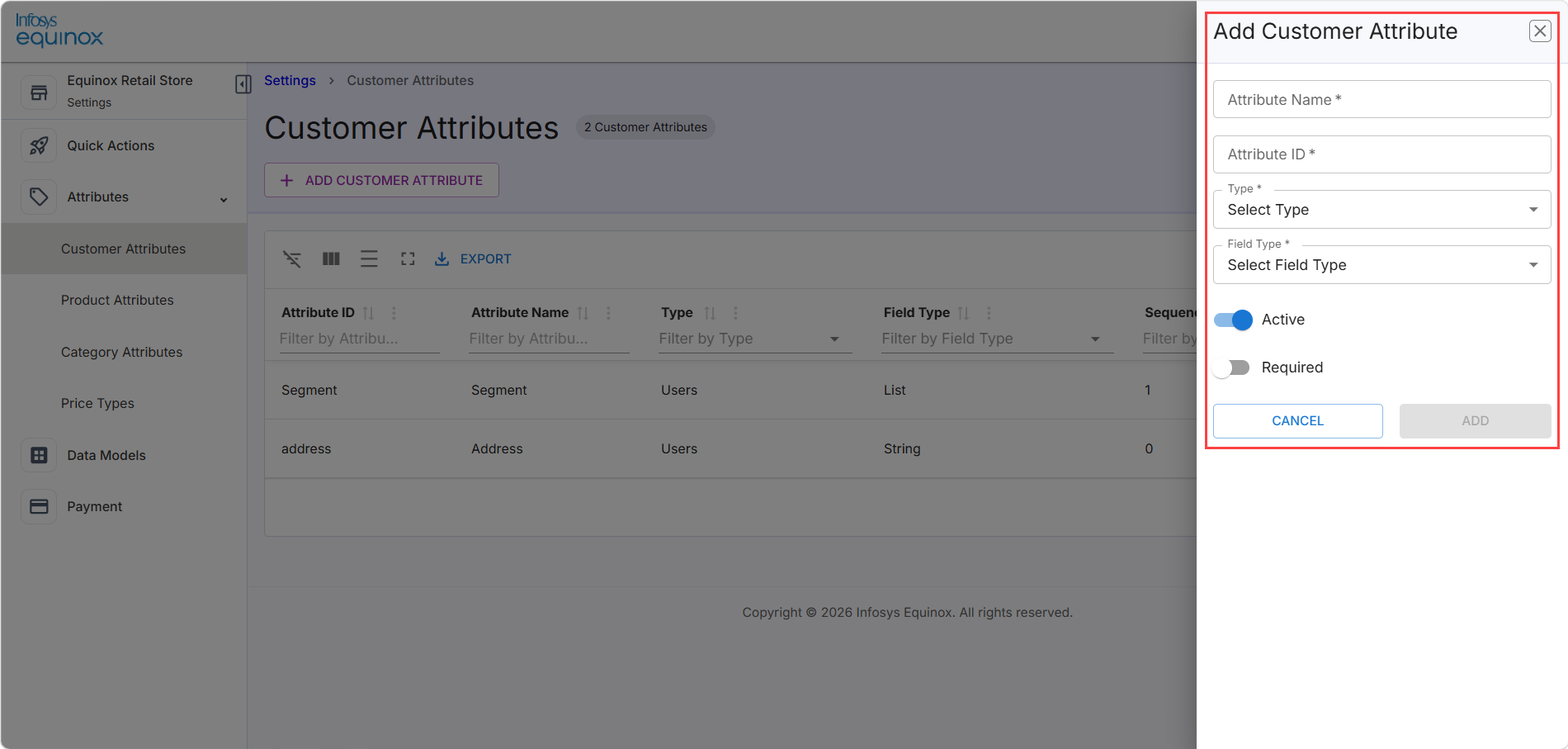
The following fields to be filled:
- Attribute ID – Enter a unique identifier (alphanumeric, no spaces).
- Attribute Name – Enter a human-readable label.
- Field Type – Select the data type (for example, Boolean, String, Number). For more information, see the Field Type Reference section.
- Sequence – Enter a numeric sequence value to control display order.
- Click Save to create the attribute. It will appear in the table with Active status.
Field Type Reference
The Field Type dropdown determines the kind of data the attribute stores and how it is rendered in forms and processed in integrations.
| Field Type | Description | Example Use Case |
| Boolean | Stores a true/false (yes/no) value. Renders as a toggle or checkbox in the customer profile form. | isLoyaltyEnabled, marketingOptIn |
| Date | Stores a calendar date value (without time). Renders as a date picker. | membershipExpiryDate, dateOfBirth |
| Decimal | Stores a numeric value that supports decimal places. Use for monetary amounts or fractional quantities. | creditBalance, discountRate |
| Stores a value validated as an email address format. Renders as a text input with email validation. | secondaryEmail, billingContactEmail | |
| List | Stores a single value selected from a predefined list of allowed values. Renders as a dropdown. | customerTier (Bronze, Silver, Gold), preferredLanguage |
| Multiple List | Stores multiple values selected from a predefined list of allowed values. Renders as a multi-select control. | preferredCategories, subscribedNotifications |
| Number | Stores a whole integer numeric value without decimal places. | loyaltyPoints, referralCount |
| String | Stores free-form text of any length. Renders as a plain text input. | csrNotes, externalCustomerID, companyName |
Edit a Customer Attribute
To edit a customer attribute,
- Log in to the Infosys Equinox Admin Console using your credentials.
- On the left navigation panel, click Settings > Attributes > Customer Attributes.
- Locate the attribute in the table.
- Click the attribute name or its row action control.
- Modify the required fields.
- For details on field type dropdown values, see the Field Type Reference section.
- Toggle the attribute Status between Active and Inactive. Inactive attributes are not applied to customer profiles at runtime.
- Click Save.
Export Customer Attributes
To export payment methods from the customer attributes list page,
- Log in to the Infosys Equinox Admin Console using your credentials.
- On the left navigation panel, click Settings > Attributes > Customer Attributes.
- Click EXPORT to download the list in the available export format. The export includes all methods currently visible in the table, subject to any active filters.
Filter the Table
Use the filter row beneath each column header (such as Attribute ID, Attribute Name, Type, Field Type, Sequence, or Status by typing in the respective field. Click GO to apply the filters.
Note: To clear all active filters and return to the default view, click RESET.
Product Attributes
Product Attributes extend the default product and SKU records with additional descriptive or operational data specific to the business. These attributes are also available as filter facets in catalog search and as rule conditions in the Promotions microservice.
After creating the attribute, add it to the Product Attributes Group to enable it at the product or SKU level.
The Product Attributes page is organized into the following tabs:
| Tab | Description |
| PRODUCT ATTRIBUTES |
The default view listing all individual product and SKU-level attributes. After the attributes are created, the attributes must be group via the Product Attributes Group.
|
| PRODUCT ATTRIBUTES GROUP | Manage logical groupings of product attributes for organized display on product detail pages. |
| VARIANT ATTRIBUTES GROUP | Manage groupings of attributes specific to SKU variants (for example, size, color). |
| IMPORT |
Bulk import product attributes from an XLSX file.
|
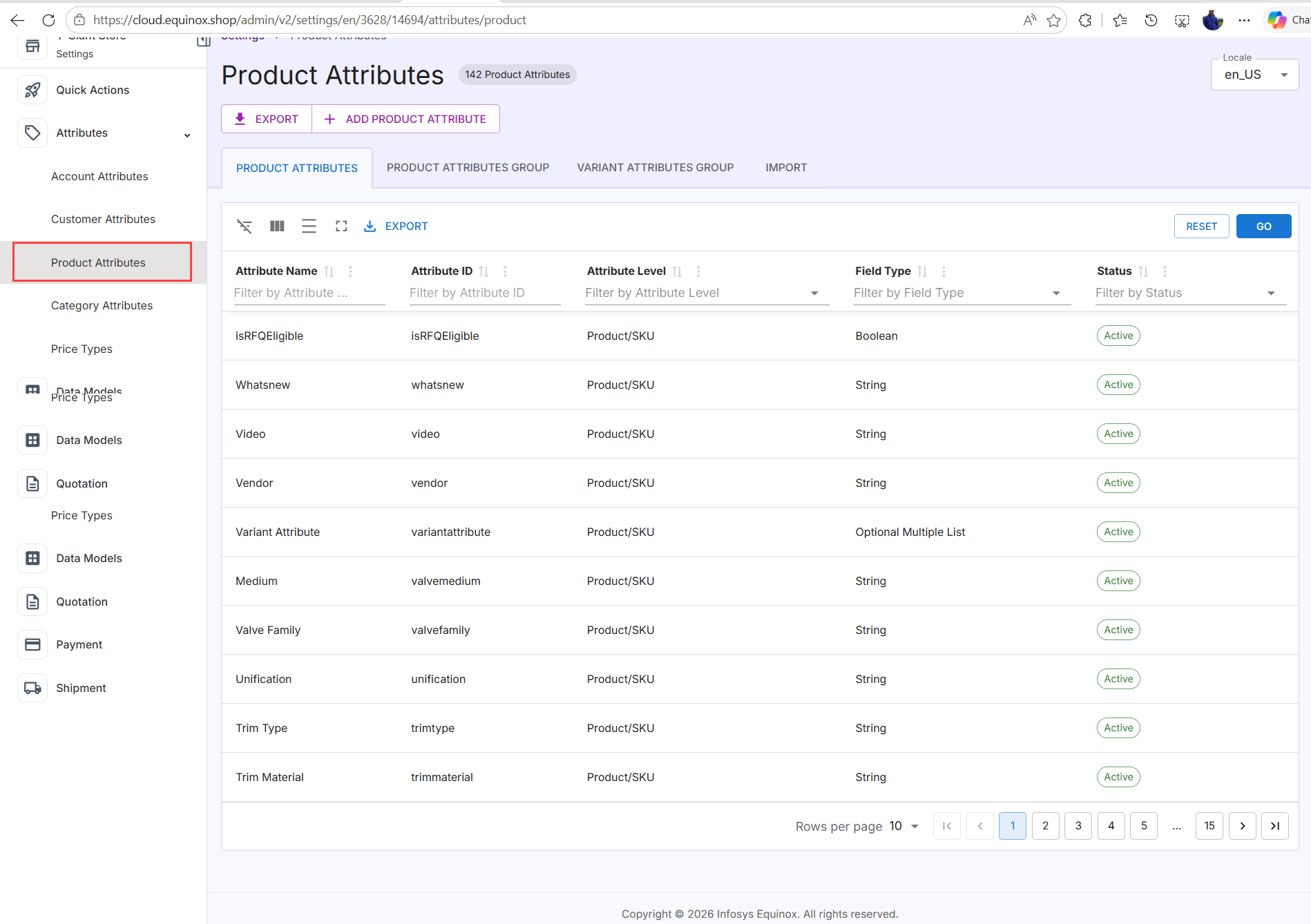
Viewing Product Attributes
- Log in to the Infosys Equinox Admin Console using your credentials.
- On the left navigation panel, click Settings > Attributes > Product Attributes.
- The Product Attributes page opens at the path: Settings > Product Attributes. A badge next to the page title (for example, 30 Product Attributes) indicates the total count of configured attributes.
- A Locale dropdown in the top-right corner controls the locale context for locale-specific attributes.
The Product Attributes table displays the following details:
| Column | Description |
| Attribute Name | The human-readable name of the attribute displayed on product pages. Sortable and filterable by text. |
| Attribute ID | The unique system identifier for the attribute, used in API calls and integrations. Sortable and filterable by text. |
| Attribute Level | The scope at which the attribute applies. Common values include Products (product-level) and Product/SKU (both product and variant level). Filterable by dropdown. |
| Field Type | The data type of the attribute value. Supported types include String, List, Decimal, Model, Boolean, and others. Filterable by dropdown. |
| Status | The activation state of the attribute: Active or Inactive. Filterable by dropdown. |
Create a Product Attribute
When creating a store, default product attributes are generated automatically. In addition, custom product attributes can be created based on business requirements.
To create a new custom product attribute,
- Log in to the Infosys Equinox Admin Console using your credentials.
- On the left navigation panel, click Settings > Attributes > Product Attributes.
- On the PRODUCT ATTRIBUTES tab, click ADD PRODUCT ATTRIBUTE.
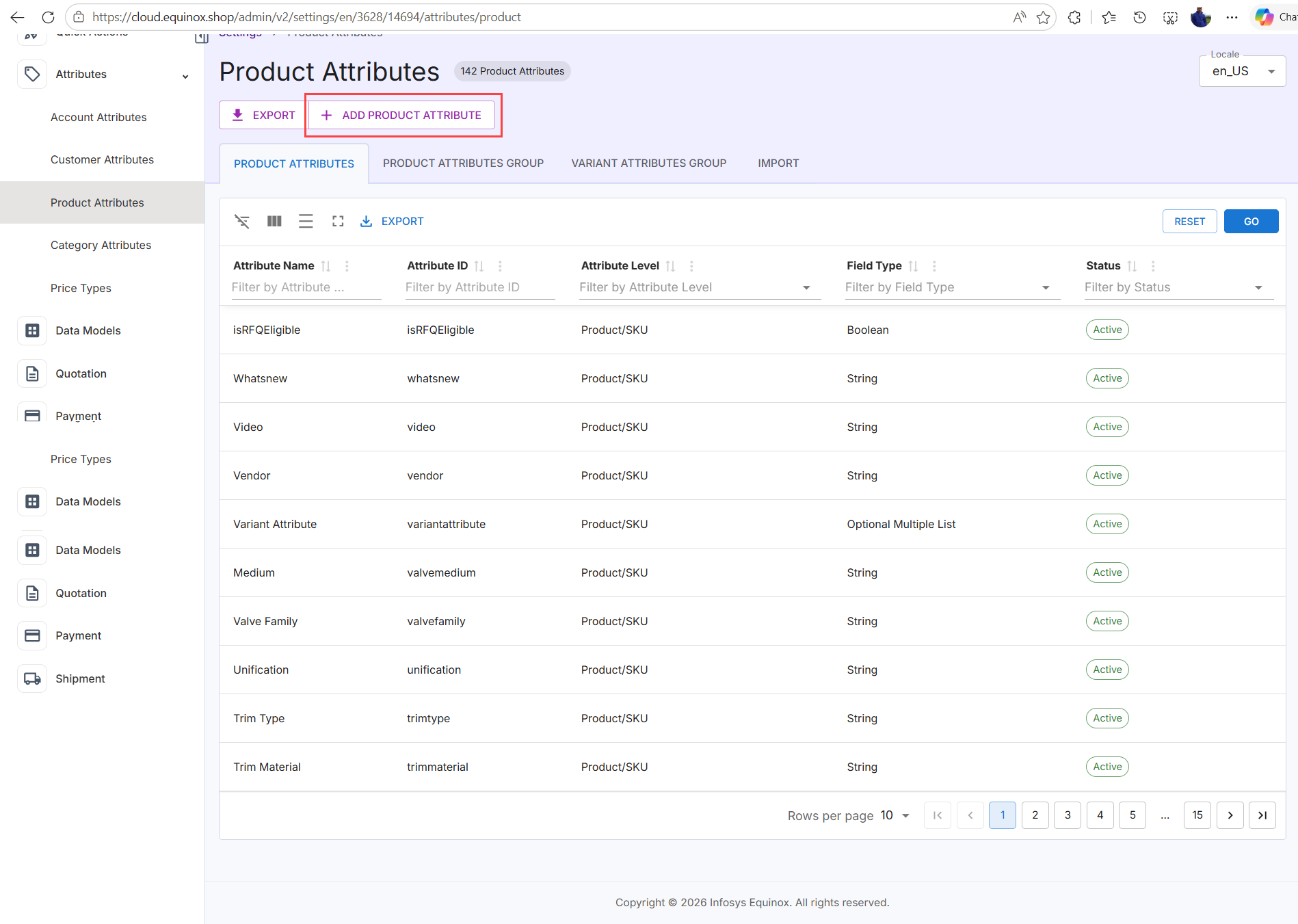
- In the Add Product Attribute panel that opens on the right, complete the form:
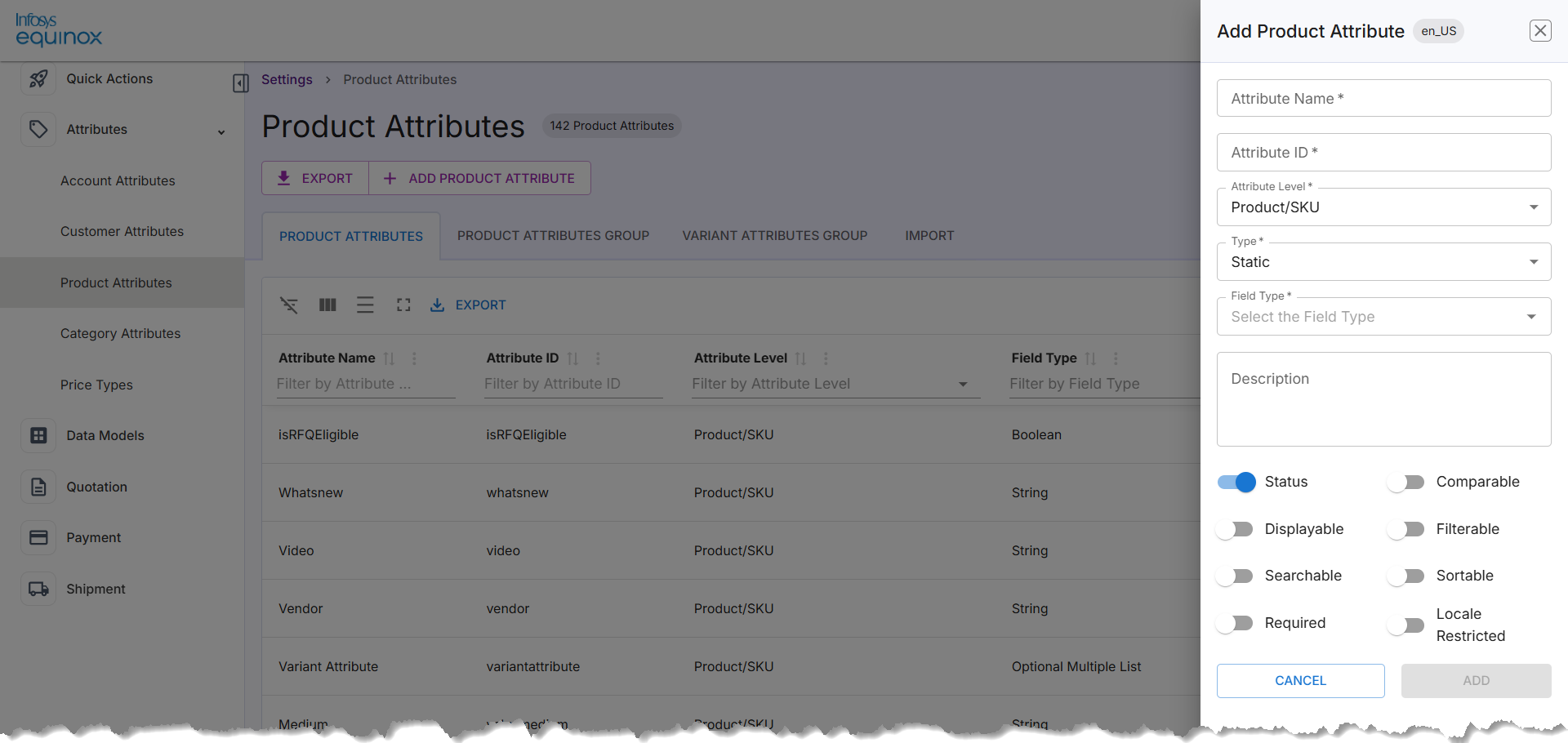
The following table describes the above form:
Field Description Attribute Name Enter a human-readable label for the attribute. Attribute ID Enter a unique system identifier (alphanumeric) Attribute Level Select the scope. Defaults to Product/SKU. Type Select the attribute type. Defaults to Static. Field Type Select the data type (for example, String, List, Decimal, Boolean, Model). Description Enter an optional description for the attribute. - Configure the attribute behavior toggles:
Toggle Default Description Status On When enabled, the attribute is active and applied to product records. Comparable Off When enabled, the attribute can be used in product comparison. Displayable Off When enabled, the attribute is displayed on the product detail page. Filterable Off When enabled, the attribute is available as a filter facet in catalog search. Searchable Off When enabled, the attribute is indexed for search. Sortable Off When enabled, product lists can be sorted by this attribute. Required Off When enabled, the attribute must be populated on every product or SKU record. Locale Restricted Off When enabled, the attribute value is locale-specific. - Click ADD to create the attribute.
After the attributes are created, the attributes must be group via the Product Attributes Group.
Note: To discard the changes, click CANCEL.
Edit a Product Attribute
To edit a product attribute,
- Log in to the Infosys Equinox Admin Console using your credentials.
- On the left navigation panel, click Settings > Attributes > Product Attributes.
- Locate the attribute in the table.
- Click the attribute row or its row action control.
- Modify the required fields in the edit panel.
- Use the row-level action controls to toggle the attribute Status between Active and Inactive.
- Inactive attributes are not applied to product records or available as promotion rule conditions.
- Click ADD to save your changes.
Filter the Table
Use the filter row beneath each column header (such as Attribute ID, Attribute Name, Attribute Level, Type, Field Type, or Status by typing in the respective field. Click GO to apply the filters.
Note: To clear all active filters and return to the default view, click RESET.
Export Product Attributes
- Log in to the Infosys Equinox Admin Console using your credentials.
- On the left navigation panel, click Settings > Attributes > Product Attributes.
- Click EXPORT at the top of the page to download all product attributes.
Note: To download the currently filtered view, click EXPORT in the table toolbar.
Default Product Attributes
This table lists all default (STATIC) product attributes configured in the Infosys Equinox platform. Default attributes are system-defined fields that apply universally to products and SKUs across the catalog. They control how products are described, discovered, priced, shipped, and displayed on the storefront. These attributes cannot be deleted and form the foundation of the product data model.
| Attribute ID | Type | Required | Field Type | Level | Filterable | Searchable | Sortable | Status | Attribute Name | Validation Data | Model ID | Parent Model ID | Attribute's Role in the Catalog |
|---|---|---|---|---|---|---|---|---|---|---|---|---|---|
agelimit | STATIC | false | NUMBER | false | false | false | ACTIVE | Age Limit | 1to100 | -- | -- | Minimum age requirement for purchasing or using the product (e.g., 18+ items). | |
brand | STATIC | false | STRING | true | true | false | ACTIVE | Brand | 1to9999 | -- | -- | The manufacturer or brand name associated with the product. | |
channel | STATIC | false | ENUM | Product | false | false | false | ACTIVE | Channel | Online,Offline | -- | -- | Sales channel through which the product is available (Online, Offline, or both). |
color | STATIC | false | STRING | true | true | false | ACTIVE | Color | 1to9999 | -- | -- | The color of the product, used for filtering and search. | |
dateOfAvailablity | STATIC | false | DATE | false | false | false | ACTIVE | dateOfAvailablity | -- | -- | The date from which the product becomes available for purchase. | ||
daysToShip | STATIC | false | ENUM | Product | false | false | false | ACTIVE | Days To Ship | 1to9999 | -- | -- | Estimated number of days required to ship the product after order placement. |
defaultproductcategoryid | STATIC | false | STRING | false | false | false | ACTIVE | Default Product Category ID | 1to100 | def | -- | The default category this product belongs to in the catalog hierarchy. | |
description | STATIC | false | STRING | false | false | false | ACTIVE | Description | 1to5000 | -- | -- | Full textual description of the product shown on the product detail page. | |
enableVirtualInventory | STATIC | false | BOOLEAN | true | false | false | ACTIVE | EnableVirtualInventory | -- | -- | Flag to enable virtual/unlimited inventory tracking for the product. | ||
fulfilmentType | STATIC | false | ENUMMULTISELECT | false | false | false | ACTIVE | Fulfilment Type | Physical | -- | -- | Method used to fulfill the order (e.g., Physical delivery). | |
isOverriddenProduct | STATIC | false | BOOLEAN | false | false | false | ACTIVE | IsOverriddenProduct | -- | -- | Indicates if this product's details have been overridden from a base/parent product. | ||
isPreOrder | STATIC | false | BOOLEAN | true | false | false | ACTIVE | isPreOrder | -- | -- | Marks the product as available for pre-order before its official release date. | ||
itemBreadth | STATIC | false | FLOAT | Product | false | false | false | ACTIVE | Item Breadth | 1to1000-2 | -- | -- | Physical breadth (depth/front-to-back dimension) of the product, in specified units. |
itemHeight | STATIC | false | FLOAT | Product | false | false | false | ACTIVE | Item Height | 1to1000-2 | -- | -- | Physical height of the product, used for shipping and display purposes. |
itemWeight | STATIC | false | FLOAT | Product | false | false | false | ACTIVE | Item Weight | 1to1000-2 | -- | -- | Physical weight of the product, used for shipping cost calculation. |
itemWidth | STATIC | false | FLOAT | Product | false | false | false | ACTIVE | Item Width | 1to1000-2 | -- | -- | Physical width of the product, used for packaging and shipping. |
keyword | STATIC | false | STRING | false | false | false | ACTIVE | Keyword | 1to5000 | -- | -- | Search keywords associated with the product to improve discoverability. | |
maxpurchasequantity | STATIC | false | NUMBER | false | false | false | ACTIVE | Max Purchase Quantity | 1to1000 | -- | -- | Maximum number of units a customer can purchase in a single order. | |
metadescription | STATIC | false | STRING | Product | false | true | false | ACTIVE | Meta Description | 1to9999 | -- | -- | SEO meta description for the product page, used by search engines. |
minpurchasequantity | STATIC | false | NUMBER | false | false | false | ACTIVE | Min Purchase Quantity | 1to1000 | -- | -- | Minimum number of units a customer must purchase in a single order. | |
name | STATIC | false | STRING | false | false | false | ACTIVE | Name | 1to5000 | -- | -- | The display name of the product shown across the storefront. | |
pagetitle | STATIC | false | STRING | Product | false | false | false | ACTIVE | Page Title | 1to9999 | -- | -- | SEO page title for the product detail page, displayed in browser tabs and search results. |
productFamily | STATIC | false | STRING | Product | false | false | false | ACTIVE | Product Family | 1to9999 | -- | -- | The broader product family or line this product belongs to. |
sellerdiscount | STATIC | false | NUMBER | false | false | false | ACTIVE | Seller Overridden Discount | 1to1000 | -- | -- | Seller-specific discount percentage applied on top of standard pricing. | |
shippingClass | STATIC | false | STRING | false | false | false | ACTIVE | Shipping Class | 1to1000 | -- | -- | Shipping category that determines applicable shipping rates and rules. | |
size | STATIC | false | STRING | true | true | false | ACTIVE | Size | 1to9999 | -- | -- | The size specification of the product (e.g., S/M/L or numerical dimensions). | |
soldBy | STATIC | false | STRING | Product | false | false | false | ACTIVE | Sold By | 1to9999 | sol | -- | The seller or vendor responsible for fulfilling orders of this product. |
tagGroupId | STATIC | false | MODEL | Product | false | false | false | ACTIVE | Tag Group | true | tag_group | tag | Reference to the tag group this product tag belongs to. |
tagName | STATIC | false | STRING | Product | false | false | false | ACTIVE | Tag Name | 1to9999 | tag_a | tag | The display name of a tag associated with the product. |
tagVisible | STATIC | false | STRING | Product | false | false | false | ACTIVE | Visible | 1to9999 | tag_is | tag | Controls whether the tag is visible to customers on the storefront. |
tag_group_description | STATIC | false | STRING | Product | false | false | false | ACTIVE | Description | 1to9999 | -- | tag_group | Descriptive text for the tag group, explaining its purpose. |
tag_group_name | STATIC | false | STRING | Product | false | false | false | ACTIVE | Tag Group Name | 1to9999 | tag_group_tag | tag_group | The name of the tag group used to organize related product tags. |
tags | STATIC | false | MODEL | Product | false | false | false | ACTIVE | Tags | true | tag | -- | Collection of tags assigned to the product for categorization and filtering. |
taxClass | STATIC | false | STRING | Product | false | false | false | ACTIVE | Tax Class | 1to9999 | -- | -- | Tax classification of the product, determining applicable tax rates. |
taxCode | STATIC | false | STRING | Product | false | false | false | ACTIVE | Tax Code | 1to9999 | -- | -- | Specific tax code used for tax calculation and compliance reporting. |
|
Note:
|
Product Attributes Group
The PRODUCT ATTRIBUTES GROUP tab lists logical groupings of product attributes. Attribute groups control how attributes are organized on product detail pages in the admin console and on the Storefront.
Note: Before creating a product attribute group, create the product attributes.
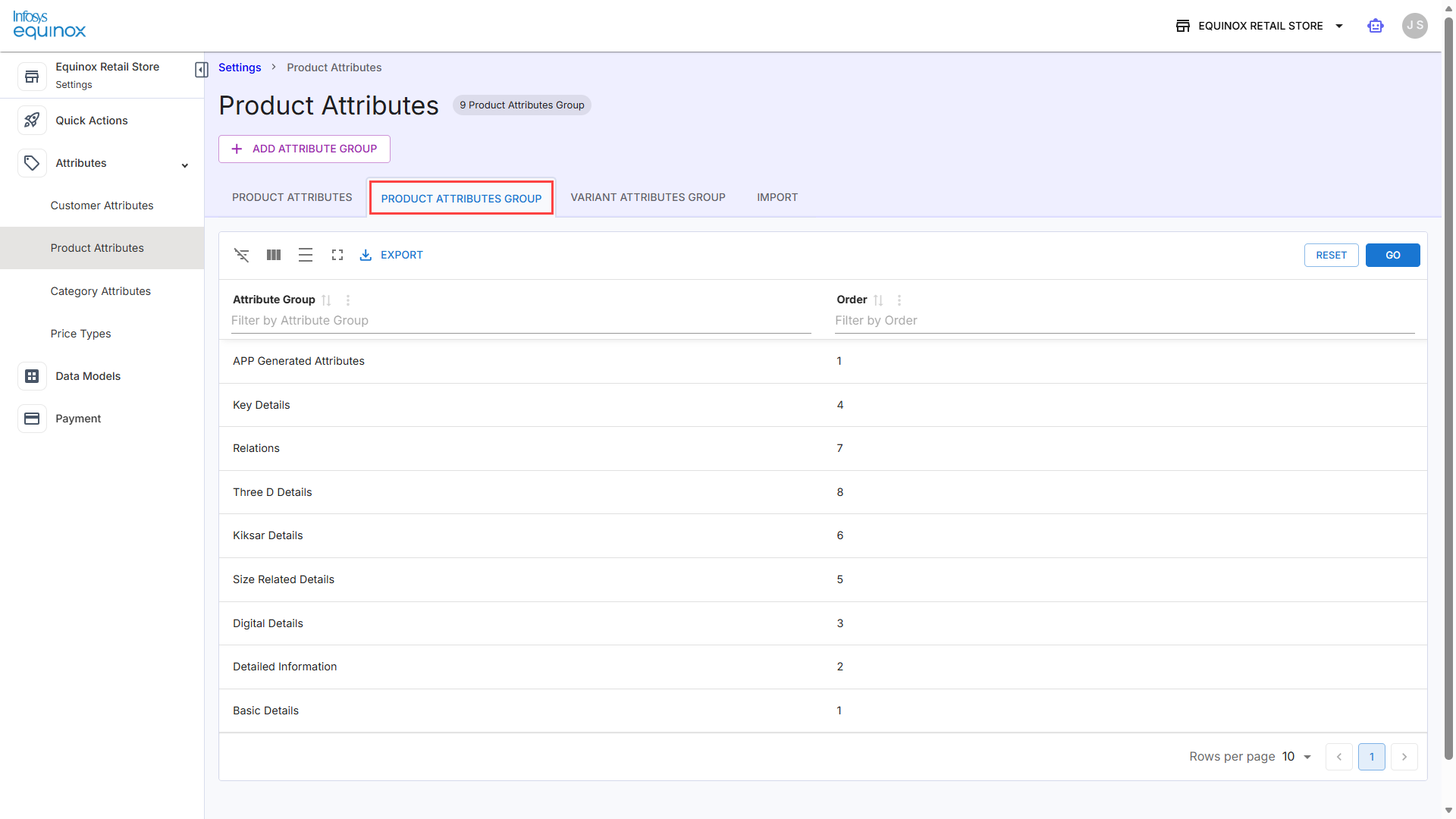
Viewing Product Attributes Group
- Log in to the Infosys Equinox Admin Console using your credentials.
- On the left navigation panel, click Settings > Attributes > Product Attributes.
- On the Product Attributes page, click the PRODUCT ATTRIBUTES GROUP tab. A badge next to the page title updates to reflect the count of existing attribute groups (for example, 3 Product Attributes Group). The table displays Attribute Group and Order columns.
The Product Attributes Group table displays the following details:
Column Description Attribute Group The name of the product attribute group. Filterable by text using the Filter by Attribute Group field. Order The numeric display order of the group. Filterable by text using the Filter by Order field.
Note: If no attributes have been added, the panel displays No Attribute Added. Use the Add Attribute dropdown to assign attributes before saving.
Create a Product Attribute Group
- Log in to the Infosys Equinox Admin Console using your credentials.
- On the left navigation panel, click Settings > Attributes > Product Attributes.
- On the Product Attributes page, click the PRODUCT ATTRIBUTES GROUP tab.
- Click ADD ATTRIBUTE GROUP.
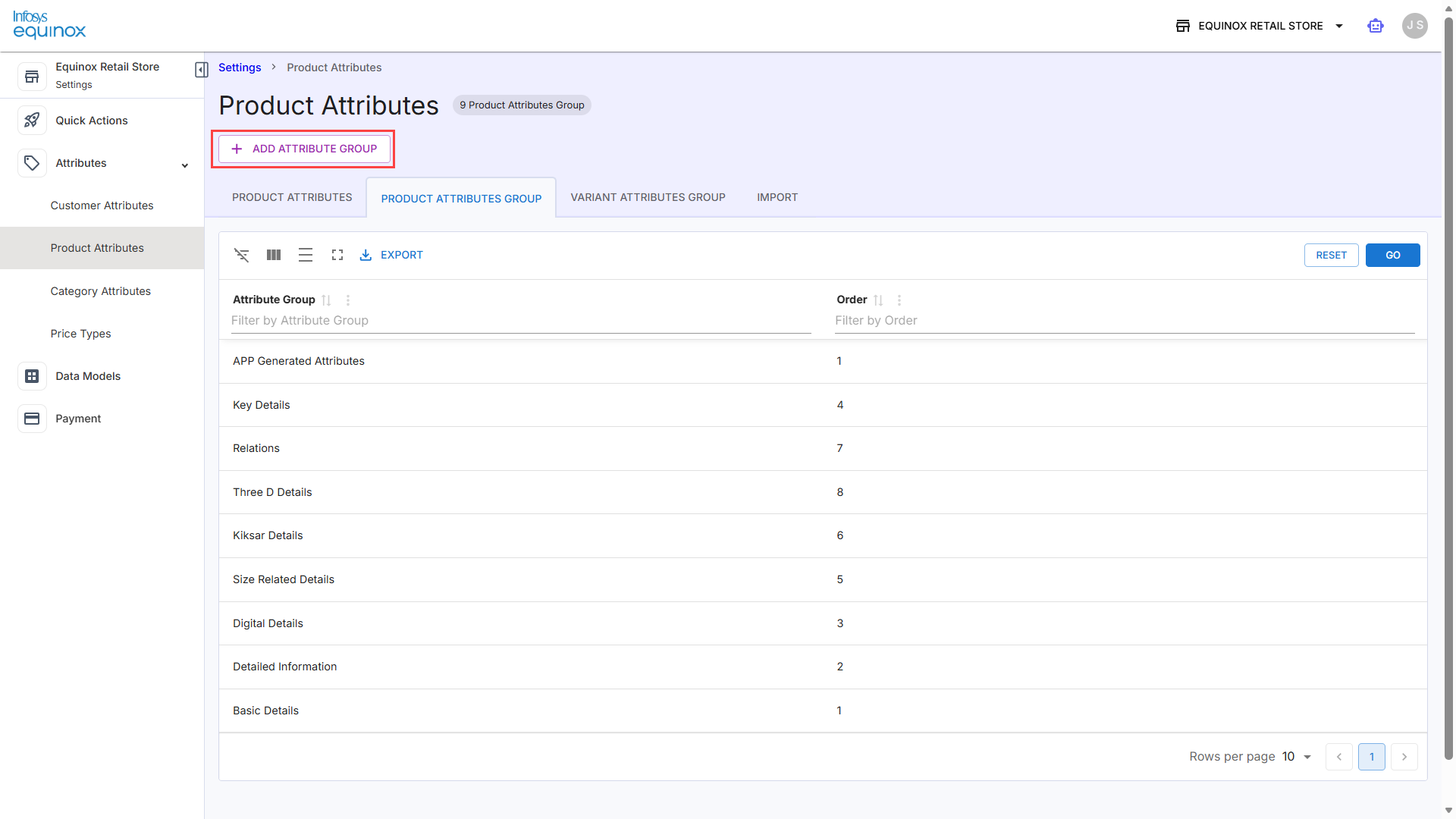
- In the Add Attribute Group panel, complete the form as shown in the screenshot:
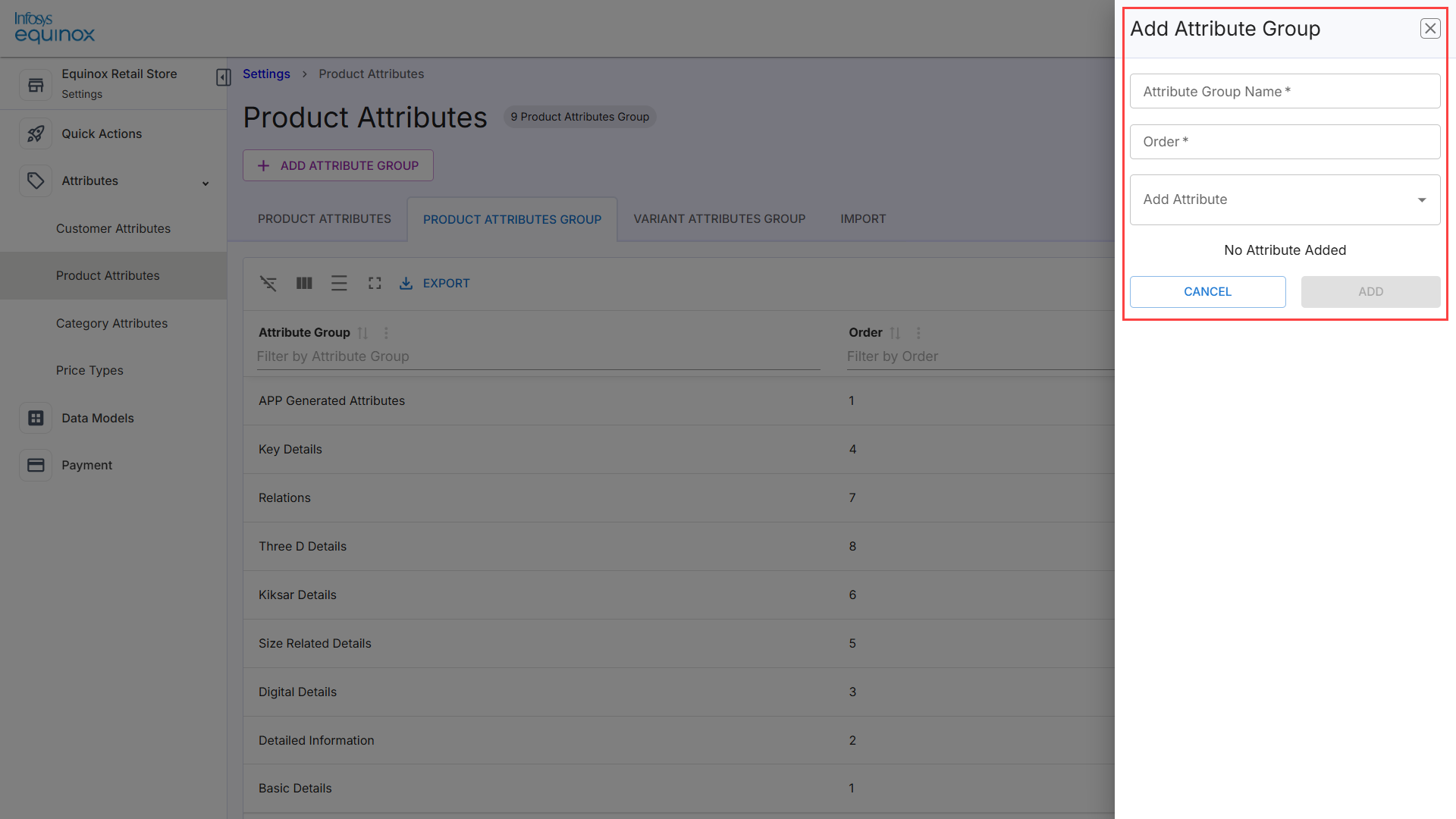
The below table describes the fields in the Add Attribute Group panel:
Field Description Attribute Group Name Enter a unique name for the attribute group. Order Enter a numeric value to control the display order of the group. Add Attribute Select one or more existing product attributes to assign to this group using the dropdown.
Note: Only the created product attributes appear in the dropdown list.
- Click ADD to save the group.
Note: To discard the changes, click CANCEL.
Variant Attributes Group
The VARIANT ATTRIBUTES GROUP tab manages groupings of SKU-level variant attributes (for example, size or color variants grouped under a shared label). These groups appear in the Variant Attributes Group context of product variant records.
Note: Before creating a variant attribute group, create the attributes at the product/SKU or SKU level.
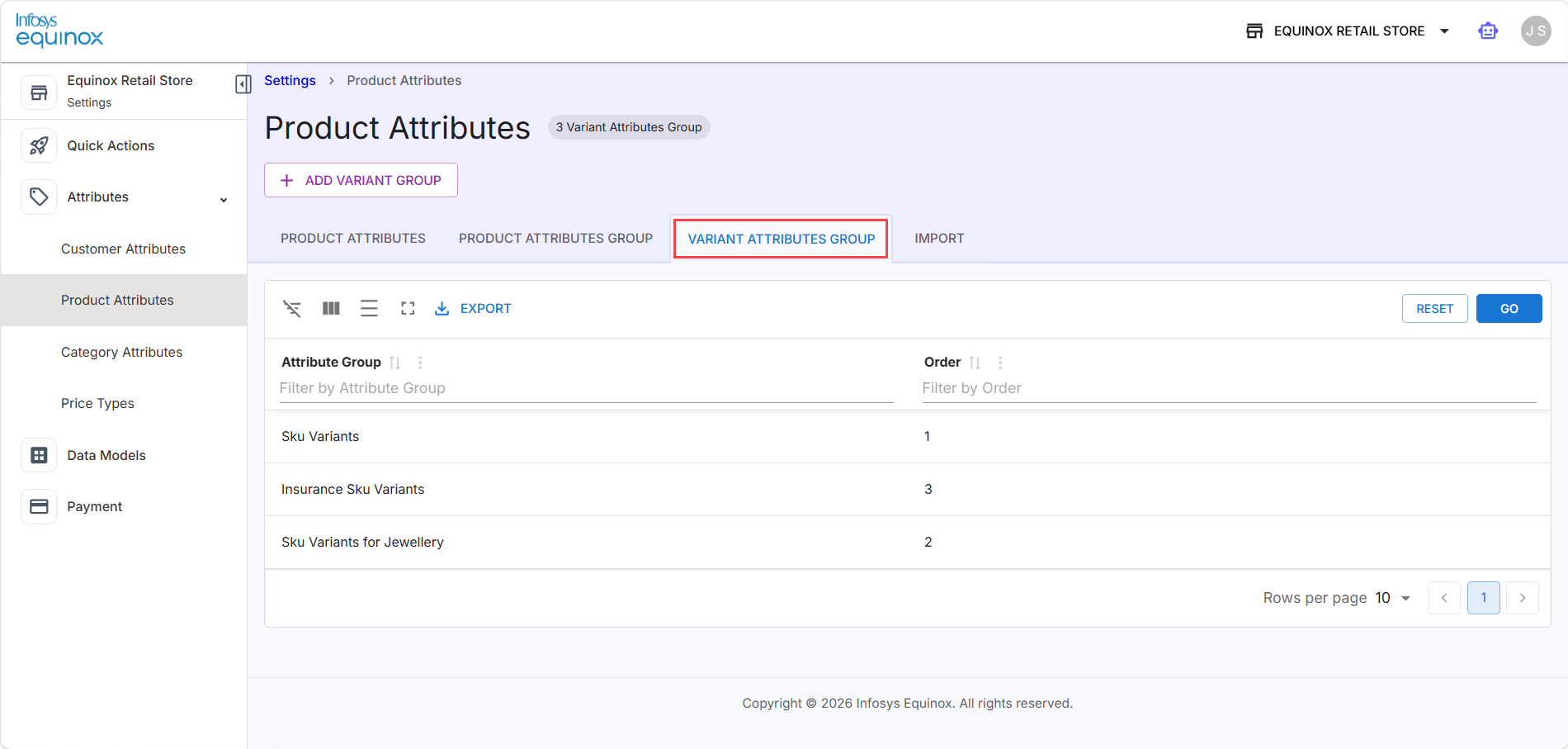
Viewing Variant Attributes Group
- Log in to the Infosys Equinox Admin Console using your credentials.
- On the left navigation panel, click Settings > Attributes > Product Attributes.
- On the Product Attributes page, click the VARIANT ATTRIBUTES GROUP tab.
A badge next to the page title updates to reflect the count of existing variant attribute groups (for example, 3 Variant Attributes Group). The table displays Attribute Group and Order columns with existing groups such as Tax, Shipping, and Vendor.
The Attribute Group table displays the following details:Column Description Attribute Group The name of the variant attribute group. Filterable by text using the Filter by Attribute Group field. Order The numeric display order of the group. Filterable by text using the Filter by Order field.
Note: If no attributes have been added, the panel displays No Attribute Added. Use the Add Attribute dropdown to assign attributes before saving.
Create a Variant Attribute Group
- Log in to the Infosys Equinox Admin Console using your credentials.
- On the left navigation panel, click Settings > Attributes > Product Attributes.
- On the Product Attributes page, click the VARIANT ATTRIBUTES GROUP tab.
- Click ADD VARIANT GROUP.
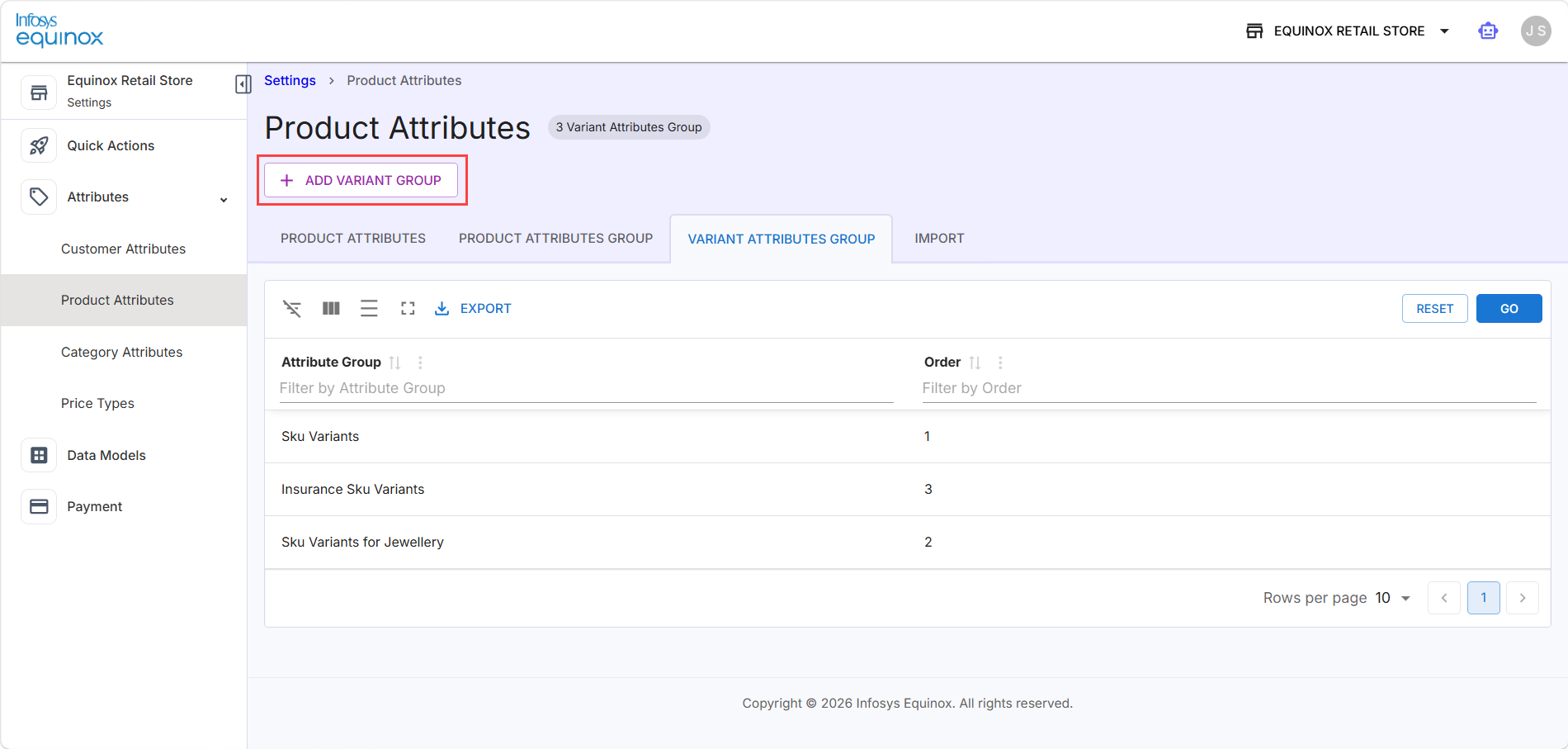
- In the Add Variant Group panel, complete the form as shown in the screenshot below:
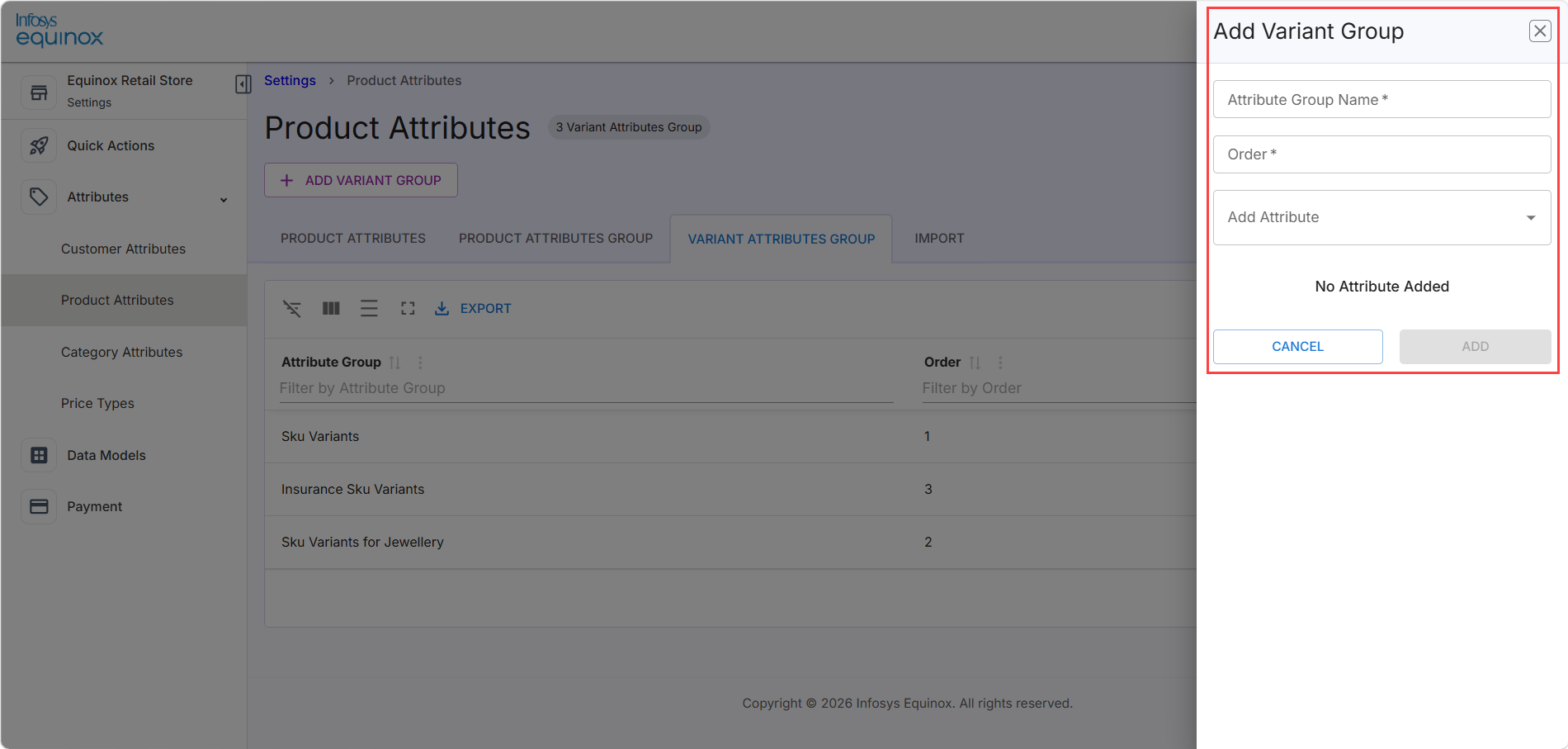
The below table describes the fields in the Add Variant Group panel:
Field Description Attribute Group Name Enter a unique name for the variant attribute group. Order Enter a numeric value to control the display order of the group. Add Attribute Select one or more existing variant attributes to assign to this group using the dropdown.
Note: Only the created SKU attributes appear in the dropdown list.
- Click ADD to save the group.
Note: To discard the changes, click CANCEL.
Import of Product Attributes
The IMPORT tab enables bulk creation of product attributes by uploading a pre-formatted XLSX file. An Import History table records all previous import attempts.
As a Merchandising Admin or Editor, download the provided sample Excel sheet (.xlsx) and update it with all required merchandising details. Once completed, upload the updated file to the Import section to apply the changes.
Warning: The file must use the .xlsx format with the same column headers as the import template. Using an incorrect format or modifying headers will cause the import to fail.
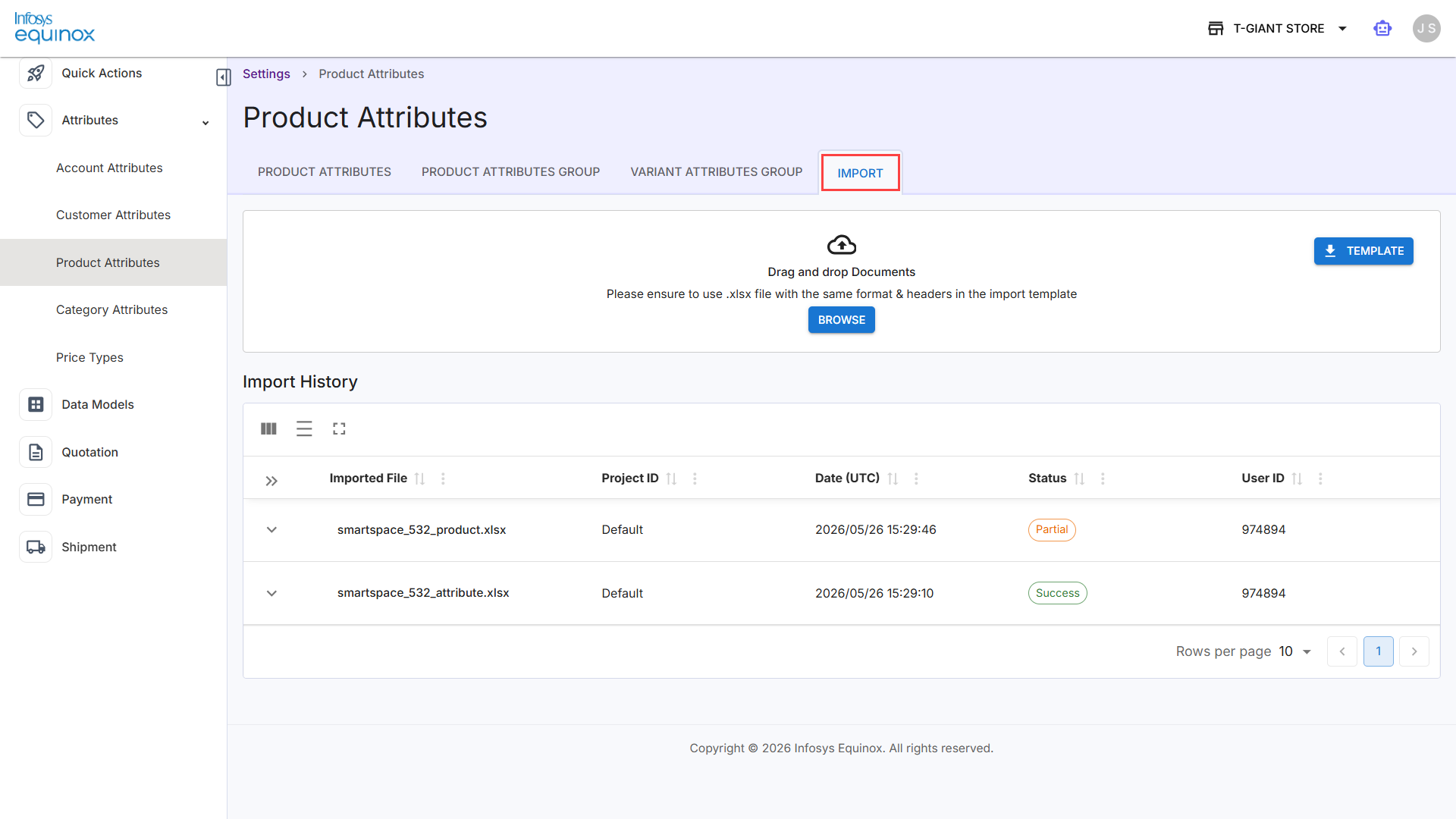
Download the Import Template
To download a template,
- Log in to the Infosys Equinox Admin Console using your credentials.
- On the left navigation panel, click Settings > Attributes > Product Attributes.
- On the Product Attributes page, click the IMPORT tab.
- Click the TEMPLATE button in the top-right corner to download the official import template.
- Populate the template in Excel or a compatible spreadsheet application, ensuring all required columns and headers match the template format.
Note: To import the product attributes, refer to the next section.
Import Product Attributes
- Log in to the Infosys Equinox Admin Console using your credentials.
- On the left navigation panel, click Settings > Attributes > Product Attributes.
- On the Product Attributes page, click the IMPORT tab.
- Drag and drop a completed .xlsx file onto the upload area, or click BROWSE to select a file from your local machine.
The system processes the file and the result is recorded in the Import History table.
Import History
The Import History table displays the outcome of each previous import attempt:
| Column | Description |
| Imported File | The name of the uploaded file. |
| Project ID | The project or store context associated with the import. |
| Date (UTC) | The date and time the import was processed, displayed in UTC. |
| Status | The outcome of the import: success or failure. |
| User ID | The identifier of the user who initiated the import. |
Note: Product Attributes with Field Type: List require pre-defined allowed values. Ensure these values are configured correctly before associating the attribute with product records, as downstream promotion rules may reference specific list values.
Category Attributes
Category Attributes extend the default product category records with additional metadata. A Required flag controls whether a category attribute must be populated when a category is created or edited.
Warning: Attributes marked as Required: Yes must be populated whenever a category is created or updated. Adding a new required attribute to an existing store may require bulk-updating existing category records to avoid validation errors.
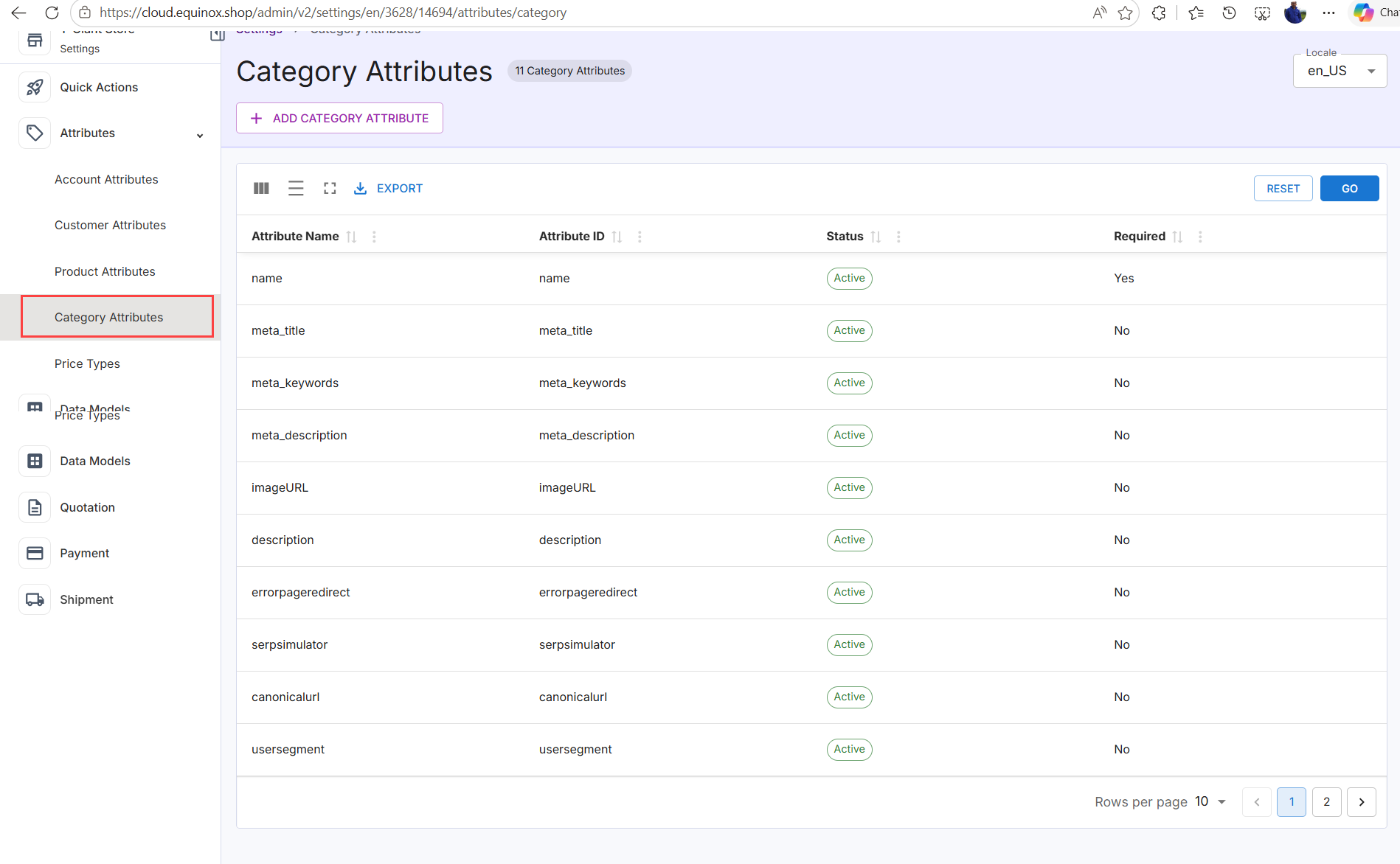
Viewing Category Attributes
- Log in to the Infosys Equinox Admin Console using your credentials.
- On the left navigation panel, click Settings > Attributes > Category Attributes.
The Category Attributes page opens at the path: Settings > Category Attributes.
A badge next to the page title (for example, 21 Category Attributes) indicates the total count of configured attributes. A Locale dropdown in the top-right corner controls the locale context.The Category Attributes Group table displays the following details:
Column Description Attribute Name The human-readable name of the attribute. Sortable and filterable. Attribute ID The unique system identifier for the attribute. Sortable and filterable. Status The activation state: Active or Inactive. Sortable and filterable. Required Indicates whether the attribute must be populated for every category record: Yes or No. Sortable and filterable.
Create a Category Attribute
- Log in to the Infosys Equinox Admin Console using your credentials.
- On the left navigation panel, click Settings > Attributes > Category Attributes.
- On the Category Attributes page, click ADD CATEGORY ATTRIBUTE.
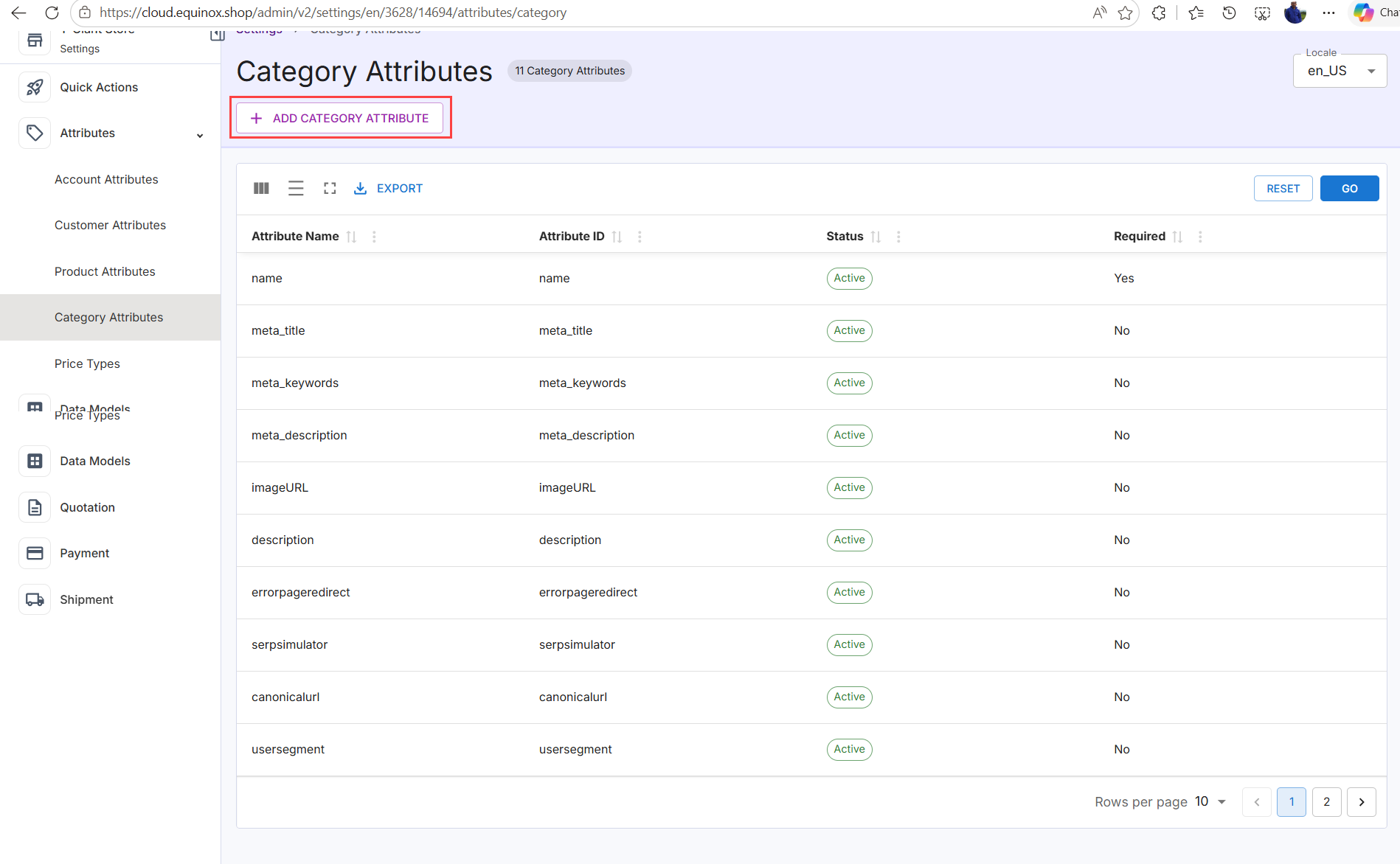
- In the drawer, complete the attribute form:
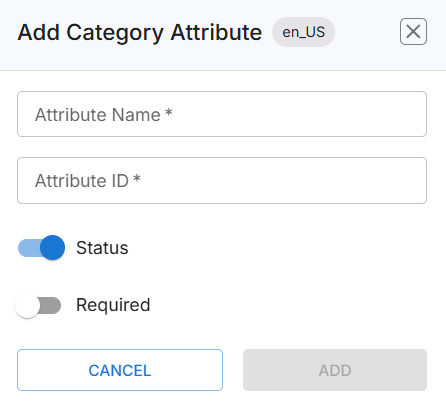
- Attribute Name – Enter a human-readable label.
- Attribute ID – Enter a unique identifier.
- Status – Use the toggle to enable active or inactive.
- Required – Select Yes if the attribute must be populated on every category record, or No to make it optional.
- Click Save to create the attribute.
Edit a Category Attribute
- Log in to the Infosys Equinox Admin Console using your credentials.
- On the left navigation panel, click Settings > Attributes > Category Attributes.
- Locate the attribute in the table.
- Click the attribute name or its row action control.
- Modify the required fields.
- Attribute ID is non-editable.
- Use the row-level action controls to toggle the attribute Status between Active and Inactive.
- For Required toggle, select Yes if the attribute must be populated on every category record, or No to make it optional.
- Click Save.
Export Category Attributes
To export category attributes from the category attributes list,
- Log in to the Infosys Equinox Admin Console using your credentials.
- On the left navigation panel, click Settings > Attributes > Category Attributes.
- Click EXPORT to download the list in the available export format.
Filter the Table
Use the filter row beneath each column header (such as Attribute Name or Attribute ID, Status, or Required) to narrow the list. Click GO to apply the filters.
Note: To clear all active filters and return to the default view, click RESET.
Price Types
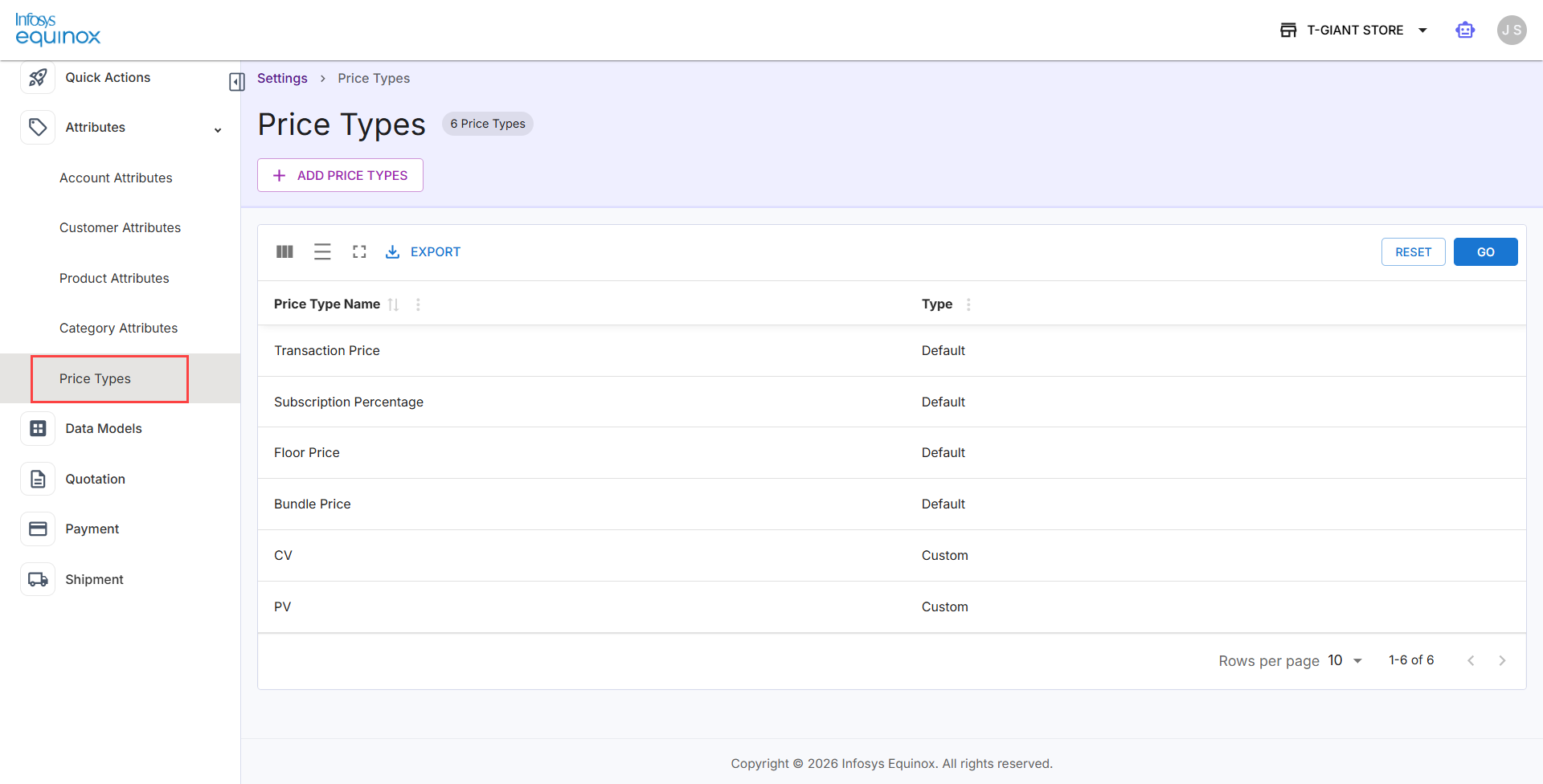
Price Types define the pricing classifications available for products in the store. The platform provides a set of built-in Default Price Types, and administrators can create additional Custom Price Types to support differentiated pricing strategies (for example, member pricing, wholesale pricing).
Viewing Price Types
- Log in to the Infosys Equinox Admin Console using your credentials.
- On the left navigation panel, click Settings > Attributes > Price Types. The Price Types page opens at the path: Settings > Price Types. A badge next to the page title (for example, 130 Price Types) indicates the total count.
The table lists price types with the following columns:
| Column | Description |
| Price Type Name | The name of the price type as displayed in the platform. Sortable and filterable. |
| Type | Indicates whether the price type is Default (platform-provided, non-deletable) or Custom (administrator-created). Filterable. |
Default Price Types
The following price types are provided by the platform and cannot be deleted:
| Price Type Name | Description |
| Transaction Price | The standard price at which a product is sold in a transaction. |
| Subscription Percentage | A percentage-based price type used for subscription-model products. |
| Floor Price | The minimum price threshold below which a product cannot be discounted. |
| Bundle Price | The price applied when a product is sold as part of a bundle. |
Note: To create custom price types, refer to the next section.
Add a Custom Price Type
- Log in to the Infosys Equinox Admin Console using your credentials.
- On the left navigation panel, click Settings > Attributes > Price Types.
- On the Price Types page, click ADD PRICE TYPES.
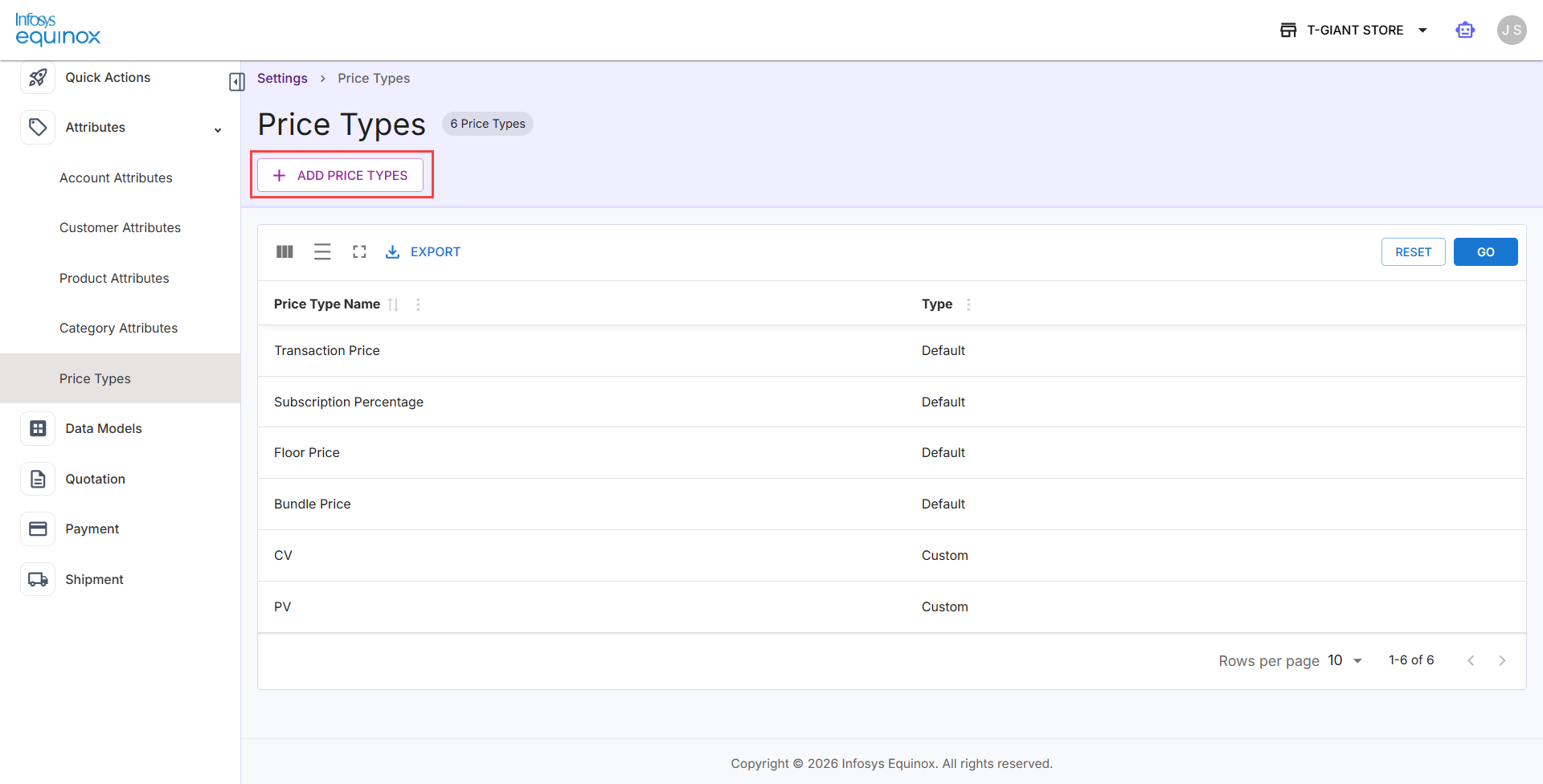
- In the drawer, enter the Price Type Name.
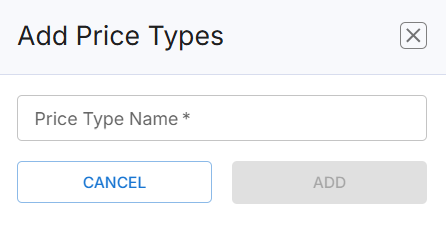
- Click Save. The new price type is added to the list with Type: Custom.
Note: For details on default price types, see Default Price Types.
Edit a Price Type
To edit a price type,
- Log in to the Infosys Equinox Admin Console using your credentials.
- On the left navigation panel, click Settings > Attributes > Price Types.
- Locate the price type in the table.
- Click the price type name or its row action control.
- Modify the name as required.
- Click Save.
Delete a Custom Price Type
Deleting a custom price type that is actively referenced by product prices or promotions may result in pricing errors on the Storefront. Audit all dependencies before removing a price type. Default price types (Transaction Price, Subscription Percentage, Floor Price, Bundle Price) cannot be deleted. Only Custom price types can be removed.
- Log in to the Infosys Equinox Admin Console using your credentials.
- On the left navigation panel, click Settings > Attributes > Price Types.
- Locate the custom price type in the table.
- Click the row action control and select Delete.
- Confirm the deletion.
Export Price Types
- Log in to the Infosys Equinox Admin Console using your credentials.
- On the left navigation panel, click Settings > Attributes > Price Types.
- On the Price Types page, click EXPORT to download the price types list.
Filter the Table
Use the filter row beneath each column header (such as Price Type Name or Type (Default or Custom) to narrow the list. Click GO to apply the filters.
Note: To clear all active filters and return to the default view, click RESET.
Data Models
Data Models in Infosys Equinox define structured schemas used to group related attributes under a single reusable entity. Instead of mapping individual attributes to each product or SKU separately, you create a Data Model that holds multiple attributes, then associate the entire model to products or SKUs through a single model-type attribute. This ensures data consistency and eliminates repetitive attribute configuration across large catalogs.
This is distinct from an Attribute Group, which is a logical cluster of product-associated attributes that must each be mapped individually. A data model, by contrast, groups multiple attributes under a single entity that is referenced once.
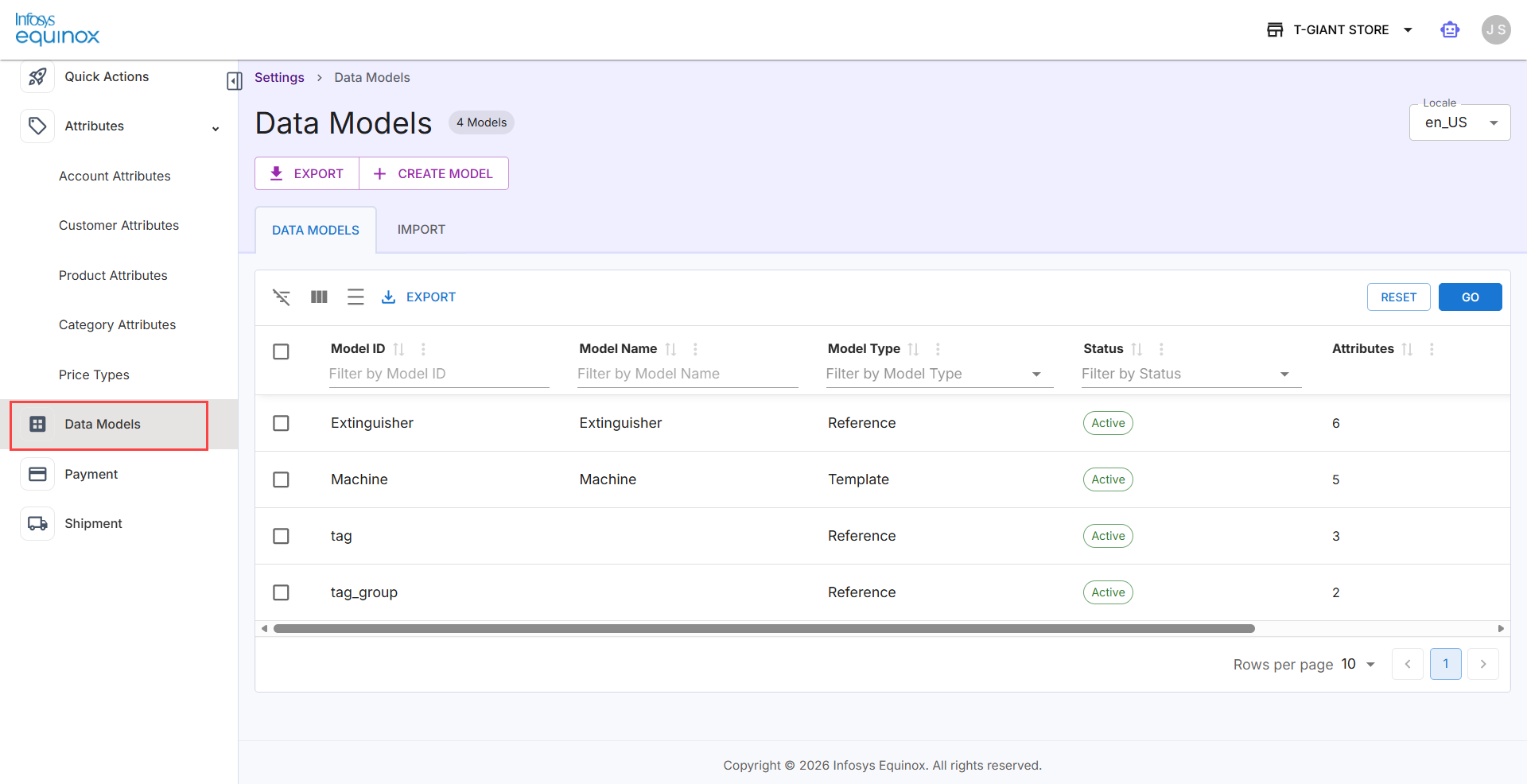
Data Models are created and managed in Settings > Data Models within the Merchandiser Admin. Once created, they become available for use in product and SKU attribute configurations across the store.
How Data Models Work with Products
A data model cannot be associated with a product directly. The sequence for applying a data model to a product or SKU is:
- Create a data model – Define the model with a name, ID, and type (Reference or Template).
- Add attributes to the model – Populate the model with the custom attributes it should contain.
- Create a Model-type attribute – Define a new product attribute with Field Type: Model and reference the data model.
- Associate the attribute with products or SKUs – Map the Model-type attribute to the target product(s) or SKU(s). This pulls up all attributes within the data model on the product record.
Model Types
Below are two model types used in Data Models:
| Model Type | When to Use | Behavior When Applied to a Product/SKU | Examples | ||||||||||||
|---|---|---|---|---|---|---|---|---|---|---|---|---|---|---|---|
| Reference | Use when the attribute values are static and shared across multiple products or SKUs. For example, a camera spec sheet, device configuration, or dimension record. The same set of values is reused without modification. | The attribute values are derived directly from the model’s stored Reference Values and are non-editable on the product or SKU record. All products linked to this model share the same values. |
Example 1: In the following scenario, the same reference model via product attributes can be selected for product 1 and product 2 as the attributes and attribute values are the same for both products. The following table describes the reference model:
Example 2: An automobile parts store creates a Reference model called |
||||||||||||
| Template | Use when the attribute values are dynamic and product-specific. Each product or SKU provides its own values for the model’s attributes. | The model’s attribute fields become available on the product or SKU record, and editors fill in unique values for each product. |
Example 1: In the following scenario, the template model can be selected via product attribute for product 1 and product 2 as the attributes are same for both products and attribute values can be added while mapping this model via product attribute with the products. The following table describes the template model:
Example 2: A mobile phone store creates a Template model called |
Note: Data models are also available as rule conditions within the Promotions microservice.
About Tags and Tag Groups
tag and tag_group are built-in Reference models. Tag Group values (for example, Color, Size, Brand) and Tag values (for example, Red, Large, Nike) are defined as Reference Values under their respective models. These values then become selectable when tagging products in the Merchandiser module.
Prerequisites
- You must have a Business Admin or Merchandiser Admin role to create and manage Data Models.
- Attributes must be created in the Attributes section before they can be added to a Data Model.
Viewing Data Models
- Log in to the Infosys Equinox Admin Console using your credentials.
- On the left navigation panel, click Settings > Data Models.
or
On the Quick Actions landing page, click View Details on the Data Models tile.
The Data Models page opens at the path: Settings > Data Models.
The Data Models page shows the list of all configured data models in a table format:
Column Description Checkbox Select one or more models for bulk operations. Model ID The unique system identifier for the model, used in API references and promotion rules. Sortable and filterable. Model Name The human-readable display name of the data model. Sortable and filterable. Model Type The schema category: Reference (entity-specific model) or Template (reusable schema structure). Filterable by dropdown. Status The activation state of the model: Active or Inactive. Filterable by dropdown. Attributes The count of custom attributes currently defined within the model. Sortable and filterable. Description A free-text description of the model’s purpose.
Note:
- A badge next to the page title (for example, 19 Models) indicates the total count of data models configured for the store.
- A Locale dropdown in the top-right corner controls the locale context for locale-sensitive model content.
- To create a new data model, see Create a Data Model.
- To bulk import data model definitions from a pre-formatted XLSX file, see Import Data Models.
Page Controls
The following table shows the various options available in the Data Models page:
| Element | Description |
| EXPORT (top) | Download all data model definitions. |
| CREATE MODEL | Open the Add Data Model panel to define a new data model. |
| Locale dropdown |
Select the locale context (for example, en_US) for locale-sensitive model content. |
| EXPORT (table toolbar) | Export the currently filtered table view. |
| RESET / GO buttons | Reset or apply active column filters. |
Create a Data Model
To create a data model,
- Log in to the Infosys Equinox Admin Console using your credentials.
- On the left navigation panel, click Settings > Data Models.
- On the Data Models tab, click CREATE MODEL.
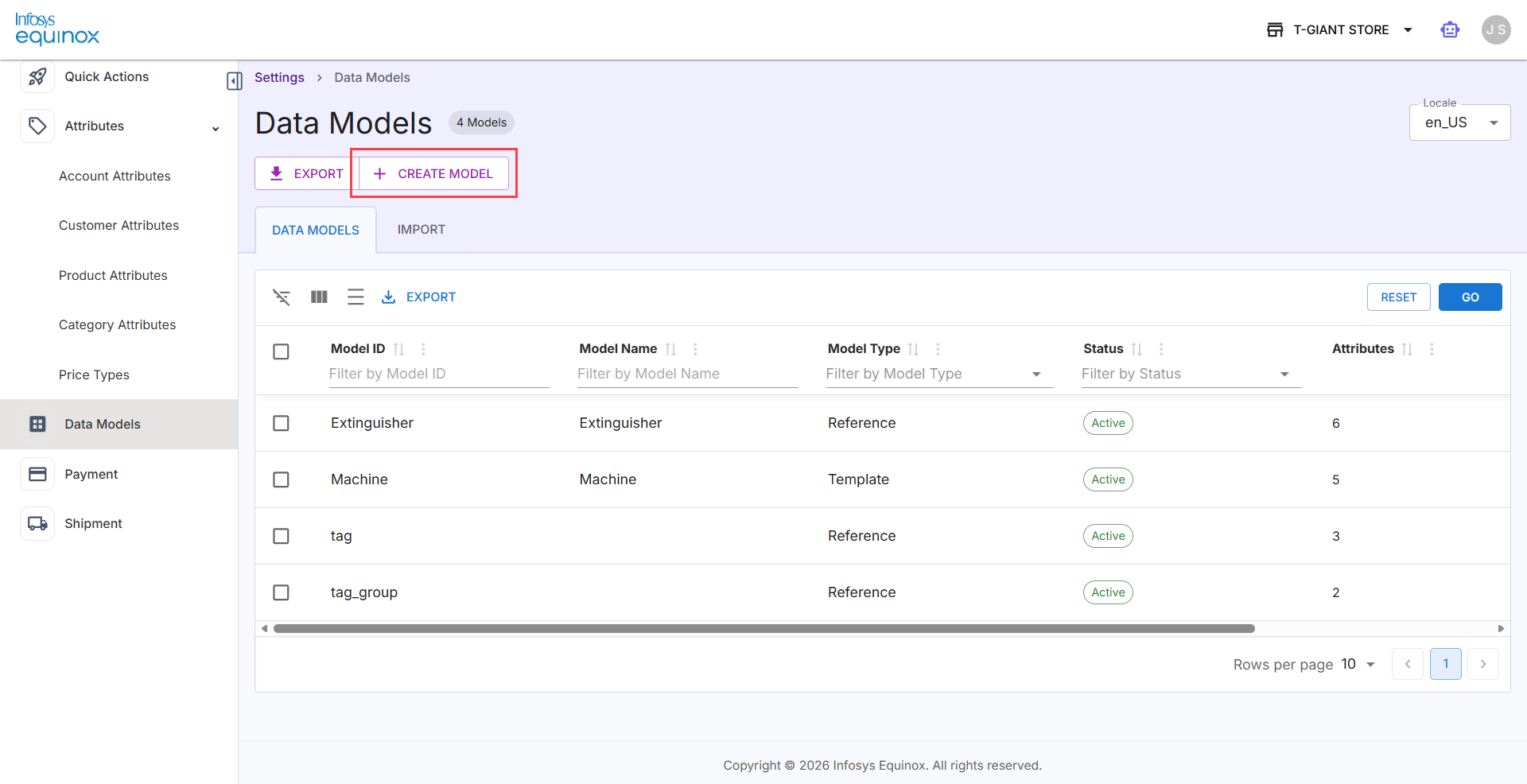
- In the drawer, complete the fields as shown in the screenshot below:
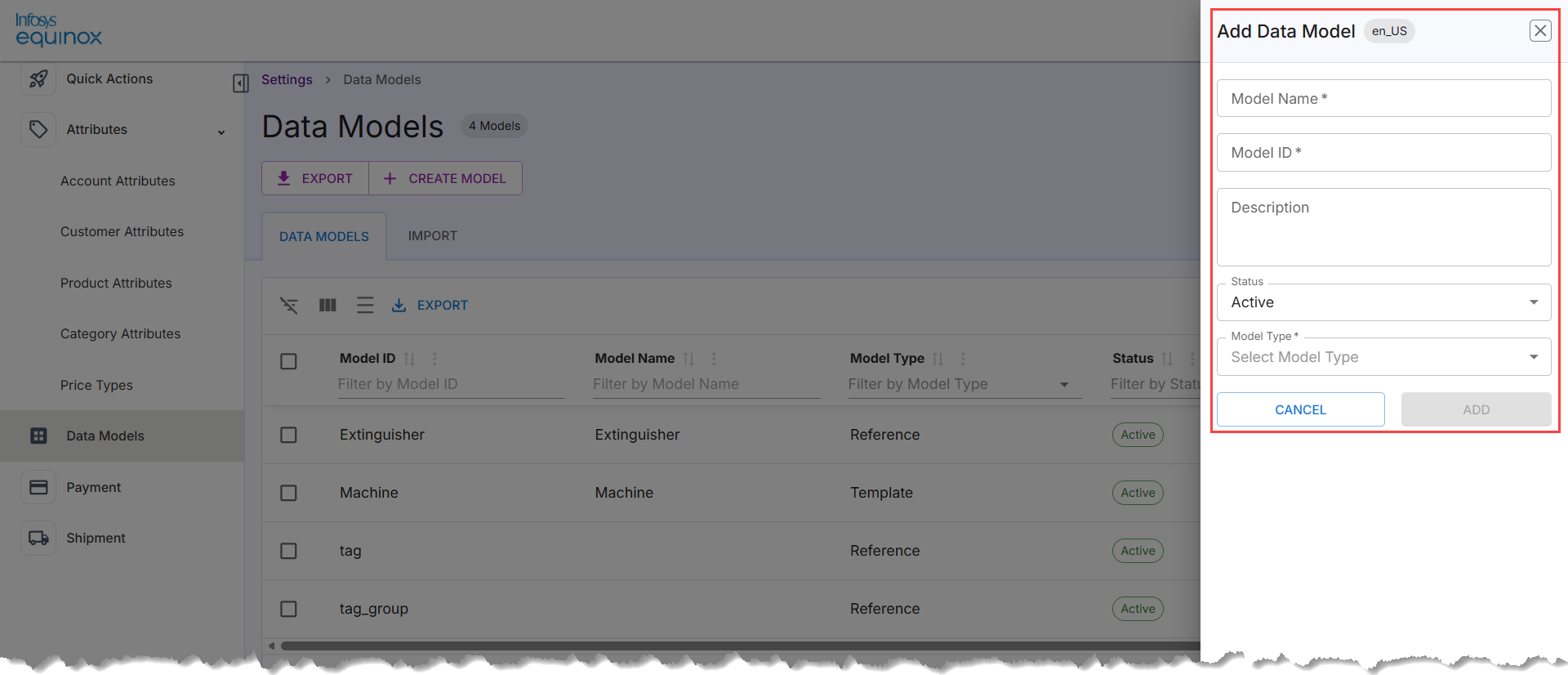
The table describes the detail to be filled in the above form:
Note: The asterisk (*) symbol indicates mandatory fields.Field Description Notes Model Name* Enter a display name for the data model. For example: camera, Tablet_Body, Apple_Model_Template. Model ID* Enter a unique system identifier for the model. Cannot be changed after creation.
This ID is used in API references and promotion rule conditions.Use alphanumeric characters and underscores; no spaces. For example: camera, SKU_Associations. Cannot be changed after the model is created. Description Enter an optional description of the model’s purpose or the data it represents. For example: cameradetails, Devices details. Visible to administrators only. Status* Select the initial activation state of the model:
- Active – indicates the active status of the model. The active model attributes can be added to the product(s) or SKU(s). By default, the Active status is selected.
- Inactive – indicates the inactive status of the model. The inactive model attributes cannot be added to the product(s) or SKU(s).
Defaults to Active. Select Inactive to create the model without making it available for use. Model Type* Select the schema category using the Select Model Type dropdown. Select Reference (static, shared values) for entity-specific models or Template (dynamic, per-product values) for reusable schema structures. For more information and examples, refer to the section Model Types.
Warning: The Model ID is permanent and cannot be modified after the model is created. Choose an identifier that is stable, descriptive, and consistent with your organization’s naming conventions, as it is referenced in API payloads and promotion rule conditions.
- Click ADD to create the model. The new model appears in the DATA MODELS table with the configured Status and Attributes.
Note:
- After saving, the Add Attribute option becomes available. You must add at least one attribute before Reference Values can be created for the model. To add attributes to the model, click the model name and use the attribute management controls within the model detail view. For more information, see Add an Attribute to a Data Model.
- To discard the form without saving, click CANCEL.
Update a Data Model
Clicking a model row in the DATA MODELS table opens the Update Data Model panel on the right side of the screen. The current locale (for example, en_US) is displayed in the panel header.
Data models with one or more Attributes are actively used in business logic such as Promotions rule conditions, product detail page of a product/SKU. Before modifying or deactivating a model, confirm with your development team that no active promotions or integrations reference it.
To edit a data model,
- Log in to the Infosys Equinox Admin Console using your credentials.
- On the left navigation panel, click Settings > Data Models.
- Locate the model in the table.
- Click the model name.
- Modify the model properties or its attribute definitions as mentioned below:
Note: The Model ID and Model Type cannot be modified after the model is created.Field Description Model Name Edit the human-readable display name of the data model. Model ID The unique system identifier of the model.
Read-only. Cannot be changed after creation.
Description Edit the optional description of the model’s purpose or the data it represents. Status Change the activation state of the model.
Select the required dropdown value: Active or Inactive.
Model Type The schema category of the model.
- Click Save.
- Click the button VIEW ENTRIES, which opens the Reference Values page for the model (available for Reference-type models). See Reference Values for details.
- Click the button ADD ATTRIBUTE, which opens the Add Model Attribute panel to define a new attribute for this data model. See Add an Attribute to a Data Model for details.
Add an Attribute to a Data Model
Attributes define the individual data fields that make up a data model’s schema. Each attribute specifies what data is captured, its data type, and how the platform handles it across search, display, filtering, and locale contexts. A data model with no attributes is an empty container — adding attributes gives it the structure needed before it can be referenced by products, SKUs, or promotion rules.
Clicking ADD ATTRIBUTE in the Update Data Model panel opens the Add Model Attribute panel. The current locale (for example, en_US) is displayed in the panel header.
- Follow steps from 1 to 8 as explained in the previous section Update a Data Model.
- Complete the following fields:
Field Description Attribute Name Enter the display name for the attribute.
Attribute ID* Enter a unique system identifier for the attribute.
Use alphanumeric characters and underscores; no spaces.
Attribute Level* Select the entity scope at which the attribute applies.
Dropdown; defaults to Product/SKU.
Type* Select the appropriate attribute value type from the drop-down list. The possible types are:
- Static – Indicates the static type of attributes. Selecting the Static type allows viewing and selecting the static field types. This is selected by default.
- Dynamic – Indicates the dynamic type of attributes. Selecting the Dynamic type allows viewing and selecting the dynamic field types.
Field Type* Select the appropriate field type from the drop-down list. The field types vary based on the selected Type field. If the Type is selected as Static, the static field type of attributes is displayed:
- Boolean: To provide one of two possible values for the attribute.
- Date: To define the date for the attribute.
- Decimal: To include exact numeric values for the attribute.
- Email: To include email values for the attribute.
- Group List: To provide a grouped list of values for the attributes.
- HTML Content: To include HTML content to the attributes.
- List: To provide a list of values to select from.
- Multiple List: To include multiple list values.
- Optional Multiple List: To include optional multiple list values.
- Number: To include number values.
- Regular Expressions: To include regular expression values.
- String: To include string values. It represents a word or sequence of characters.
- Text Area: It represents the paragraph of texts.
- URL: It represents a valid URL value.
f you select Dynamic from the Type drop-down list, then the dynamic field type of attributes is displayed:
- Image: To include only images for Products/SKUs.
- Image with Caption: To include images with a caption for Products/SKUs.
Description Enter an optional description of the attribute’s purpose. Note: The asterisk (*) symbol indicates mandatory fields.
-
Enable or disable the following toggles:
Toggle Description Status Activates the attribute so it is available for use immediately after creation. Comparable Enables the attribute to be used in product comparison views. Displayable Makes the attribute value visible on the storefront or admin display. Filterable Allows the attribute to be used as a filter facet in search and catalog views. Searchable Includes the attribute value in full-text search indexing. Sortable Allows catalog or search results to be sorted by this attribute’s value. Required Makes the attribute mandatory when creating or editing a record of the associated entity. Locale Restricted Restricts the attribute value to the currently selected locale only. - Click ADD to save the attribute. The new attribute appears in the attributes table within the Update Data Model panel.
Note:- For a Reference model, the attributes you add define the fields that each Reference Value record will populate. For a Template model, the attributes define the fields that editors fill in per product or SKU.
- To discard the form without saving, click CANCEL.
Import Data Models
To import data models from your local computer on to the Import tab:
- Log in to the Infosys Equinox Admin Console using your credentials.
- On the left navigation panel, click Settings > Data Models.
- Click the Import tab.
- Drag and drop a completed .xlsx file onto the upload area, or click BROWSE to select a file from your local machine.
Caution: Ensure you use an .xlsx file with the same format and headers as the import template. Using an incorrect format or modifying the headers will cause the import to fail. - Review the import summary and confirm to apply the imported models.
The system processes the file and the result is recorded in the Import History table.
Export Data Models
- Log in to the Infosys Equinox Admin Console using your credentials.
- On the left navigation panel, click Settings > Data Models.
- Do any one of the following:
- Click EXPORT (top of page) to download all data models.
- Click EXPORT in the table toolbar to download the currently filtered view.
Filter the Table
- Log in to the Infosys Equinox Admin Console using your credentials.
- On the left navigation panel, click Settings > Data Models.
- Use the filter row beneath each column header (such as Model ID, Model Name, Model Type, Status, or Attributes) to narrow the list. Click GO to apply the filters.
Note: To clear all active filters and return to the default view, click RESET.
Bulk Select and Actions
- Log in to the Infosys Equinox Admin Console using your credentials.
- On the left navigation panel, click Settings > Data Models.
- Select one or more models using the row checkboxes.
- Use the available bulk action controls (for example, bulk export or bulk status update) that appear when one or more models are selected.
Setting Up Quotation
The Quotation Settings page in the Settings Admin console allows Business Admins to configure the quote approval workflow for a B2B store. These settings govern how discount thresholds are enforced for sellers and whether buyer-side admin approval is required before a Request for Quote (RFQ) progresses to the seller.
For detailed explanation on Quote Workflow Management, see Admin User Guide – Quote Workflow Management.
Prerequisites
Before configuring Quotation Settings, ensure the following are in place:
|
Requirement |
Details |
|
Admin Access |
Logged in to the Settings Admin console with Business Admin privileges See Accessing Settings Admin console and Inviting User(s) as a Business Admin |
|
Quote Workflow Enabled |
The quote capability (enableQuote) must be turned on in the Cart microservice via the Foundation Admin Console See Collection Properties – Cart for more information. |
|
RFQ-Eligible Products |
At least one product must be configured as RFQ Eligible in the Catalog Admin console |
|
B2B Storefront Configured |
A B2B storefront must be set up with Buyer User and Buyer Admin access |
|
CSR Admin Console Access |
Seller Representative and Seller Admin roles must be configured in the CSR Admin Console |
Configuring in Quotation Settings Panel
- Log in to the Infosys Equinox Admin Console using your credentials.
- On the left navigation panel, click Settings > Quotation.
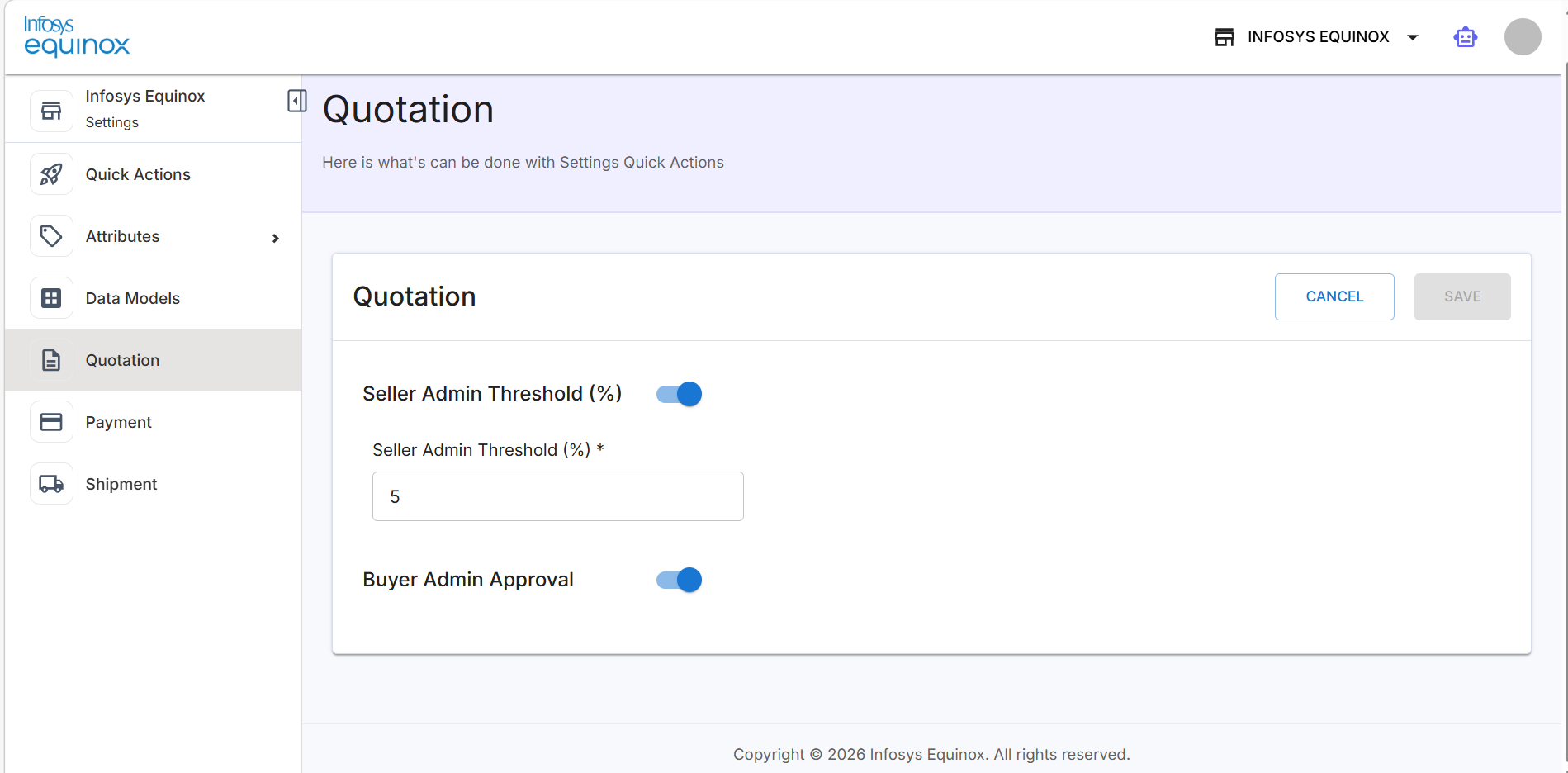
The Quotation settings panel contains the following fields:
Note: The asterisk (*) symbol indicates mandatory fields.Field
Type
Description
Seller Admin Threshold (%)
Toggle + Number
When enabled, defines the maximum discount (%) a Seller Rep can offer without requiring Seller Admin approval. Quotes exceeding this threshold trigger a Seller Admin Review Pending status.
This field is enabled by default.
Seller Admin Threshold (%) *
Numeric Input
The percentage value for the threshold. Required when the Seller Admin Threshold toggle is ON. For example, a value of 5 means discounts above 5% require Seller Admin approval.
Buyer Admin Approval
Toggle
When enabled, RFQs submitted by Buyer Users are first routed to the Buyer Admin for review before being sent to the seller. When disabled, RFQs are submitted directly to the seller.
Impact on Quote Workflow
The following table summarizes the combined effect of both settings on the quote workflow:
|
Seller Admin Threshold |
Buyer Admin Approval |
Workflow Behavior |
|
Enabled |
Enabled |
RFQs require Buyer Admin approval before reaching the seller. Seller discounts above the threshold require Seller Admin approval. |
|
Enabled |
Disabled |
RFQs go directly to the seller. Seller discounts above the threshold still require Seller Admin approval. |
|
Disabled |
Enabled |
RFQs require Buyer Admin approval. Seller Reps can apply any discount without escalation. |
|
Disabled |
Disabled |
RFQs go directly to the seller. No admin approval required on either side for standard quote flow. |
Configuring Payment Methods
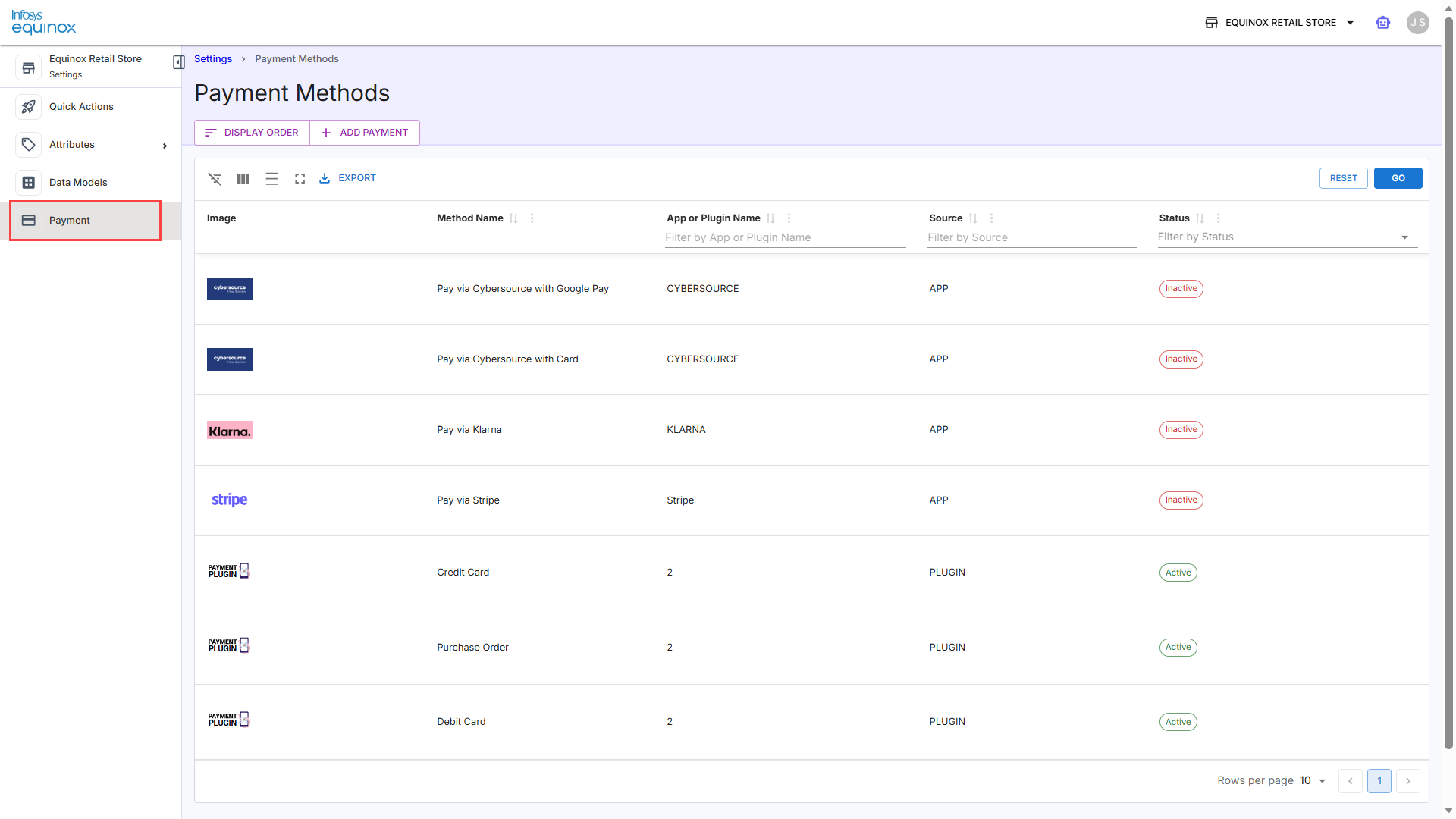
The Payment Methods page lets you manage how customers pay at checkout and control how those options are presented. From this page, you can configure the display order of payment methods, add new payment providers, export the existing configuration, and manage table views using filters and reset options. These controls help ensure payment options are organized, up to date, and aligned with your store’s checkout experience.
This section lists all payment methods configured for the store. Each method is associated with either a platform-native plugin or an integrated payment application. Payment methods with an Active status are presented to customers during checkout within the store.
Viewing Payment Methods
- Log in to the Infosys Equinox Admin Console using your credentials.
- On the left navigation panel, click Settings > Payment.
(OR)
On the Quick Actions page, click View Details under the Payment tile.
The Payment Methods listing page opens. The table lists all configured payment methods with the following columns:
| Column | Description |
| Image | The logo or icon associated with the payment provider. |
| Method Name | The display name of the payment method shown to customers at checkout. Use the column header to sort; use the filter field to search by name. |
| App or Plugin Name | The identifier of the payment provider (App or Plugin) that supplies this method. Use the filter field to search by provider name. |
| Source | Indicates whether the payment method is supplied by an App (external integration) or a Plugin (platform-native). Use the filter field to narrow results. |
| Status | The current activation state of the payment method: Active or Inactive. Select from the dropdown filter to filter by status. |
Add a New Payment Method
- Log in to the Infosys Equinox Admin Console using your credentials.
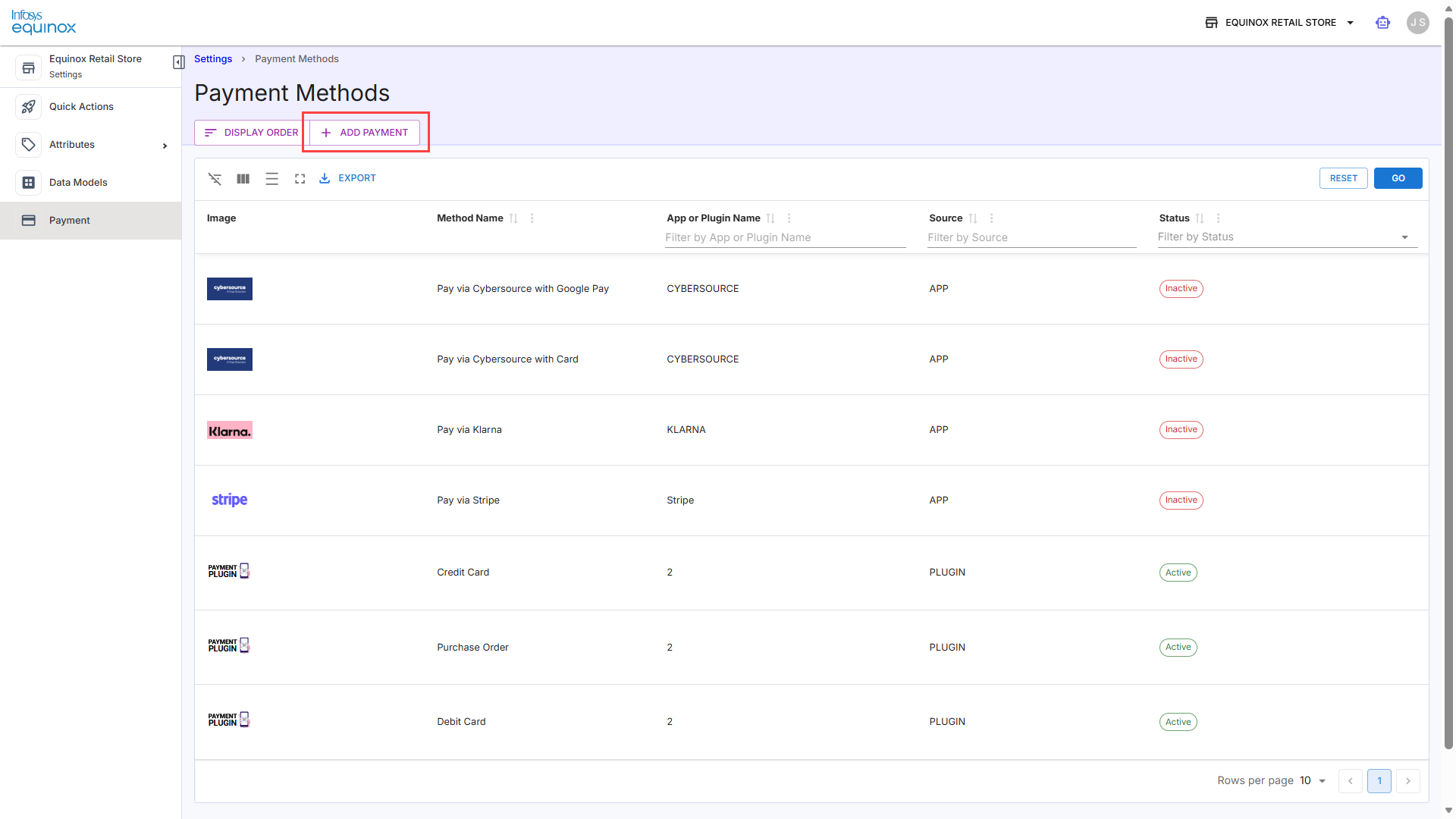
- On the left navigation panel, click Settings, and then click Payment in the left panel. On the Payment Methods page, the existing payment methods configured for the store are displayed in a list.
- Click ADD PAYMENT.
The Add Payment panel opens on the right side of the page, listing all payment providers available for the store. - In the Add Payment panel, review the available providers. Each entry displays:
– The provider logo
– The provider name and source type — for example, Loyalty (Plugin) or Offline Payment App (App)
– Tags indicating the payment method types supported by the provider — for example, CREDIT CARD, DEBIT CARD, PURCHASE ORDER, CASH, CHEQUE, etc. - Select a provider you want to add, and then click SELECT.
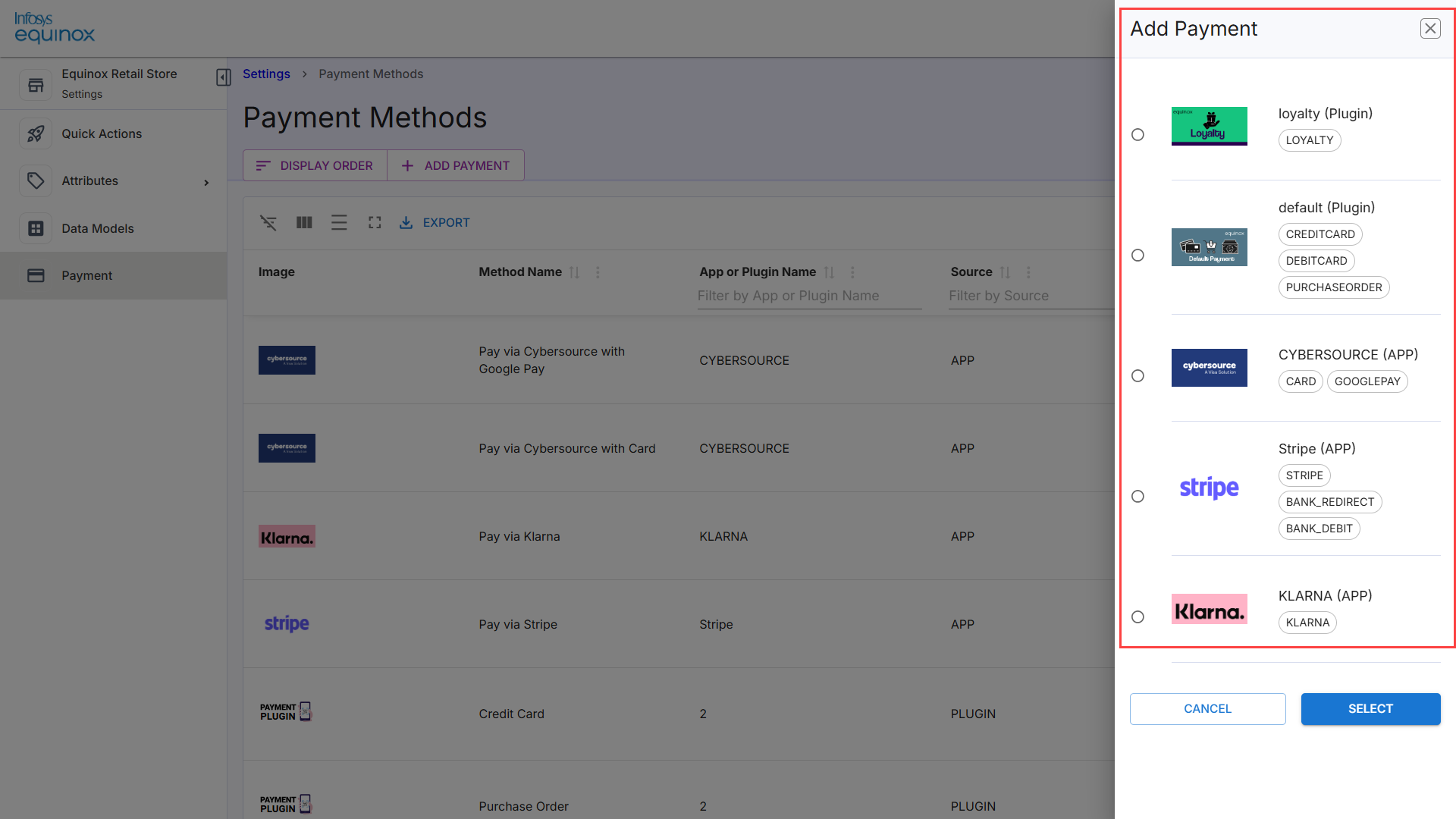
The payment methods supported by the selected provider are added to the Payment Methods list with Active status.
Note: Each payment provider can supply multiple payment method types. For example, selecting a Plugin provider labeled Offline Payment App (App) may add CASH, CHEQUE, and DROPBOX as separate payment methods in the payment methods list page. To add methods from a different provider, repeat this procedure and select the other provider.
Change Display Order
The Change Display Order feature allows administrators to control how payment methods are presented to customers during checkout. By accessing the display order settings in the Infosys Equinox Admin Console, you can easily rearrange payment methods using a simple drag-and-drop interface. Once saved, the updated sequence is immediately reflected in the checkout experience, ensuring that preferred or priority payment options appear in the desired order for customers.
To change the display order of the payment methods
- Log in to the Infosys Equinox Admin Console using your credentials.
- On the left navigation panel, click Settings, and then click Payment in the left panel.
- Select DISPLAY ORDER.
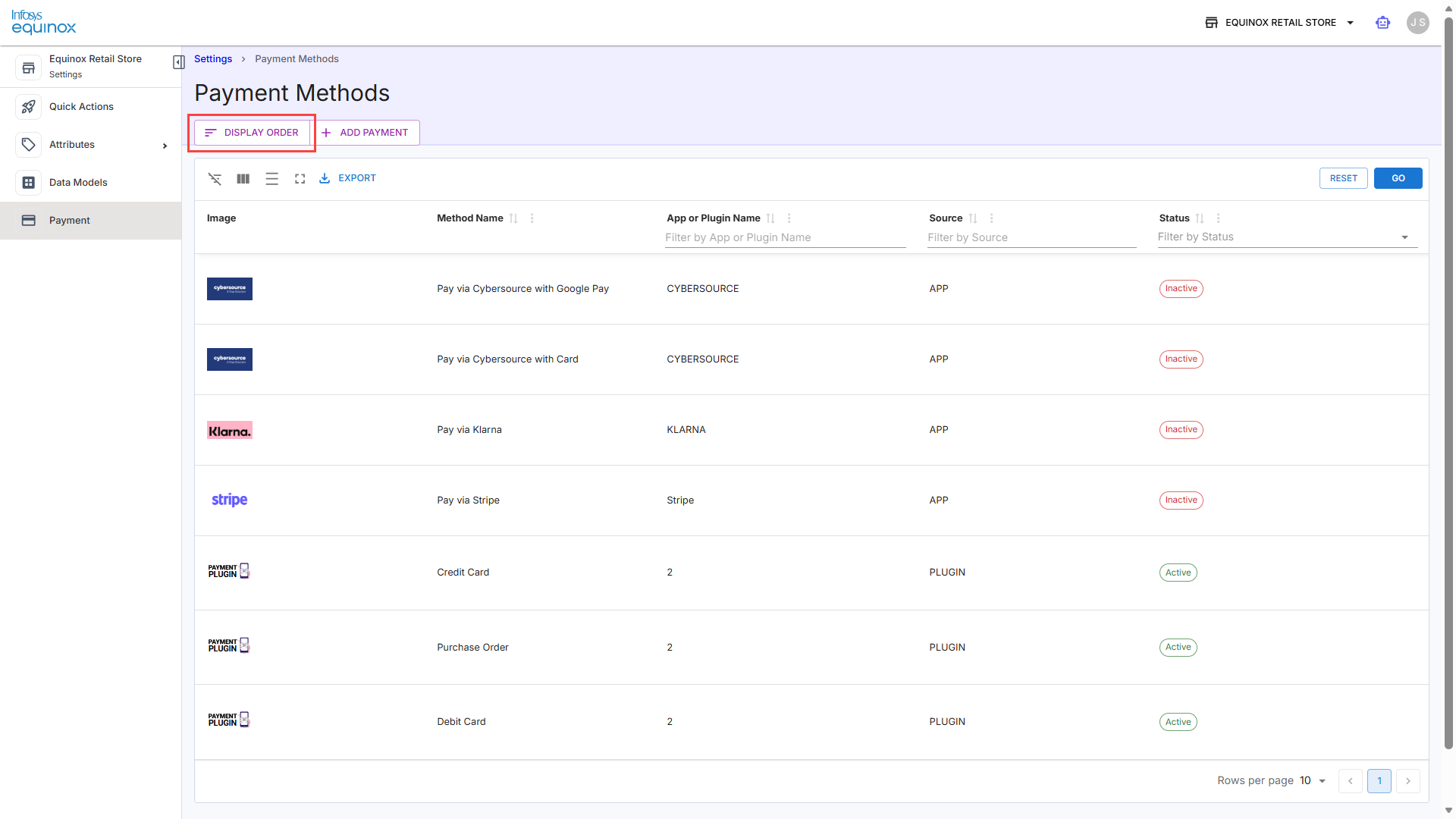
- In the Display Order drawer, drag and drop the payment methods into the preferred sequence.
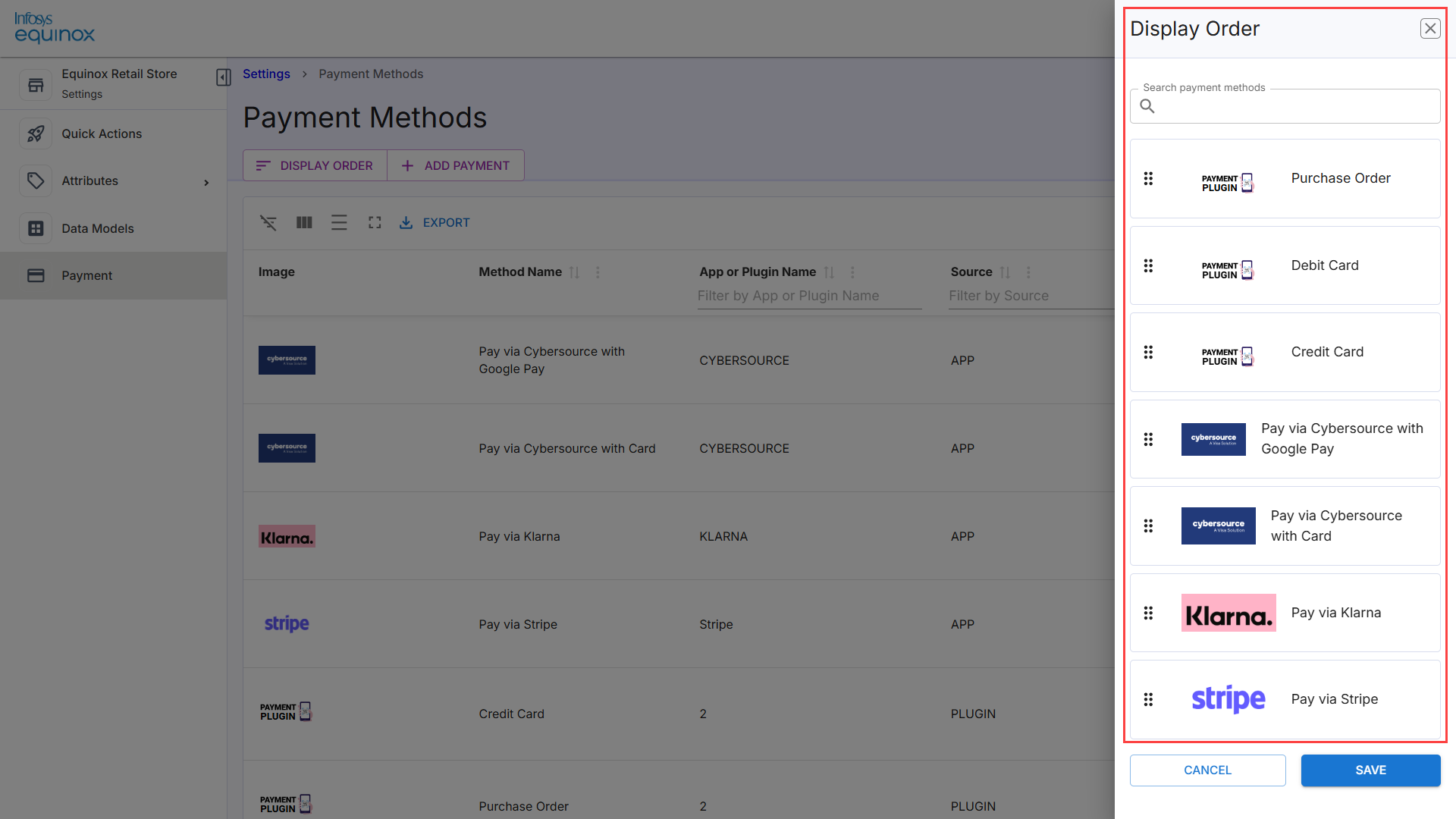
- Save the updated order.
The new sequence is reflected in the checkout experience.
Edit a Payment Method
The Edit Payment Method feature enables administrators to update the configuration, availability, and behavior of an existing payment method. From the payment method details page, you can modify basic information and define conditions.
- The Basic Information section is used to modify core attributes of the payment method. This includes updating the method name and type, configuring activation and expiration dates, controlling availability through status toggles, managing subscription support, uploading or changing the payment logo, and defining customer-facing or internal descriptions and success messages.
- The Element Selection section defines the conditions under which a payment method is displayed or applied. Administrators can create rules and rule groups to restrict availability based on specific contexts, such as customer segments, cart conditions, or order types, ensuring the payment method is shown only when relevant.
- Log in to the Infosys Equinox Admin Console using your credentials.
- On the left navigation panel, click Settings, then click Payment.
- Locate the payment method you want to modify and click its name.
The payment method detail page opens. - In the Basic Information section, update the fields as required.
Field Description Method Name The display name of the payment method shown to customers at checkout. Method Type A dropdown that classifies the payment method type (for example, CREDITCARD, CASH). Start Date The date and time from which this payment method is active. Use the format MM-DD-YYYY hh:mm aa. End Date The date and time after which this payment method is no longer active. Use the format MM-DD-YYYY hh:mm aa. Leave blank for no expiry. Payment Successful Message A confirmation message displayed to the customer after a successful payment using this method. Status The Status toggle allows an administrator to activate or deactivate a payment method for the store. When the toggle is set to Active, the payment method becomes immediately available in the store’s checkout flow for customers to use. When set to Inactive, the payment method is removed from the checkout options and cannot be selected by customers. Any change made using this toggle takes effect instantly and does not impact existing or completed transactions.
Enable Payment A toggle that enables payment processing through this method. Subscription Payment A toggle that enables this payment method for subscription-based orders. Description A rich text field for an internal or customer-facing description of the payment method. Supports formatting options including bold, italic, links, quotes, and lists. Upload Payment App Logo The logo or icon displayed alongside this payment method. Drag and drop an image file onto the upload area, or select BROWSE to locate a file. - In the Element Selection section, use ADD RULE or ADD GROUP to define or modify conditions that control when the payment method is available.
Element Description Filter Elements A text field for searching available elements to use in a condition rule. ADD RULE Adds an individual condition rule to the element selection logic. ADD GROUP Adds a condition group, allowing you to combine multiple rules with AND/OR logic. Conditions Displays the current set of configured rules and groups that govern when this payment method is available. - Update the payment app logo by dragging and dropping an image onto the upload area, or select BROWSE to locate and upload a file.
- Click Save to apply changes.
Note: To discard the changes, click CANCEL.
Delete a Payment Method
Deleting a payment method permanently removes it from the checkout experience and cannot be undone. Before proceeding, ensure that no active or pending transactions rely on this payment method.
To delete a payment method,
- Log in to the Infosys Equinox Admin Console using your credentials.
- On the left navigation panel, click Settings, then click Payment.
- Locate the payment method you want to modify and click its name to open the details page.
- Click the Delete button.
- Confirm the deletion when prompted.
Once deleted, the payment method is immediately removed and will no longer be available at checkout.
Export Payment Methods
To export payment methods from the payment methods list,
- Log in to the Infosys Equinox Admin Console using your credentials.
- On the left navigation panel, click Settings, then click Payment.
- Select EXPORT to download the payment methods list. The export includes all methods currently visible in the table, subject to any active filters.
Filter the Table
Use the filter row beneath each column header (such as Method Name, App or Plugin Name, Source, or Status) to narrow the list. Click GO to apply the filters.
Note: To clear all active filters and return to the default view, click RESET.
Configuring Shipment Methods
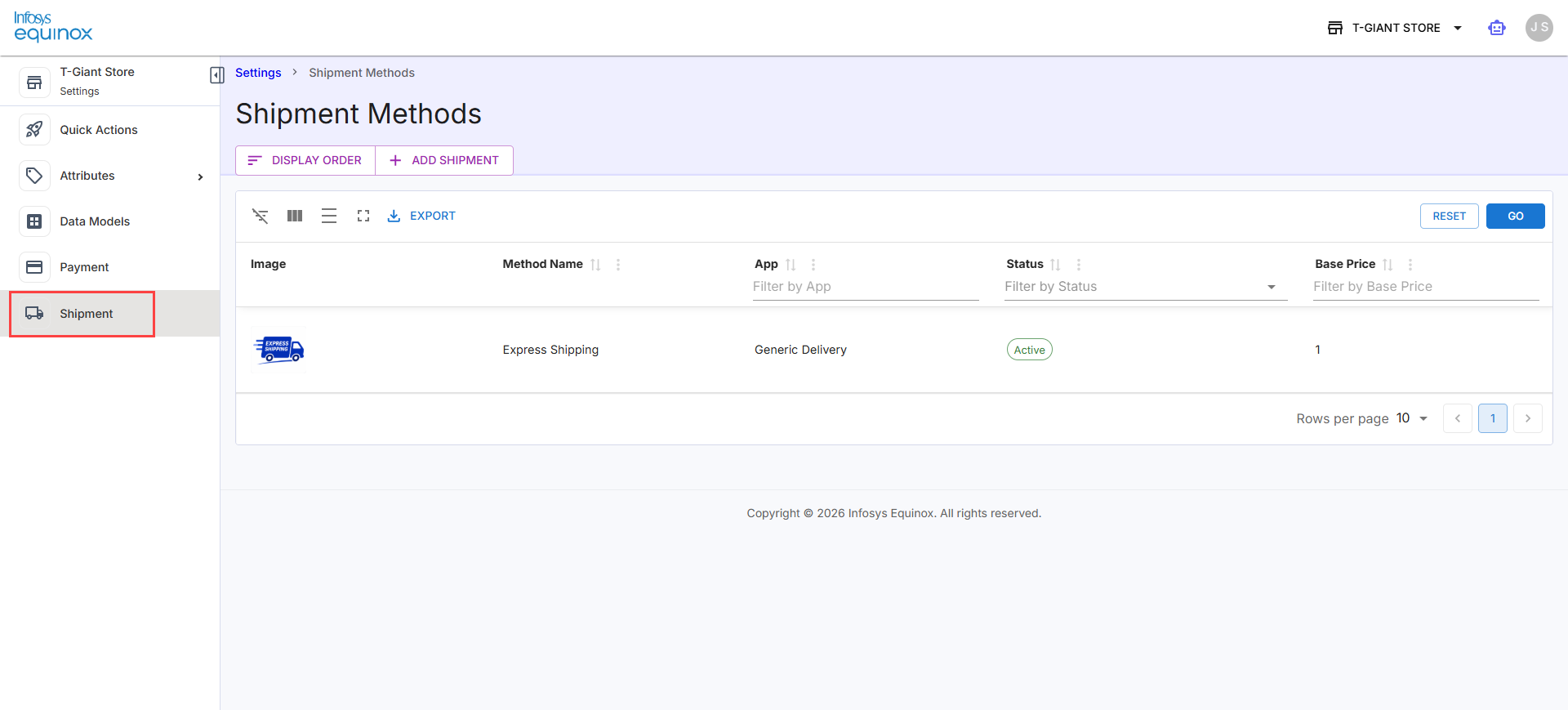
The Shipment Methods section lists all shipping methods configured for the store. Each method is associated with a delivery App and has a defined base price. Shipment methods with an Active status are available to customers at checkout.
Viewing Shipment Methods
- Log in to the Infosys Equinox Admin Console using your credentials.
- On the left navigation panel, click Settings > Shipment.
(OR)
On the Quick Actions page, click View Details under the Shipment tile.
The Shipment Methods listing page opens. The table lists all configured payment methods with the following columns:
| Column | Description |
| Image |
The logo or icon associated with the shipment method or its delivery provider. |
| Method Name |
The display name of the shipment method shown to customers at checkout. Use the column header to sort; use the filter field to search by name. |
| App |
The integrated delivery application that fulfills this shipment method (for example, Generic Delivery). Use the filter field to search by app name. |
| Status |
The current activation state of the shipment method: Active or Inactive. Select from the dropdown filter to filter by status. |
| Base Price | The base delivery cost for the shipment method, expressed in the store’s configured currency. Use the filter field to search by price. |
Add a Shipment Method
- Log in to the Infosys Equinox Admin Console using your credentials.
- On the left navigation panel, click Settings > Shipment.
- Click ADD SHIPMENT.
The Add Shipment panel opens on the right side of the page, listing all shipment providers available for the store.
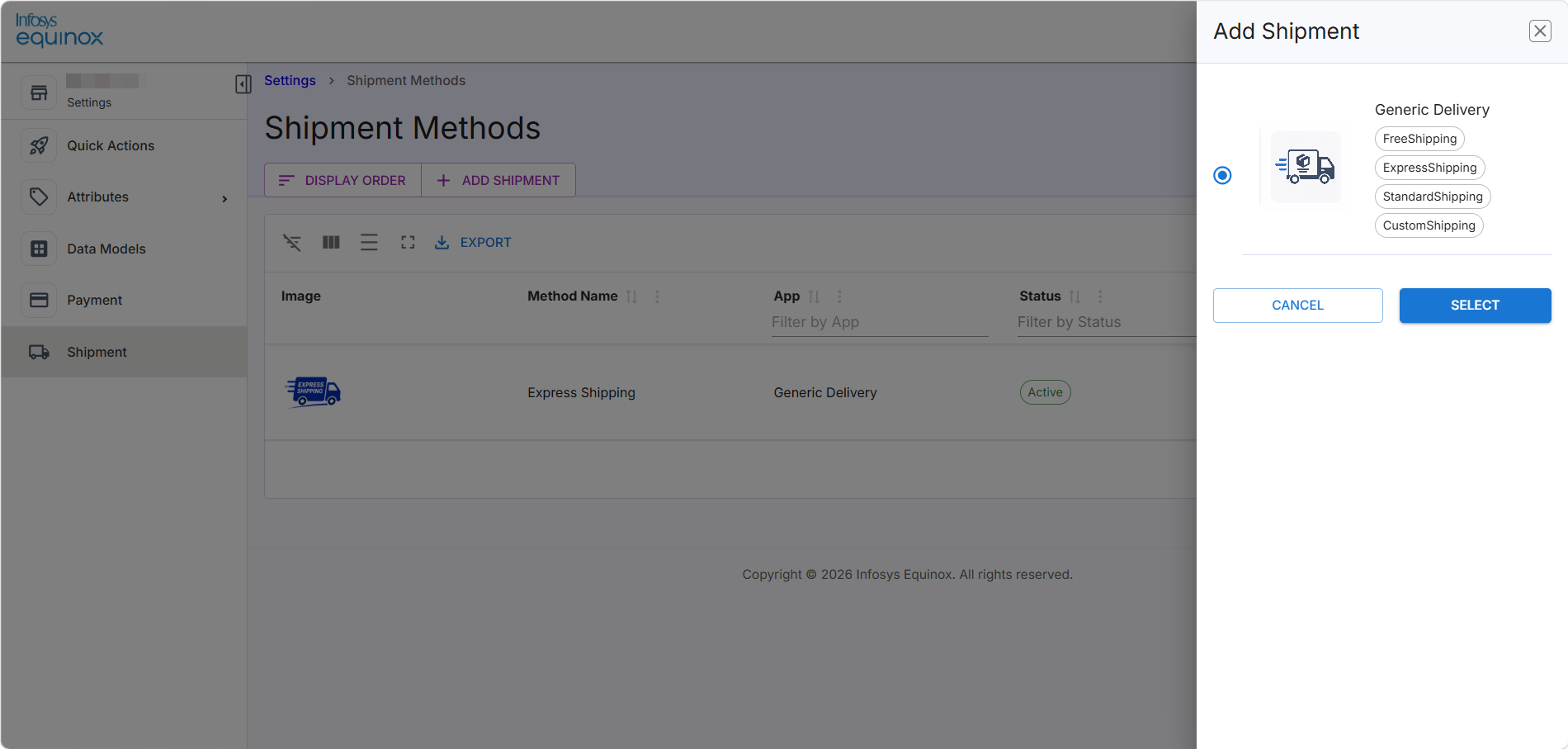
- Complete the configuration form:
- Method Name — Enter the display name for the shipment method as it will appear to customers at checkout.
- App — Select the delivery application that will fulfill this shipment method.
- Base Price — Enter the base delivery cost in the store’s currency.
- Optionally, upload a logo or icon to represent the shipment method by dragging and dropping an image file onto the upload area, or by selecting BROWSE.
- Select Save to create the shipment method.
The new method appears in the Shipment Methods table with Active status.
Edit a Shipment Method
- Log in to the Infosys Equinox Admin Console using your credentials.
- On the left navigation panel, click Settings > Shipment.
- In the Shipment Methods table, select the name of the method you want to update.
The shipment method detail page opens. - Update the fields as required.
- Select Save to apply your changes.
Note: To discard the changes, click Cancel.
Delete a Shipment Method
Deleting a shipment method permanently removes it from the checkout experience and cannot be undone. Before proceeding, ensure that no pending or active orders rely on this method.
To delete a payment method,
- Log in to the Infosys Equinox Admin Console using your credentials.
- On the left navigation panel, click Settings, then click Shipment.
- Locate the shipment method you want to modify and click its name to open the details page.
- Click the Delete button.
- Confirm the deletion when prompted.
Once deleted, the shipment method is immediately removed and will no longer be available at checkout.
Change Display Order
- Log in to the Infosys Equinox Admin Console using your credentials.
- On the left navigation panel, click Settings, then click Shipment.
- Click the DISPLAY ORDER button.
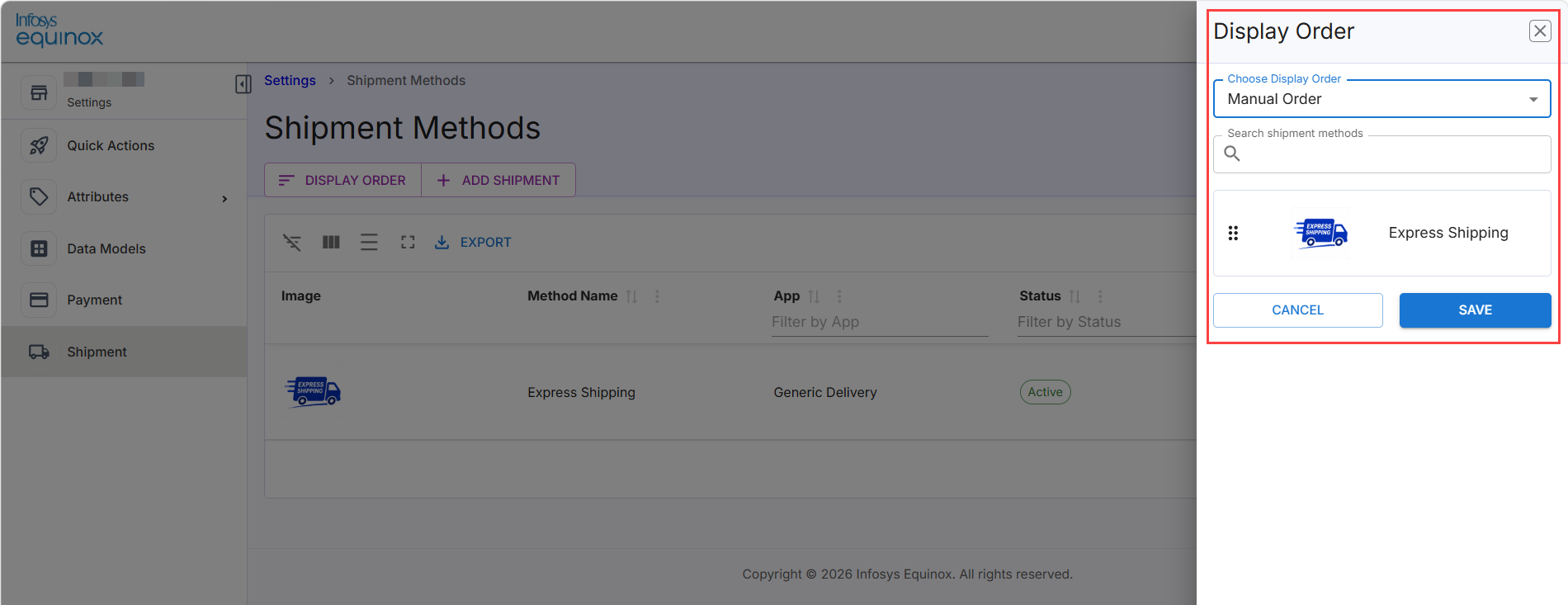
- In the Display Order drawer, drag and drop the shipment methods into the preferred sequence.
- Save the updated order.
The new sequence is reflected in the checkout experience.
Export Shipment Methods
- Log in to the Infosys Equinox Admin Console using your credentials.
- On the left navigation panel, click Settings, then click Shipment.
- Select EXPORT to download the shipment methods list. The export includes all methods currently visible in the table, subject to any active filters.
Filter the Table
Use the filter row beneath each column header (such as Method Name, App, Status, or Base Price) to narrow the list. Click GO to apply the filters.
Note: To clear all active filters and return to the default view, click RESET.
Revision History
2026-04-28 | JP – Created the page and added the content.