This page equips merchandisers and administrators with a user guide for the Merchandiser module in the Infosys Equinox Ultra Admin console. The Merchandiser module provides centralized tools for managing product catalogs, SKUs, categories, site navigation, and data models across the full merchandising lifecycle.
Merchandiser Overview
The Merchandiser menu in Infosys Equinox Ultra Admin provides centralized access to tools for managing product catalogs, SKUs, categories, navigation, and data models. It supports the complete merchandising lifecycle—from content authoring and validation through approval, scheduling, and publishing—across live and preview environments.
Based on assigned roles, users can search, create, edit, review, and publish catalog entities while maintaining governance through draft, submitted, and scheduled workflows. Real‑time insights, bulk actions, version control, and scheduling capabilities enable efficient catalog administration and timely storefront updates without impacting the underlying data model.
The following sub-menus are available within the Merchandiser menu:
| Sub-menu | Description |
|---|---|
| Search Products | Central workspace for searching, filtering, and managing products, SKUs, and categories across Live, Draft, and Scheduled Publish states. |
| Catalog Management | View, create, and manage catalogs — the top-level containers that organize products and SKUs. |
| Master Catalog – Products | Manage all products within the master catalog through the full authoring-to-publishing workflow. |
| Master Catalog – SKUs | Manage all SKUs within the master catalog, including drafting, approval, and publishing. |
| Site Navigation | Create and manage storefront navigation menus and their hierarchical category structures. |
| Categories | Create, organize, and manage the category tree that defines the browsing structure of the storefront. |
| Tag Groups | Manage tag group definitions used to classify and organize product tags. |
| Tags | Manage individual tag values assigned to products and SKUs for discovery and filtering. |
Note: For more information on inventory, see the videos:
To access the Merchandiser Admin, refer to the Accessing Merchandiser Admin section.
Service Glossary
- Approver – a user (typically a Business Admin) authorized to review submitted draft records and publish or schedule them for storefront delivery.
- Catalog – the top-level container that organizes products, SKUs, and related content for a store.
- Category – a hierarchical node within a site navigation that defines the browsing structure customers use to explore the storefront.
- Draft – the state of a catalog record that has been created or edited but not yet submitted for approval or published.
- Editor – a user with a role such as
ROLE_CATALOG_EDITOR,ROLE_PRICE_EDITOR, orROLE_MERCHANDISE_EDITORwho can create and edit catalog records but requires approval before publishing. - enablePreview – a store property that must be set to
trueto enable the Draft, Live, and Scheduled Publish tabs and related workflow features. - Insight Cards – dashboard widgets on the Search Products page that display real-time counts of records pending submission or approval action, segmented by role.
- Live – the published, customer-visible state of a catalog record.
- Locale – the language and regional format context applied to catalog-sensitive views.
- Master Catalog – the primary catalog for a store that holds all canonical product and SKU records.
- Milestone – a versioned grouping of site navigation changes tracked for audit and publishing purposes.
- Product – a catalog entity representing a saleable item, which may include one or more SKU variants.
- Publish Now – the action that immediately moves an approved record from the Draft or Submitted state to the Live tab and triggers re-indexing.
- Scheduled Publish – the state of a catalog record that has been approved and assigned a future publish date and time.
- Schedule Publish – the action of assigning a future date and time for an approved record to go live, using available 5-minute time slots relative to the store’s time zone.
- Semantic ID – the unique identifier used for a category in storefront URLs and navigation paths.
- Site Navigation – a named container that defines a menu hierarchy — including top-level items, sub-menus, and links — independent of the underlying catalog category tree.
- SKU (Stock Keeping Unit) – a specific purchasable variant of a product, identified by attributes such as size, color, or configuration.
- Submit for Approval – the action that moves a draft record to the Submitted state, making it available for approver review.
- Tag – an individual label value assigned to products or SKUs to support discovery and filtering.
- Tag Group – a logical grouping of related tags used to classify and organize product attributes.
- Version History – the record of previous states of a catalog entity, enabling field-level comparison between versions.
Prerequisites
Before using the Merchandiser module, ensure the following conditions are met:
- Valid Credentials – You must have valid login credentials with an assigned merchandiser editor or approver role.
- Role Assignment – Editors require one of the following roles:
ROLE_CATALOG_EDITOR,ROLE_PRICE_EDITOR, orROLE_MERCHANDISE_EDITOR. Approvers require a Business Admin role. - Business and Store Provisioned – At least one business and one store must be configured and accessible in your Foundation service.
- enablePreview Store Property – To access the Draft, Live, and Scheduled Publish tabs and insight card features, the
enablePreviewstore property must be set totrue. - Platform Access URL – You must have the Infosys Equinox Ultra Admin URL for your environment (provided by Infosys Equinox).
Accessing Merchandiser Admin
To access the Merchandiser Admin component in the Infosys Equinox Ultra Admin console,
- Log in to the Foundation service for your business (URL provided by Infosys Equinox).
- Navigate to the required Business, and then select the appropriate Store.
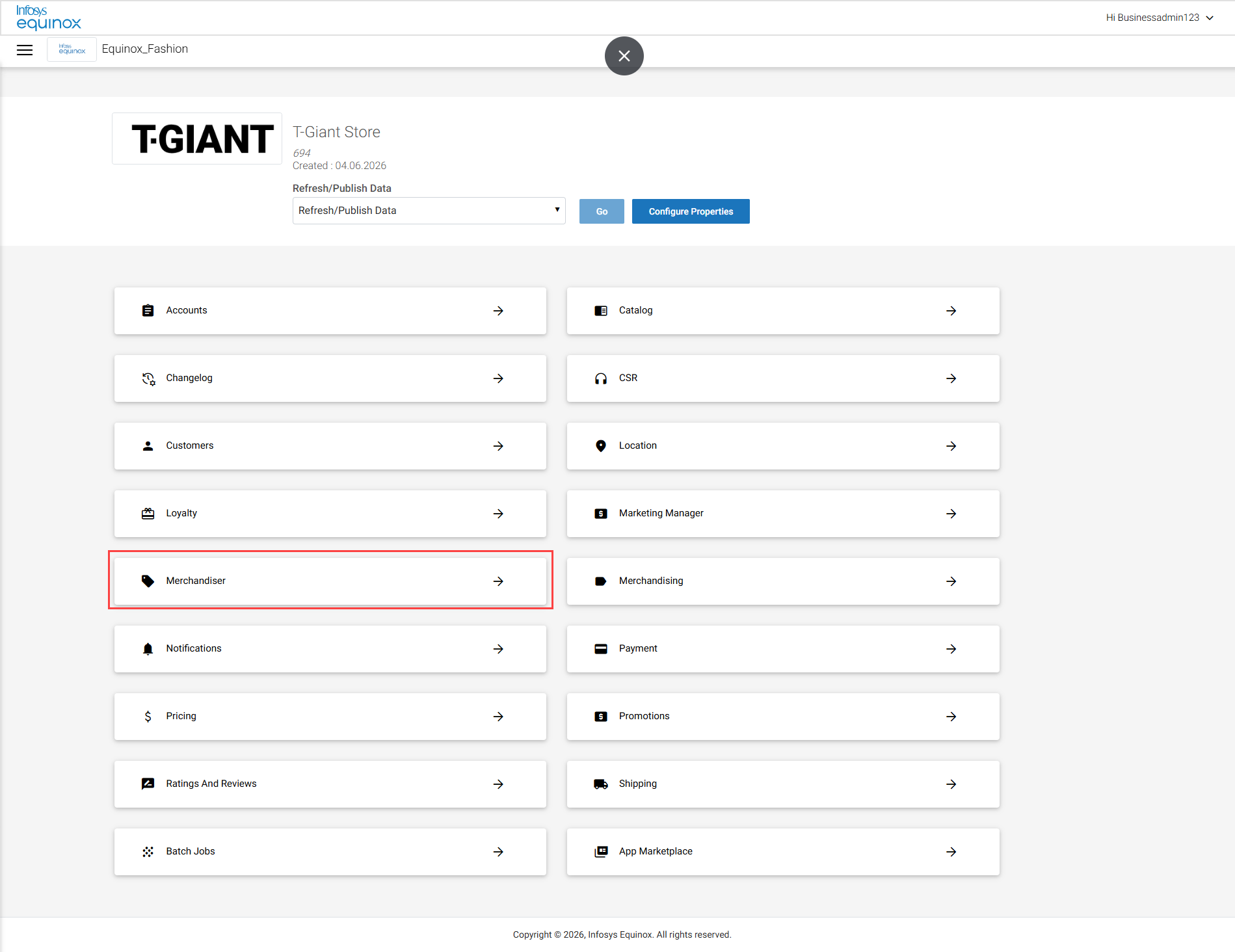
- Click Merchandiser on the StoreOps navigation panel:
The Search Product landing page opens:
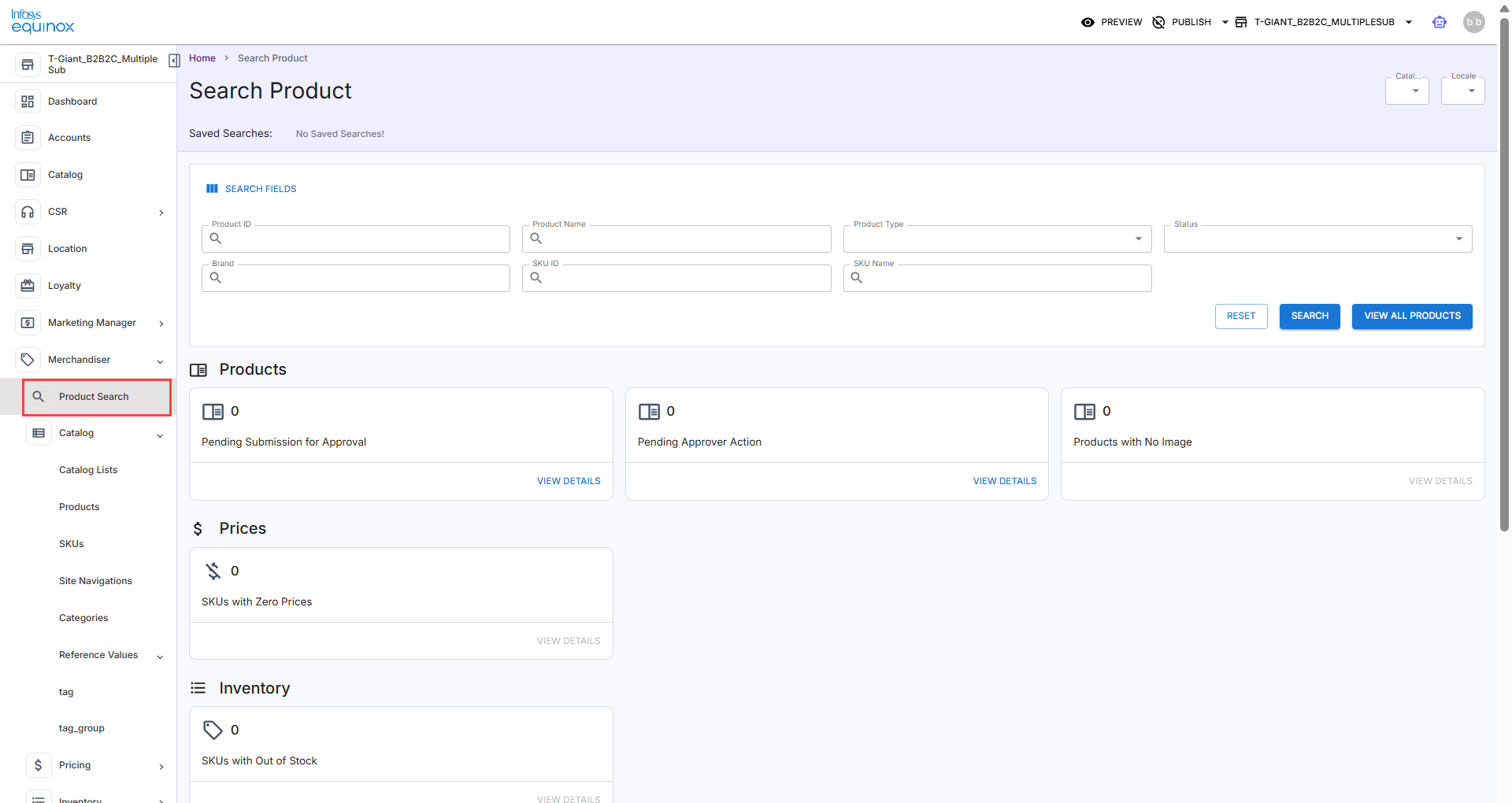
Product Search — Merchandiser Admin
Overview
The Search Products page in Merchandiser Admin is the central workspace for managing product, SKU, and category catalog data. You can search, filter, and manage records of products, SKUs or categories across the Live, Draft, and Scheduled Publish tabs. Role-based insight cards at the top of the page provide real-time counts of records pending submission or approval, enabling editors and approvers to quickly identify and act on items requiring attention.
This page is available to users with the following roles:
- Editors:
ROLE_CATALOG_EDITOR,ROLE_PRICE_EDITOR,ROLE_MERCHANDISE_EDITOR - Approvers: Admin users
Note: For more information, see the video Configuring Left Navigation and Product Search.
Prerequisites
- You must have an active Merchandiser Admin session with an assigned editor or approver role.
- The
enablePreviewstore property must be set totrueto access the Draft, Live, and Scheduled Publish tabs and the insight cards.
Searching for Products
- In the Merchandiser Admin header, navigate to the Search Products page.
- Enter a product identifier, product name, product type (such as Bundle, Fixed Bundle, SKU Kit, Fixed Kit, or Collection), status (such as Active or Inactive), Brand, SKU identifier, or SKU name in the search field.
Note: To add additional search fields to Search Product, click Search Fields.
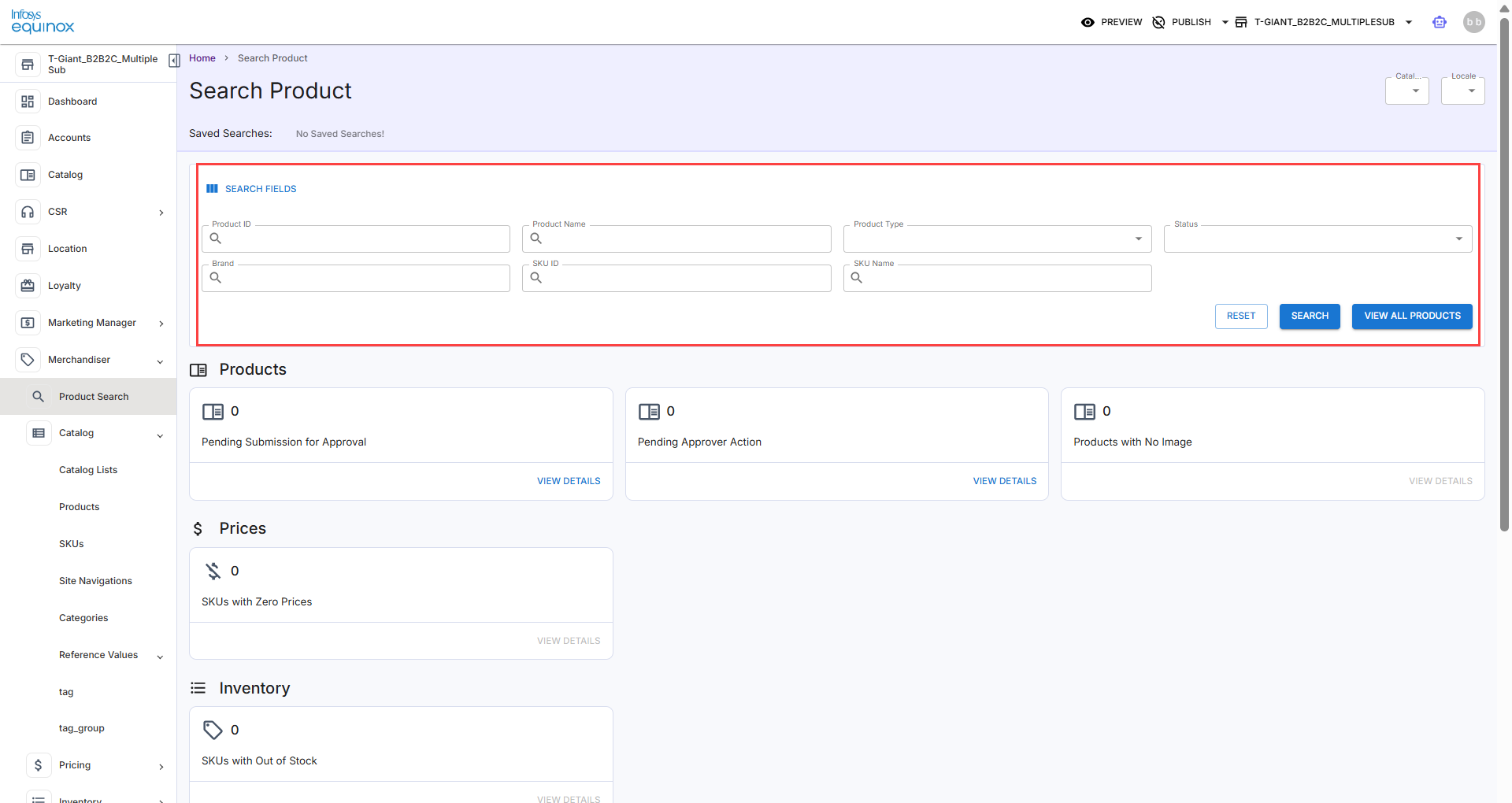
- Select Search to retrieve matching records.
- Select a record from the results to open the Products or SKUs page with the Live, Draft, and Scheduled Publish tabs. For more details, see Understanding the Product Tabs.
Viewing All Products
To view all products,
- In the Merchandiser Admin header, navigate to the Search Products page.
- Click the View all Products button.
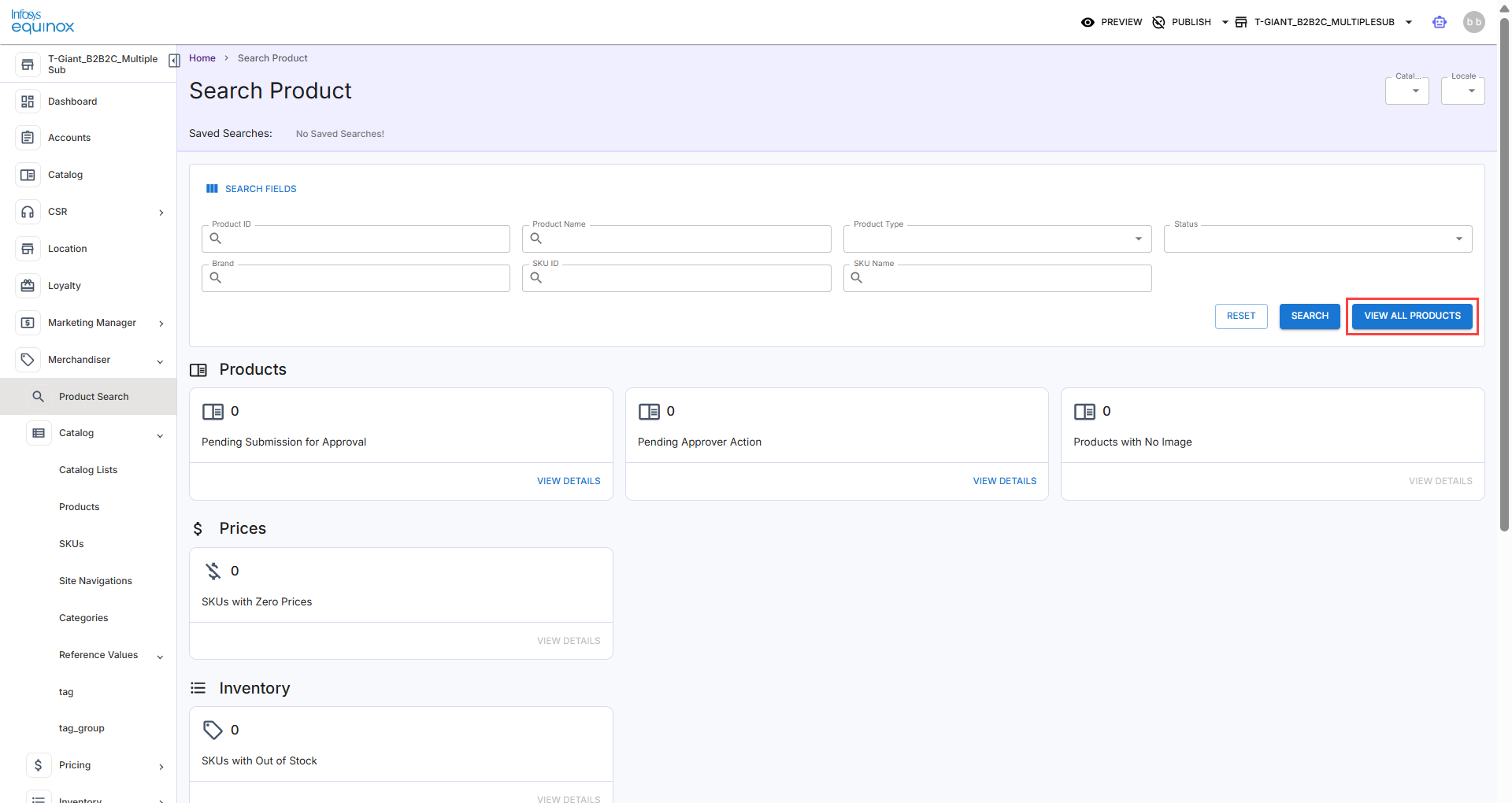
All the products of the store are listed. - Select a record from the search results to open the Products page with the Live, Draft, and Scheduled Publish tabs. See Understanding the Product Tabs.
Using Insight Cards
Insight cards display real-time counts of records that require action based on your role.
- On the Search Products page, review the insight cards.
- Editors see counts for records pending submission for approval.
- Approvers see counts for records pending approval action.
- Click View Details on any insight card to navigate to the corresponding Draft or Submitted records list, filtered to the relevant record type.
Note: Alternatively, you can access the Draft or Submitted records from the Publish dropdown in the Merchandiser Admin header for Products and SKUs. - Perform the appropriate actions for Draft and Submitted records:
|
Record State |
Action |
Steps |
|
Draft Records |
Submit an individual records for approval |
Locate the record in the list. Click Submit for Approval from the record’s action menu. |
|
Draft Records |
Submit records in bulk for approval |
Enable the Bulk Select toggle. Selects the checkboxes for up to 50 records across Products, SKUs, and Categories tabs by default. Click Submit for Approval from the record’s action menu. |
|
Draft Records |
Submit the required records in bulk either for approval in Products, SKUs, or Categories tab. |
Click Products, SKUs, or Categories tab. Select all from the column header or select the required records. Click Submit for Approval from the record’s action menu. |
|
Draft Records |
Delete records in bulk |
Enable the Bulk Select toggle. Selects the checkboxes for up to 50 records across Products, SKUs, and Categories tabs by default. Click Submit for Approval from the record’s action menu. |
|
Submitted Records |
Publish an individual approved record immediately |
Locate the record. Click Publish Now from the record’s action menu. The record is published to the Live tab immediately and re-indexing is triggered automatically. |
|
Submitted Records |
Publish an approved bulk records immediately |
Enable the Bulk Select toggle. Selects the checkboxes for up to 50 records across Products, SKUs, and Categories tabs by default. Click Publish Now. The selected records are published immediately and displayed on the Live tab. |
|
Submitted Records |
Schedule publishing for an individual approved record
|
Click the appropriate tab. Locate the record. Click Schedule Publish. In the drawer, select a date and time using the available 5-minute time slots. Click Schedule. It schedules and publishes the selected records as per the store’s time zone and displayed on the Live tab. |
|
Submitted Records |
Schedule publishing for bulk records |
Enable the Bulk Select toggle. Selects the checkboxes for up to 50 records across Products, SKUs, and Categories tabs by default. Click Schedule Publish. In the drawer, select a date and time using the available 5-minute time slots. Click the Schedule button. It schedules and publishes the selected records as per the store’s time zone and displayed on the Live tab. |
Catalog Management — Merchandiser Admin
Overview
The Catalog Lists page in Merchandiser Admin provides a centralized view of all catalogs configured for your store. Catalogs are the top-level containers that organize your store’s products and SKUs. From this page, you can create new catalogs, view existing catalogs, and navigate to catalog-specific products, SKUs, and other content.
The Catalog page supports the full catalog lifecycle — from creation through publishing — and provides visibility into catalog revisions for audit and tracking purposes.
Prerequisites
- You must have an active Merchandiser Admin session with an assigned editor or approver role.
- Ensure the required Collection ID is configured for your tenant session.
Viewing and Searching Catalogs
- In the Merchandiser Admin, navigate to Catalog > Catalog Lists. The catalog listing displays all available catalogs for your collection.
- Use inline filters to locate to locate a specific catalog:
Column
Description
Catalog Name
The display name of the catalog.
Catalog ID
The unique identifier for the catalog.
Type
The catalog type, such as Default.
Status
Indicates whether the catalog is Active or Inactive.
- Select a catalog from the listing to open its details page.
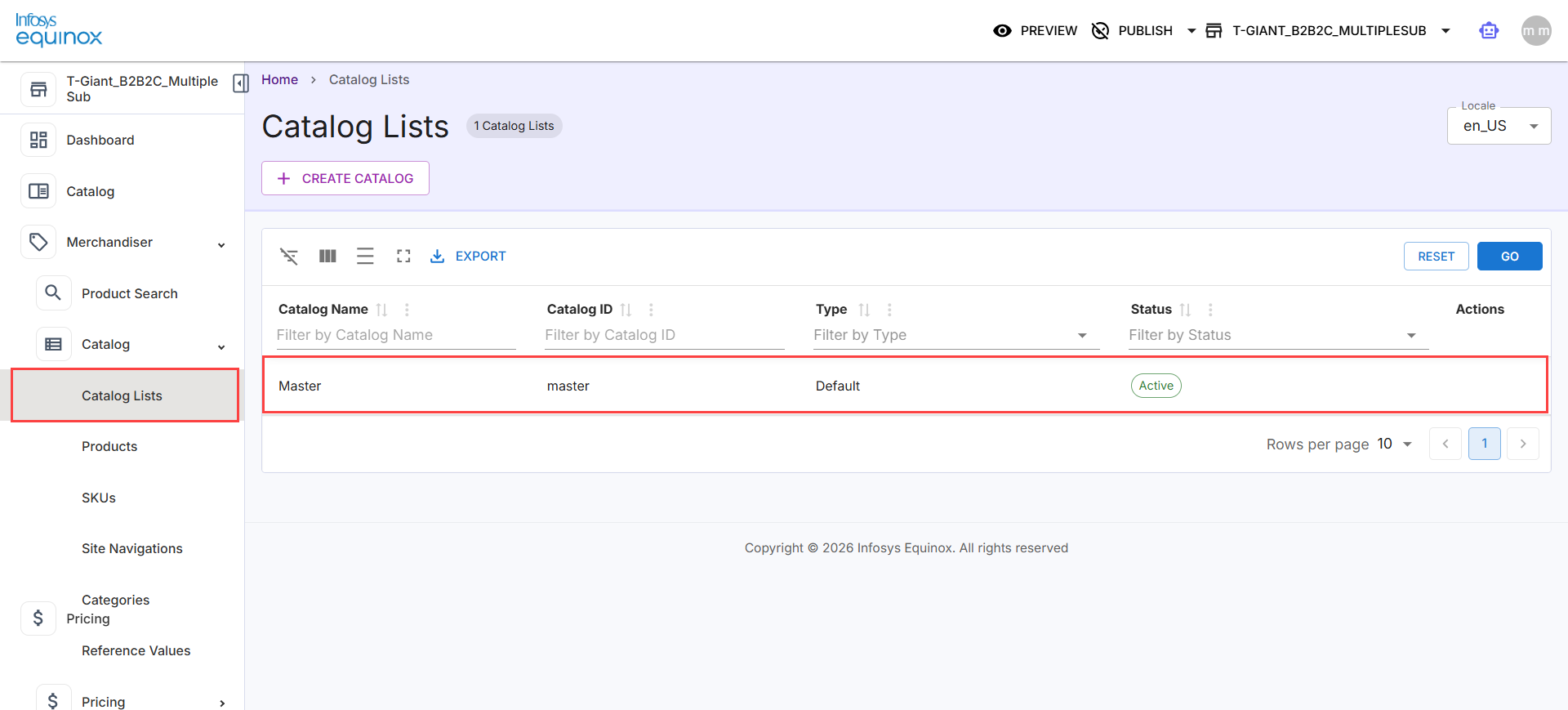
Note: To download the catalog listing, select Export.
Creating a Catalog
To create a catalog,
- In the Merchandiser Admin, navigate to the Catalog Lists page.
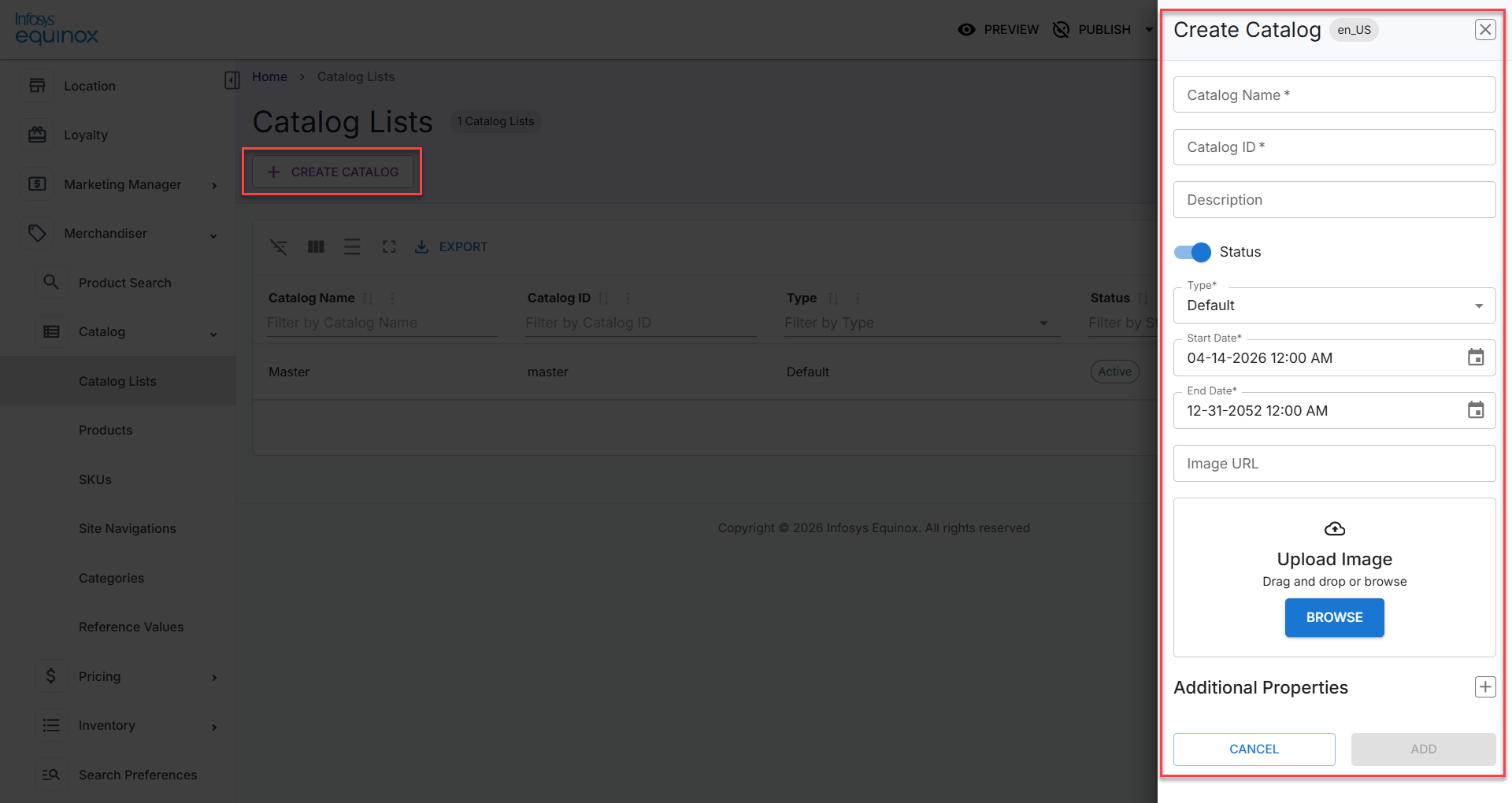
- Select Create Catalog. The Create Catalog panel opens on the right side of the page. Enter the following details:
Field
Required
Description
Catalog Name
Yes
Enter a display name for the catalog.
Catalog ID
Yes
Enter a unique identifier for the catalog. Cannot be edited after the catalog is created.
Description
No
Enter an optional description.
Status
Yes
Toggle on to set the catalog as Active, or toggle off for Inactive. Enabled by default.
Type
Yes
Select the catalog type from the dropdown. Defaults to Default.
Start Date
Yes
Select the date and time from which the catalog becomes effective.
End Date
Yes
Select the date and time when the catalog expires. Defaults to 12-31-2052 12:00 AM.
Image URL
No
Enter a URL for the catalog image or drag and drop an image file or select Browse to upload a catalog image from your device.
Additional Properties
No
Click
 to expand and add custom key-value properties to the catalog.
Note:
- Multiple key-value properties can be added.
- To delete a particular property, click Delete against that property.
- Click Add to create the catalog.
Note: To discard the changes and close the panel, select Cancel.
The new catalog appears in the Catalog Lists listing.
Important: Both Catalog Name and Catalog ID are mandatory. The Catalog ID must be unique across all catalogs in your collection and cannot be edited after the catalog is created.
Deleting a Catalog
- In the Merchandiser Admin, navigate to Catalog > Catalog Lists.
The catalog listing displays all available catalogs for your collection. - Locate the catalog you want to delete.
- Select Delete from the catalog’s action menu.
- Confirm the deletion in the confirmation dialog.
Note: Deleting a catalog is a permanent action. Ensure all associated products, SKUs, and projects are reviewed before deleting.
Publishing Catalog Content
- On the project details page within a catalog, review the draft products and SKUs.
- Once changes are approved, select Publish from the project actions.
- Select the publish type — Full or as configured — and confirm the action.
Note: Publishing triggers the catalogservice/publish/create event, which initiates downstream re-indexing for search.
Master Catalog — Products
Overview
The Products page under Catalog Lists provides a centralized workspace for managing all products in the Master catalog. You can view currently published products, manage draft edits through an approval workflow, and schedule future product launches — all from a single page using the Live, Draft, and Scheduled Publish tabs.
The Catalog and Locale selectors at the top right of the page allow you to switch the catalog context and locale for the listing.
The Live, Draft, and Scheduled Publish tabs are available when the enablePreview store property is set to true to manage the full product lifecycle — from authoring and approval through to publishing.
Prerequisites
- You must have an active Merchandiser Admin session with an assigned editor or approver role.
- To access the Draft and Scheduled Publish tabs, the
enablePreviewstore property must be set totrue.
Searching & Viewing Products in the Master Catalog
- In the Merchandiser Admin, navigate to Catalog > Catalog Lists.
- Select the Master catalog from the listing.
- Select Products from the left navigation. The product listing displays all products available in the master catalog.
- Use the search field to locate a product by name, identifier, type, or status to narrow the results.
Note: To add additional search fields to Search Product, click Search Fields. - Click GO to retrieve matching records.
- On any of the Live, Draft, or Scheduled Publish tabs, select a product from the listing to open the product details page. For more details, see Understanding the Product Tabs.
Understanding the Product Tabs
|
Tab |
Description |
|
Live |
Displays currently published products visible to customers. |
|
Draft |
Displays products with pending edits awaiting submission or approval. |
|
Scheduled Publish |
Displays products scheduled for future publishing. |
Creating a Product
- In the Merchandiser Admin, navigate to Catalog > Catalog Lists.
- Select the Master catalog from the listing.
- Select Products from the left navigation.
- Select + Create Item. The Create Item panel opens on the right side of the page. Enter the following details:
Field
Required
Description
Product Type
Yes
Select the product type from the dropdown. Available options include Product, Bundle, and Fixed Kit. Defaults to Product.
Product ID
Yes
Enter a unique identifier for the product.
Product Name
Yes
Enter the display name for the product.
Auto-create SKU
No
Select this checkbox to automatically create a SKU for the product. Selected by default.
SKU ID
Yes (if Auto-create SKU is selected)
Enter a unique identifier for the SKU to be created with the product.
Price
No
Enter the product price.
Inventory
No
Enter the inventory quantity for the product.
- Click Save as Draft & Edit to save the product as a draft and open the product details page for further editing.
Note: To discard the entry and close the panel, select Cancel.
Editing a Product
To edit a product by a merchandiser editor, merchandiser admin, or business user,
- In the Merchandiser Admin, navigate to Catalog.
- Select Products from the left navigation.
- Locate the product you want to edit.
- Select the product to open the details page.
- Update the required fields or attributes.
- Click to apply the changes. The updated product is saved in the Draft tab. After the required updates, the user can submit the product for approval.
Note: For more information, see the video Bynder Integration.
Submitting a Product for Approval
- In the Merchandiser Admin, navigate to Catalog.
- Select Products from the left navigation.
- On the Draft tab, locate the product you want to submit.
- Click Submit for Approval from the product’s action menu. The product moves to the Submitted state and is available for approver review.
Submitting Multiple Products for Approval in Bulk
To submit multiple products for approval in bulk:
- In the Merchandiser Admin, navigate to Catalog.
- Select Products from the left navigation.
- Click the Draft tab and select the required products.
- Click Submit for Approval from the product’s actions menu and confirm.
The products move to the Submitted state and are available for approver review.
Publishing a Product
Once drafts are submitted by editors, approvers have the option to publish them immediately or schedule publication for a future date and time. For publishing or scheduling multiple products in bulk, refer to Publishing Approved Products in Bulk.
To publish immediately )merchandiser admin or business admin user),
- In the Merchandiser Admin header, navigate to the Search Products page.
- In the Products section, click
 of the Pending Approver Action insight card.
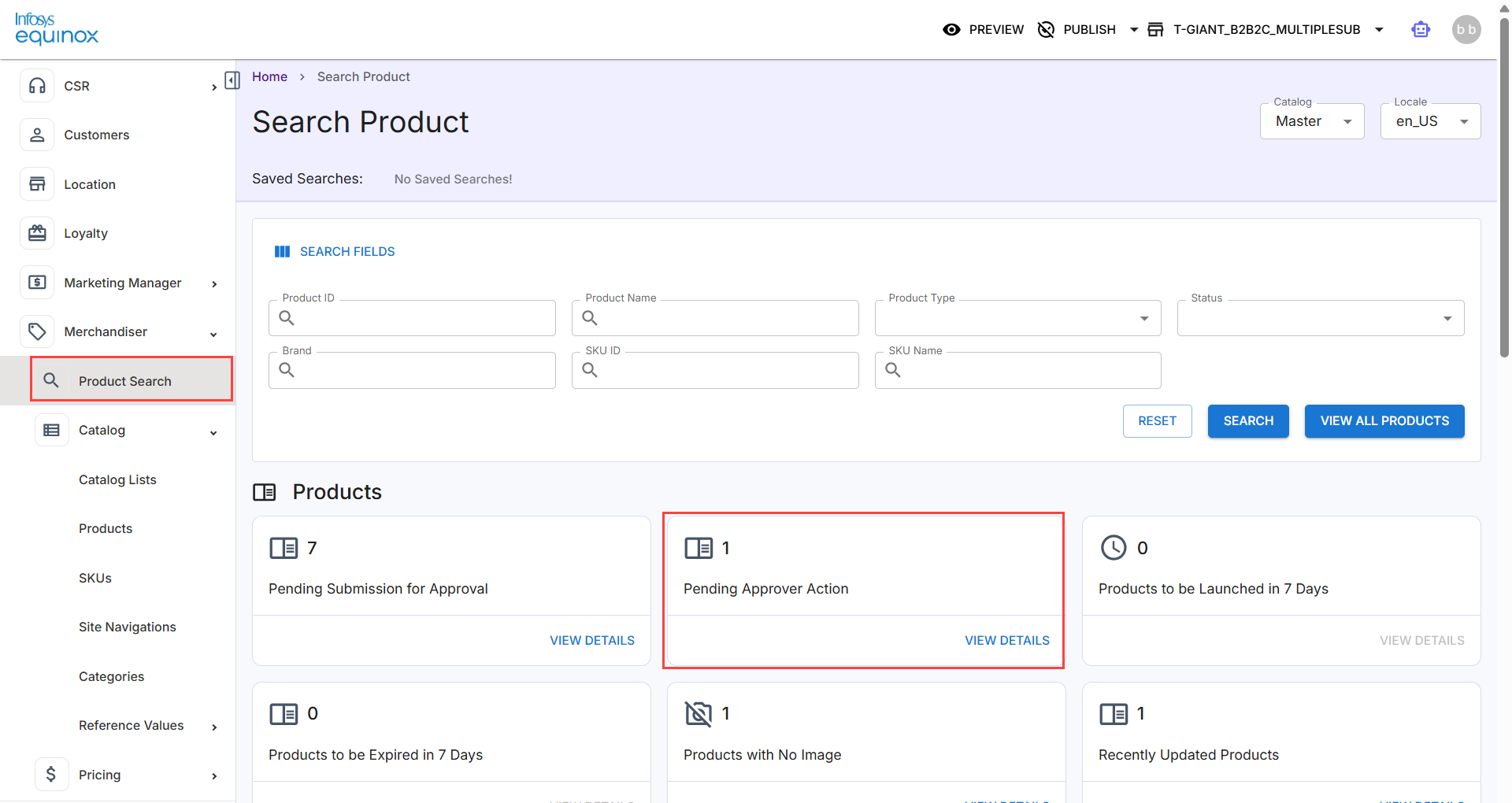
- On the Submitted Records page, click the Products tab.
- Locate and select the approved product.
- Click one of the following:
-
- Publish Now: The product is published to the Live tab immediately and re-indexing is triggered automatically.
- Schedule Publish: In the date and time drawer, select a publish date and time using the available 5-minute time slots. The store time zone is displayed for reference. Select Confirm to save the schedule. The product appears in the Scheduled Publish tab and re-indexing runs automatically at the scheduled time and displayed on the Live tab.
Viewing Version History
To view product details of a particular version,
- In the Merchandiser Admin, navigate to Catalog.
- Select Products from the left navigation.
- Click on the Live, Draft, or Schedule Publish tab.
- Click on the product to open the details page.
- If the store property
enablePreviewis enabled, then open the product from the Live, Draft, or Schedule Publish tabs. - In the Version History section, the latest live, draft, and/or schedule publish records are displayed. Click to view the last 10 versions of the product.
- Select a version to view the product details of that version. Field-level differences are highlighted for review.
Note: The Version History card is available only when the enablePreview store property is set to true.
Deleting a Draft Product
- In the Merchandiser Admin, navigate to Catalog.
- Select Products from the left navigation.
- Click the Draft tab and select the checkboxes for the products you want to delete.
- Select Delete available next to the GO button.
- Confirm the deletion in the confirmation dialog.
Note: Only draft products can be deleted from this view. Deleting a live product requires it to be unpublished first.
Master Catalog — SKUs
Overview
The SKUs page under Catalog Lists provides a centralized workspace for managing all SKUs in the Master catalog. SKUs represent individual purchasable variants of a product, such as size, color, or configuration. You can view currently published SKUs, manage draft edits through an approval workflow, and monitor upcoming SKU launches — all from a single page using the Live, Draft, and Scheduled Publish tabs.
The Catalog and Locale selectors at the top right of the page allow you to switch the catalog context and locale for the listing.
The Live, Draft, and Scheduled Publish tabs are available when the enablePreview store property is set to true to manage the full SKU lifecycle — from authoring and approval through to publishing.
Prerequisites
- You must have an active Merchandiser Admin session with an assigned editor or approver role.
- To access the Draft and Scheduled Publish tabs, the
enablePreviewstore property must be set totrue.
Searching & Viewing SKUs in the Master Catalog
- In the Merchandiser Admin, navigate to Merchandiser > Catalog > SKUs.
Note: Alternatively, follow the breadcrumb path Home > Catalog Lists > Master > SKUs.
The SKU listing displays all SKUs available in the master catalog. - Use the search field to locate a SKU by name, identifier, type, or status to narrow the results.
Note: To add additional search fields to Search Product, click Search Fields. - Click GO to retrieve matching records.
- On any of the Live, Draft, or Scheduled Publish tabs, select a SKU from the listing to open the SKU details page. For more details, see Understanding the Product Tabs.
Understanding the SKU Tabs
|
Tab |
Description |
|
Live |
Displays currently published SKUs visible to customers. |
|
Draft |
Displays SKUs with pending edits awaiting submission or approval. |
|
Scheduled Publish |
Displays SKUs scheduled for future publishing. |
Creating a SKU
To create a SKU,
- In the Merchandiser Admin, navigate to Catalog > Catalog Lists.
- Select the Master catalog from the listing.
- Select SKUs from the left navigation.
- Select + Create Item. The Create Item panel opens on the right side of the page. Enter the following details:
Field
Required
Description
Product Type
Yes
The product type SKU is selected by default and cannot be altered.
SKU ID
Yes
Enter a unique identifier for the SKU.
SKU Name
Yes
Enter the display name for the SKU.
Price
No
Enter the SKU price.
Inventory
No
Enter the inventory quantity for the SKU.
- Click Save as Draft & Edit to save the SKU as a draft and open the SKU details page for further editing.
Note: To discard the entry and close the panel, select Cancel.
Editing a SKU
To edit a SKU,
- In the Merchandiser Admin, navigate to Catalog.
- Select SKUs from the left navigation.
- Locate the SKU you want to edit.
- Select the SKU to open the details page.
- Update the required fields or attributes.
- Click
 to apply the changes. The updated SKU is saved in the Draft tab. After the required updates, the user can submit the SKU for approval.
Submitting a SKU for Approval
To submit a SKU for approval,
- In the Merchandiser Admin, navigate to Catalog.
- Select SKUs from the left navigation.
- On the Draft tab, locate the SKU you want to submit.
- Click Submit for Approval from the SKUs action menu.
The SKU moves to the Submitted state and is available for approver review.
Submitting Multiple SKUs for Approval in Bulk
To submit multiple SKUs for approval in bulk:
- In the Merchandiser Admin, navigate to Catalog.
- Select SKUs from the left navigation.
- Click the Draft tab and select the required SKUs.
- Click Submit for Approval from the SKUs actions menu and confirm. The SKUs are moved to the Submitted state and are available for approver review.
Publishing a SKU
Once drafts are submitted by editors, approvers have the option to publish them immediately or schedule publication for a future date and time. For publishing or scheduling multiple products in bulk, refer to Publishing Approved Products in Bulk.
To publish immediately by a merchandiser admin or business admin user,
- In the Merchandiser Admin header, navigate to the Search Products page.
- In the Products section, click of the Pending Approver Action insight card.
- On the Submitted Records page, click the SKUs tab.
- Locate and select the approved SKU.
- Click one of the following:
-
- Publish Now: The SKU is published to the Live tab immediately and re-indexing is triggered automatically.
- Schedule Publish: In the date and time drawer, select a publish date and time using the available 5-minute time slots. The store time zone is displayed for reference. Select Confirm to save the schedule. The SKU appears in the Scheduled Publish tab and re-indexing runs automatically at the scheduled time and displayed on the Live tab.
Publishing Approved SKUs in Bulk
To publish approved SKUs in bulk,
- In the Merchandiser Admin header, navigate to the Search Products page.
- Click View Details of the Pending Approver Action insight card.
- On the Submitted Records page, click the SKUs tab.
- Enable the Bulk Select toggle and select the checkboxes for the required SKUs.
- Click Publish Now or Schedule Publish as required.
Viewing Version History
To view SKU details of a particular version,
- In the Merchandiser Admin, navigate to Catalog.
- Select SKUs from the left navigation.
- Click on the Live, Draft, or Schedule Publish tab.
- Click on the SKU to open the details page.
Note: If the store propertyenablePreviewis enabled, then open the SKU from the Live, Draft, or Schedule Publish tabs. - In the Version History section, the latest live, draft, and/or schedule publish records are displayed. Click to view the last 10 versions of the SKU.
- Select a version to view the SKU details of that version. Field-level differences are highlighted for review.
Note: The Version History card is available only when theenablePreviewstore property is set totrue.
Deleting a Draft SKU
To delete a SKU from the Draft tab.
- In the Merchandiser Admin, navigate to Catalog.
- Select SKUs from the left navigation.
- Click the Draft tab and select the checkboxes for the SKUs you want to delete.
- Select Delete available next to the GO button.
- Confirm the deletion in the confirmation dialog.
Note: Only draft products can be deleted from this view. Deleting a live SKU requires it to be unpublished first.
Site Navigation — Merchandiser Admin
Overview
The Site Navigation page in Merchandiser Admin allows you to create and manage the navigational structures used across your storefront. Site navigation defines the menu hierarchy that customers use to browse your store, including top‑level menu items, sub‑menus, and their links to categories, pages, or external URLs.
Each site navigation is created as a named container and can contain its own category structure. You can maintain multiple site navigations—for example, a default navigation and seasonal or promotional variations—and control when they appear on the storefront using the Live, Draft, and Scheduled Publish workflow.
Site navigation is independent of the underlying catalog category hierarchy, giving merchandisers full control over menu structure, ordering, and labeling without impacting catalog organization or product assignment.
Prerequisites
- You must have an active Merchandiser Admin session with an assigned editor or approver role.
- To access the Draft and Scheduled Publish tabs within a site navigation, the
enablePreviewstore property must be set totrue.
Searching & Viewing Site Navigation
To view the site navigation details,
- In the Merchandiser Admin, navigate to Catalog > Site Navigation.
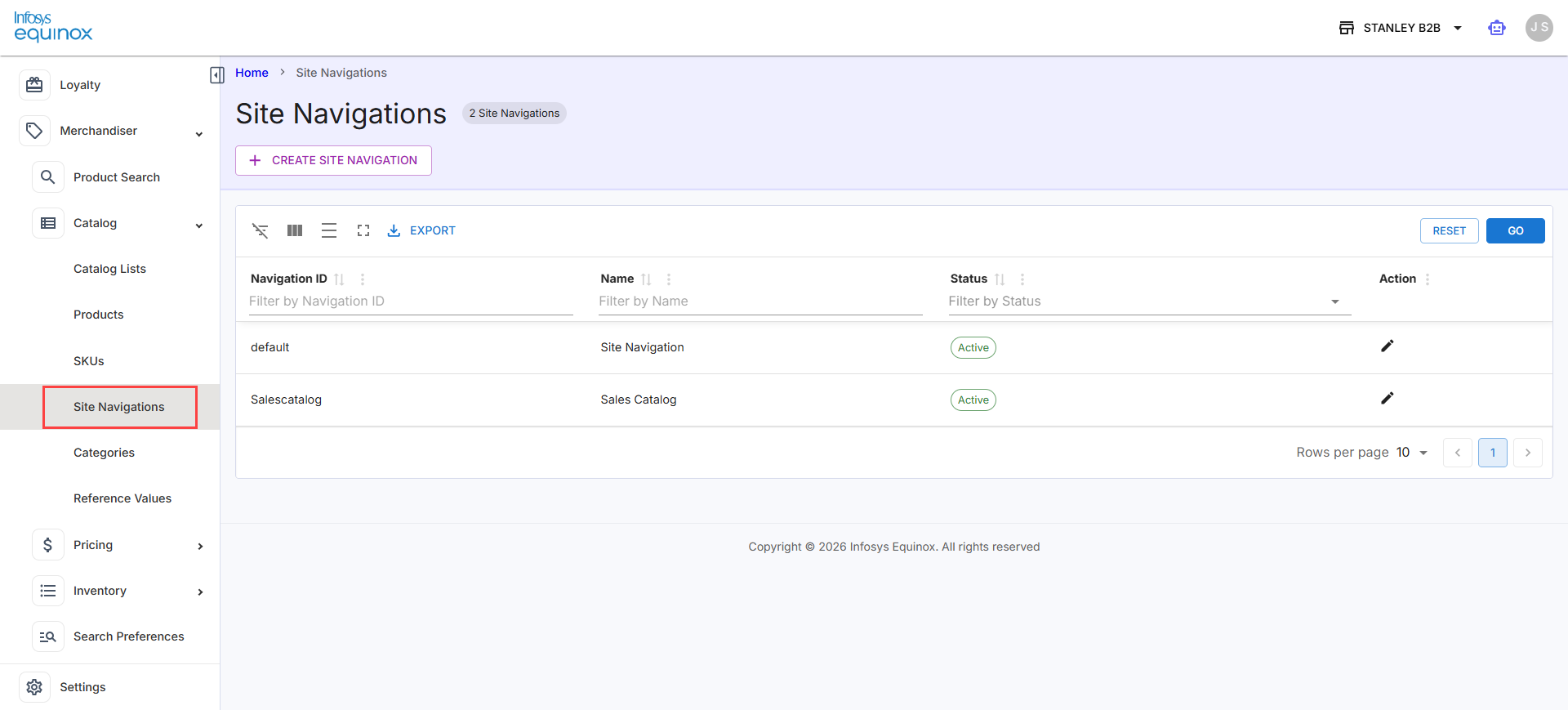
The site navigation listing displays all existing navigation menus and their hierarchical structure. The site navigation listing displays the following columns:
Column
Description
Navigation ID
The unique identifier for the site navigation.
Name
The display name of the site navigation.
Status
Indicates whether the navigation is Active or Inactive.
Action
Edit icon to modify the site navigation.
- Use the inline Filter by Navigation ID, Filter by Name, and Filter by Status fields to locate a specific navigation.
- Expand a navigation item to view its child nodes and sub-menu structure.
- Click on a navigation item to navigate to Categories tab in the left panel:
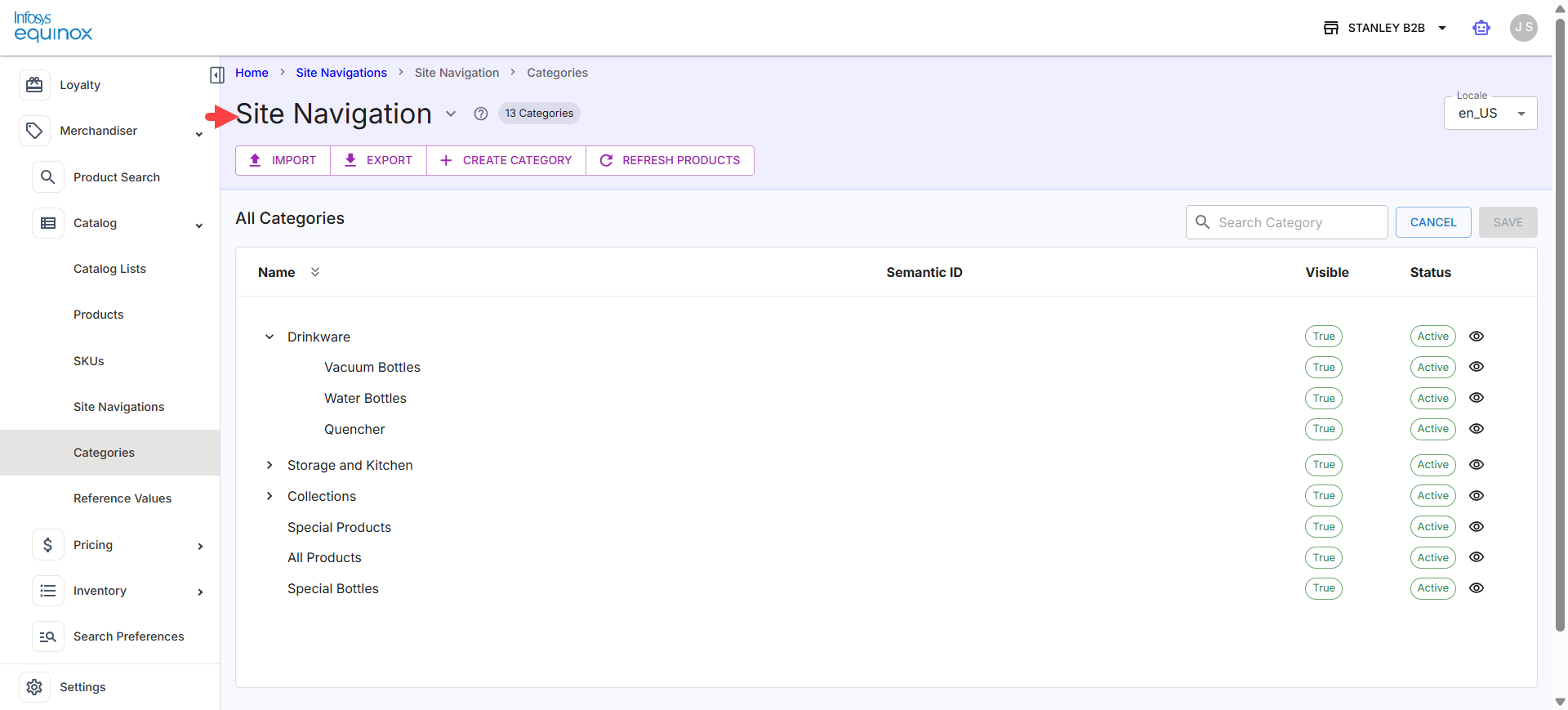
When theenablePreviewstore property is enabled, displays the category details in the following tabs:Tab
Description
Live
Displays currently published categories visible to customers.
Draft
Displays categories with pending edits awaiting submission or approval.
Scheduled Publish
Displays categories scheduled for future publishing.
Creating a Site Navigation
To create a site navigation,
- In the Merchandiser Admin, navigate to Catalog > Site Navigation.
- Click + Create Site Navigation.
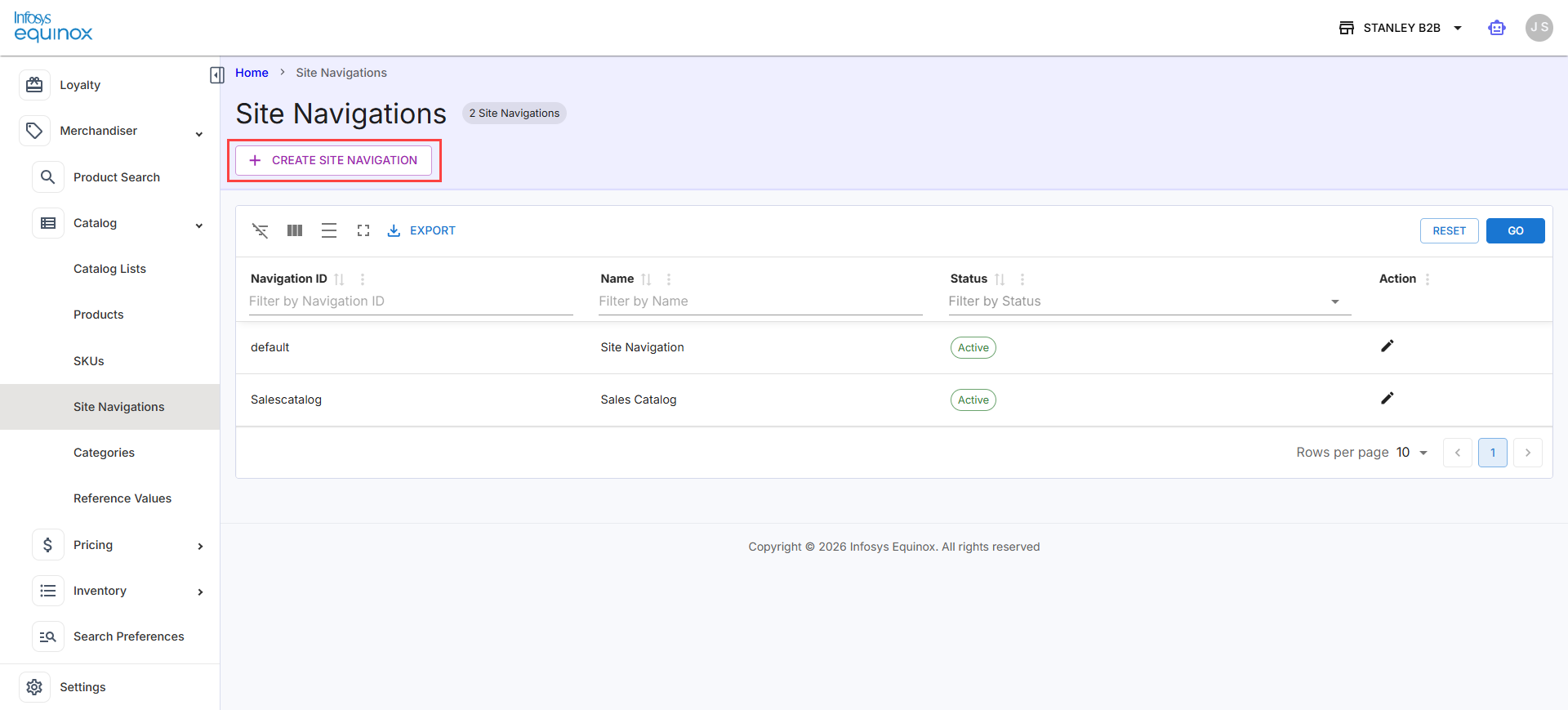
The Create Site Navigation panel opens on the right side of the page.
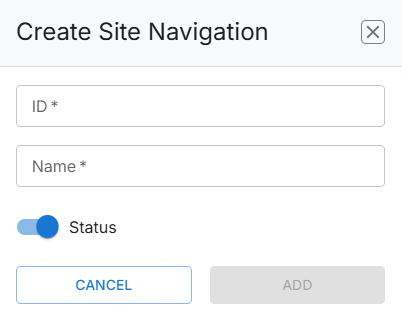
Enter the following details:Field
Required
Description
ID
Yes
Enter a unique identifier for the site navigation. The ID must be unique and cannot be edited after the site navigation is created.
Name
Yes
Enter a display name for the site navigation.
Status
Yes
Toggle on to set the navigation as Active, or toggle off for Inactive. Enabled by default.
- Select Add to create the site navigation. The new site navigation appears in the listing. Next, you can create categories for the newly created navigation.
Note: To discard the entry and close the panel, select Cancel.
Editing a Site Navigation
To edit a site navigation,
- In the Merchandiser Admin, navigate to Catalog > Site Navigation.
- Locate the site navigation item you want to edit.
- Select the item to open the drawer on the right side of the screen.
- Update the name of the site navigation and enable or disable the status
- Select Update to apply the changes.
Categories — Site Navigation
The Categories page within a site navigation provides a hierarchical view of all categories associated with that navigation. You can create, organize, and manage the category tree that defines the browsing structure of your storefront. Each category can be expanded to reveal subcategories, and you can control visibility and status at an individual category level.
The page supports the Live, Draft, and Scheduled Publish tabs to manage the full category publishing workflow.
Note: The Live, Draft, and Scheduled Publish tabs are available when the enablePreview store property is set to true.
Prerequisites
- You must have an active Merchandiser Admin session with an assigned editor or approver role.
- At least one site navigation must exist before categories can be created.
Navigating to the Categories Page
In the Merchandiser Admin, navigate to Merchandiser > Catalog > Categories.
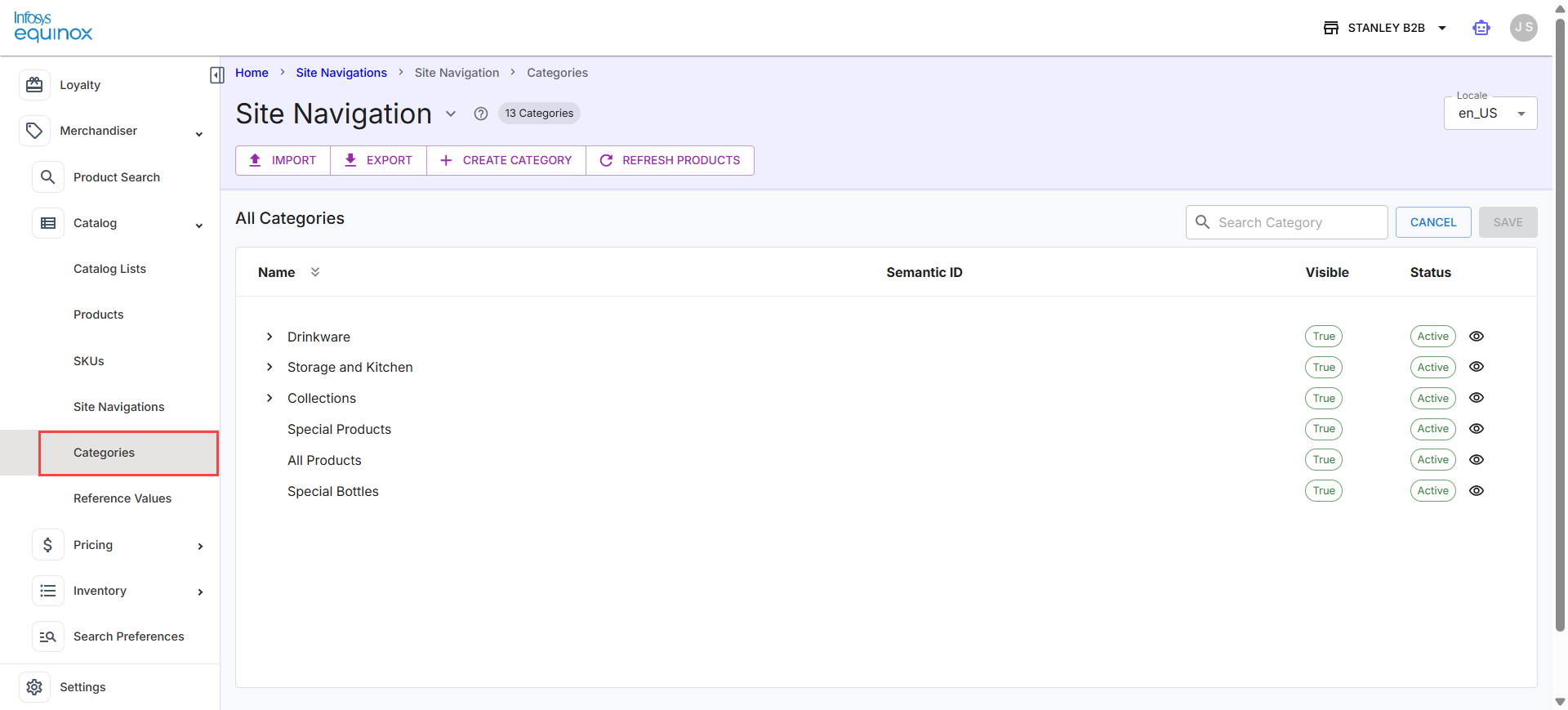
Alternatively, go to Site Navigations, click on the required site navigation to view the categories created for that site navigation.
Switching Between Site Navigations
- In the Merchandiser Admin, navigate to Merchandiser > Catalog.
- On the Categories page, select the dropdown arrow next to the site navigation name in the page header.
- Select the site navigation you want to manage from the dropdown list.
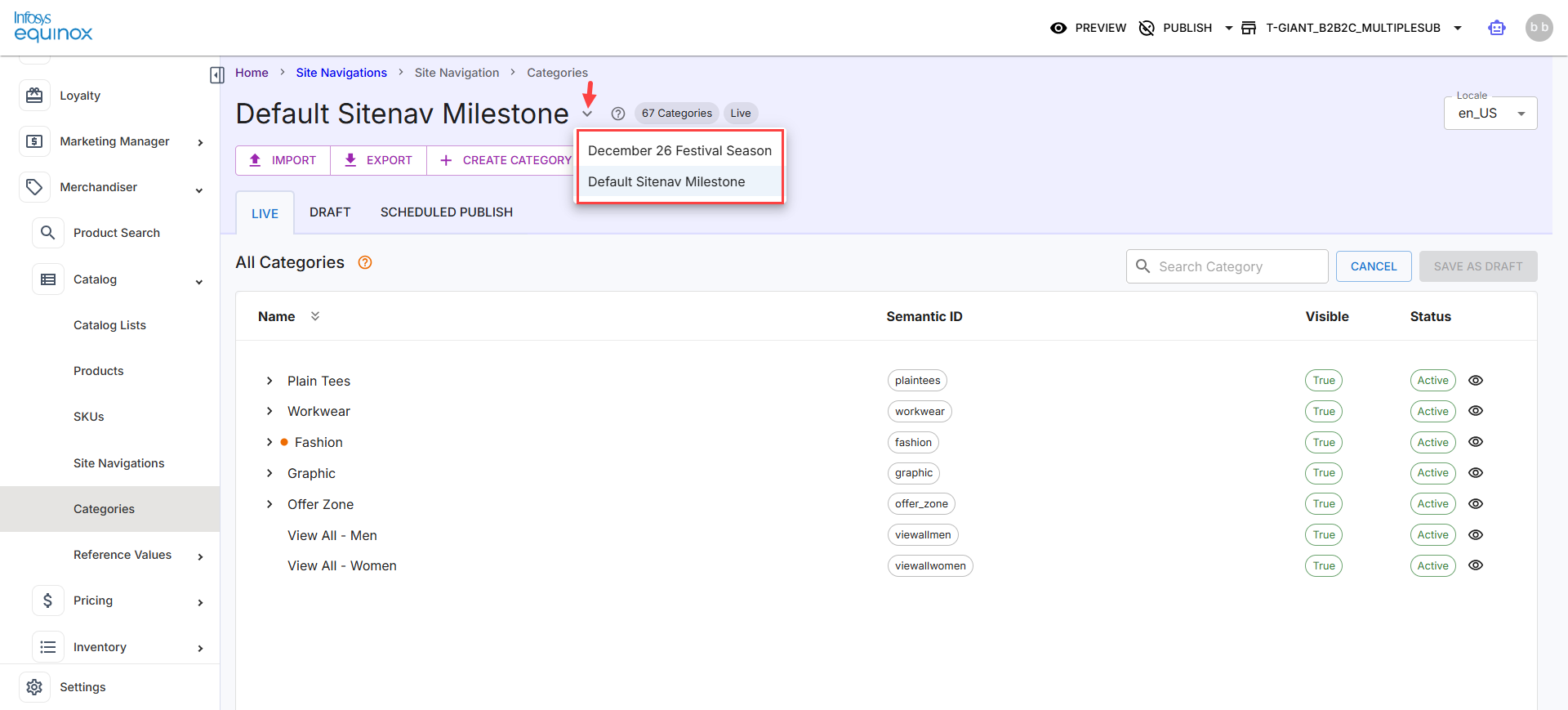
The All Categories tree updates to display the categories for the selected navigation. Refer to the next section to know the columns displayed in the All Categories section.
Understanding the All Categories Tree
The All Categories section displays the full category hierarchy for the selected site navigation with the following columns as shown in the screenshot below:
The following table describes the columns available in the Categories page of a selected site navigation:
|
Column |
Description |
|
Name |
The display name of the category. Select the expand arrow (>) to view subcategories. An orange dot next to the name indicates a pending draft change. |
|
Semantic ID |
The unique identifier used for the category in storefront URLs and navigation paths. |
|
Visible |
Indicates whether the category is visible to customers — True or False. |
|
Status |
Indicates whether the category is Active or Inactive. The eye icon in the Status column allows you to toggle category visibility directly from the listing without opening the category details page. |
Creating a Category
To create a category,
- In the Merchandiser Admin, navigate to Merchandiser > Catalog.
- Click Categories in the left panel, and then click + Create Category.
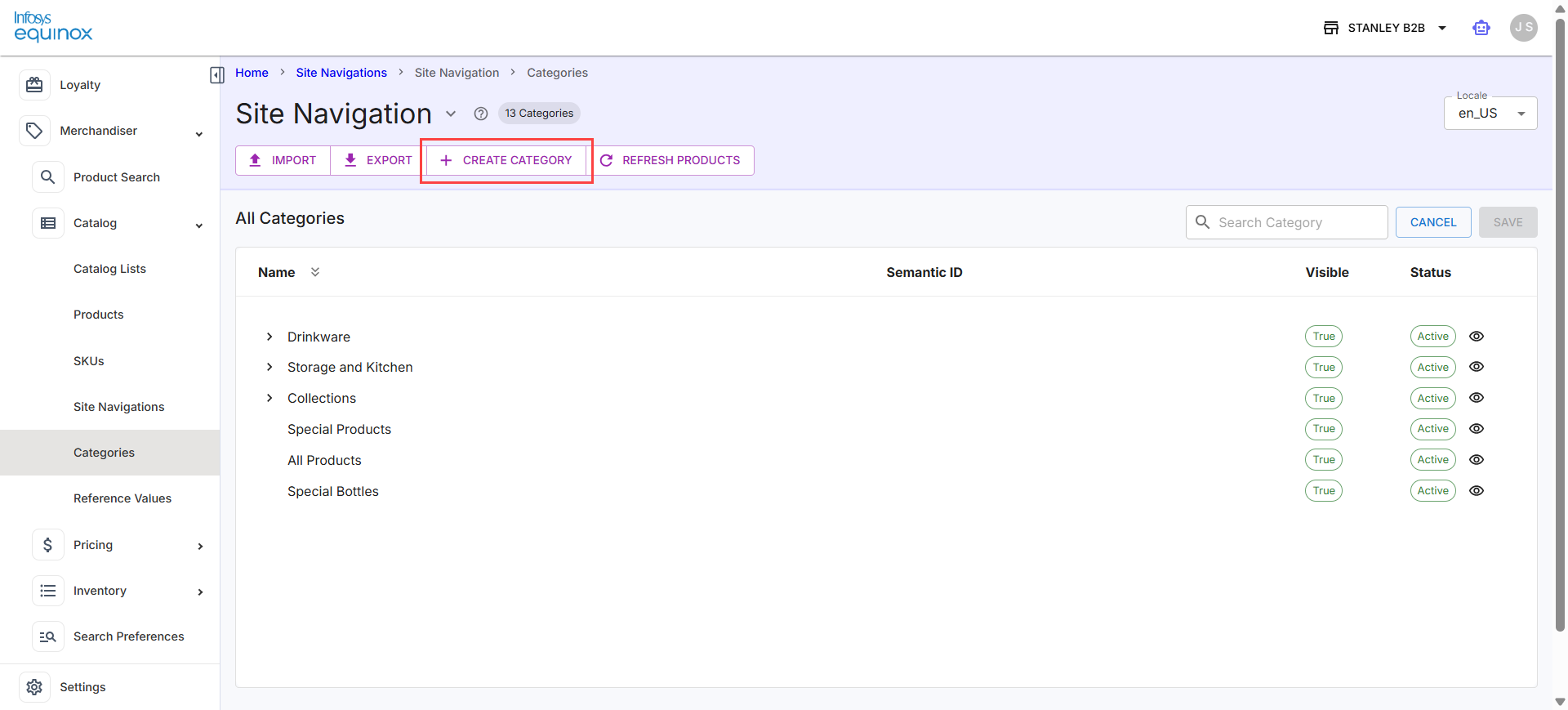
The Create Category panel opens on the right side of the page. Enter the following details:Field
Required
Description
Category ID
Yes
Enter a unique identifier for the category. This value is used in storefront URLs and navigation paths.
Category Name
Yes
Enter the display name for the category as it appears on the storefront.
Parent Category
No
Select a parent category to nest this category in the hierarchy. Defaults to Top for a root-level category.
Description
No
Enter an optional description for the category.
Status
Yes
Toggle on to set the category as Active, or toggle off for Inactive. Enabled by default.
Auto Create Milestone
No
Toggle on to automatically create a site navigation milestone when the category is created.
- Review the Site Navigation Impact notice displayed in the panel: Creating this category will change the Site Navigation milestone status from Submitted to Open. Resubmit the Site Navigation changes after the category is created.
- Select the I understand and want to proceed checkbox to acknowledge the site navigation impact.
- Select Save as Draft to save the category. The category appears in the Draft tab and in the All Categories tree.
Note:
- To discard the entry and close the panel, select Cancel.
- The Category ID must be unique within the site navigation. If a site navigation milestone is in Submitted state, creating a new category resets it to Open and requires resubmission.
- For more information, see the video Categories Extension Actions and Fields.
Importing Categories
Before importing, ensure all the necessary details are filled in the file.
- In the Merchandiser Admin, navigate to Merchandiser > Catalog.
- Click Categories in the left panel, and then click Import.
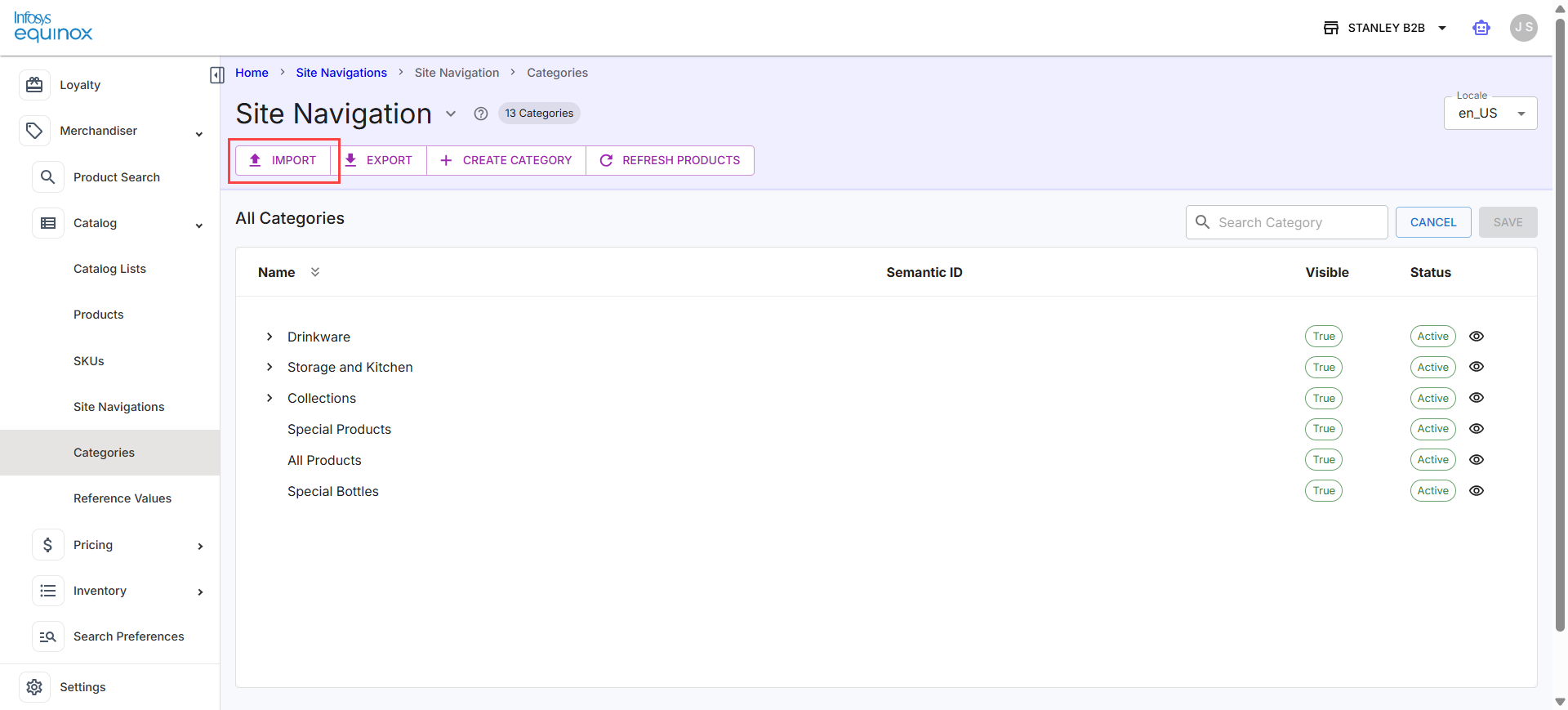
- Select the import file in the supported format.
- Review the import summary and confirm to proceed. Imported categories are created as drafts and appear in the Draft tab and the All Categories tree.
Exporting Categories
You can use Export to back up the category tree or prepare bulk update templates for re-import.
- In the Merchandiser Admin, navigate to Merchandiser > Catalog.
- Click Categories in the left panel, and then click Export.
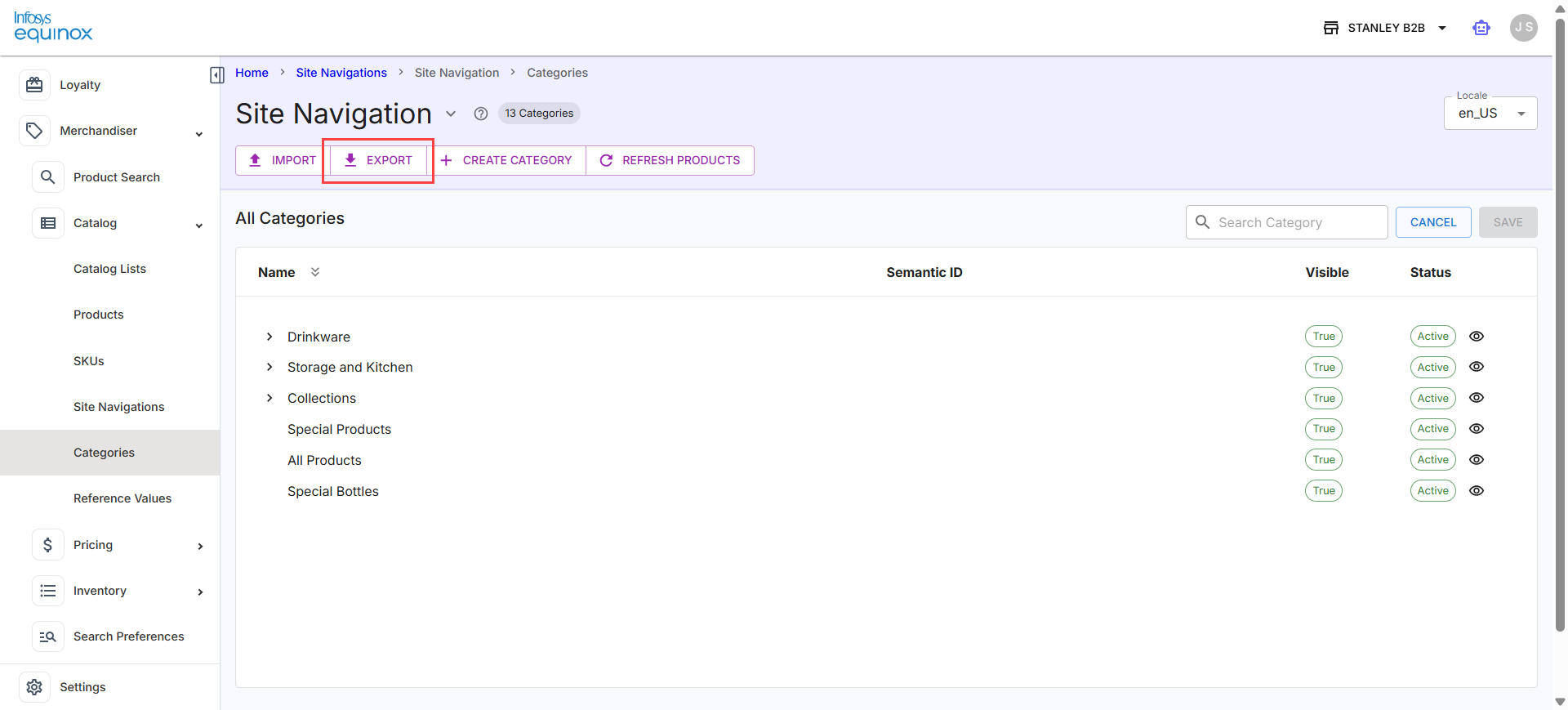
The full category listing for the current site navigation is downloaded in the supported format.
Refreshing Products
You can use Refresh Products after making product or category assignment changes to ensure the navigation reflects the most current product data. This operation does not affect the publish state of any category.
- In the Merchandiser Admin, navigate to Merchandiser > Catalog.
- Click Categories in the left panel, and then click Refresh Products.
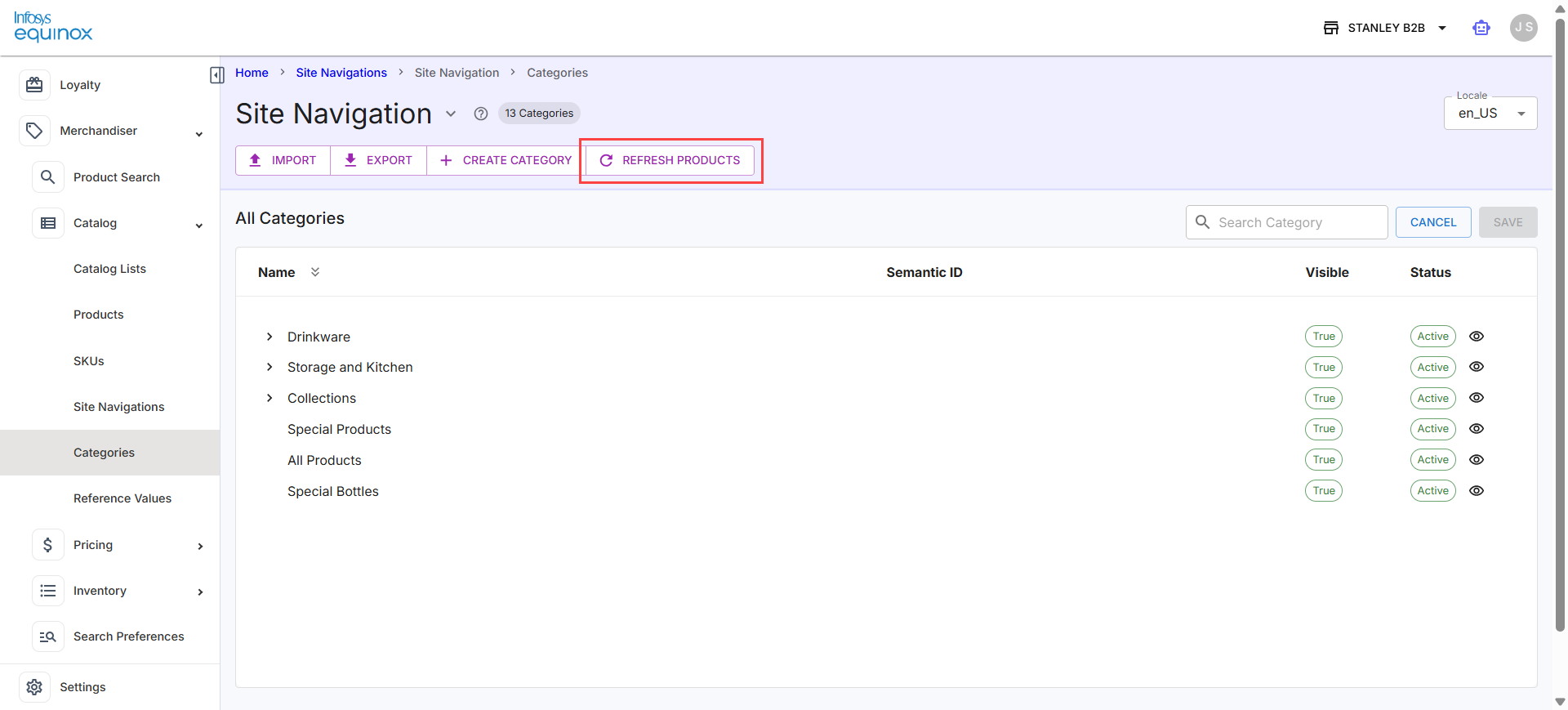
The system synchronizes the latest product-category associations for the current site navigation.
Reordering Navigation Items
- In the Merchandiser Admin, navigate to Merchandiser > Catalog.
- Click Categories in the left panel.
- On the navigation menu details page, locate the items you want to reorder.
- Select and drag an item to its new position within the menu hierarchy.
- Click Save as Draft to save the new order in the Draft tab. For details on Live, Draft and Schedule Publish, see here.
Note: Sub-menu items can be created by clicking Create Category and nested in the navigation under to support multi-level navigation structures. Ensure the hierarchy reflects your storefront’s intended browsing experience.
Reference Values
For Reference-type data models, the platform supports defining a set of Reference Values — the discrete entries or instances that the model can hold. Reference Values represent the actual data records managed under a Reference model and are accessed from the Merchandiser module by clicking the model in the Data Models list.
For Data Models Configuration, see Data Models.
Examples of Reference-type models: tag, tag_group
URL pattern: <environment>/admin/v2/merchandiser/en/<business_id>/<store_id>/model/<model_id>
For example, https://eq-stg-qaapi.eqcmrc.com/admin/v2/merchandiser/en/127/682/model/tag
Viewing Reference Values
To view reference values,
- In the Merchandiser Admin, navigate to Merchandiser > Catalog.
- In Settings > Data Models, locate a model with Model Type: Reference (for example, tag or tag_group).
2. Click the Model ID to open the model’s Reference Values page.
The page opens with the model’s display name as the title (for example, Tags) and a badge showing the current count of defined values (for example, Model Value).
Page Layout
| Element | Description |
|---|---|
| Page title | The display name of the data model (for example, Tags, Tag Group). |
| Model Value badge | The total count of Reference Values currently defined for this model (for example, 0 Model Value). |
| EXPORT | Download all Reference Values for this model. |
| + CREATE MODEL VALUES | Open the form to define a new Reference Value entry for the model. |
| Locale dropdown | Select the locale context (for example, en_US) for locale-sensitive value content. |
Page Tabs
| Tab | Description |
|---|---|
| MODEL VALUES | The default view listing all Reference Values defined for this model. |
| IMPORT | Bulk import Reference Values from a pre-formatted XLSX file. |
Model Values Table
| Column | Description |
|---|---|
| ID | The unique identifier of the Reference Value entry. Sortable and filterable by text. |
| Status | The activation state of the value: Active or Inactive. Filterable by dropdown. |
Managing Reference Values
Creating a Reference Value
- On the Reference Values page, click + CREATE MODEL VALUES.
- Complete the required fields in the creation form.
- Click ADD to save the new Reference Value. The value appears in the MODEL VALUES table and the Model Value badge count increments.
Filtering the Table
- Filter by ID by typing in the filter field beneath the column header.
- Filter by Status using the column dropdown selector.
- Click GO to apply filters, or RESET to clear all active filters.
Exporting Reference Values
- Click EXPORT at the top of the page to download all Reference Values for the model.
- Click EXPORT in the table toolbar to download the currently filtered view.
Importing Reference Values
- On the Reference Values page, click the IMPORT tab.
- Click the TEMPLATE button to download the official import template.
- Populate the template in Excel or a compatible spreadsheet application.
- Drag and drop the completed
.xlsxfile onto the upload area, or click BROWSE to select it from your local machine.
Note: Ensure you use an.xlsxfile with the same format and headers as the import template. Using an incorrect format or modifying the headers will cause the import to fail.
The system processes the file and the result is recorded in the Import History table.
Note: Reference Values are the selectable entries available when the model is referenced in product records, promotion rules, or other configurations. A model showing 0 Model Value has no entries yet — create values before associating the model with products or promotions.
Reference Values in Practice — Tags and Tag Groups
Tags and Tag Groups are concrete examples of Reference Values. The platform includes built-in Reference models named tag and tag_group. The dedicated Tag Groups and Tags pages in the Merchandiser module are specialized interfaces for managing Reference Values under these two models.
| Reference Model | What Reference Values represent | Where managed in Merchandiser Admin |
|---|---|---|
tag_group |
Named groupings of tags (for example, Color, Size, Material) | Merchandiser > Tag Groups |
tag |
Individual tag labels within a group (for example, Red, Large, Cotton) | Merchandiser > Tags |
When you create a Tag Group or Tag from the dedicated pages, you are creating a Reference Value for the respective model — the same action is also available directly from the Settings > Data Models Reference Values page.
Once tag values are defined, they can be associated with products and SKUs via the Tagging workflow, enabling storefront faceted search, browse filtering, and product discovery.
Revision History
2026-05-29 | JP – Created the page and added the content.